
Managing Signal Groups for Your Organization
Published: October 7, 2026
Signal groups hold up to 1,000 members. That is enough for most organizations to run company-wide announcements and team chats in single groups. You get admin roles, invite links you can reset, and an admin-only posting mode that turns any group into a broadcast channel. What you do not get is a moderation backend: there are no dashboards, no message filters, no server-side controls at all. Everything is managed by hand, by the admins, on their phones. This guide shows how to run groups at org scale anyway (roles, permissions, invite-link hygiene, group types) and states the limits honestly so you plan around them.
- The basics that matter at org scale
- Roles: admins and members
- Setting up an org group, properly
- Invite links: share, reset, turn off
- The three group types for organizations
- The three switches that matter most
- Moderation realities — read this before you need it
- Disappearing messages in groups
- Frequently asked questions
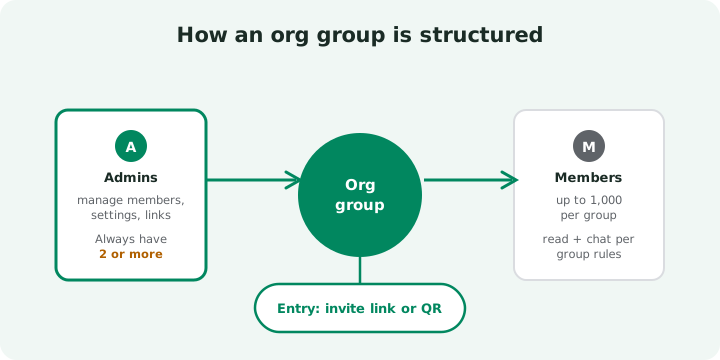
The basics that matter at org scale
Three facts shape everything else on this page. First, the member cap is 1,000 per group (Signal's group chat documentation). Even a mid-size company usually fits its all-hands announcements in one group. Second, every member is a real person with their own registered account; there are no bots-as-members, no service accounts, no shared logins. Third, the group lives on the members' devices, not on a company server. Signal's servers cannot read the messages, and they cannot help you manage them either.
That last point is the one people misunderstand. In Slack or Teams, the admin panel and the data live in the same place. In Signal, administration is a set of permissions on people's phones. It works fine at the scale of a department or a whole small company. You just do it manually.
Roles: admins and members
Signal groups have two roles. Members can read and send messages (unless the group is set to admin-only posting) and see the member list. Admins can do everything members can, plus add and remove people, change the group name and photo, edit permissions, and manage the invite link (Signal's group management guide).
The rule that matters: appoint at least two admins before the group goes live. If the only admin loses their phone, forgets their PIN, or leaves the company, the group becomes nearly impossible to manage: no one left can add or remove members or change settings. The creator is just the first admin; the role is not special beyond that. For important groups (announcements, leadership), make it three admins: redundancy is cheap, a stranded group is not.
Choose admins who are actually reachable. An admin who never opens Signal is the same as no admin. Many teams rotate the second admin slot monthly so the duty is shared.
Setting up an org group, properly
Order matters. Admins and permissions come before the first invite link goes out. Otherwise you will be fixing a live group while people are already chatting in it.
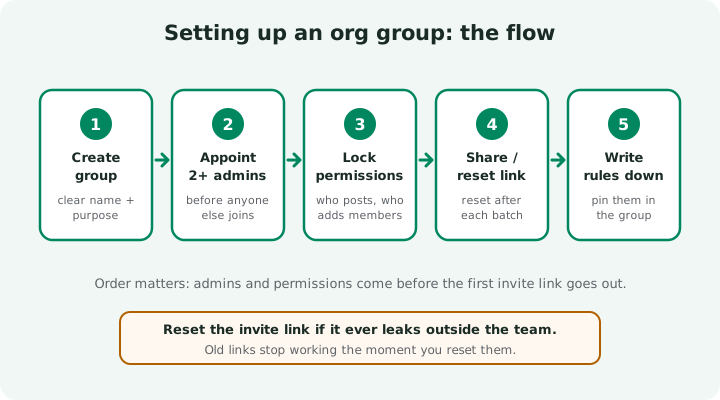
Create the group with a clear name
Lead with the org name: Acme – Announcements, Acme – Warehouse Team. In a long chat list, "Team" is useless; "Acme – Warehouse Team" is not.
Appoint two admins immediately
Add your co-admins before anyone else. Confirm they can see the admin options. Do not assume.
Lock the permissions to match the group's purpose
Decide who can post and who can add members now (the next section shows the three switches). Announcement groups get admin-only posting on day one.
Generate the invite link and share it in a controlled way
Post the link or QR code where only the intended people see it: a staff email, the intranet, a noticeboard. Never on a public page.
Write the rules and pin them in the group
Purpose of the group, who the admins are, what belongs here, what the message timer is. Five lines are enough.
Invite links: share, reset, turn off
The invite link is the front door of the group, and you hold the key. Three operations, all instant:
- Share: generate the link or QR code and distribute it through a channel only the right people see.
- Reset: if a link leaks, forwarded to the wrong chat or posted somewhere public, reset it. The old link dies immediately and a new one is created. Do this in batches: after each hiring wave or contractor engagement ends, reset as routine.
- Turn off: once everyone is in, disable the link entirely. The group becomes closed; new members can only be added manually by an admin. For announcement groups, this is the correct end state.
One habit worth building: every invite link you share should have an expiry in your head, even if the app does not enforce one. "This link is for this week's onboarding; I will reset it on Friday" is a policy, and policies are your admin console here. The mechanics of the group link, the QR code, and admin approval for link joins are covered in Signal's group chat documentation.
The three group types for organizations
Most orgs need exactly three kinds of groups. Giving each type the right permission settings from the start prevents the classic failure: an announcement buried under lunch plans.
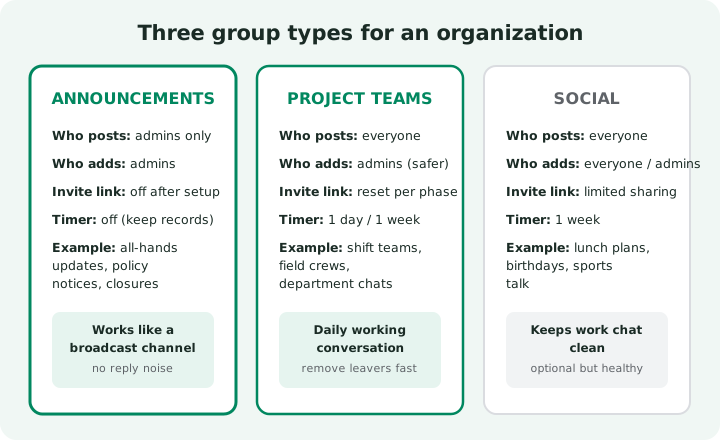
| Group type | Purpose | Who posts | Who adds members | Invite link strategy | Message timer |
|---|---|---|---|---|---|
| Announcements | Company-wide updates, policy notices, closures | Admins only | Admins | Off after setup | Off: keep the record |
| Project teams | Daily working chat: shifts, field crews, departments | Everyone | Admins (safer) | Reset after each batch of joins | A day or a week |
| Social | Lunch plans, birthdays, the non-work chat | Everyone | Everyone or admins | Limited sharing | A week |
The social group deserves a word. It is optional, and it is healthy: a pressure valve keeps the work groups clean. Just make clear it is unofficial. What people say there is still on their own devices.
The three switches that matter most
Deep inside every group there are only a few settings that change how the group behaves. These three do almost all the work:
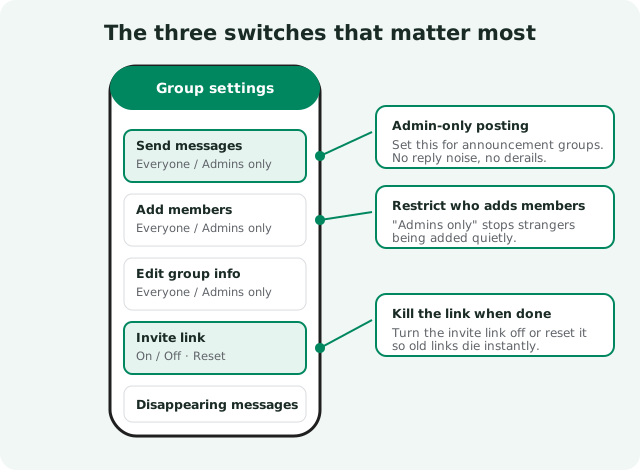
Who can send messages
"Everyone" for working groups; "Admins only" for announcements. This single switch is what makes a broadcast channel possible on Signal.
Who can add members
Keep this on "Admins" for anything work-related. When anyone can add members, strangers get added quietly and no one notices until much later.
The invite link
On while you are onboarding, reset after each batch, off when the group is complete. A dead link is the cleanest security boundary Signal gives you.
Moderation realities: read this before you need it
Here is the honest part. Signal gives admins no server-side moderation tools. There is no message filter, no keyword flagging, no report queue, no way to see deleted content, no audit log of who did what. Moderation is three manual actions: remove the member, tighten the permissions, reset the link.
That is enough for most teams, because most teams rarely need more. But know the edges:
- You cannot un-send what was seen. Removing a message deletes it from devices going forward, but anyone who already saw it, or screenshotted it, keeps it. Act fast on leaks, but do not promise containment you cannot deliver.
- Group membership is visible to members. Anyone in the group can see who else is in it. For sensitive discussions, that visibility is itself information. Choose the roster deliberately.
- Admins are people with phones, not a help desk. There is no escalation path to Signal for an internal dispute. Your written rules are the policy; the admins are the enforcement.
Disappearing messages in groups
Groups can have their own disappearing-message timers, and admins can set the default. The sensible pattern from the table above: timers off in announcements (you want the record), a day or a week in working groups (hygiene without losing the thread), a week in social groups.
Two cautions, same as for one-to-one chat: disappearing messages do not stop screenshots, and they are a privacy convenience, not a compliance mechanism. If a group handles anything under a retention duty, the timer stays off and the policy says so explicitly.
Frequently asked questions
How many members can a Signal group have?
A Signal group supports up to 1,000 members. That is enough for most organizations' announcement and team groups in a single chat.
Can you make an announcement-only group in Signal?
Yes. Set the group permission so that only admins can send messages. Members can read everything but cannot post, which makes the group work like a broadcast channel for company updates.
How do you control who joins a Signal group?
Use invite links or QR codes and set the group so only admins can add members. If a link leaks outside the team, reset it. Old links stop working immediately.
What moderation tools do Signal group admins get?
Manual ones only: remove members, restrict who can post and add members, and reset invite links. There are no server-side moderation dashboards, no message filters, and no way to retract what members already saw.
What happens if the only group admin leaves?
The group becomes hard to manage: no one left can add or remove members or change settings. Always appoint at least two admins before the group goes live.