
What is the latest Signal APK version?
Published: October 7, 2026 · Updated: October 8, 2026
Signal Foundationfrom Signal's official site — file hosted by Signal, not by us.
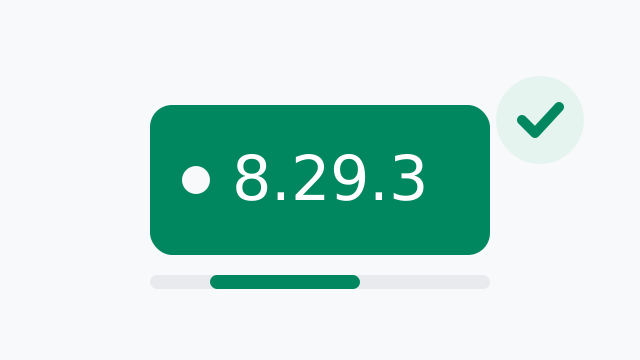
The latest official Signal APK is version 8.29.3, the website build that Signal offers on its own download page at signal.org/android/apk. If you download from that page today, 8.29.3 is the file you get. You do not need the Play Store to get it or to keep it updated: the website build checks for new releases itself and offers to install them.
This page explains what "latest version" means for the website build, the three reliable ways to check for a new release, and how the built-in updater works. We are an independent guide, not Signal. We never host the file; the download button above opens Signal's own page.
What "latest version" means for the website build
Signal ships two official Android builds that contain the same app. The website build is the APK you download from signal.org/android/apk. The Play build is the one Google Play installs. They are the same Signal code, delivered through two different channels and signed with two different keys.
Because the channels are separate, their version numbers do not always match on the same day. A release can land on the website a little earlier or later than on Play. That is normal and not a sign that one of them is fake. When we say "the latest Signal APK version", we mean the current website build, because that is the file this guide is about. Right now that is 8.29.3.
One practical consequence of the two channels: you cannot install the website APK over the Play version, or the Play version over the website APK. Android refuses because the signing keys differ. If you are switching channels, back up your chats first, uninstall the old build, then install the new one. Our website build vs Play Store comparison walks through every difference in detail.
Three reliable ways to check for a new version
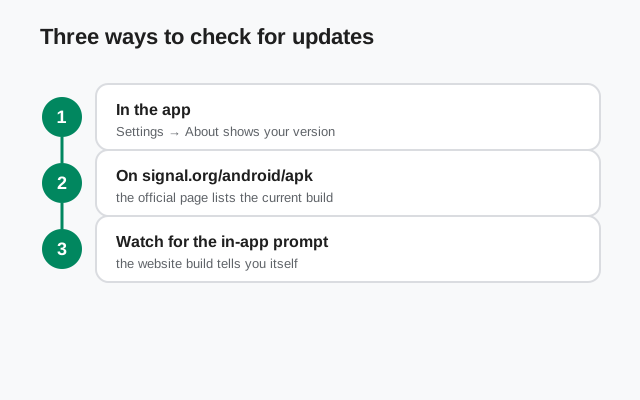
Signal does not run a mailing list that announces every Android release to sideloaders, so use these three checks. All of them point back to official Signal sources.
-
Look at the official APK page itself
Open signal.org/android/apk. The page always offers the current build. The download file name includes the version number, for example
Signal-Android-website-prod-universal-release-8.29.3.apk. If the number in that file name is higher than what you have installed, a newer release exists. This is the most direct check there is, because the page is the thing that serves the file. -
Follow Signal's official announcements
Signal announces notable releases on its official blog at signal.org/blog and in its community forum. These posts describe what changed in a release. They are useful when you want to know whether an update matters to you, but they are not the download source. When a post mentions a new Android version, go back to the APK page to get the file.
-
Let the app tell you
The website build checks for updates on its own and shows you a prompt when a new version is ready. You can also check what you have installed right now: open Signal, tap your profile, and look for the version number in the app's settings or about screen. If the number there matches the number in the file name on the download page, you are current.
A warning about the third-party route: APK mirror sites and "APK downloader" blogs often list version numbers that are wrong, outdated, or attached to files that did not come from Signal. A version number on a mirror proves nothing about the file next to it. Our mirror warning guide explains why we treat every mirror as untrustworthy.
How the website build updates itself
The website build was designed for people without the Play Store, so it cannot depend on Play for updates. Instead it handles updates itself. When you open Signal, the app can check with Signal's servers whether a newer website build exists. If one does, it shows you an update prompt and offers to download and install it.
The install step works just like the first install. Android asks you to confirm, using the same "install unknown apps" permission you granted your browser or file manager when you first sideloaded Signal. The new version installs over the old one because both carry the same Signal website-build signing key, so your chats and settings stay exactly where they are. You do not need to uninstall anything first, and you do not need to re-register your number.
A few honest notes about the updater. It needs a working internet connection, so it will not find updates while you are offline. It needs enough free storage to download the new file before installing it. And it needs that install permission to still be granted. If updates seem to have stopped arriving, our update guide walks through the manual steps and the common reasons auto-update stalls.
One more thing worth knowing: the updater only ever talks to Signal's own infrastructure. It will never offer you a "Pro" edition, a modded build, or a version from a mirror site. If you ever see an update prompt that did not come from the Signal app itself, for example a pop-up on a website or a message in a chat, do not trust it. Those are scam patterns, and our safety guide covers them.
Website build vs Play Store build, side by side
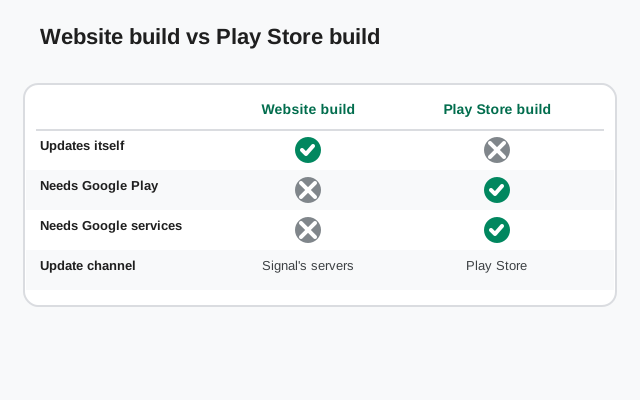
This is the comparison that clears up most version confusion:
| Delivery channel | signal.org/android/apk (direct download) | Google Play Store |
|---|---|---|
| Current version example | 8.29.3 (website build) | Ships separately; numbers can differ briefly |
| How it updates | The app checks and prompts you itself | Play Store updates it in the background |
| Signing key | Signal's website-build key | Signal's Play-build key (different key) |
| Install over the other build | Not possible; Android blocks it because the keys differ | |
| Who it is for | Phones without Play, or anyone who prefers direct-from-publisher | Phones with Google Play where automatic updates are wanted |
The app code is the same in both. The differences are only about delivery, updates, and signing.
A simple routine to stay on the latest version
You do not need to obsess over versions. This five-point routine is enough:
-
Leave the in-app updater alone
Do not disable update checks if the app offers the option. The built-in updater is the easiest path to new releases.
-
Act on the update prompt when it appears
When Signal offers a new version, install it the same day if you can. Updates routinely include security fixes, and running an old build is the bigger risk.
-
Check the official page once in a while
Every month or two, compare the version in your app's settings with the file name on signal.org/android/apk. If they match, you are fine.
-
Keep the install permission granted
The updater needs the "install unknown apps" permission to finish an update. If you revoked it after the first install, updates will stall at the install step.
-
Never "update" from a mirror
Only the official page and the app's own updater are update sources. A newer version number on a mirror site is not an update; it is a risk.
Frequently asked questions
What is the newest Signal APK version right now?
Version 8.29.3, the website build offered on signal.org/android/apk. This page is checked against Signal's official page; when Signal ships a newer build, the download button here still points at signal.org, so you always get the current file.
Why does the Play Store show a different version number?
The website build and the Play build ship through separate channels with separate signing keys, so their release timing and version numbers can differ briefly. Both contain the same Signal app.
How do I know if my installed version is outdated?
Compare the version number in the app's settings with the version in the file name on signal.org/android/apk. If the page shows a higher number, update. The app's own update prompt will also tell you.
Does the website build update automatically?
It checks for updates itself and prompts you to install them, but the install step asks for your confirmation. It is semi-automatic: detection is automatic, installation needs one tap from you.
Can I get notified about new Signal releases?
Signal announces notable releases on its official blog and community forum. There is no official email or SMS alert for website-build releases, so the monthly manual check described above is the reliable habit.
Related guides
- Download guides hub
- Download Signal APK (official)
- Update Signal APK without the Play Store
- Signal APK file details
- Website build vs Play Store build