
How to Block Someone on Signal and Report Spam the Right Way
Published: October 7, 2026 · Updated: October 8, 2026
Spam finds its way everywhere, even on a private messenger. The good news is that Signal gives you two clean tools: blocking, which cuts someone off completely, and reporting spam, which also tells Signal that an account is abusive. This guide covers the block flow, exactly what happens when you block someone, what Signal receives when you report spam (less than you might fear), how to unblock, and what to do about spam calls.
from Signal's official site — file hosted by Signal, not by us
Block vs report: which one do you need
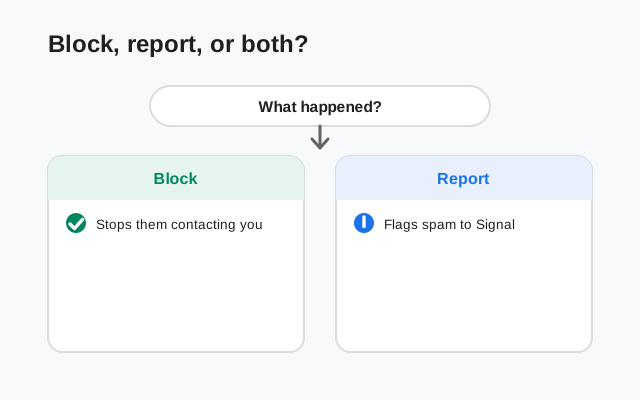
Blocking and reporting do different jobs. Pick the right one:
| Situation | What to do |
|---|---|
| A contact is bothering you (ex, coworker, pushy acquaintance) | Block. No need to report. This is a personal boundary, not platform abuse. |
| An unknown number sends a scam or spam message | Report spam and block. The report helps Signal shut the account down. |
| One weird message from an unknown number, probably a wrong number | Block (or just ignore). A single wrong-number text is not a spam campaign. |
| Someone you must stay connected to (work, family) | Neither. Use per-chat mute instead, so messages still arrive silently. |
Rule of thumb: block for people problems, report for spam problems. Many spam messages deserve both, which is why Signal puts them on one button.
How to block a contact
There are two ways to block someone on Signal. The first is the one you will use most:
Open the chat
Open your conversation with the person you want to block.
Open their profile
Tap their name or number at the top of the chat to open their profile screen.
Tap Block
Scroll down and tap Block. Confirm when Signal asks.
Done: the contact is blocked
They are blocked immediately. Their chat moves out of your normal view and they can no longer reach you.
The second way is for blocking someone you have not chatted with: go to Settings > Privacy > Blocked users and add the person there. This is handy when you want to pre-block a number you know is trouble.
What happens when you block someone
Blocking is immediate and one-sided. Here is the honest breakdown:
- Their messages stop reaching you. Anything they send after the block simply never arrives. You will not see it.
- Their calls stop reaching you. Blocked contacts cannot call you: no ring, no missed-call note.
- They are not told. Signal does not notify the person that you blocked them. (They may figure it out when messages go unanswered, but that is true of any ignored message.)
- It is not retroactive. Old messages already in the chat stay there. Blocking does not delete the conversation history.
- It does not erase knowledge. If they already knew your number or saw your profile before the block, blocking does not take that away.
- You can still block them again later. If you unblock and they start again, just block them again. There is no limit.
One thing blocking does not do: it does not remove anyone from groups you share. That has its own rules, covered below.
How to report spam
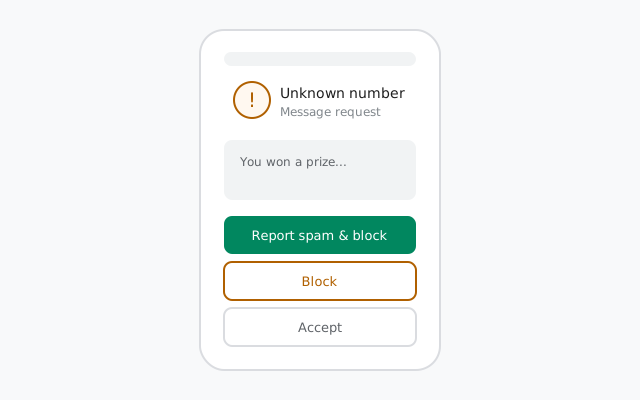
Most spam on Signal arrives as a message request: a message from someone you have not chatted with before. Signal shows these with three buttons, and the reporting flow is deliberately one tap:
Open the message request
Tap the conversation from the unknown sender. Notice the buttons at the top: Report spam, Block, and Accept.
Tap Report spam
Choose Report spam. Signal will also block the sender as part of this action, so you do both at once.
Done: the spam is reported
The request disappears and the report is sent. You do not need to reply to the spammer first. In fact, do not reply.
Reporting from an existing chat: if someone you already accepted turns out to be a spammer, open the chat, tap their name at the top, open the chat settings, and choose Report spam there. The option exists on the profile screen too.
What Signal actually receives in a report
This is where Signal differs from most messengers, and it is worth being precise. Signal has stated publicly how its spam reporting works:
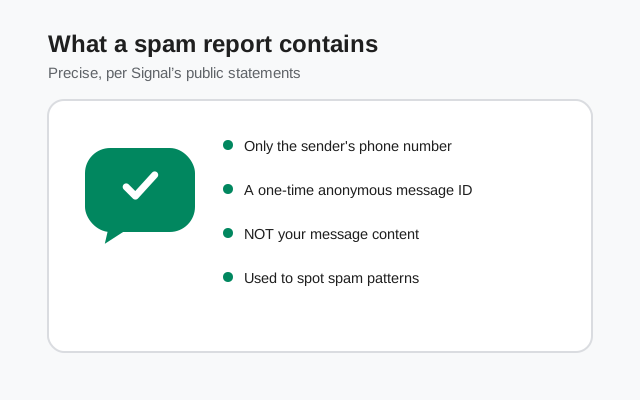
- What is sent: only the sender's phone number and a one-time, anonymous message ID. That is the whole report.
- What is NOT sent: your message content. The report does not include the text of the conversation, your profile details, or anything else from your phone.
- Why that is enough: Signal uses the reports to spot patterns: many reports against the same number, or automated-looking traffic. It responds with "proof of humanity" challenges (a CAPTCHA-like check) that lock the account until a human completes it.
So reporting spam does not hand your private messages to Signal. The messages stay end-to-end encrypted between you and the spammer; only the metadata needed to identify the abusive account travels with the report. That is an honest, verifiable difference from services that read reported conversations.
How to unblock someone
Changed your mind? Unblocking is quick, and it works the same way whether you blocked or reported:
Open Privacy settings
Go to Settings > Privacy.
Open the blocked list
Tap Blocked users to see everyone you have blocked.
Unblock
Select the person and tap Unblock.
After unblocking, they can message and call you again normally. Note that messages they sent while blocked never arrive. Unblocking does not deliver the backlog. Your number-privacy settings are untouched by blocking and unblocking; nothing about who sees your number changes.
Handling spam calls
Spam calls on Signal are rarer than spam messages, but they happen, usually from the same accounts that send spam texts. Your tools:
- Block the caller. Open the call entry or chat, tap the name at the top, and block. That ends the calls permanently.
- Relay your calls. Under Settings > Privacy > Calls, turn on Always relay calls. This routes your calls through Signal's servers so the other side never sees your IP address: a small but real layer of protection if you are worried about who might be calling you.
- Tighten who can call. The same Calls screen and your number privacy settings control who can find you to call in the first place. "Who can find me by my number" set to Nobody cuts off number-based discovery for calls too.
If you are getting a wave of unknown calls, block each number as it comes and keep relaying on. The pattern usually dies out once the spammer's accounts start failing the proof-of-humanity checks that reports trigger.
Blocking and groups
The one gap to know: blocking is one-to-one; it does not affect groups. If you share a group with someone you blocked:
- You will still see each other's messages inside that group.
- They are not removed from the group, and you are not removed either.
- Blocking does not notify the group or the admin.
To fully separate in a group, leave the group yourself, or remove them if you are an admin. For the full picture of how groups handle members, see our groups guide and the message requests explainer.
FAQ
How do I block someone on Signal?
Open the chat, tap their name at the top to open their profile, scroll down and tap Block. You can also block from Settings, then Privacy, then Blocked users.
What happens when you report spam on Signal?
Your device sends only the sender's phone number and a one-time anonymous message ID to Signal. Your message content is not sent. Repeated reports can trigger proof-of-humanity challenges that lock the spammer's account.
Does Signal read reported spam messages?
No. Signal states that spam reports contain only the sender's number and an anonymous message ID, not message content. Reporting does not hand your conversation to Signal.
How do I unblock someone on Signal?
Go to Settings, then Privacy, then Blocked users, select the person, and tap Unblock. Messages they sent while blocked will not arrive after unblocking.
Can a blocked contact still see my messages in a group?
Yes. Blocking is one-to-one and does not affect groups. If you share a group with a blocked contact, you still see each other's messages in that group.
How do I stop spam calls on Signal?
Block the caller from the chat or call entry, turn on Always relay calls under Settings, then Privacy, then Calls, and set Who can find me by my number to Nobody so strangers cannot discover you by number.
Keep reading
- blocking a contact step by step: the troubleshooting walkthrough with screenshots
- phone number privacy settings: stop strangers from finding you by number
- per-chat mute and custom sounds: silence a chat without blocking anyone
- message requests explained: how requests from unknown senders work