
Signal Read Receipts and Typing Indicators: What They Show and How to Control Them
Published: October 7, 2026 · Updated: October 8, 2026
Those little checkmarks under your messages carry more social weight than they look like they should. That moment when someone saw your message at 9:41 PM and never replied has ended friendships and started arguments.
from Signal's official site — file hosted by Signal, not by us
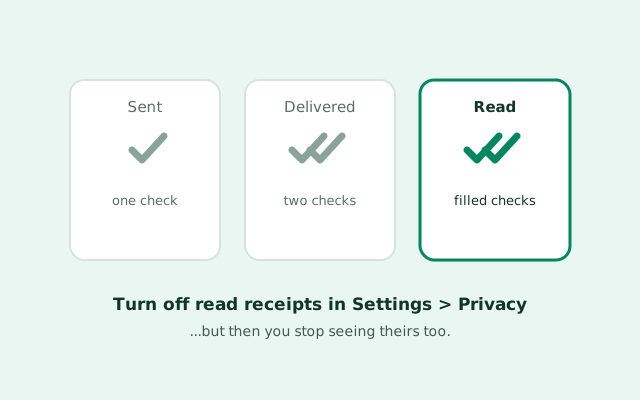
What each checkmark means
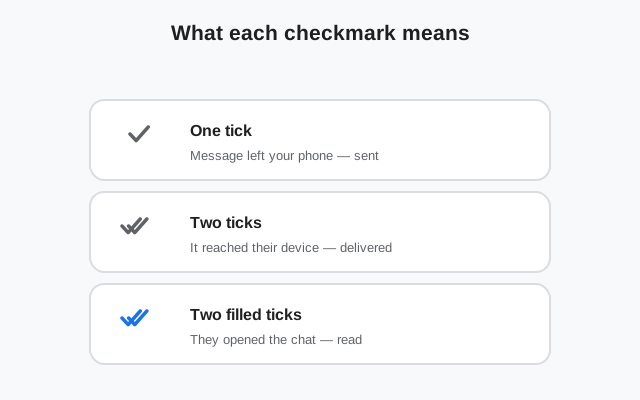
Every message you send on Signal carries a small status indicator. Learn to read it and you will stop wondering "did they get it?":
- One checkmark (outline). Your message left your phone and reached Signal's servers. It has NOT necessarily reached the other person's phone yet. Think of it as "in the mail."
- Two checkmarks (outline). The message was delivered to the recipient's device. Their phone has it. They have not necessarily opened the chat: delivered is not read.
- Two checkmarks (filled/solid). The recipient opened the conversation and the message was marked as read. This is the read receipt. (On some versions the filled checks appear in Signal's accent color; the shape is what matters, not the shade.)
The most misunderstood transition is outline-to-filled. Two outline checks do NOT mean "they saw it and are ignoring you." It means their phone received it, maybe while locked, maybe while they were in another app. The filled checks are the only signal that eyes actually met your message. A lot of unnecessary anxiety comes from reading "delivered" as "read."
Typing indicators are the other half of this system: when someone is actively typing in a chat with you, you see three animated dots in a bubble. It tells you a reply is probably coming. Like read receipts, typing indicators are on by default and controllable in the same settings area.
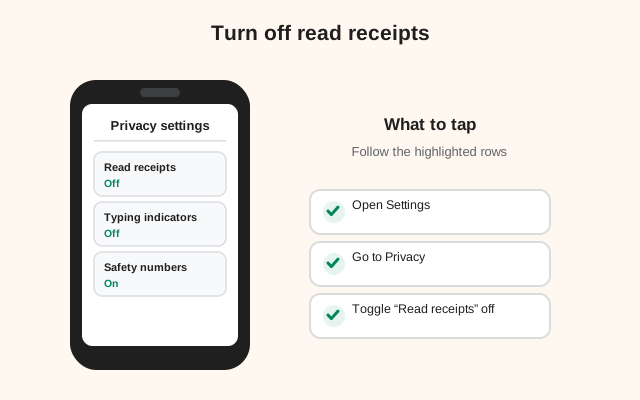
How to turn off read receipts
The toggle lives in one place, and it is easy to find:
Open Settings
Tap your profile icon (your avatar or initials, top-left on Android) to open the main menu, then tap Settings.
Open Privacy
In Settings, tap Privacy. This is where Signal keeps all of its visibility controls.
Toggle off Read Receipts
Find Read receipts and switch it off. The change is immediate. From this moment, your sent messages will never show filled checks to anyone, and incoming messages will never show filled checks to you (more on that tradeoff below).
What changes the moment you toggle it off:
- Your messages: senders who message you will see their messages stuck at two outline checks (delivered) forever (never filled), even after you have read every word.
- Their messages: your own sent messages also stop showing filled checks. You lose the "they read it" signal completely.
- Delivery still works: one check and two outline checks keep working normally. You still know messages arrived; you just do not know they were opened.
Turning it back on is the same path in reverse, and it applies going forward. It does not retroactively mark old messages as read for the other person.
How to turn off typing indicators
Same neighborhood, one row down:
Open Settings → Privacy
Profile icon → Settings → Privacy, exactly as above.
Toggle off Typing Indicators
Find Typing indicators and switch it off.
Effect, both directions:
- They stop seeing you type. The three dots never appear for your conversations, no matter how long you spend composing.
- You stop seeing them type. The dots disappear for everyone else's typing too. You will simply receive their message when it arrives, with no warning.
The two toggles are independent. You can turn off typing indicators while keeping read receipts on, or vice versa, or kill both. Many privacy-minded users disable typing indicators first. The dots reveal not just that you are around, but exactly when you start and stop engaging, which is surprisingly revealing (the "they started typing three times and sent nothing" phenomenon).
The tradeoff nobody mentions
Here is the part most guides bury: Signal's read-receipt toggle is symmetric. You cannot hide your read status while still seeing everyone else's. Turning off read receipts means:
- Nobody sees when you read their messages: the privacy you wanted.
- You never see when anyone reads yours: the price you paid.
This surprises people because it feels like it should be a one-way setting ("hide MY reads, show me THEIRS"). It is not, and there is a decent reason: if hiding your reads while seeing theirs were possible, everyone would do it, and read receipts would become a surveillance tool: you watching them while invisible yourself. The symmetric design keeps the social contract fair: no peeking without being peekable.
Before you toggle it off, ask yourself which you value more: the privacy of reading without pressure, or the information of knowing your messages landed. Common patterns:
- Keep receipts on if you coordinate with people (work, family logistics): "did they see the address?" is genuinely useful information.
- Turn receipts off if the social pressure bothers you: the "why did you read it and not reply" interrogations, the performance anxiety of the filled check.
- Turn off typing indicators but keep receipts if you want a middle ground: people know you read things, but they cannot watch you compose.
There is no wrong answer. But make it a conscious choice, not a reflex. The information you lose is real.
One more angle: this section is about the mechanics of the choice. For the threat side (what a motivated watcher can actually learn from your typing dots and read marks), see our typing indicators & read receipts privacy guide.
Global only: no per-chat control
Be clear on this: the read receipt and typing indicator toggles are global. They apply to every conversation (every person, every group) at once. Signal does not offer per-chat read receipts. You cannot hide your reads from your boss while showing them to your partner, or disable typing dots in one group but keep them in another.
This is a deliberate simplicity choice, and it frustrates exactly the people with the most legitimate need for it (the "I want my family to see I'm responsive but not my coworkers" crowd). Some other messengers offer per-chat control; Signal does not, and there is no hidden way to get it.
Workarounds people actually use for the per-chat problem:
- Read from notifications. On most phones, you can read the full text of short messages in the notification shade without opening the chat, which means no read receipt fires (with receipts on) and no pressure either way. Long messages get cut off, but for quick checks this works.
- Airplane-mode reading. The old trick: turn on airplane mode, open the chat, read, close the app fully, turn airplane mode off. The read receipt never sends because the app could not phone home. This is fiddly and fails if you forget to close the app. Treat it as an emergency tool, not a lifestyle.
- Mute + archive the pressure chats. If specific conversations create receipt anxiety, mute and archive them. You read on your schedule, and the filled check (if receipts are on) at least arrives on your terms.
None of these are as clean as a per-chat toggle would be. They are what exists.
Read receipts in group chats
Groups handle receipts a little differently, and this is where even experienced users get confused:
- Your sent messages in a group show the same checkmark progression. The filled checks appear once the message has been read. In groups, you can see who read it. Long-press (or tap for details on) your sent message and look for the receipt info: Signal shows which members have seen it.
- If you turn off read receipts, you disappear from everyone's "seen by" lists. Group members will not see your name among the readers, and you will not see the seen-by lists on messages you send. Same symmetric tradeoff, now visible to the whole group.
- Typing indicators in groups show who is typing: you may see a name or avatar with the typing dots in a busy group. Turning off the toggle hides your typing from groups and theirs from you, same as one-on-one chats.
- Admins get no special receipt powers. Being a group admin does not reveal read receipts that members hid. Our group admins guide details what admins can actually see.
Practical note for group organizers: if you rely on "seen by" to know who got the announcement, remember that members with receipts off are invisible in that list. "Nobody saw it" might mean "three people saw it with receipts off." For truly important announcements, ask for a reaction or reply instead. reactions are visible regardless of receipt settings.
Read receipts on linked devices
The Privacy toggles are account-level settings, so turning off read receipts on your phone applies to your Signal Desktop too. You will not suddenly start leaking read status from your computer. Typing indicators behave the same way across linked devices.
One desktop-specific quirk worth knowing: on Signal Desktop, a message is marked as read when the conversation is open and visible. If you leave a chat open on your desktop while you are away, messages arriving in that open window may register as read even though you never looked. If your receipts are on and someone asks "you read it an hour ago, why no reply?", the open desktop window is a plausible explanation. Either close chats you are not actively reading, or accept the occasional phantom read.
If your phone and desktop ever disagree about receipt behavior (receipts off on one, on on the other), check the Privacy settings on each device. See our linked-device troubleshooting guide if settings will not stay in sync.
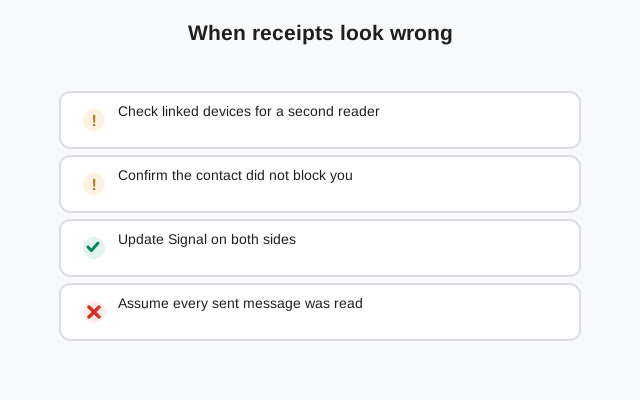
When receipts look wrong
A few situations that look like bugs but usually are not:
- Stuck at one check. The recipient's phone is off, offline, or has no connection. The message is queued on Signal's servers and will deliver when they come back online. One check is a connectivity story, not a "they blocked me" story.
- Stuck at two outline checks forever. Either they have not opened the chat, or they turned off read receipts. Both look identical from your side: you cannot distinguish "hasn't read" from "reads invisibly."
- Filled checks but no reply. They read it. That is all the checks ever promised. Everything after that is a human decision, not a technical signal.
- Checks behave oddly after reinstalling. Fresh installs and restored backups can briefly show inconsistent receipt states on old messages. It settles as new messages flow.
- Someone "always" shows as not reading. They probably turned receipts off globally. It is not about you. It is about everyone.
Checkmark states, decoded
| What you see | Meaning | What it does NOT mean |
|---|---|---|
| One outline check | Sent: reached Signal's servers | They received it |
| Two outline checks | Delivered: on their device | They read it |
| Two filled checks | Read: they opened the conversation | They will reply (or agree) |
| No filled checks, ever | They have read receipts off, or haven't opened it | They are ignoring you specifically |
| Three typing dots | They are composing right now | A message is definitely coming |
Common mistakes
- Reading "delivered" as "read." The number one source of messaging anxiety. Two outline checks = their phone has it. Nothing more.
- Turning receipts off without understanding the tradeoff. You lose everyone's receipts, not just your own visibility. Decide consciously.
- Expecting per-chat control. It does not exist. Global toggle or nothing.
- Treating filled checks as a reply contract. "Seen" is information, not an obligation, on either side. If you need an answer, ask for one; the checkmark cannot do it for you.
- Forgetting the open-desktop phantom read. A chat left open on Signal Desktop marks messages read. Close what you are not reading if receipts are on and this bothers you.
- Using mute to dodge receipts. Muting stops notifications, not read receipts. Open the chat and the filled checks still fire. Receipt control lives in Privacy settings, not in the mute menu.
Read receipts and typing indicators are Signal at its most socially legible: tiny signals carrying real human weight. Now you know exactly what each mark means, where both toggles live, and what turning them off actually costs. Set them the way that fits your life: receipts on for coordination, off for peace, typing dots wherever your comfort lands. And when a filled check sits unanswered, remember what it promised: "read," nothing more.
Frequently asked questions
How do I turn off read receipts on Signal?
Tap your profile icon, go to Settings > Privacy, and toggle off Read receipts. The change is immediate and applies to all conversations.
What do the checkmarks mean on Signal?
One check: sent to Signal's servers. Two outline checks: delivered to their device. Two filled checks: they opened the conversation and read it.
If I turn off read receipts, can I still see other people's?
No. The toggle is symmetric: hiding your reads also hides everyone else's reads from you. You also disappear from group seen-by lists.
Can I turn off read receipts for just one person?
No. Signal's read receipt and typing indicator toggles are global: they apply to every chat and group at once. There is no per-chat control.
How do I turn off typing indicators on Signal?
Settings > Privacy > toggle off Typing indicators. They stop seeing your typing dots and you stop seeing theirs.
Do read receipts work in Signal group chats?
Yes. In groups, you can see which members read your message via the message details. If you turn receipts off, you vanish from everyone's seen-by lists and lose access to the lists yourself.
Keep reading
- muting chats: mute stops notifications, not read receipts
- archiving chats: read pressure chats on your own schedule
- group admins: what admins can and cannot see about you
- message reactions: visible acknowledgment that works with receipts off
- typing indicators & read receipts privacy guide: what each one leaks and how to decide