
Installing the Signal APK on a Fire TV Stick
Published: October 7, 2026
Signal Foundationfrom Signal's official site — file hosted by Signal, not by us. signal.org/android/apk
Can you install Signal on a Fire TV Stick? Technically, yes. Fire OS is Android under the hood, and APKs sideload. But before the how, the honest question is whether you should, because a TV stick is about the worst-shaped device for a phone messenger: no touchscreen, no camera, awkward text entry, and a registration flow designed for phones.
This guide gives you the straight answer first, then the two working install methods for Signal's website build (version 8.29.3, package org.thoughtcrime.securesms) from signal.org/android/apk, the mouse problem and its fixes, and the registration catch that stops most people. If after the honest verdict you still want it on the big screen, the steps work.
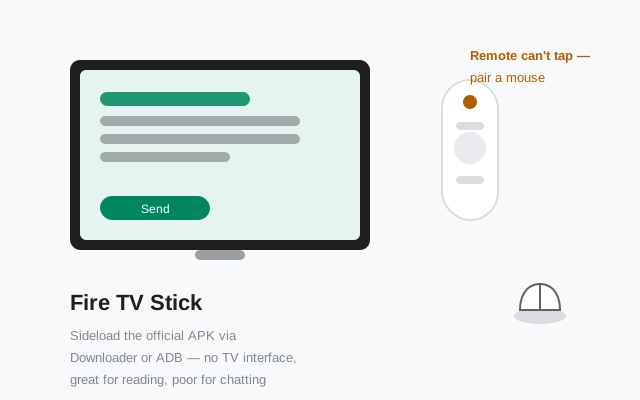
Heads up. Signal is designed for phones. Nothing below is an official or recommended setup. It is a "yes, it can be done" guide for tinkerers. If you just want Signal on a bigger screen, a Chromebook or tablet is a far better fit (see our Chromebook guide).
Should you even do this? The honest verdict
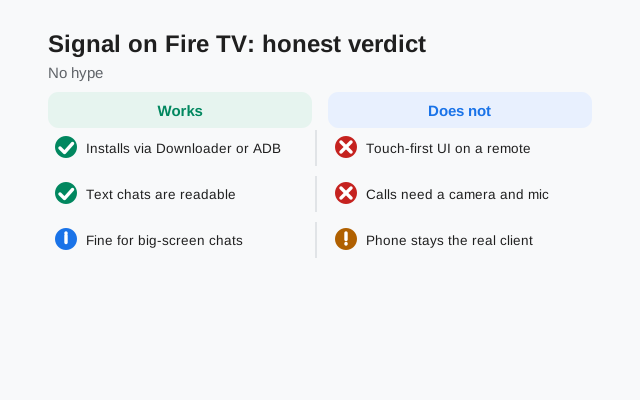
The honest verdict: installing Signal on a Fire TV Stick is a novelty, not a setup. Here is the reasoning:
- No touchscreen. Signal's interface is built for touch. On Fire TV you navigate with a D-pad remote or a mouse-toggle app. Usable for reading messages, miserable for typing them.
- Registration needs a phone number. You will still need a phone to receive the SMS code (details below). The Fire TV cannot be your only Signal device without a number.
- No camera or mic worth using. Calls are theoretically possible with USB accessories, but practically nobody does this.
- It will not update itself gracefully. The in-app updater expects a phone UI; updates on Fire TV usually mean manually sideloading the new APK again.
So who is this actually for? Three groups: tinkerers who enjoy the challenge, people demonstrating sideloading, and the rare case of a Fire TV as a shared display where someone wants to read incoming messages on the big screen (a linked companion setup). If you are in none of those groups, stop here and install Signal on your phone. You will be happier.
Still here? Fine. The methods below are tested patterns for Fire OS sideloading generally, applied to Signal's APK.
What works vs what doesn't on Fire TV
| Messaging (reading) | Works. Chats, groups, media viewing all render. Navigation is the friction, not the app. |
|---|---|
| Messaging (typing) | Painful. D-pad text entry via the on-screen keyboard is slow; a Bluetooth keyboard fixes it if you insist. |
| Voice/video calls | Effectively no. No usable mic/camera on a Stick; audio routing is unpredictable. |
| Notifications | Unreliable. Fire OS aggressively sleeps background apps and the TV is often fully off. Do not depend on it. |
| Registration | Possible with a phone number + SMS code (see the registration section). |
| Updates | Manual. Expect to sideload each new version yourself. |
The pattern: consumption works, interaction suffers. Reading the family group chat on the TV? Fine. Running your Signal life from the couch? No.
Method 1: install with the Downloader app
Downloader (by AFTVnews) is the standard sideloading tool on Fire TV: a simple browser/file downloader available in the Amazon Appstore. Method:
Install Downloader
On the Fire TV, open the Appstore, search "Downloader," and install it. It is free and legitimate. The standard tool for this job.
Allow unknown apps
Go to Settings → My Fire TV → Developer options → Install unknown apps → enable it for Downloader. (On newer Fire OS versions the path is Settings → My Fire TV → Developer options → Install unknown apps; if Developer options is hidden, go to About → Fire TV Stick and click the build name 7 times to reveal it.)
Download the APK
Open Downloader and enter the URL
https://signal.org/android/apk/. Downloader will load Signal's download page; follow it to the APK file and download. Only use Signal's official page. Mirror APKs on a TV stick you cannot easily verify are a bad gamble.Install
When the download finishes, Fire OS prompts to install. Confirm. Signal appears in your apps list (check Settings → Applications → Manage Installed Applications if it does not show on the home screen; sideloaded apps often hide there).
Downloader is just the delivery truck. The file it fetches is identical to the one you would download on a phone. The verification advice still applies: the fingerprint on Signal's page is the source of truth.
Method 2: install over ADB from a computer
If you prefer doing it from a computer (or Downloader is misbehaving), ADB is the cleaner method:
- Enable ADB debugging: Settings → My Fire TV → Developer options → ADB debugging → ON. Note the Fire TV's IP address under Settings → My Fire TV → About → Network (or Settings → Network).
- Connect from the computer:
adb connect <fire-tv-ip>:5555. Accept the debugging prompt on the TV screen. - Install:
adb install Signal-Android-website-prod-universal-release-8.29.3.apk(use the actual filename you downloaded from signal.org/android/apk). - Launch it:
adb shell monkey -p org.thoughtcrime.securesms -c android.intent.category.LAUNCHER 1. Or find it under Manage Installed Applications.
ADB has a side benefit: it is also how you update later: adb install -r over the existing install preserves data. And adb uninstall org.thoughtcrime.securesms removes it cleanly if you abandon the experiment.
Our general ADB install guide covers setup on Windows/Mac/Linux if you have never used ADB.
Allow installs from unknown apps
The permission from Method 1 deserves its own section because Fire OS hides it well: Settings → My Fire TV → Developer options → Install unknown apps, then toggle it on per app (Downloader, or whatever file manager you use). This is Fire OS's equivalent of Android's install-unknown-apps permission.
If Developer options does not appear under My Fire TV: go to Settings → My Fire TV → About, highlight "Fire TV Stick," and press the select button 7 times. A toast confirms developer mode, and the menu appears. (Amazon hid it the same way Android hides its own developer options. Muscle memory transfers.)
After installing, you can leave the toggle on for Downloader (you will need it for updates) or switch it off for hygiene. Unlike a phone, a Fire TV is a single-purpose device on your home network. The risk calculus is milder, but the habit is still good.
The mouse problem (and fixes)
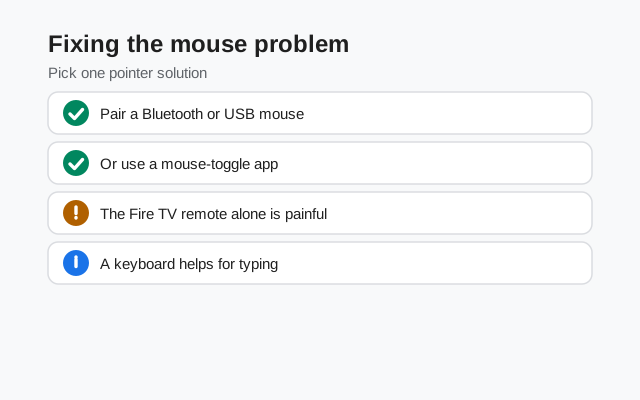
Signal is a touch app; the Fire TV remote is a D-pad. Some buttons in Signal cannot be reached or activated with directional navigation at all. The standard fix is a mouse toggle app: it overlays a cursor you move with the remote, and the select button becomes a click.
The well-known option is Mouse Toggle for Fire TV (sideloaded itself, ironically, via the same Downloader method). Double-pressing play/pause typically summons the cursor. Alternatives: pair a Bluetooth mouse (cleanest: a real cursor, no overlay hacks) or use the Fire TV phone app as a touchpad remote.
Practical advice: if you are only reading messages, the D-pad alone mostly suffices. Focus moves through the chat list predictably. The mouse becomes necessary the moment you need to tap a specific message bubble, open settings, or type. A $15 Bluetooth mouse transforms the experience from "fighting the UI" to "clunky but usable."
Registering: the phone-number catch
Here is the catch that ends most Fire TV Signal experiments: Signal registers with a phone number, and the Fire TV has none. Your options:
- Use your existing number (de-registers your phone). Enter your phone number on the Fire TV, receive the SMS code on your phone, type it in. This registers the Fire TV as your primary device. Signal allows one primary per number, so your phone's Signal gets logged out. Almost nobody wants this.
- Use a second number. A spare SIM or eSIM gives the Fire TV its own Signal account. This is the only sane "Signal on the TV" setup. It is a separate account that happens to live on the TV.
- Do not expect a link-only flow. The QR link-device flow is for companion devices (desktop, tablet); the Android app on Fire TV presents the phone-style registration. Treat the TV as needing its own number or skip the project.
The SMS code itself: have the phone nearby, read the code, type it with the on-screen keyboard (or that Bluetooth mouse). The voice-call code option also works if SMS is slow.
Bottom line: if you do not have a spare number, Fire TV Signal is a dead end. Link your phone's Signal to Signal Desktop on a computer instead. That is the supported big-screen story.
Calls, camera, and microphone reality
The reality check on calls:
- Microphone: the Stick has none. The voice remote's mic is for Alexa, not exposed as a call microphone to sideloaded apps. A USB or Bluetooth mic might be picked up. (And "might" is doing heavy lifting.)
- Camera: none on the Stick. USB webcams are not supported by Fire OS for third-party apps in any reliable way.
- Audio routing: even if you got a mic working, Fire OS audio focus behavior with sideloaded calling apps is unpredictable.
- What actually works: reading messages, viewing photos and videos, listening to voice notes through the TV speakers.
So: install it to read the group chat on the big screen if you must; do not plan your call life around it. For calls on a big screen, Signal Desktop on a laptop with a real mic and camera is the answer that actually works.
The shared-screen privacy warning
A TV is usually the most public screen in a home. Before you register Signal on one, think about who else sees that screen: family, guests, kids, anyone walking past the living room. Message previews on a big display are readable from across the room.
If you still want Signal on the Fire TV, take these precautions. Turn off message previews in Signal's notification settings so incoming texts do not show their contents, and turn on Signal's screen lock so the app needs a PIN each time it opens. Also consider whether the Stick needs to stay logged in: signing out when you are done reading is the simplest protection of all. And one hard rule: never sign into Signal on a TV you do not own, like a hotel or Airbnb TV. You cannot verify what software runs on it, and forgetting to sign out hands your conversations to the next guest.
Frequently asked questions
Can I install Signal on a Fire TV Stick?
Yes, by sideloading the APK with the Downloader app or ADB. But it's a novelty setup: no touchscreen, painful typing, no usable mic/camera, and registration still needs a phone number.
How do I control Signal on Fire TV without a touchscreen?
Use a mouse-toggle app, pair a Bluetooth mouse (best option), or use the Fire TV phone app as a touchpad. The D-pad remote alone can't reach every button.
Can I register Signal on Fire TV without a phone?
No. Signal requires a phone number for registration. Using your main number would log out your phone; a spare SIM/eSIM gives the TV its own account.
Will Signal update itself on Fire TV?
Don't count on it. Plan to manually sideload each new release with Downloader or adb install -r. The current website build is 8.29.3.
Which Fire TV Stick method is easiest?
The downloader-app method needs no extra hardware and works on every Fire TV Stick. If typing the URL with the remote frustrates you, switch to the ADB method from a computer.
Is it safe to use Signal on a shared family TV?
The encryption is the same, so the safety question is physical: anyone looking at the screen can read your messages. Disable message previews, turn on Signal's screen lock, and think twice before staying logged in on a shared screen.