
How to Verify the Signal APK's Signing Certificate Fingerprint
Published: October 7, 2026 · Updated: October 8, 2026
apksigner (or an on-device signature viewer) and compare the fingerprints. If they match, the file really came from Signal and nobody tampered with it. If they don't, delete it.This check takes about five minutes and it is the single strongest thing you can do before sideloading any app. Play Protect scanning, antivirus apps, and "it looked legit" are all weaker signals. The signature is math: only the holder of Signal's private signing key can produce an APK that matches Signal's published fingerprint. A repackaged fake with spyware inside cannot fake that match.
from Signal's official site — file hosted by Signal, not by us
What the fingerprint actually proves
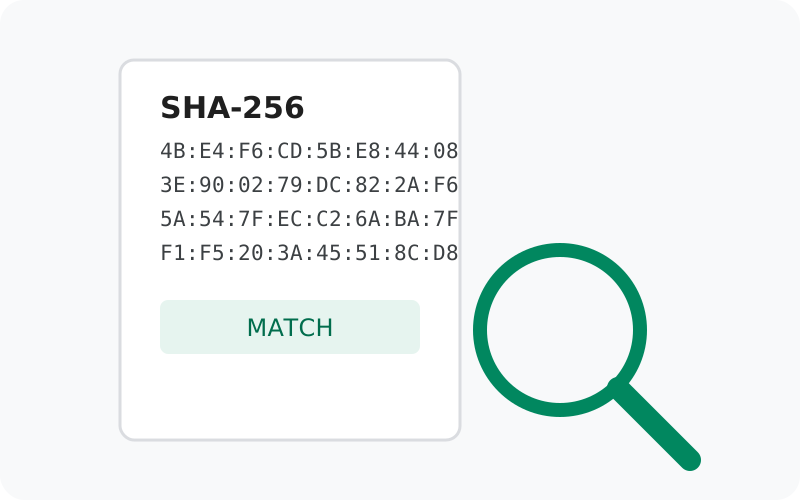
Every Android app is signed with the developer's private key when it is built. The signature does two jobs: it proves who made the app, and it proves the app was not modified after signing. The SHA-256 fingerprint is a short, readable digest of the signing certificate. Think of it as the key's public ID card.
Here is what matters for you in practice:
- A matching fingerprint means the APK was signed with Signal's real key and has not been altered since. This is the genuine file.
- A non-matching fingerprint means the file was signed by someone else's key: a repackaged copy, a fake, or a corrupted download. Do not install it.
- The check works offline. You compare against a fingerprint you copy from Signal's page. No account, no network call to a third party, no trust in a mirror site.
One caution: the fingerprint belongs to the website build's signing key. The Play Store build uses a different key, so a Play-installed Signal will show a different fingerprint. That is expected and fine. Do not mix the two up when comparing.
The fingerprint on Signal's page
Signal's download page shows the SHA-256 fingerprint for its 4096-bit signing certificate. Quoted directly from signal.org/android/apk — we re-verified this value live on October 7, 2026:
Always re-check the live page before you verify. Signal can rotate its keys, and the page is the source of truth, not this guide.
The page also mentions a second, older fingerprint for a 1024-bit certificate:
You may see this one if your verification tool is out of date and does not support the latest Android APK Signature Scheme. If you see it with a current tool, treat it as a mismatch. Update your tools and check again. The fix Signal suggests is to update to the latest Android SDK Build Tools.
Method 1: check with apksigner (computer)
This is the method Signal's own page recommends. Run apksigner verify -v --print-certs --min-sdk-version 24 your-file.apk (part of the Android SDK Build Tools), and compare the SHA-256 certificate digest in the output with the fingerprint on Signal's page, character by character. If even one pair differs, stop. Do not install. Our apksigner command guide walks through installing the tool, reading the output, the keytool alternative, and troubleshooting.
A successful check ends with apksigner reporting the APK as verified and a digest that matches the published fingerprint. Both conditions matter: "verified" alone only means the file is self-consistent, not that Signal signed it.
Method 2: check on your phone
No computer handy? You can check the signature on the phone itself with an APK signature viewer app. The general procedure:
Install a reputable APK signature viewer
Look for an open-source APK analyzer or signature viewer from a source you trust (F-Droid is a good place to find them). You want an app whose only job is reading APK metadata, not a "cleaner" or "booster" app.
Open the downloaded Signal APK in the viewer
Point the viewer at the APK file in your Downloads folder. Do not install the APK yet. Just inspect it.
Find the signing certificate's SHA-256
The viewer will show certificate details for the signer. Look for the SHA-256 fingerprint or "certificate digest."
Compare with Signal's published fingerprint
Open signal.org/android/apk in your phone's browser and compare the two values character by character.
This method is slightly less rigorous than apksigner (you are trusting the viewer app to read the signature correctly), but it is far better than no check at all, and it catches the common cases: repackaged fakes and corrupt">File hash vs certificate fingerprint
People mix these up constantly, so here is the distinction that actually matters for safety:
| Check | What it proves |
|---|---|
| File hash (SHA-256 of the .apk file) | That the file downloaded without corruption. It says nothing about who made the file. A perfectly intact fake has a perfectly valid hash. |
| Certificate fingerprint (SHA-256 of the signing cert) | Who signed the app. Only Signal's private key produces this fingerprint. This is the check that catches repackaged fakes. |
Rule of thumb: hash checks integrity, fingerprint checks identity. When safety is the question, identity is the check you want. The full side-by-side is on our APK hash vs signature explainer.
What to do if it doesn't match
First, rule out the boring explanations before you panic:
- Re-download the file. Interrupted or corrupted downloads are the most common cause of a bad check. Delete the file, download again from signal.org/android/apk, and verify the fresh copy.
- Check which fingerprint you're comparing. Make sure you're comparing against the 4096-bit fingerprint currently on the page, not the legacy 1024-bit one, and that you're checking the website build, not a Play-installed copy.
- Update your tools. An old
apksignercan show the legacy fingerprint. Update the Android SDK Build Tools and run the check again.
If a fresh download from the official page still doesn't match, do not install it. Something is wrong. A proxy or network middlebox may be modifying downloads, or the page itself may have changed (check whether Signal announced a key rotation). In that situation, the safe move is to install from the Play Store instead if you can, and report what you found. Never "just try it" with a mismatched signature: the entire point of the check is that a mismatch is a hard stop.
Frequently asked questions
Where is the official SHA-256 fingerprint published?
On Signal's own download page, signal.org/android/apk. Always copy it from there at verification time rather than trusting any third-party copy, including this one.
What is the exact apksigner command Signal recommends?
apksigner verify -v --print-certs --min-sdk-version 24 followed by your APK filename. The --print-certs flag is what shows you the certificate fingerprints to compare.
Why am I seeing a different, shorter fingerprint?
You are probably seeing the legacy 1024-bit certificate fingerprint. That happens when your Build Tools are out of date. Update to the latest Android SDK Build Tools and check again.
Does the fingerprint change with each Signal update?
No. The fingerprint identifies the signing key, not the app version, so it stays the same across updates, unless Signal rotates its signing key, in which case the download page will show the new value.
Can a fake APK pass the fingerprint check?
Only if the attacker has Signal's private signing key, which would be a catastrophic breach, not a repackaging scam. For every realistic threat (repackaged spyware, corrupted downloads, impostor apps), the check catches it.
Do I need to verify every update?
The website build updates itself through Signal's own updater, which checks signatures automatically. You mainly need the manual check when you first download the APK or when you grab a fresh copy yourself.
Related guides
- Signal APK safety hub: all our safety and verification guides in one place
- Is the Signal APK safe?: the full safety assessment, fakes and myths
- Using apksigner to verify Signal: the identity check in detail: install, output, keytool, troubleshooting
- Is sideloading APKs safe?: the full safety rules for any APK you install
- APK hash vs signature: what each check proves: the full side-by-side explainer