
Signal calls not working? Diagnose and fix in the right order
Published: October 7, 2026 · Updated: October 8, 2026
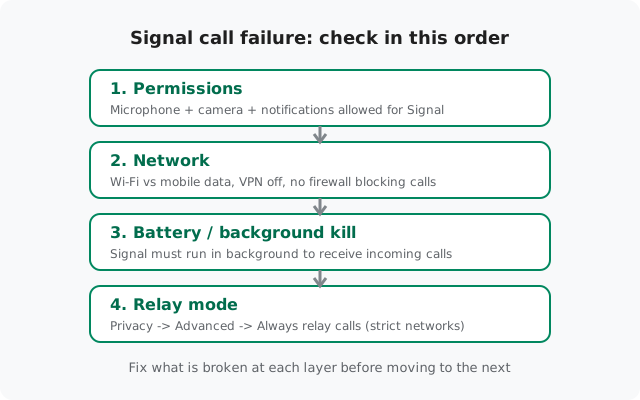
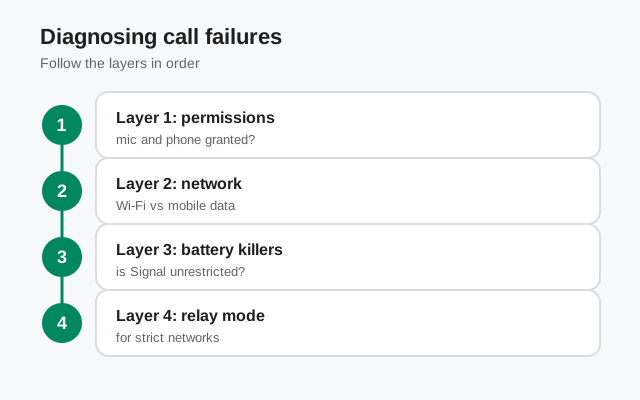
Most Signal call failures come from one of four layers: missing permissions, a blocked network, a battery manager killing the app, or a strict network that needs relay mode. Check them in that order, permissions first, then network, then battery, then relay, and you will find the cause without wasting time on random fixes. This guide covers calls that won't connect, incoming calls that never ring, and calls that drop immediately, on any Android phone running the official Signal build (Play Store or the website APK, current version 8.29.3).
Match your symptom to the cause
| Symptom | Most likely layer | Jump to |
|---|---|---|
| Call button does nothing, or Signal asks for permission again | Permissions, mic or camera denied | Layer 1 |
| Call starts, then fails with "could not connect" | Network, firewall, VPN, or bad connection | Layer 2 |
| Incoming calls never ring; you only see a missed-call notice later | Battery, app killed in background, or notifications off | Layer 3 |
| Calls work on mobile data but not on office/school Wi-Fi | Strict network, needs relay mode | Layer 4 |
| Call connects, then drops within seconds | Network or battery killing mid-call | Layers 2 and 3 |
| Caller can't hear you (or you can't hear them) | Permissions / audio routing | Layer 1 + our mic guide |
| Robotic, choppy, or laggy audio | Network quality | Our call-quality guide |
Work the layers in order even if you think you know the answer. Call problems often have two stacked causes, for example, a VPN that blocks the connection and a battery manager that kills incoming-call signaling.
Layer 1: permissions
Signal needs three permissions to handle calls. If any is denied, calls fail in confusing ways, sometimes silently:
-
Open Signal's app permissions
Go to Settings → Apps → Signal → Permissions. This one screen shows everything Signal is allowed or denied.
-
Allow Microphone
Set Microphone to Allow (or "Allow only while using the app"). Without it, you can hear the other person but they hear nothing from you, and on some phones the call won't start at all.
-
Allow Camera
Set Camera to Allow. Voice calls technically need only the mic, but video calls and call-preview features need the camera permission too.
-
Allow Notifications
Set Notifications to allowed, with the call notification category enabled. On some phones, denied notifications = incoming calls that never ring. Our master notification guide covers this in depth.
-
Check "Nearby devices" if shown
On Android 12 and newer, Signal may request Nearby devices for Bluetooth audio. If you use Bluetooth headsets for calls, allow it, otherwise call audio may refuse to route to the headset.
Layer 2: network
Signal calls are real-time voice/video over the internet. They need a stable connection with low latency, and some networks actively block the traffic:
-
Test both Wi-Fi and mobile data
Switch networks and try a call. If calls work on mobile data but fail on Wi-Fi, the Wi-Fi network (office, school, hotel, some ISPs) is blocking or throttling call traffic. If both fail, keep going, the problem is on your phone.
-
Turn off the VPN temporarily
VPNs reroute all traffic and many of them break real-time call connections, add latency, or get blocked by Signal's servers. Disable the VPN and test. If calls start working, the VPN is the cause, try a different server or split-tunneling that excludes Signal, if your VPN app supports it.
-
Check data saver and private DNS
Data saver (Settings → Network → Data saver) can throttle background and real-time traffic, add Signal to its unrestricted list. Private DNS set to a strict filtering provider can break connections; test with it off.
-
Rule out the other person's network
Call a second contact. If calls to one person always fail but others work, the problem is on their end, their permissions, their network, or their battery manager. This simple test saves hours of fixing the wrong phone.
Layer 3: battery and background killing
Incoming calls arrive through the same background connection as message notifications. If your phone kills Signal in the background, incoming calls never ring, you'll just find a "missed call" later, or nothing at all.
-
Exempt Signal from battery optimization
Go to Settings → Apps → Signal → Battery and set it to Unrestricted (or "Don't optimize"). This is the baseline fix on every brand.
-
Apply your brand's full exemptions
Samsung, Xiaomi, Huawei and BBK brands (Oppo/Vivo/Realme/OnePlus) each add their own killing layers on top of stock Android. Use the matching guide: Samsung, Huawei, Oppo/Vivo/Realme/OnePlus. The notification guides fix calls too, because it's the same background connection.
-
Don't swipe Signal away before expecting a call
Swiping Signal out of recents force-stops it on many phones. If you're waiting for an important call, leave Signal running.
Layer 4: relay mode for strict networks
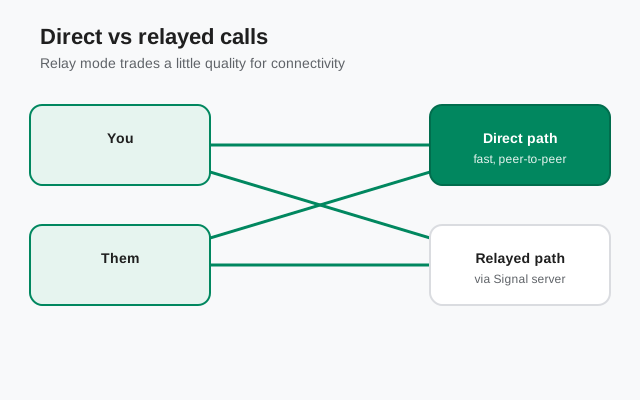
By default, Signal tries to connect calls directly between the two phones (peer-to-peer). Some networks, corporate firewalls, school Wi-Fi, hotel networks, some mobile carriers, block direct connections. When that happens, calls fail even though everything else works.
-
Open Signal's call settings
In Signal, go to Settings → Privacy → Advanced (the exact location can move between versions, look under Privacy settings).
-
Enable "Always relay calls"
Turn on Always relay calls. This routes every call through Signal's servers instead of connecting directly. It works around firewalls and NAT restrictions that block peer-to-peer traffic.
-
Know the trade-off
Relayed calls hide your IP address from the other person (a privacy win), but the extra hop can add slight latency. On a normal home network, leave it off for the best quality; on a strict network, turn it on to get calls working at all.
If calls work everywhere except one specific Wi-Fi network, that network is the problem, relay mode is the fix, and it's also worth asking the network admin whether VoIP traffic is blocked.
Special cases
- Bluetooth headset problems: if call audio won't route to your headset, or the headset mic doesn't work, allow the Nearby devices permission (Android 12+) and re-pair the headset. Some headsets also need their own app's permissions to function as a call device.
- Group calls failing: group calls route through Signal's servers and need more bandwidth per participant. If one-to-one calls work but group calls don't, suspect bandwidth, our call-quality guide has the details.
- Do Not Disturb: check for forgotten DND schedules, incoming calls are silenced just like notifications.
- Call screening / spam blocking: some phones' dialer apps or carrier spam filters interfere with VoIP call signaling. If calls from one specific number always fail, check the phone app's blocked/spam list.
- Low storage: a phone with nearly full storage misbehaves in strange ways, including failed calls. Free up space if you're under ~1 GB free.
Last resorts
If all four layers check out and calls still fail:
-
Update Signal
Check signal.org/android/apk for the latest website build (currently 8.29.3). The website build updates itself, but if updates stalled, grab it manually. Call bugs do get fixed in updates.
-
Restart the phone
A plain reboot clears stuck audio services and network states. It's boring and it works more often than it should.
-
Reinstall as the final option
Back up your chats first (Signal → Settings → Chats → Chat backups), then uninstall and reinstall. This fixes corrupted installs but wipes local data, which is why it's last, not first.
from Signal's official site, file hosted by Signal, not by us
Frequently asked questions
Why do Signal calls work on Wi-Fi but not mobile data?
Usually data saver throttling, a carrier that blocks VoIP traffic, or a VPN active only on mobile data. Add Signal to data saver's unrestricted list, test with the VPN off, and if it persists, try relay mode, some carriers block direct peer-to-peer connections.
Why do incoming Signal calls never ring?
Almost always the background connection is dead: battery optimization killed Signal, notifications are denied, or Do Not Disturb is on. Fix layer 3 above (battery exemptions for your phone brand) and confirm call notifications are allowed.
Do Signal calls use my phone minutes?
No. Signal calls are voice-over-internet, they use Wi-Fi or mobile data, not your carrier's voice minutes. That's why they keep working on Wi-Fi-only devices with no SIM.
Are Signal calls really end-to-end encrypted?
Yes, one-to-one calls are end-to-end encrypted, including relayed calls. Relay mode only changes the network path (through Signal's servers); the servers can't hear the audio.
Why does the other person hear an echo of themselves?
Echo usually comes from the other person's speaker volume being too high, their mic picks up your voice from their speaker. Ask them to lower the volume or use earphones. It's rarely a Signal bug.
Calls to one contact always fail. Is my phone broken?
Probably not, call a different contact. If others work, the problem is on that contact's phone or network (their permissions, battery manager, or firewall), not yours. Ask them to work through this same guide.
Related: fixing microphone problems on calls, improving choppy call quality, master notification diagnosis, and the troubleshooting hub.