
Signal Stickers Not Downloading? Here's How to Fix It
Published: October 7, 2026 · Updated: October 8, 2026
You tap a sticker-pack link, Signal opens, and then… nothing. The pack never finishes installing, or it installs but the stickers show up as grey boxes. Signal stickers not downloading is one of those problems that looks mysterious but has a short list of boring causes:
- The download got interrupted.
- Your connection dropped halfway.
- Your phone is out of room.
- The app is too old for the pack.
- The pack itself is gone.
This guide walks through each one, in the order you should check them.
from Signal's official site — file hosted by Signal, not by us
Start here: the 2-minute fix
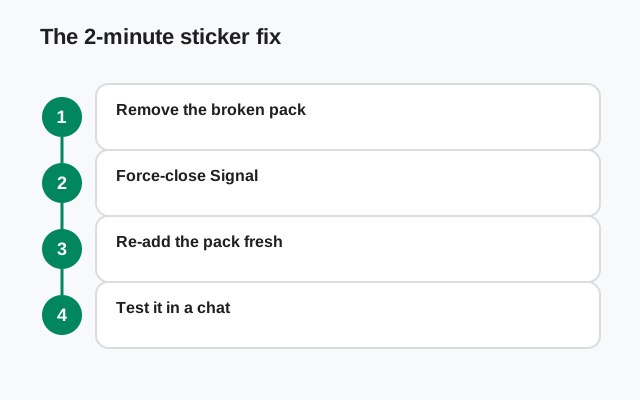
Before reading the whole guide, try this sequence. It resolves most sticker download failures:
Get on strong Wi-Fi
Move somewhere with a solid connection. Sticker packs are image files that download from Signal's servers, and a weak or dropping connection is the number one reason an install spins forever.
Force-close and reopen Signal
Close the app completely, not just back to the home screen, and open it again. Stuck downloads often unstick on a clean restart.
Tap the pack link once more
Go back to the chat or page where you found the sticker-pack link and tap it again. If the pack was halfway installed, Signal will usually finish or restart the download.
If the pack installs after that, you are done. If it still fails, or the pack installs but stickers appear as grey boxes, keep reading. The next sections cover each failure mode properly.
How sticker packs actually install
It helps to know what is supposed to happen, so you can see where it breaks. Sticker packs do not come built into Signal. When someone shares a pack, they share a link. It starts with signal.art and points at that specific pack. The flow is:
Tap the pack link
The link opens Signal and shows you a preview of the pack: its stickers, its name, its author.
Tap Install
Signal downloads every sticker in the pack to your phone. This is the step that fails. It needs a steady connection and free storage.
The pack lands in your sticker picker
Once downloaded, the pack sits in your sticker picker permanently, available in every chat. No re-downloading unless you remove it.
Two things worth knowing. First, stickers are just images. A pack cannot run code or harm your phone, so installing one from a friend is safe in the technical sense. Still, only install packs from links you trust; random pack links from strangers are a classic way to get you to tap things you should not. Second, packs download once and live on your device, which is why a pack that worked yesterday and broke today usually points at a corrupt local copy, not at the network.
If you are new to stickers entirely, the sticker basics guide covers finding and using packs before anything goes wrong.
Symptom, cause, and fix: the diagnosis table
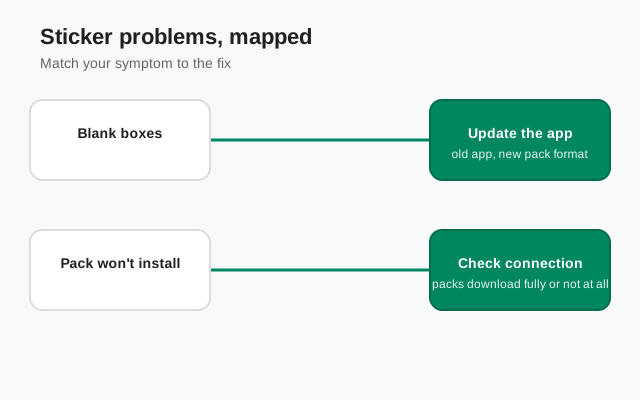
Match what you see to the likely cause, then jump to the matching section.
| What you see | Likely cause | Fix |
|---|---|---|
| Install button spins forever | Weak or dropping connection | Strong Wi-Fi, restart Signal, tap the link again |
| "Couldn't download pack" error | Interrupted download or full storage | Free up space, reconnect, retry the install |
| Pack installs but stickers are grey boxes | Half-downloaded or corrupt pack files | Remove the pack, add it again from the link |
| A pack that worked now won't load | Outdated app or corrupt cache | Update Signal, restart, re-add the pack |
| Link opens but the pack is missing | Creator deleted the pack | Find a new link. The old pack is gone |
| Animated stickers don't animate | Outdated app version | Update to the latest Signal version |
| Sticker button itself does nothing | App glitch or very old version | Restart the app, then update if it persists |
Remove the pack and add it again
This is the single most effective fix for packs that "installed" but do not work. A half-downloaded pack will not repair itself. Signal keeps the broken files and keeps failing on them. The cure is to delete the broken copy and download a clean one:
Open the sticker picker
In any chat, tap the sticker button to open your sticker picker.
Find the broken pack
Look for the pack that is failing. Packs you added yourself are listed alongside the defaults.
Remove it
Open the pack's options and remove or uninstall it. This deletes the broken local files. It does not affect your chats. Stickers you already sent stay sent.
Re-tap the original link
Go back to where you found the pack, the chat message, the website, the friend who shared it, and tap the link again.
Install on a strong connection
Install the pack while on solid Wi-Fi and leave Signal open until the download finishes. Switching apps or losing signal mid-download is how packs break in the first place.
If you no longer have the original link, ask the person who shared it to send it again, or search for the pack name. And if the link itself is dead (it opens Signal but shows nothing), skip to the removed pack section, because the problem is not on your phone.
Connection problems: the most common cause
Sticker packs are heavier than they look. A pack with thirty stickers is thirty image files, and the download has to complete without interruption. On a flaky connection (a weak Wi-Fi signal, a congested mobile network, a VPN that keeps dropping), the download stalls or corrupts partway.
Signs the connection is your problem: the install progress spins without finishing, it fails at the same point every time, or other downloads on your phone are also slow. The fixes are unglamorous but they work:
- Switch to strong Wi-Fi and stay near the router until the pack finishes.
- Turn your VPN off for the duration of the download, then turn it back on. Some VPN routes throttle or interrupt Signal's sticker servers.
- Toggle airplane mode on and off to force your phone to re-establish a clean connection.
- Don't background the app mid-download. Keep Signal in the foreground until the pack is installed.
If stickers fail only on mobile data but work on Wi-Fi, check whether your data plan or carrier is throttling, and check Signal's data settings for anything that restricts downloads on mobile networks.
Storage: packs need room to land
A phone with almost no free space fails downloads in confusing ways: sometimes with an error, sometimes with a silent stall, sometimes with a pack that "installs" as grey boxes. If you have been ignoring the "storage almost full" warning, this is it coming due.
Free up space, then retry the install. The usual wins: delete downloaded videos you have already watched, clear out old chat attachments, uninstall apps you do not use. Signal's own storage settings show you exactly what is eating space inside the app. The storage-full fix guide walks through the cleanup step by step, and the storage usage guide explains what each category means.
Rule of thumb: keep at least a gigabyte or two free. Downloads of all kinds, stickers, attachments, updates, start misbehaving well before the phone reports zero space.
An outdated app breaks newer packs
Sticker packs evolve. Newer packs can use features, animated stickers for example, that an old version of Signal does not understand. If packs installed fine six months ago and new ones fail now, your app version is the prime suspect.
Check your version against the latest: the latest Signal version page tracks the current website build. If you installed Signal as an APK outside the Play Store, remember that the website build updates itself, but only if you let it. Check for updates in the app. After updating, remove the failed pack and install it fresh. Old broken pack files do not magically heal when the app updates.
This is also the fix when the sticker button itself does nothing, or the sticker picker opens empty. A restart plus an update covers nearly all of it.
The pack itself is gone
Sometimes the problem is not your phone at all. Sticker pack creators can delete their packs, and when they do, the link dies: it opens Signal and shows nothing, or shows an error. No amount of restarting or reinstalling will bring back a pack that no longer exists on Signal's servers.
How to tell: the same link fails on a friend's phone too, or it fails on Wi-Fi, on data, after a restart, and after an update. At that point the pack is gone. Find the stickers elsewhere. Ask in the chat where you found it; someone usually has a working link to the same or a similar pack.
One warning while you hunt: dead pack links attract scammers. If a site promises to "download any Signal sticker pack" and asks you to install something or enter your phone number, close it. Real sticker packs install through Signal itself, from a signal.art link, with no third-party app involved. The fake Signal APK guide covers the broader family of these scams.
Stickers show as blank boxes in chats
A special case deserves its own section: the pack installed fine, but in the chat the stickers appear as grey or blank boxes, for you or for the person you sent them to. This is almost always a corrupt local copy on the viewing device.
- If you see the blanks: remove the pack and re-add it, on a strong connection. Your copy of the sticker files is damaged.
- If the other person sees the blanks: the problem is on their phone, not yours. The sticker sent correctly. Their copy failed to download. Send them this guide.
- If it happens with every pack: update the app. A version too old to render the sticker format shows blanks for everything.
Blank boxes right after sending, on a good connection, can also just be impatience. The sticker message arrived before the image data finished uploading. Wait a few seconds; if it persists, it is the corrupt-copy problem above.
Keep it from happening again
- Install packs on Wi-Fi and keep Signal open until the download completes. Most broken packs start as interrupted downloads.
- Keep the app updated. Sticker features move forward; an app from last year will eventually choke on this year's packs.
- Keep free space on the phone. A gigabyte or two of headroom prevents a whole category of weird download failures.
- Save the links. If a pack matters to you, keep its link somewhere. A Note to Self chat works. If the pack ever breaks, you can remove and re-add it in seconds.
- Don't install packs from sketchy links. Stickers are images and cannot infect your phone, but the pages hosting bad links often try other tricks.
And if stickers are only one symptom (messages also stuck, media not sending), the problem is bigger than stickers. The message-stuck guide and the media-sending guide cover the underlying connection and app issues.
FAQ
Why won't my Signal sticker pack install?
The download is failing: almost always a weak connection, full phone storage, or an interrupted download. Switch to strong Wi-Fi, restart Signal, remove the half-installed pack, and install it again from the original link.
Why do my Signal stickers show as grey boxes?
The pack's image files downloaded incompletely or corrupted. Remove the pack from your sticker picker and add it again on a strong connection. If the other person sees grey boxes, the corrupt copy is on their phone.
Why did a sticker pack that worked stop working?
Usually an outdated app or a corrupt local copy. Update Signal to the latest version, restart the app, and re-add the pack. If the pack's link is dead everywhere, the creator deleted it.
Do animated Signal stickers need a newer app version?
Yes. Animated stickers need a reasonably current Signal version. If animations show as still images or blank boxes, update the app and re-add the pack.
Can sticker packs harm my phone?
No. Stickers are image files; they cannot run code. Only install packs from links you trust, though. Shady sites hosting pack links sometimes push other scams alongside them.
Where do I find the sticker pack link again?
Ask the person who shared it, or check the chat where you first saw it. Saving pack links in your Note to Self chat makes re-adding a broken pack a ten-second job.
Keep reading
- how sticker packs work in the first place: Signal stickers guide
- when photos and videos won't send either: media sending fixes
- free up the space downloads need: storage-full fix
- messages stuck on sending: message-stuck guide