
Move Signal From Your Old Android Phone to Your New One
Published: October 7, 2026 · Updated: October 8, 2026
No backup files, no recovery key, no cloud. Just two phones and a local encrypted link: your old phone sends everything straight to your new phone over Wi-Fi. Here’s the full procedure plus the fixes for every common failure.
from Signal's official site — file hosted by Signal, not by us
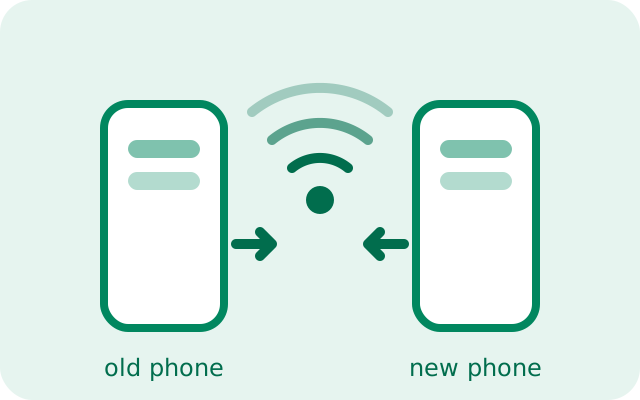
When both phones are sitting in front of you, forget backup files entirely. Signal can copy everything straight from the old phone to the new one over an encrypted local Wi-Fi link: account, messages, media. Nothing travels through the cloud, and you do not need your recovery key at all. This page is the complete walkthrough: the requirements, the steps in order, and the failure-mode fixes for when the transfer refuses to cooperate.
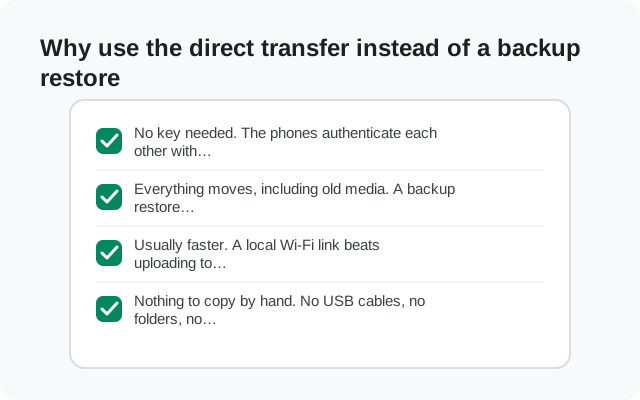
Why use the direct transfer instead of a backup restore
Both methods get your chats onto the new phone, but they are not equal when the old phone still works:
- No key needed. The phones authenticate each other with a pairing code you verify on both screens. Your recovery key stays wherever it is.
- Everything moves, including old media. A backup restore is limited by your plan's media window (45 days on free). The direct transfer copies what is actually on the old phone.
- Usually faster. A local Wi-Fi link beats uploading to and downloading from servers, especially for large media libraries.
- Nothing to copy by hand. No USB cables, no folders, no file names to get right.
The trade-off: both phones must be powered on, nearby, and running Signal. If the old phone is lost, dead, or wiped, this method is off the table. Use the restore-without-old-phone guide instead.
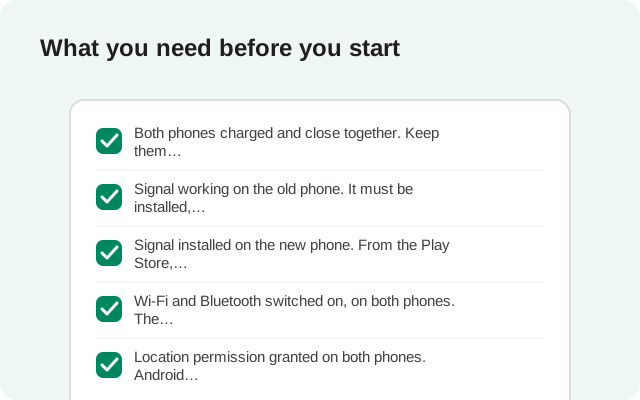
What you need before you start
- Both phones charged and close together. Keep them within a few meters for the whole transfer, ideally side by side on a table, plugged in.
- Signal working on the old phone. It must be installed, registered, and able to open. The transfer starts from inside the app.
- Signal installed on the new phone. From the Play Store, or the official APK from Signal's own site on phones without Play Store.
- Wi-Fi and Bluetooth switched on, on both phones. The phones use them to find each other and build the direct link.
- Location permission granted on both phones. Android requires location permission for apps to discover nearby devices over Wi-Fi. This is an operating-system rule, not Signal uploading your whereabouts. Nothing about your location leaves the phones.
- No VPN active on either phone. VPNs reroute traffic in ways that routinely break direct local connections. Turn them off for the duration.
- Access to your phone number. The new phone registers the number during setup, so you must be able to receive the verification SMS.
The transfer, step by step
On the new phone: install Signal and start setup
Install the app, enter your phone number, and complete SMS verification. When setup asks about transferring or restoring, choose Transfer from Android device and tap Continue.
On the old phone: start the transfer
Open Signal → Settings → Account → Transfer account, then tap Continue. Keep both phones close together from here on.
Grant the permissions it asks for
Approve location permission on both phones when prompted. Without it, the phones cannot discover each other.
Join the old phone's Wi-Fi
The new phone will find the old phone and ask you to connect to its Wi-Fi. Tap Connect. This is a direct phone-to-phone link. It does not need your home router or mobile data.
Match the 7-digit code on both screens
Both phones display a short pairing code. Check that the two codes are identical, then tap Continue on each phone. This confirms you are paired with your own phone and not a stranger's.
Let it finish, then close out the old phone
The transfer copies your account, messages, and media. When it completes, the old phone's Signal session is deactivated automatically. One number, one primary phone. Tap Close on the old device. Verify chats and media on the new phone, and give it a day or two of normal use before wiping or recycling the old one.
When it fails: symptom, cause, fix
Nine times out of ten, a stuck transfer is one of these. Work down the table before you try anything drastic:
| The phones never find each other | Cause: location permission denied, Bluetooth/Wi-Fi off, or a VPN running. Fix: grant location permission on both phones, switch Wi-Fi and Bluetooth on, turn off every VPN, then restart the transfer from step 1. |
|---|---|
| Pairing code does not match | Cause: you are seeing a different nearby device, or a glitched discovery. Fix: do not tap Continue on mismatched codes. Cancel and start over. Move the phones right next to each other. |
| Transfer stalls partway | Cause: a phone fell asleep, a battery saver killed background activity, or the phones drifted apart. Fix: plug both phones in, turn off battery optimization for Signal temporarily, keep the screens awake, hold the phones side by side, and retry. |
| Wi-Fi connection drops repeatedly | Cause: interference, or one phone auto-rejoining a "better" known network. Fix: on both phones, temporarily forget other Wi-Fi networks so neither jumps away mid-transfer. Move away from crowded networks if you can. |
| SMS verification code never arrives | Cause: SIM or carrier issue on the new phone. Fix: this step happens before the transfer. Confirm the number can receive texts (try the "call me instead" option if offered), then proceed. |
| Everything is done but some media is missing | Cause: the transfer was interrupted, or media was still downloading on the old phone. Fix: on the old phone, open the affected chats while on Wi-Fi so pending media finishes downloading, then run the transfer again before wiping anything. |
If you have worked the whole table and it still will not finish, stop forcing it: fall back to the manual backup-file move, which needs no wireless pairing at all. Our full transfer walkthrough also covers the backup-restore path as the alternative.
After the transfer: the 10-minute verification
A transfer that "completed" still deserves a check before the old phone gets wiped:
- Open three or four of your longest conversations and scroll back months. Messages and photos should both be there.
- Open your group chats and confirm membership lists look right.
- Send a test message to a contact and confirm it delivers and they can reply.
- Check Settings → Backups on the new phone and confirm backups are enabled for the future.
- Glance at safety numbers in one or two key chats. If they changed, re-verify them with your contact. Confirming them closes the loop on the move.
Only then should the old phone be signed out, wiped, or recycled. Keep it untouched for a day or two of normal use on the new phone. If something turns up missing, the old phone is your time machine, but only while it still exists.
What the direct transfer does not do
- It does not cross platforms. This is Android-to-Android only. Moving between Android and iPhone goes through a backup restore. See our cross-platform restore guide.
- It does not move disappearing messages that already expired. Messages set to vanish within 24 hours are never backed up or transferred, by design.
- It does not keep the old phone active. Signal allows one primary device per number; the old phone's session ends when the new one registers.
Transferring while switching between Play and website builds
One combination needs special care: moving to a new phone and switching between the Play Store build and the website APK build at the same time. The two builds are signed with different keys, so Android treats them as different apps. You cannot install one over the other, and the direct device transfer expects the same app on both phones.
The safe sequence for a combined move:
- On the old phone, make sure Secure Backups are enabled and a fresh backup exists, and save the 64-character recovery key.
- On the new phone, install the build you actually want to use going forward: Play Store build, or the official APK from Signal's own site.
- During first setup on the new phone, choose the backup-restore path (not the device transfer) and enter your recovery key.
- Verify everything before wiping the old phone.
In other words: when builds change, the backup restore replaces the device transfer. Do the backup while the old build is still installed. After uninstalling, there is nothing left to back up. Our full transfer walkthrough covers this combined case in more detail.
Don’t forget your linked devices
When the new phone registers your number, the old phone’s session ends. Every device linked to the old phone, including Signal Desktop, gets unlinked as a security measure. After you’ve verified the transfer, re-link Desktop from the new phone’s linked-devices screen by scanning the QR code. Your chats sync back from the phone. It takes two minutes and people forget it constantly, then wonder why Desktop went silent.
FAQ
Do I need my recovery key for the Wi-Fi transfer?
No. The phones authenticate each other with a pairing code you verify on both screens. Keep the key safe anyway. You’ll want it for future backups.
Does the transfer need internet?
No. It runs over a direct phone-to-phone Wi-Fi link. You do need mobile or Wi-Fi data for the initial SMS verification on the new phone.
Why does Signal ask for location permission?
Android requires location permission for apps to discover nearby devices over Wi-Fi. It’s an operating-system rule. Your location isn’t uploaded anywhere.
Can I transfer from Android to iPhone this way?
No. The direct transfer is Android-to-Android only. Crossing platforms goes through a backup restore.
The transfer finished but chats look incomplete. What now?
Don’t wipe the old phone. Make sure pending media finished downloading on the old phone while on Wi-Fi, then run the transfer again.
Keep reading
- The full new-phone walkthrough: both methods compared
- Move a backup by hand: the USB fallback when Wi-Fi fails
- Cross-platform restore: Android, iPhone, and Desktop
- Restore Signal from a backup: every restore path in one place