
Get Signal Back When the Old Phone Is Gone
Published: October 7, 2026 · Updated: October 8, 2026
This guide covers every honest recovery path when the old device is out of the picture: what you need, the exact restore sequence, what survives, and the hard limits when the key or the backup is missing.
from Signal's official site — file hosted by Signal, not by us
Your old phone is lost, stolen, dead, or wiped. Now you are staring at a fresh Signal install wondering if your chats are gone forever. Here is the honest answer up front: it depends entirely on whether you had backups turned on and whether you still have the key. Signal cannot reach into its servers and hand you chats it never stored. But if you set up Secure Backups before the phone disappeared, recovery is straightforward and the old phone is not needed at all.
What you need in hand
Before you start, gather these. Each one unlocks a different part of the recovery:
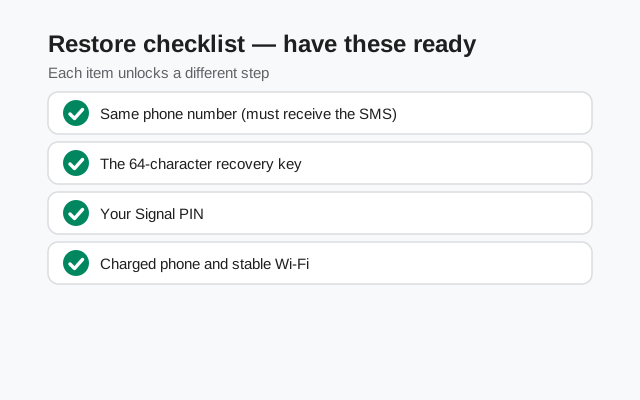
- The same phone number. You must be able to receive the verification SMS at the number your Signal account used. You need the number, not the old SIM. A replacement SIM, an eSIM, or your carrier's app works, as long as the code reaches you.
- The 64-character recovery key. This is the key shown when you set up Secure Backups. It decrypts the hosted backup archive. Without it, the archive stays locked forever.
- Your Signal PIN. The PIN is separate from the recovery key: it verifies you during registration and restores your profile, contacts, and group memberships through Secure Value Recovery.
- An internet connection and a charged phone. Restores download the archive and decrypt it on-device; give it power and bandwidth.
If you have all four, skip to the restore steps. You are in the best possible position. If the recovery key is missing, read the lost key section before doing anything else, because it changes what is possible.
The restore, step by step
Install Signal on the new phone
Use the Play Store, or the official APK from Signal's own site if the phone has no Play Store. Never use a "modded" build for a recovery. A tampered app could steal the very key you are about to type in.
Register the same phone number
Enter the number, receive the verification code, and enter it. This proves the number is yours.
Enter your Signal PIN when asked
The PIN pulls back your profile, contacts, and group memberships. This happens independently of the message backup.
Choose restore from backup
During first setup, Signal offers to restore. Choose the backup option. This prompt appears only during initial setup. Skip it and you will have to reinstall to see it again.
Enter the 64-character recovery key exactly
Type it carefully, in full. Signal decrypts the hosted archive on your device and begins restoring chats in the background.
Wait, then verify
Large restores take a while. Keep the phone on Wi-Fi and plugged in. When it finishes, open long conversations, check recent photos and files, and confirm your groups are intact. Then open your most important contacts' chat info and confirm their safety numbers match what you had before (re-verify in person any that look changed) before you consider the job done.
What comes back, and what does not
No recovery method restores everything ever sent. Here is the honest inventory for a Secure Backup restore:
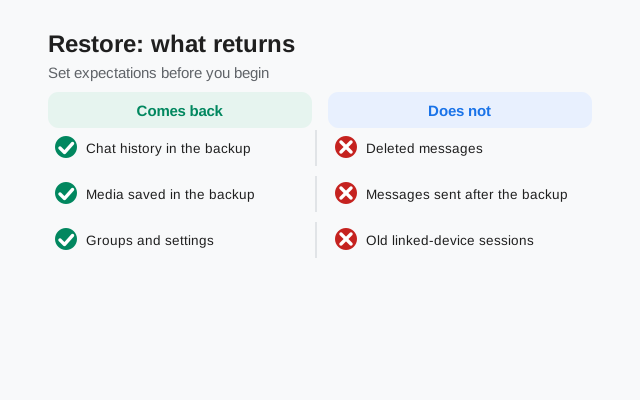
| Comes back | All text messages in the archive. Media within your plan's window: the last 45 days of media on the free tier, your full media history up to 100 GB on the $1.99/month paid tier. Your profile, contacts, and group memberships (restored via your PIN). Settings. |
|---|---|
| Never comes back | Disappearing messages set to vanish within 24 hours. These are excluded from backups by design. View-once media, which is ephemeral. Anything sent or received after your last backup ran. |
| Depends on your plan | Older photos, videos, and files beyond the 45-day window only survive if you were on the paid tier when the backup was made. If a paid subscription lapsed, later archives revert to the free tier's limits: texts plus the last 45 days of media. |
| Gone for good | Everything, if backups were never enabled or the recovery key is lost. Signal has no other copy to give you. |
Lost the recovery key? Read this carefully
This is the part nobody wants to hear, so we will say it plainly: without the 64-character recovery key, the hosted backup cannot be decrypted. Not by you, not by us, not by Signal. There is no "forgot key" flow, no support ticket, no identity verification that unlocks it. That is the entire point of end-to-end encryption, and it cuts both ways.
What you can still recover without the key:
- Your account itself. Register the number on the new phone and enter your Signal PIN. Your profile, your contacts, and your group memberships come back through Secure Value Recovery.
- New messages from this point on. Your groups will keep working; people can message you normally. You simply start with an empty chat history.
- Media other people still have. Photos and files your contacts sent you still exist in their chat histories. Asking someone to resend an important document is low-tech but effective.
What you cannot recover: the message history in the locked archive. Accept that, turn on backups on the new phone immediately, and store the new recovery key somewhere you will actually find it: a password manager or paper, never a screenshot in your gallery.
If the phone was stolen: do this first
Recovery can wait an hour; account security cannot. If your phone was stolen:
- Protect the number. Contact your carrier about SIM security. A stolen SIM can receive your verification codes. Ask about a SIM replacement or number lock.
- Re-register fast. As soon as you control the number again, register Signal on the new phone. Registration on the new phone deactivates the old phone's Signal session, cutting off the thief's access to new messages.
- Do not share your PIN or recovery key with "support." Theft situations attract phishing: messages claiming to be Signal support asking for your PIN or key are always scams. Real support never asks for either.
- Then restore. Once the account is secured on the new phone, run the backup restore from the steps above.
If backups were never turned on
Then there is no archive, and no procedure recovers the history. Not the key trick, not a support request, not any tool on the internet. Anyone selling you a "Signal chat recovery tool" for this situation is selling fiction (and likely malware). Register on the new phone, enter your PIN to restore your profile and groups, and enable Secure Backups immediately so this never happens twice. The five minutes it takes now is the cheapest insurance in messaging.
What if your number changed too?
This is the one scenario where even a perfect backup does not help: backups are tied to the phone number they were made with. If you lost the old phone and also gave up the old number, the archive for that number cannot be restored under a different number. There is no merge step, no "import into my new account." The restore flow registers one number and restores that number's backup.
The honest path, in order of preference:
- Recover the old number first. Carriers can often reissue a number to a new SIM, even months later. If the number is recoverable, recover it, then run the normal restore.
- Accept a fresh start on the new number. Register the new number, enter your PIN if you have one, rebuild your groups, and enable backups immediately.
- Do not chase "backup converters." Any tool claiming to re-key a Signal backup to a different number is either fiction or malware. The encryption is bound to the account; there is no supported conversion.
What happens to your linked devices
Registering Signal on a new phone ends the old phone's session. It also unlinks every device that was linked to the old phone, including Signal Desktop. This is a security feature: a new primary device means all companion authorizations are reset.
Practically, this means one extra step after your restore: open Signal on the new phone, go to the linked-devices screen, and re-link Desktop by scanning its QR code again. Your chats will sync back to Desktop from the phone. Do this after you have verified the restore, not before. Get the primary device right first.
Making sure this never happens again
Once you are back on your feet, spend ten minutes making the next recovery boring:
- Enable Secure Backups on day one. Settings → Backups → Setup. Do it now, while the lesson is fresh.
- Store the recovery key in two places. A password manager plus a piece of paper somewhere safe. Not a screenshot, not a notes app that syncs to the cloud.
- Confirm the backup actually runs. Check Settings → Backups tomorrow and confirm a backup completed. A backup feature you never verified is a rumor.
- Know your PIN. The PIN is what restores your profile, contacts, and groups even in the worst case. If you do not know it, set a new one while you are logged in.
FAQ
Can Signal support recover my chats?
No. Signal’s servers never hold readable copies of your messages, so support has nothing to send you. Recovery only works from a backup you made.
Do I need the old SIM card?
No. You need the same phone number, not the same SIM. A replacement SIM, eSIM, or carrier app that receives the verification SMS is enough.
How long does a restore take?
It depends on the backup size and your connection. Small backups finish in minutes; large media libraries can take an hour or more. Keep the phone on Wi-Fi and plugged in.
Will the old phone keep receiving my messages?
No. Once the new phone registers the number, the old phone’s Signal session is deactivated automatically.
I skipped the restore prompt. Can I get it back?
Only by reinstalling Signal. The prompt appears during first setup and cannot be summoned later from settings.
Keep reading
- Secure Backups explained: how the hosted system works
- Your backup key, explained: guarding the recovery key
- The full new-phone walkthrough: both methods compared
- Move a backup by hand: when you still have the old phone