
Install Signal Desktop on Debian or Ubuntu the official way
Published: October 7, 2026 · Updated: October 8, 2026
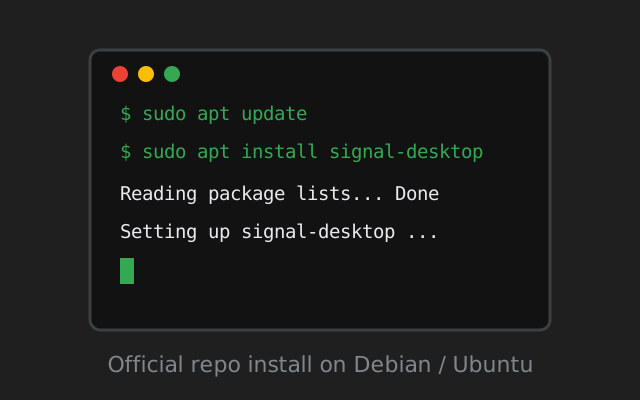
On Debian, Ubuntu, and their derivatives, Signal Desktop installs from Signal's own apt repository. You add Signal's signing key and package source once, then install with apt like any other package. Updates arrive through your normal system updates afterward. This is the only install method Signal itself supports on Linux. Link it to your phone with a QR code, and it runs as an independent linked device.
Before you start
- Signal on your phone, set up and working. Desktop links to your phone's account. It cannot create one.
- A Debian-based distro: Debian, Ubuntu, Linux Mint, Pop!_OS, elementary OS, Zorin, and similar. On Arch, Fedora, or others, see our notes for Mint, Arch, and derivatives.
- 64-bit system. Signal Desktop is 64-bit only.
- sudo access. Adding a repository needs admin rights.
- Internet on both devices for the QR linking step. They do not need to share a network.
The install routes, compared
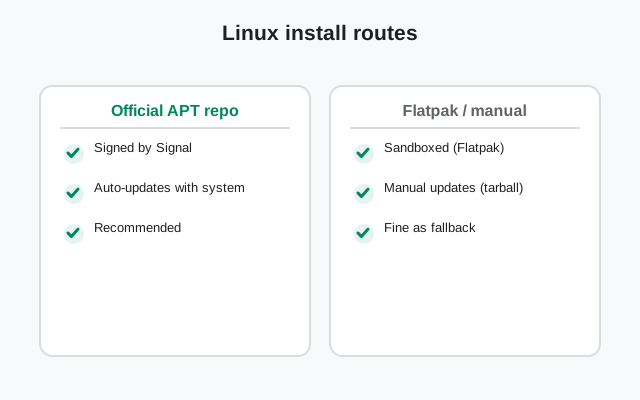
You will find several ways to get Signal on Linux. Only one is official:
| Route | Supported by Signal? | Updates | Verdict |
|---|---|---|---|
| Official apt repository | Yes: documented on signal.org/download | Through your normal system updates | Use this. It is the method below. |
| Flatpak / Snap builds | No: community-maintained | Through the Flatpak/Snap store | Convenient, but unofficial. Fine if you understand the trade-off. |
| Random .deb files from blogs | No | None: frozen in time | Avoid. Stale builds miss security fixes, and the file could be tampered with. |
| Building from source | Source is public, but this is a developer exercise | Manual | Only if you know exactly why you are doing it. |
Add Signal's official repository
These are the documented steps from Signal's download page. Open a terminal and run them in order:
Install the repository signing key
This lets apt verify that packages really come from Signal:
wget -O- https://updates.signal.org/desktop/apt/keys.asc | gpg --dearmor > signal-desktop-keyring.gpg
cat signal-desktop-keyring.gpg | sudo tee /usr/share/keyrings/signal-desktop-keyring.gpg > /dev/nullAdd the package source
This tells apt where to find Signal Desktop. (Yes, the source line says "xenial": that is the documented repository name and it works on modern releases.)
echo 'deb [arch=amd64 signed-by=/usr/share/keyrings/signal-desktop-keyring.gpg] https://updates.signal.org/desktop/apt xenial main' | sudo tee /etc/apt/sources.list.d/signal-xenial.list
Refresh your package lists
sudo apt update
Watch for errors mentioning the Signal source. If apt complains here, fix it before continuing.
Why this way and not a downloaded .deb? A repository gives you verified, automatically updated packages. A one-off .deb from a blog goes stale the day a security fix ships. You would never know.
from Signal's official download page — installers are hosted by Signal, not by us
Install and launch
Install the package
sudo apt install signal-desktop
Launch it
Find "Signal" in your applications menu, or run signal-desktop from the terminal. First launch shows the QR linking screen.
First-run tips for Linux desktops
Signal Desktop is the same app on every distro, but Linux desktop environments each have their quirks:
- Pin it to your dock or panel. Right-click the running icon and choose "Add to Favorites" (GNOME), "Pin to Task Manager" (KDE), or your environment's equivalent. Hunting through the app grid every time gets old fast.
- Tray icon on GNOME. GNOME hides legacy tray icons by default, so Signal may seem to vanish when you close its window even though it is still running. An AppIndicator extension (available in most distros' extension managers) brings the tray icon back.
- Start at login. If this machine is your daily driver, add Signal Desktop to your startup applications in your distro's settings so messages are waiting when you sit down.
- Notifications. They flow through your desktop's notification system. If alerts go quiet, check both the in-app notification settings and your environment's Do Not Disturb mode.
- Wayland vs X11. The app runs on both. If you hit odd rendering glitches on a newer Wayland session, switching to an X11/Xorg session at the login screen is the pragmatic workaround while upstream issues get fixed.
- Calls and screen sharing. Voice/video calls work with your usual mic and camera. Screen sharing on Wayland can need extra portal permissions depending on distro. On X11 it generally just works.
None of this affects linking or messaging. Those work identically everywhere. These are pure desktop-comfort tweaks.
Link it to your phone
Keep the QR code on screen
The code is short-lived. Scan it promptly.
On your phone: Settings → Linked devices → Link a new device
Use Signal's built-in scanner, not your camera app.
Scan, then choose the history transfer
Accept the one-time transfer to bring existing chats to the PC (including recent media); skip it and the PC starts empty. There is no "transfer later." To redo it, unlink and link again.
Approve on your phone
Chats appear on the PC within a minute.
Full detail (permissions, expired codes, version mismatches) is in our QR linking walkthrough.
Keeping it updated
There is nothing extra to do. Signal Desktop updates through the repository with your regular system updates. sudo apt upgrade or your distro's software updater handles it. If you ever want to remove it cleanly:
sudo apt remove signal-desktop
Removing the app does not delete your account or unlink anything by itself. Unlink from your phone's Linked devices screen if you are retiring the machine.
How apt verifies the package for you
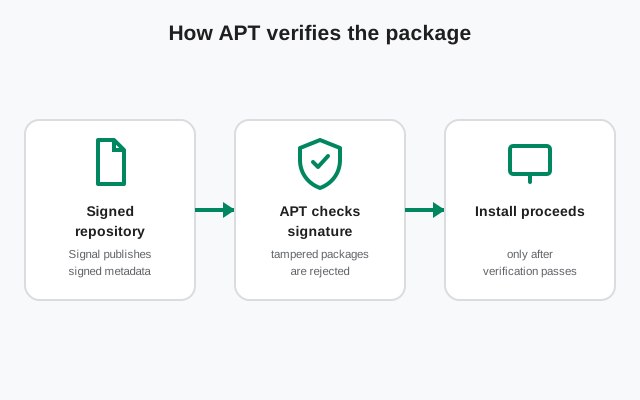
One underappreciated benefit of the repository method: you never have to manually checksum anything. The signed-by part of the source line points apt at Signal's keyring file, and from then on every download from that repository is signature-checked automatically before it installs. If a package were tampered with in transit, apt would refuse it with a signature error rather than install it.
This is strictly stronger than downloading a .deb by hand and eyeballing a hash from a blog post. The verification happens on every single update, not just the first install. It is also why the keyring step matters: without Signal's public key in /usr/share/keyrings/, apt cannot complete the check and will warn you. If you ever see signature warnings on update, re-run the key installation step from the repository section. Keys do get rotated occasionally.
If something goes wrong
- "Unable to locate package signal-desktop": the source list step did not take. Re-check /etc/apt/sources.list.d/signal-xenial.list exists, then run sudo apt update again.
- Key or signature errors on update: re-run the keyring step from the repository section above; keys are occasionally rotated.
- QR code will not scan: usually the phone's camera permission or an expired code. See QR code fixes.
- Messages do not arrive after linking: see linked device not syncing.
- On Mint, Arch, or Fedora?: our Mint/Arch install notes cover what changes there.
- App launches but shows a blank window: usually a graphics driver quirk. Try launching once from the terminal with signal-desktop --disable-gpu to confirm; if that fixes it, the issue is GPU-related rather than an install problem.
- "You are already linked" but chats are empty: that is the skipped history transfer, not an error. Messages from before the link never backfill; only new ones arrive. Unlink and re-link, accepting the transfer, if you want the old history.
Once linked, the Linux app behaves like its Windows and Mac siblings: independent linked device, works with the phone off, and the same 30-day rule applies. Your phone must come online at least once every 30 days. Details in Desktop without your phone.
from Signal's official site — file hosted by Signal, not by us
Frequently asked questions
Which Linux distros does Signal officially support?
Debian-based distributions (Debian, Ubuntu, Linux Mint, Pop!_OS and similar) through the official apt repository documented on signal.org/download. Other distros rely on community builds.
Does Signal Desktop update itself on Linux?
Yes, through the apt repository. It arrives with your normal system updates; there is no separate updater to run.
Is there a 32-bit version?
No. Signal Desktop is 64-bit only, on every platform.
The terminal says the package cannot be found. Why?
Almost always a missed step: the repository source list was not added correctly, or apt update was not re-run after adding it. Redo the repository section above carefully.
Can I use this on Linux Mint?
Yes. Mint is Ubuntu-based, so the same repository steps work. Our Mint and Arch notes cover the edge cases.
Keep reading
- Mint, Arch, and other distros: install notes beyond Debian/Ubuntu
- the QR linking walkthrough: every step of connecting your phone
- Signal Desktop on Windows: the PC install guide
- desktop guides hub: all 24 desktop guides in one place