
Signal Desktop: the full guide for Windows, Mac, and Linux
Published: October 7, 2026 · Updated: October 8, 2026
Signal Desktop puts your encrypted chats on your computer: full-size keyboard, bigger screen, same end-to-end encryption. It runs on Windows, macOS, and Linux, it is free, and it is published by Signal Foundation itself (download it from signal.org/download). This hub holds every Desktop guide on this site: install per operating system, linking your phone, daily use, and fixes for the problems people actually hit.
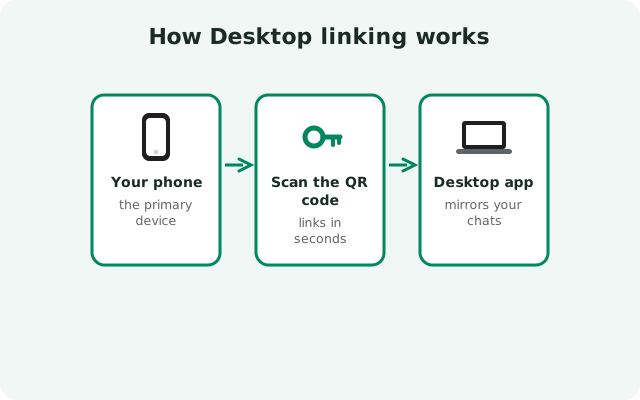
Here is the one thing to understand first: Signal Desktop is a linked device, not a standalone account. You set it up by scanning a QR code with the Signal app on your phone (the Android app from signal.org/android/apk or the Play Store version). The phone is your primary device. It holds the account identity. After linking, Desktop works independently: you can send and receive messages, make calls, and view recent history even when your phone is off, in another room, or out of battery. That surprises people coming from WhatsApp Web, which dies the moment the phone loses connection. Signal's linked devices each keep their own encrypted copy of incoming messages, which is why Desktop keeps working phone-free.
What you get on Desktop is nearly the full chat experience: messages, groups, voice and video calls, disappearing messages, and file sharing. What you do not get is everything. A few phone-centric features are limited or absent (the registration flow, SMS-era leftovers, and some settings live only on the phone). The Desktop vs phone comparison lists exactly what differs so you do not hunt for a button that was never there.
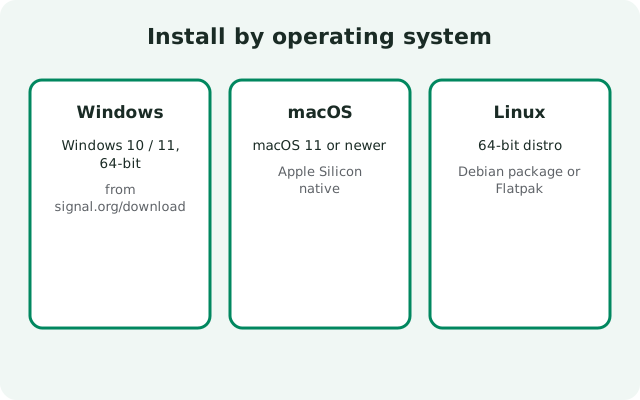
Installation depends on your operating system, and each platform has its own quirks. On Windows and macOS, it is a normal installer from Signal's download page. On Linux, Signal provides an official Debian/Ubuntu repository so the app updates through your package manager. The Linux install guide covers the repo setup, and there are separate notes for Linux Mint and Arch users. If you are on one of the newer ARM64 Windows machines, the Windows on ARM guide explains the current support picture.
Linking is where most people get stuck, so it gets its own cluster of guides: the QR linking walkthrough, what to do when the QR code will not scan, and the rules for multiple machines: you can link two desktops to one account, and an Android tablet can be a linked device too. When history does not arrive on a newly linked device, the sync explainer shows why: only messages received after linking sync over; old history transfers during tablet linking but not to fresh Desktop installs.
Security-minded users ask whether Desktop is as private as the phone app. The encryption is the same, and your messages stay end-to-end encrypted on the wire. The practical difference is the computer itself: a shared or unlocked computer exposes your chats, and Desktop stores its local database on disk. The storage guide covers managing that footprint, and the remote-unlink guide shows how to cut off a lost laptop from your phone in seconds. If the machine is ever lost or sold, unlink first, then wipe.
Then there is the scam corner, and it matters: there is no official portable version of Signal Desktop. Every "Signal portable" download on the internet is unofficial, and many are malware wrapped in a familiar icon. The portable warning guide explains why the portable build cannot exist in official form and what the fake ones actually do. If you need Signal on a computer you do not own, the honest answer is: do not log in there.
How to use this hub: installing for the first time? Read your OS guide (Windows, macOS, or Linux), then the linking walkthrough. Already linked but something is wrong? Jump to the fixing section: launch failures, update failures, notification problems, and QR issues each have their own guide. Power users: the keyboard shortcuts page and the appearance settings page are worth ten minutes.
from Signal’s official site — file hosted by Signal, not by us. signal.org/android/apk
Start with the most-used guides
Install by operating system
Pick your OS and follow the steps.
| Guide | What it covers |
|---|---|
| Signal Desktop for Windows | Windows install and first link |
| Signal Desktop for macOS | macOS install and first link |
| Signal Desktop for Linux | Linux install via official repo |
| Signal on Linux Mint / Arch | Install notes for Mint, Arch, derivatives |
| Signal Desktop on Windows on ARM | ARM64 Windows support notes |
| System requirements | OS versions and hardware needed |
Linking & multiple devices
Connect your phone, add more devices, understand sync.
| Guide | What it covers |
|---|---|
| Link your phone to Desktop (QR) | QR-code device linking walkthrough |
| Use Desktop without your phone nearby | Independent linked-device operation |
| Two Desktops, one account | Multiple linked computers |
| Signal on Android tablet as linked device | Tablets with history transfer |
| Phone + Desktop sync explained | How messages sync between devices |
| Unlink Desktop remotely | Remove Desktop access from your phone |
| Transfer Desktop to a new computer | Moving linked Desktop to a new machine |
| Signal Desktop beta | Beta channel for Desktop |
Daily use on Desktop
Calls, notifications, shortcuts, and appearance.
| Guide | What it covers |
|---|---|
| Desktop calls: mic & camera setup | Audio/video device setup for calls |
| Desktop notifications not working | Notification fixes per OS |
| Desktop keyboard shortcuts | Shortcut reference for power users |
| Desktop dark mode & appearance | Appearance settings on Desktop |
| Desktop storage & database management | Managing Desktop's local data |
Fixing Desktop problems
Launch, update, and linking failures: how to fix each.
| Guide | What it covers |
|---|---|
| Signal Desktop not opening: fix | Launch failure fixes per OS |
| Signal Desktop won't update: fix | Update failure fixes |
| Desktop won't link (QR won't scan) | QR linking failures and fixes |
Chromebook & warnings
Edge cases and the scams to avoid.
| Guide | What it covers |
|---|---|
| Signal on Chromebook | Running the Android app on ChromeOS |
| No official portable Desktop (scam warning) | Portable downloads are unofficial: warning |
How to choose the right guide
| Your situation | Start here | Why it fits |
|---|---|---|
| New Windows user | /desktop/signal-desktop-windows/ | Standard installer, then QR link |
| New Mac user | /desktop/signal-desktop-mac/ | macOS installer, then QR link |
| Ubuntu / Debian user | /desktop/signal-desktop-linux/ | Official repo keeps it updated |
| QR code won't scan | /troubleshoot/signal-desktop-qr-not-working/ | Camera, screen, and clock fixes |
| Want it on two computers | /desktop/signal-two-desktops/ | Multiple linked devices allowed |
| Lost a laptop with Signal | /desktop/unlink-signal-desktop/ | Cut access from your phone immediately |
Frequently asked questions
Does Signal Desktop work without my phone nearby?
Yes. After the initial QR link, Desktop sends and receives on its own. Your phone can be off or away. The without-phone guide explains how linked devices work.
Is there an official portable version of Signal Desktop?
No. There is no official portable build, and unofficial 'portable' downloads are a common malware vector. Our scam warning explains the details.
Can I link two computers to one Signal account?
Yes. Signal supports multiple linked devices, so two desktops (or a desktop plus a tablet) can share one account. See two Desktops, one account.
Will my old messages appear on a newly linked Desktop?
No. Only messages received after linking sync to the new device. Old history does not transfer to Desktop. The sync explainer covers exactly what syncs and what doesn't.
Where is the official Signal Desktop download?
On Signal's own download page: signal.org/download. Windows, Mac, and Linux installers come from there. Any other site offering "Signal Desktop" is serving a repackaged copy.
How do I link Signal Desktop to my phone?
Install the desktop app and open it — it shows a QR code. On your phone, go to Signal Settings > Linked devices > Link a new device, and scan the code. Linking needs the phone only once.
Related hubs
Desktop starts with the phone app. Get the official Android APK from the download page, link it with the QR walkthrough, and you are typing on a full keyboard in minutes.
Sources
Official references we check against: