
Reinstall Signal Without Losing Your Chats (Play Store or APK)
Published: October 7, 2026 · Updated: October 8, 2026
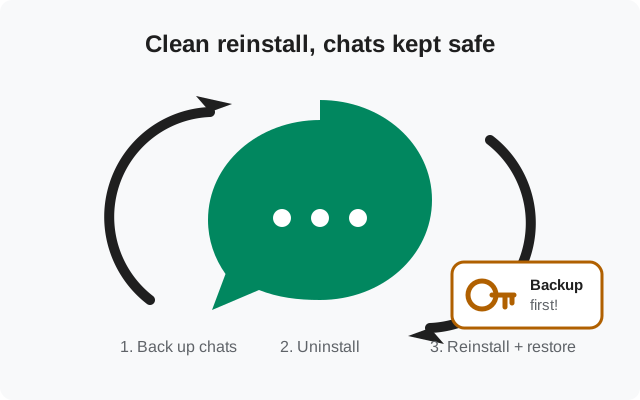
A clean reinstall means fully removing Signal and installing it fresh — from the Play Store or from signal.org's official APK page, whichever you had before. It fixes a surprising number of stubborn problems: crashes on launch, stuck updates, notification weirdness, corrupted local data. But "uninstall" also means "delete all local data," so the entire safety of this operation rests on one thing: the backup you make first. This guide does it in the right order so your chats survive.
What "clean reinstall" actually means
Not "clear cache." Not "force stop." A clean reinstall is the full cycle: back up → uninstall the app completely → install a fresh copy → restore. The uninstall wipes everything the app stored on your phone: messages, media, settings, the local database. The fresh install knows nothing about your history until you hand it the backup at first launch.
That's what makes it powerful (no leftover corrupted state survives) and what makes the backup non-negotiable (no leftover anything survives, including your chats).
What it fixes, and what it doesn't
Worth a reinstall: the app crashes immediately on open; an update downloaded but won't apply; notifications stopped and all the usual fixes failed; the app behaves strangely after a phone OS upgrade; you suspect corrupted local data.
Not worth a reinstall: messages not sending (that's usually network or registration, so check your connection first); contacts not appearing (a permissions issue, see granting permissions); one specific chat misbehaving while the rest is fine; problems that started the moment you switched networks (VPNs and firewalls cause plenty of Signal weirdness that no reinstall will touch).
Rule of thumb: reinstall fixes problems inside the app's local state. If the problem is outside the app (network, account, server side), a reinstall just costs you time and risk.
One more category: problems that started right after a Signal update. The instinct is to reinstall the same new version. That changes nothing, since you'd reinstall the identical build. If a specific update broke something, what you actually want is the update troubleshooting guide: it covers rolling back expectations, reporting the bug, and waiting for the fix release. Reinstalling the same version twice is the definition of doing the same thing and expecting different results.
There's one more legitimate reason to reinstall that people forget: storage corruption warnings. If Android itself tells you an app's data is corrupted, or the phone's storage check flags errors, a backup-and-reinstall is exactly the right response. You're moving your data off a damaged container before it gets worse. In that scenario, make the backup first (corruption can spread), verify the backup file's size looks sane, and only then uninstall.
After any reinstall, keep the backup file for at least a week before deleting it. Restores sometimes surface gaps days later (a media file that didn't transfer, a conversation that truncated), and re-restoring from the kept file is a five-minute fix versus a permanent loss.
And if you've already reinstalled once and the problem persists, stop reinstalling. Two clean reinstalls with the same result is definitive: the cause is outside the app. At that point the useful moves are checking update troubleshooting, asking on Signal's support site, or considering whether the phone OS itself needs attention, not a third reinstall.
Step 1: back up (the step you must not skip)
Turn on Chat backups
Signal → Settings → Chats → Chat backups → Turn on. Wait for it to finish. The screen shows the backup's date and time when done.
Save the recovery key
Signal displays a long recovery key. Write it down or store it in your password manager. Without this key the backup file is unreadable. It's encrypted, which is the point.
Confirm it's fresh
The backup timestamp should read just now. A backup from last month restores last month's chats.
How long does the backup take? Seconds for a light user, several minutes if you have years of photos and videos. Keep Signal in the foreground until it finishes. On some phones, switching away mid-backup pauses it, and the timestamp won't update. If the timestamp refuses to refresh, that's your sign the backup didn't complete: don't proceed until it does.
A word on where the backup goes: Signal shows the backup's location on the Chat backups screen. Confirm the file exists there with your file manager now, while the old install is still alive to tell you where it put things. After uninstalling, "I thought it was in Downloads" is a hope, not a plan. Especially on Android 10+, where scoped storage keeps apps' files in less obvious places.
The backup checklist before you uninstall
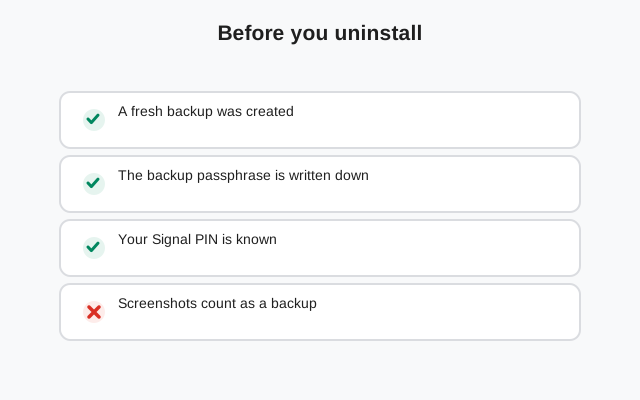
- Backup timestamp is from the last few minutes.
- Recovery key saved somewhere other than inside Signal (paper, password manager).
- Signal PIN known.
- Phone number active and able to receive SMS.
- Phone charged; stable connection for the restore afterward.
- Linked devices noted (Settings → Linked devices) so you can confirm they're still there after.
This is the condensed version. The full backup-before-reinstall checklist covers the edge cases.
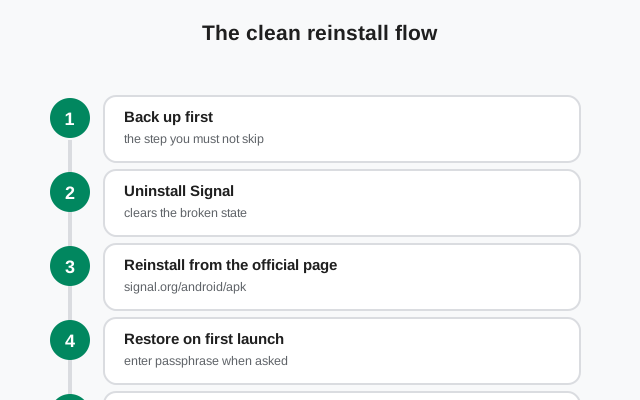
Step 2: uninstall Signal
Long-press the Signal icon and choose Uninstall, or go to Settings → Apps → Signal → Uninstall. Confirm the prompt. Android removes the app and all its local data.
Do not use "Clear data" as a substitute and call it a reinstall. It wipes the same data without giving you the fresh-install benefits of a clean package install, and people who do this halfway are the ones who lose chats. Full uninstall, then fresh install.
Step 3: reinstall from the official page
Install the same build you had before unless you're deliberately switching:
- Had the Play version? Reinstall from the Play Store. Simplest path, no sideloading involved.
- Had the website APK build? Download a fresh APK from signal.org/android/apk and install it with the sideloading walkthrough. Always download fresh. Don't reinstall from an APK file that's been sitting in Downloads for months. An old file installs an old Signal, which then has to update itself immediately; worse, if it's old enough, it may refuse to register until updated. Thirty seconds of re-downloading buys you the current build.
Deliberately switching builds at the same time? Then you're doing a migration, not just a reinstall. Follow the Play-to-website guide or its reverse instead, because the order of operations matters there.
Step 4: restore on first launch
Open Signal and register
Enter your phone number, enter the SMS verification code, enter your PIN when asked.
Restore the backup
Signal finds the backup file and offers to restore it. Accept and enter your recovery key. Large histories take several minutes. Leave the phone alone until it finishes.
No restore prompt? Then the new install can't see the backup file. The usual cause is the file sitting somewhere the fresh install doesn't scan. Don't register and move on; without the restore offer, your chats aren't coming back. Put the backup file where the previous install kept it (you confirmed the location in Step 1), then uninstall and reinstall once more. The prompt appears when the file is findable. It's deterministic, not random.
Let it settle
After restore, Signal re-syncs contacts and group state. Give it a few minutes on Wi-Fi before judging whether everything came back.
Step 5: verify everything came back
- Recent conversations are present with their history.
- Group chats show you as a member and recent messages load.
- Profile name and photo are correct.
- Settings → Linked devices shows your desktop/tablet if you had any.
- Send and receive a test message.
- Check your installed version. A fresh install should be current; if not, update before anything else.
Then redo the two settings Android loves to reset on reinstall: notification permissions (open a chat and confirm alerts arrive) and battery optimization exemption (Settings → Battery → Battery optimization → Signal → Don't optimize). A fresh install starts with default battery treatment, which on many phones means throttled background delivery until you exempt it again. People who skip this step conclude "the reinstall broke notifications." It didn't; the exemption just needs re-applying.
The full post-install verification checklist goes deeper if you want to be thorough. And if the original problem is still there after a clean reinstall with a fresh build, the cause is outside the app (network, account, or phone OS), and further reinstalls won't help.
from Signal's official site — file hosted by Signal, not by us.