
Switch from the website build to the Play build, safely
Published: October 7, 2026 · Updated: October 8, 2026
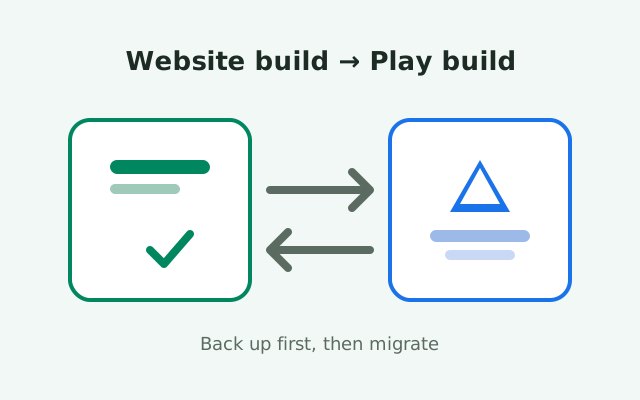
To move from Signal's website APK build to the Google Play build: make a fresh backup and save your 64-character recovery key, uninstall the website build, install Signal from the Play Store, then register your number and restore the backup. You cannot install one build over the other because they are signed with different keys, so this is a deliberate migration, not an update. Followed carefully, it takes about fifteen minutes and keeps every chat. The most common way people lose messages here is trying to force an install over the top and ignoring the backup. Do the backup first and the rest is straightforward.
Why people switch builds
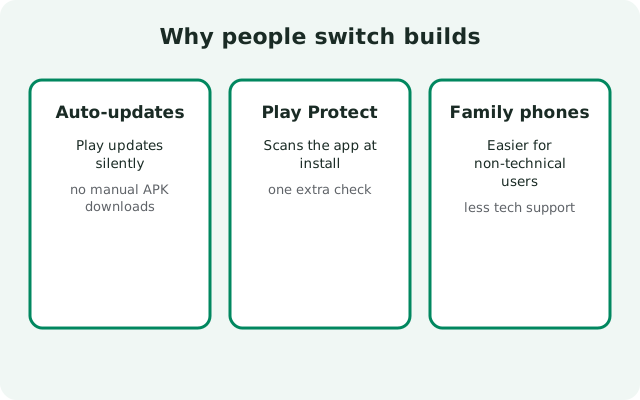
Signal ships two Android builds that look identical on screen but are distributed differently. The website build comes from Signal's own download page and updates itself without the Play Store. The Play build comes from Google Play and updates like every other Play app. Most people pick one at install time and never think about it again. But life changes: a de-Googled phone gets traded in for a Pixel, a Huawei owner switches to a Samsung, or someone just gets tired of managing updates by hand. That is when the question arrives: how do I move from the website build to the Play build without losing my chats?
The short answer is that it is completely doable, and Signal's backup system is designed for exactly this. The long answer has one trap in the middle that catches nearly everyone who tries to wing it: the two builds cannot install over each other. Android treats them as different apps from different developers because they are signed with different keys. If you download the Play build and try to install it while the website build is on the phone, you will get a package conflict error, and no amount of tapping will force it. That error is not a bug. It is Android's signature system doing its job, and the fix is to migrate properly instead of fighting it.
The other thing worth knowing before you start: this direction of migration is the one Google's ecosystem rewards. Everything on this page assumes you are moving toward the Play Store, into a phone with Google services, and that you are fine with that. If you are going the other way, our Play build to website build guide walks the reverse trip. The two pages are mirror images, but the details differ enough that you should follow the one matching your actual direction.
Step zero: back up and save your key
Before you touch anything else, make a fresh backup in the website build you are about to remove. Open Signal, go to Settings, then Chats, then Chat backups, and run a backup now. Let it finish fully. A backup that got interrupted by a phone call or a dead battery is not a backup; it is a half-written file you cannot rely on. Give it the time it needs, keep the phone awake, and check the timestamp when it is done: it should say today, not last month.
Then, on the same screen, view your recovery key and save it somewhere safe. The current format is 64 characters long. If you see an old 30-digit key, you are on a retired format and should rotate to the current one before migrating, because legacy keys are exactly the kind of thing that fails at the worst moment. The recovery key is the only thing that can unlock your backup. There is no reset flow, no support desk that can issue you a new one, and no back door. Store it in a password manager or write it down on paper kept away from the phone. Do not keep the only copy in the gallery of the same phone you are about to wipe.
Why the fuss? Because the next step is uninstalling the website build, and uninstalling deletes the app's data, including the local backup file it just made. Your backup survives this only if two things are true: the key is safe, and a copy of the backup file lives somewhere the uninstall cannot reach. So after the backup finishes, copy the backup file off the phone too: a computer, a USB drive, cloud storage, anywhere off-device. One copy on the phone and one copy elsewhere. Then, and only then, are you allowed to uninstall. Our Android backup guide covers the file location and the restore flow in full if you want to practice the whole loop once before you depend on it.
The migration, step by step
With the backup finished and the key safe, here is the migration in order.
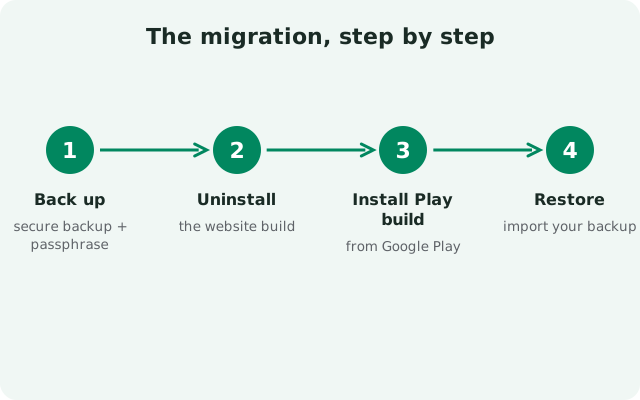
- Uninstall the website build. Long-press the Signal icon and uninstall, or go through Settings, then Apps. Do not skip this. Installing the Play build first and hoping to sort it out later is the move that produces the package-conflict error and the panicked searches. Get the website build off the phone cleanly.
- Install Signal from Google Play. Open the Play Store, search for Signal Private Messenger, and install it. This is the standard build signed by the Play key, the one your phone's update system knows how to handle. It is a bigger phone identity change than it looks: you are leaving a self-updating, Google-free build for the ecosystem build, and everything from here on is Play-managed.
- Register your number. Open the freshly installed app and go through registration: enter your number, receive the SMS or call verification, enter the code. Your number is your identity on Signal's network, so registering the same number tells the network this phone is now your device. If registration lock is on, you will also enter your Signal PIN. Keep the number-receiving phone handy; without that code, nothing moves.
- Restore the backup. After registration, the app will offer to restore from a backup. Enter your 64-character recovery key, point it at the backup file, and let it restore. Large histories with years of media take a while; let the progress bar finish and do not background the phone mid-restore.
- Verify before you relax. Open a few conversations, especially ones with photos and videos, and check that the history looks right. Check your profile, your groups, and your linked devices (more on those below). Only when the chats look right are you done.
Total time is usually around fifteen minutes plus however long your backup and restore take. The one thing that turns this into a disaster is impatience between steps: uninstalling before the backup finishes, or wiping the old file copy before the restore is verified. Slow is smooth, and smooth keeps your chats.
What actually changes
| Website build | Play build | |
|---|---|---|
| How updates arrive | The app updates itself from Signal's servers | The Play Store updates it, automatically if you allow |
| Push notifications | The app keeps its own connection to Signal's servers | Google's push system (FCM) delivers notifications |
| Signing key | Signal's website-distribution key | The Play Store distribution key (different key, cannot cross-install) |
| Works without Google services | Yes | Not properly; needs Google Play services |
| Battery and background behavior | The app maintains its own always-on connection | The system handles wake-ups through Google's push |
The update story is the biggest practical change, and it is the main reason people make this move. The website build checks for and installs its own updates, which works well but puts you in charge: you see the update prompt, you approve it. The Play build just updates in the background with everything else on your phone, on Google's schedule, with zero thought from you. If you are the kind of person who ignores update prompts for weeks, the Play build will quietly keep you current, which is genuinely better for security.
Push delivery changes too, in ways you will mostly feel as battery and reliability differences. The website build keeps its own persistent connection to Signal's servers because it cannot assume Google services exist. That works anywhere but costs a little battery keeping the connection alive. The Play build hands delivery to Google's push system, which batches wake-ups with every other app's notifications and is usually kinder to the battery. On a phone with healthy Google services, the Play build's notifications are the more efficient path.
One more change people notice: the signing key. Because the two builds are signed differently, Android sees them as two different apps. This matters beyond the migration itself: from now on, updates must also come from the Play lane. You cannot update the Play build with a website APK later, and you cannot go back to the website build without repeating this whole migration in reverse. Pick a lane deliberately, because Android enforces it.
What stays the same
Here is the reassuring part: almost everything you care about survives, because Signal's identity is your phone number, not the app build. Your contacts list is the same. Your groups are the same. Your profile, your username if you set one, your settings, and your disappearing-message timers all come back with the backup. Nobody on the other end sees any difference; your messages arrive the same way, encrypted the same way, from the same number.
What does not survive automatically: your linked devices. When you register your number on a fresh app install, Signal treats linked desktops and tablets as tied to the old installation, and you will need to re-link them. Plan for this: after the restore, open each linked device and run through the desktop linking flow again with a fresh QR scan. It takes a couple of minutes per device and it is the step everyone forgets, so consider this your reminder.
Also note: the backup restores chats, but the timing of the backup is the ceiling of what comes back. Anything sent or received after your last backup finished and before you uninstalled is not in the file. That is why the backup is step zero and the uninstall comes after, with nothing in between except copying the file off the phone. If you ran the backup, then chatted for an hour, then uninstalled, that hour is gone. Back up last, uninstall first.
When this move makes sense (and when it doesn't)
This migration makes sense in a clear set of situations. You bought a phone with full Google services after using a Google-free one, and you want the ecosystem build. You are tired of manual update prompts and want the Play Store to handle updates silently. You had notification trouble with the website build's self-maintained connection, and Google's push is the more reliable path on your phone. Or you just want the mainstream setup: the build most Signal users run, with the most-tested update path.
It does not make sense if your phone lacks Google services. The Play build on a de-Googled phone is a broken experience: it needs Play services for push and updates, and without them you get the worst of both worlds. If you are on a Huawei without Google, a GrapheneOS phone, or any custom ROM stripped of Google, stay on the website build. Our Signal without the Play Store guide covers why the website build exists and who it is for. Moving toward Play on a phone that cannot run Play properly is the one version of this migration that ends in regret.
It also does not make sense as a troubleshooting step. If the website build is misbehaving, a broken build is not fixed by switching builds; it is fixed by diagnosing the actual problem. And it does not make your account any more or less "real": there is no account tier difference between the builds. It is the same Signal, same network, same encryption, delivered through a different store. Move for the update and ecosystem reasons, not because one build feels more legitimate.
When something goes wrong
Three failures cover almost every bad migration, and each has a clean fix.
- "App not installed" / package conflict: you tried to install the Play build while the website build was still on the phone, or vice versa. The signers do not match, so Android refuses. Uninstall the old build fully, then install the new one. This is the install-conflict error in its natural habitat.
- Restore asks for a backup the app cannot find: the backup file is not where the new install expects it. Remember that uninstalling deleted the local copy, which is why you copied it off the phone in the backup step. Move the file to the location the new build uses (see our backup location guide), then restore again. Do not re-register repeatedly hoping the file appears; find the file first.
- Wrong recovery key: the restore fails with a key error. You have the key written down somewhere safe, right? Retrieve it and try again, character by character. A 64-character key has no room for "close enough." If you never saved the key and the old phone still has the website build installed with its data intact, stop: reinstall nothing, open the old app, and save the key now.
The nuclear fallback is the same as every migration: as long as your number still receives SMS and your key is safe, you can always register fresh and restore. The chats are in the backup file and the key unlocks it; everything else is logistics. What you cannot recover from is a lost key or a backup that was never made. Those two are the entire game, which is why they are step zero.
from Signal's official site — file hosted by Signal, not by us
Frequently asked questions
Can I install the Play Store version over the website APK?
No. The two builds are signed with different keys, so Android treats them as different apps and refuses to install one over the other. Back up first, uninstall the website build, install the Play build, register, and restore from backup.
Will I lose my chats moving from the website build to Play?
Not if you back up first. Make a fresh backup in the website build, save your 64-character recovery key, copy the backup file off the phone, then uninstall, install from Play, and restore. Your chat history comes back with the backup.
What changes when I switch to the Play build?
Updates come from the Play Store automatically, and notifications go through Google's push system instead of the app's own connection. The signing key is different, which is why the builds cannot install over each other. Your chats, contacts, groups, and encryption are unchanged.
Do I need to re-link my desktop after migrating?
Yes. Registering your number on a fresh install breaks the link to previously linked devices. Re-link each desktop or tablet after the restore with a fresh QR scan.
Should I switch builds if my phone has no Google services?
No. The Play build needs Google Play services for updates and push. On a Google-free phone (Huawei without Google, GrapheneOS, stripped custom ROMs), the website build is the right build. Stay where you are.
Keep reading
- the install guides hub: every install path in one map
- the reverse migration: moving from Play to the website build
- the install-conflict error explained: why the two builds refuse to install over each other
- Android backup and restore: the backup ritual this migration depends on
- Signal without the Play Store: who the website build is really for