
How Auto-Updates Work on the Signal Website Build
Published: October 7, 2026 · Updated: October 8, 2026
The Signal website build updates itself. No Play Store needed. Signal's app checks Signal's own servers for new versions on its own. When one is ready for you, an in-app prompt appears: tap it, the new version downloads, and it installs over your current app. Your chats, settings, and account are untouched. There is nothing to enable; the updater is part of the build. This guide explains the process, why updates sometimes take days to reach you, and what to do when the prompt never comes.
How the self-update works, step by step
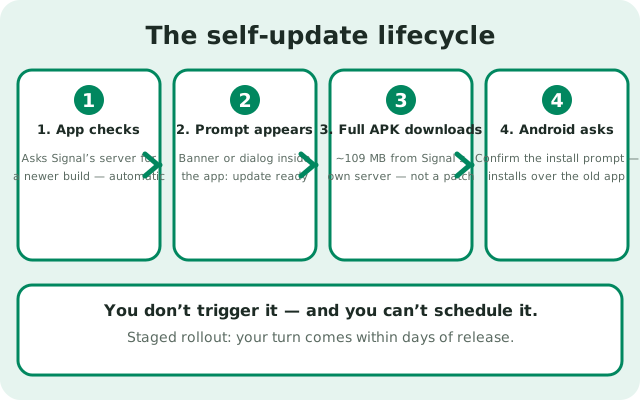
Here is the whole lifecycle of a website-build update:
- Signal checks for updates by itself. The app periodically asks Signal's server whether a newer website build exists. You do not trigger this and you cannot schedule it.
- A prompt appears inside the app. When a new version is assigned to you, Signal shows an update notice in the app: typically a banner or dialog telling you a new version is available.
- You tap to update. One tap starts the download. The file comes from Signal's own server, the same place the original APK came from.
- The new version downloads. It is a full APK of roughly the same size as the original (~109 MB), not a small patch. This is the step that uses your data. See below.
- Android asks to install. When the download finishes, Android shows the install prompt. Confirm it. The new version installs over your existing app because both are signed with Signal's website-build key.
- Done. Open Signal and everything is where you left it: chats, media, settings, linked devices.
Two things worth knowing: the updater only exists in the website build. If you installed Signal from the Play Store, Google Play handles updates and none of this applies. And the updater cannot switch you between builds. A website build will never update itself into a Play Store build or the reverse, because the two are signed with different keys.
Why your friend gets the update before you
Signal does not push a new version to everyone at once. New releases go out in stages over several days: a small slice of users first, then more, then everyone. This is deliberate. If a release has a serious bug, staging catches it before it reaches all users.
What this means for you:
- Not seeing the prompt on day one is normal. Your turn comes within a few days. There is nothing wrong with your phone.
- Do not hunt for the update manually every day. Checking Signal's download page daily and reinstalling to "get it early" buys you nothing except being in the first, riskiest wave.
- Being a few days behind is the safe position. Early waves find the bugs; later waves get the fixed release.
If more than a week or two passes and you are still far behind the version on Signal's download page, that is no longer staging. That is a stuck updater. Skip to the manual fallback below.
Updates and your mobile data
Every website-build update is a full ~109 MB download, just like the original install. A few practical points:
- Updates are not small patches. Budget the same data as the first download. If you are on a tight plan, this matters every update cycle.
- Time it yourself. When the in-app prompt appears, you choose when to tap it. On mobile data with little left, wait until you are on Wi-Fi. The prompt will still be there.
- Do not start an update on a dying battery or a weak signal. A broken update download just means downloading it again. Our mobile-data download guide covers resuming interrupted downloads and checking the file.
- One download per update, not per device. The APK file the updater pulls is the same file you would download manually. If you manage several phones, you can download once and share the file between them instead of each phone fetching it sepdate fails or never arrives
Walk through these in order:
- Confirm you have the website build. Check your version (how to check) and where you installed from. Play Store builds do not use this updater at all.
- Give staging time. Less than a week behind is normal. Wait.
- Check the basics. Enough free storage (300 MB+), a working internet connection, and the app actually being opened occasionally. An app you never open may not check as often.
- Look for the prompt again. Force-close Signal fully and reopen it. The update check runs when the app starts.
- Check for system-level blocks. Data Saver, battery optimization, or a VPN interfering with Signal's connection to its server can all stall the check.
If the download starts but the install fails, the dedicated update-failure troubleshooting page covers the error cases one by one. And if the app misbehaves after an update, this guide is the fix list.
The manual fallback
When the updater is stuck (or you simply want the new version now), do it by hand. It is the same file the updater would have fetched:
- Go to signal.org/android/apk/ in your browser.
- Download the current APK (about 109 MB).
- Open the file and confirm the install. Android installs it over your existing website build: same package name (
org.thoughtcrime.securesms), same website signing key, so it is treated as an update, not a new app. - Your chats and settings carry over untouched.
This is safe to do precisely because the manual file and the updater's file are the same build from the same publisher. What you must not do is install a Play Store build over a website build (or the reverse). The signing keys differ, Android will refuse, and forcing it means uninstalling first, which wipes your chats unless you have a backup. The install-conflict guide has the full story.
Auto-update vs manual update
Auto-update (in-app prompt) Effort One tap when the prompt appears Timing Staged. You get it within days of release Data used ~109 MB per update Risk Lowest. You are never in the first wave Manual update (download the APK) Effort Download the file, open it, confirm install Timing Immediate. Whenever you choose Data used ~109 MB per update (same file) Risk Slightly higher. You may grab a day-one release; only download from Signal's own page For most people, the auto-update is the right default: less work, safer timing, same result. Use the manual route when the updater stalls or when you are deliberately managing data and timing yourself.
Download the official Signal APKfrom Signal's official site — file hosted by Signal, not by us
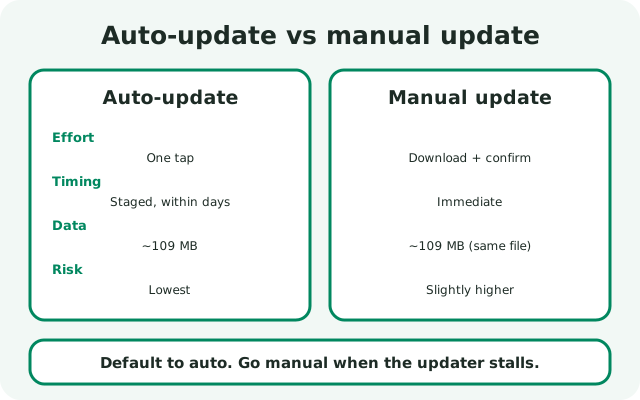
Auto is the default; manual is the fallback. Frequently asked questions
Does the Signal APK update itself automatically?
The website build (from signal.org) checks for updates on its own and shows an in-app prompt when a new version is ready for you. You tap the prompt to download and install. The Play Store build updates through Google Play instead.
How do I force Signal to update to the latest version?
Open Signal to trigger a check, and give staged rollouts a few days. If you are far behind, download the current APK from signal.org/android/apk/ and install it over your existing app manually.
Why haven't I received the Signal update yet?
New versions roll out in stages over several days, so not everyone gets the prompt on day one. Waiting a few days is normal; being weeks behind means the updater is stuck.
Can I turn off automatic updates?
There is no off switch for the update check, and that is deliberate: running an old build means missing security fixes. You can dismiss the update prompt when it appears, but Signal will ask again later. Installing the update takes one tap and keeps everything where it was.
How big is a Signal update download?
About 109 MB. Each update is a full APK, not a small patch. Time the download for Wi-Fi if your mobile data is limited.
Will updating delete my chats?
No. Both the in-app update and a manual install over the website build keep your chats, media, and settings. Only uninstalling without a backup wipes data.
Keep reading
- the install hub: every install route for the Signal APK in one place
- update Signal step by step: the manual update walkthrough
- check your installed version: see which build you are running now
- fix a failed update: when the update itself goes wrong