
Signal won't open after an update? Recovery steps that save your chats
Published: October 7, 2026 · Updated: October 8, 2026
If Signal won't open after an update, don't panic and don't uninstall. Your chats are almost certainly still on the phone. The app just isn't launching. Start with the safe steps: force-stop and relaunch, restart the phone, then clear only the cache (which never touches messages). Reinstalling over the top is safe if a backup exists; clear-data is the last resort and needs your 64-character recovery key confirmed first.
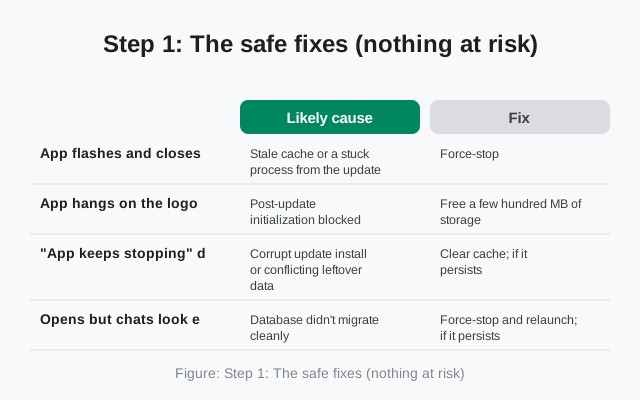
Step 1: The safe fixes (nothing at risk)
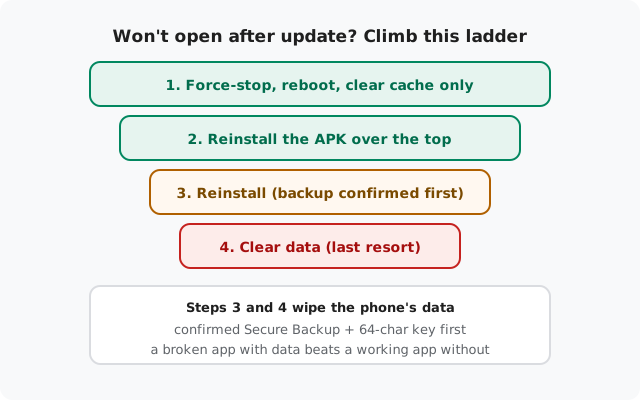
Most post-update launch failures are transient: a half-finished background process, a stale cache entry from the old version, a system service that didn't restart cleanly. Work this list before anything drastic:
- Force-stop and relaunch. Settings → Apps → Signal → Force stop. Wait ten seconds, then open Signal again. This alone fixes a surprising number of "won't open" cases.
- Restart the phone. Clears stuck processes and lets the updated app initialize cleanly on boot.
- Clear the cache only. Settings → Apps → Signal → Storage → Clear cache. Cache is temporary data. Your chats, media, and settings are untouched. After an update, stale cache from the old version is a classic launch blocker.
- Check storage. If the update filled the last of your free space, the app may fail to start. Free a few hundred MB. The storage guide shows what's safe. Then relaunch.
If Signal opens after any of these, you're done. Let it sit open a minute so it can finish any post-update housekeeping, and confirm your chats are intact before doing anything else.
| Symptom | Likely cause | Fix |
|---|---|---|
| App flashes and closes instantly | Stale cache or a stuck process from the update | Force-stop, restart the phone, clear cache only |
| App hangs on the logo / loading screen | Post-update initialization blocked: often low storage | Free a few hundred MB of storage, force-stop, relaunch |
| "App keeps stopping" dialog on every launch | Corrupt update install or conflicting leftover data | Clear cache; if it persists, reinstall over the top (backup confirmed) |
| Opens but chats look empty or wrong | Database didn't migrate cleanly: do not clear data yet | Force-stop and relaunch; if it persists, reinstall over the top with backup ready |
| Nothing happens at all when tapping the icon | Launcher glitch or a disabled app state after update | Restart the phone; check the app isn't disabled in Settings → Apps |
| Fails only on a very old phone | New version outgrew the old OS or hardware | Confirm the OS still supports the build; the parse error guide covers the limits |
Step 2: Suspect an interrupted update
If the safe steps didn't work, consider that the update itself may not have finished writing. An update interrupted by a dead battery, a reboot mid-install, or the phone being force-stopped during the process can leave the app in a half-updated state: new enough to refuse the old data layout, broken enough not to launch.
The fix is to complete the update properly: install the current APK over the top of the existing copy. Download it from Signal's official download page (currently 8.29.3) and install without uninstalling. Same build, same signing key. Android treats it as finishing the update, and your data stays in place. This is the single most effective recovery for post-update launch failures.
After the over-the-top install, open Signal and give it a full minute on the loading screen if needed. First launch after a repaired update can take longer while it verifies and migrates data. If it opens cleanly, scroll through a few chats to confirm everything is there before you consider the job done.
Step 3: Reinstall (only with a backup in hand)
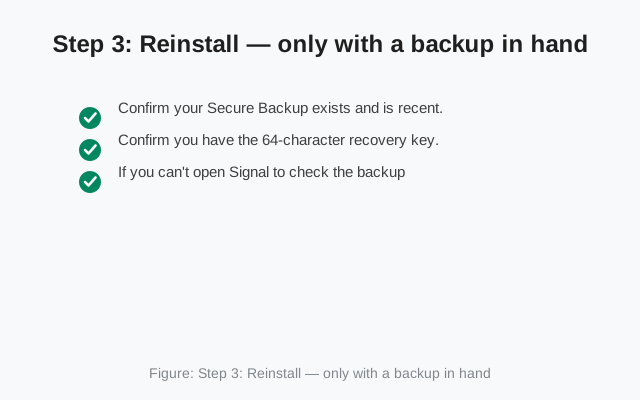
If the app still won't open after an over-the-top reinstall, the local data itself may be damaged. A clean reinstall fixes that, but it wipes everything on the phone, so this step has a hard precondition:
- Confirm your Secure Backup exists and is recent. If you can get Signal open at all, check the backup date in settings: how Secure Backups work.
- Confirm you have the 64-character recovery key. Not the retired 30-digit key. The current 64-character one. No key, no restore, no reinstall.
- If you can't open Signal to check the backup, think hard about whether backups were enabled and whether the key is written down somewhere safe. Do not proceed on a guess.
Only then: uninstall, install the fresh APK from Signal's official page, and restore with the recovery key during setup. If the backup was recent, you'll get your history back; anything since the last backup is gone, which is the price of the wipe.
Step 4: Clear data (the true last resort)
Clear data (Settings → Apps → Signal → Storage → Clear data) is the nuclear option: it wipes the app back to a fresh-install state without removing the app itself. It fixes anything a reinstall would fix, with the same data cost. The backup-first rule applies identically: confirmed Secure Backup plus the 64-character key, or don't touch it. There is no "undo" for clear data without a backup.
Honestly assess whether you've earned this step: have you tried force-stop, reboot, cache clear, storage freeing, and the over-the-top reinstall? If yes and the app still won't launch, and the backup is confirmed, clear data is reasonable. If the backup is not confirmed, stop here. A broken app with your data still on the phone is strictly better than a working app with your data gone.
Step 5: Contact support (last, with details ready)
If nothing above recovers the app, Signal's support pages are the final stop. Support can't restore chats without your backup key (nobody can), but they can diagnose launch failures. When you write in, include: your Android version and phone model, which Signal build (website 8.29.3 vs Play) and how it was installed, exactly what happens when you tap the icon (flash-close? hang? dialog?), and which steps from this guide you've already tried. Precise reports get useful answers; "it doesn't work" doesn't.
Preventing it next time
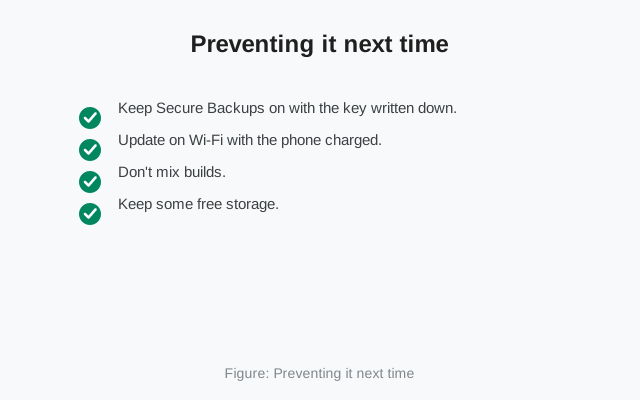
- Keep Secure Backups on with the key written down. Every recovery step above is safer with a backup behind it. The Android backup guide walks through setup.
- Update on Wi-Fi with the phone charged. Interrupted updates are the root cause of most "won't open after update" cases. Don't update on 3% battery.
- Don't mix builds. Website build and Play build don't update or repair each other. Stick to one: the signature-conflict explainer covers why.
- Keep some free storage. Updates and first-launch migrations need working room; a phone at zero free space is fragile during updates.
from Signal's official site, file hosted by Signal, not by us
Frequently asked questions
Signal closed instantly after updating. Are my chats gone?
Almost certainly not. A launch failure doesn't delete data. The app just can't start. Your chats are still on the phone. Work the recovery ladder: force-stop, reboot, clear cache, then an over-the-top reinstall. Don't uninstall until a backup is confirmed.
Is it safe to reinstall Signal over the top without a backup?
Installing over the top preserves data by design. Same build, same key, treated as an update. But "preserves data" isn't a backup. If anything later forces an uninstall or clear-data, you'll need the Secure Backup and 64-character key, so confirm them anyway.
What's the difference between clear cache and clear data?
Clear cache removes temporary files only. It's safe, and your chats are untouched. Clear data wipes the app back to fresh-install state, deleting everything. Only do it with a confirmed backup and recovery key.
The app hangs on the logo forever. How long should I wait?
Give it a full minute or two on first launch after an update. Migrations take time. If it's still stuck after several minutes, force-stop it, free some storage, and relaunch. Persistent hangs point to low storage or a damaged update.
Can I downgrade to the older version that worked?
Downgrading is risky: older data formats may not load, and you'd be giving up security fixes. The over-the-top reinstall of the current version is the safer repair. Only consider a downgrade with a confirmed backup, and never from third-party sites.
Signal opens but my chats look empty after the update. What now?
Don't clear data. That's the one move that makes this permanent. Force-stop and relaunch first; the database may just need another migration pass. If chats stay empty, do the over-the-top reinstall with your backup key ready, then restore from the Secure Backup if needed.
Related: the full troubleshooting hub, when Signal updates fail, Signal keeps crashing, freeing space without losing chats, how Secure Backups work, backup failure fixes, latest version and changelog, and the main install guide.