
How to find your contacts on Signal after installing
Published: October 7, 2026 · Updated: October 8, 2026
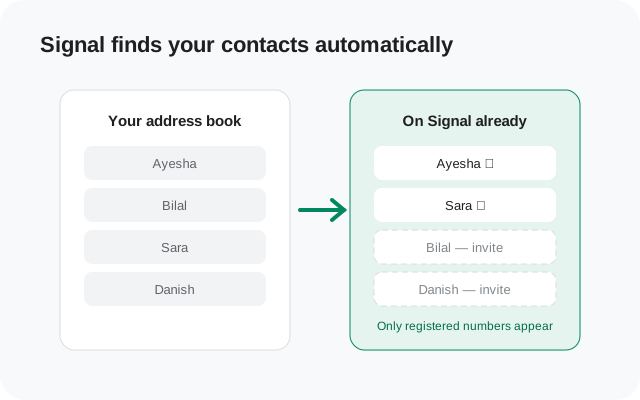
Finding your contacts on Signal is mostly automatic. When you allow the contacts permission, Signal checks which phone numbers in your address book are already registered and shows those people in your chat list. You do not type anyone in by hand. If someone does not appear, the usual reason is simple: they are not on Signal yet.
This guide explains what the contacts permission does, how the private matching works, the steps to find your contacts right after installing, and what to check when a contact is missing.
What Signal needs from you first
Signal identifies people by phone number. To show you who is already on Signal, it needs to see the phone numbers in your address book. That means Android has to grant it the contacts permission.
Right after you install and open Signal, your phone asks: "Allow Signal to access your contacts?" Tap Allow. That one tap is what makes the whole contact list fill in by itself. Without it, Signal cannot see your address book, and your contact list stays empty.
A few honest points about this permission:
- It is optional. You can skip it and still use Signal. You would just add people manually, by typing their phone numbers when you start a new chat.
- You can change it any time. Android Settings > Apps > Signal > Permissions lets you switch it on or off later. Nothing is permanent.
- It covers all contacts at once. There is no per-contact approval; the permission opens your whole address book to the matching process described below.
If you want the full picture before deciding, read what each Signal permission does.
How contact discovery works
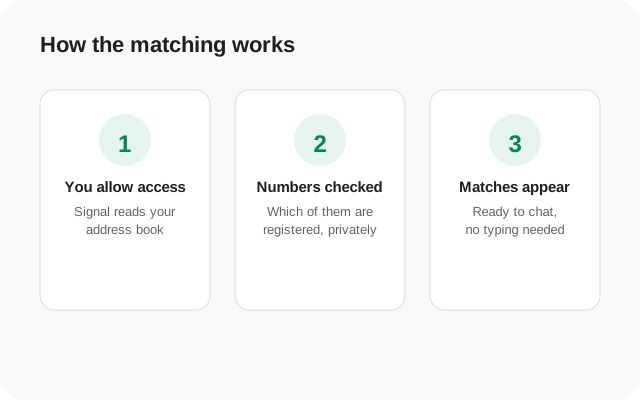
Once the permission is granted, Signal runs a quiet check in the background. It takes the phone numbers from your address book and compares them against its registry of Signal accounts. Every number that matches a registered user appears in your Signal contact list, usually marked so you can see they are reachable.
Three things are worth understanding about this process:
- It is number-based, not name-based. Signal matches phone numbers, not names. A contact saved as "Mom" appears because her number is registered. The nickname does not matter.
- It is designed to stay private. Signal says the matching is done in a way that keeps your contacts private, without exposing your whole address book. The details are technical, but the point is simple: the feature is built so that finding your friends does not mean handing over your address book.
- Non-matching numbers are simply skipped. If a number is not registered, Signal does not add anything for it. That contact just does not appear, with no error and nothing for you to clear.
The check repeats on its own. When someone you already have saved joins Signal later, they show up in your list without you doing anything, which is a nice moment the first time it happens.
Finding your contacts, step by step
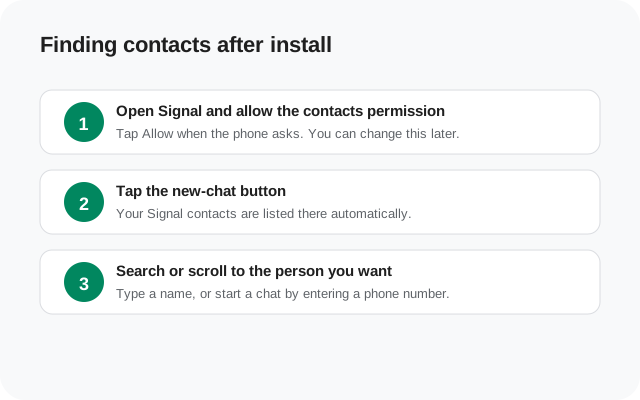
Open Signal and allow the contacts permission
Tap Allow when your phone asks during setup. If you skipped it then, go to Android Settings > Apps > Signal > Permissions > Contacts and switch it on.
Tap the new-chat button
On the main screen, tap the compose or new-chat button (usually a pencil or plus icon). Your Signal contacts are listed there automatically.
Search or scroll to the person you want
Type a name in the search bar, or scroll the list and tap a contact to open a chat. You can also type any phone number directly to start a conversation with someone who is not in your address book.
That is the entire process. There is no "add friend" step, no friend requests, and no usernames to exchange. If their number is registered, they are one tap away.
If you just finished these steps and someone is still missing, the next section is for you.
Why a contact doesn't show up
| What you see | Likely reason | What to do |
|---|---|---|
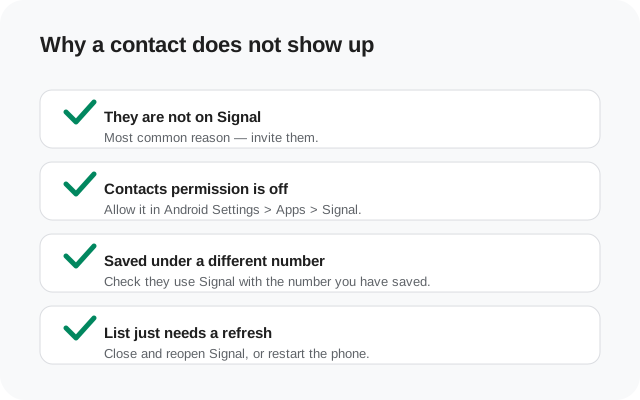
| The contact is nowhere in Signal | They are not registered on Signal | Invite them (see below). This is the cause in most cases. |
| No contacts appear at all | The contacts permission is denied | Go to Settings > Apps > Signal > Permissions and allow Contacts, then reopen Signal. |
| You know they use Signal, but they are missing | You saved a different number than the one they registered with | Ask which number they use on Signal and save it, or start a chat by typing that number. |
| They just joined, but still missing | The list has not refreshed yet | Close and reopen Signal. If that fails, restart the phone and check again. |
| They changed numbers recently | Their old number is still what you have saved | Get their new number, update the contact, and check the list again. |
Work through the rows in order. In our experience helping new users, the first row (they simply are not on Signal yet) explains the large majority of "missing contact" reports. The permission row is a close second, especially on phones where the prompt was dismissed during setup.
One more check: make sure the contact is actually saved on the phone, not just inside another app. Signal reads the Android address book; a number that only exists in a chat app's own contact list will not be found.
Inviting people who aren't on Signal
When someone you want to talk to is not on Signal, the app gives you an invite option. You can send them a link that takes them straight to Signal's download page, where they install the app and register with their number.
Two practical things to know before you invite people:
- Invites go out as normal messages. An SMS invite is a regular text sent from your phone, so your carrier's normal texting rates apply. If you are on a limited SMS plan, prefer sharing the link over a chat app you already use.
- The person still has to install and register. An invite is not a shortcut around setup. They download the APK or the Play Store version, verify their own number, and then they appear in your contact list automatically.
It helps to tell people why you are asking. "Install this app" gets ignored; "this is how we stop our family photos going through ad-company servers" gets installed. Pick the two or three people you talk to most and start there. A small Signal circle you actually use beats a big invite list that never converts.
Once they register, they show up in your contacts on their own. You do not need to re-invite or re-add them.
Who can find you on Signal
Discovery works both ways. Just as you find people, people find you: anyone who has your phone number saved in their contacts and uses Signal will see you in their contact list. That is how the app is designed. Your number is your identity on Signal.
This surprises some new users, so it is worth saying plainly: if you give someone your number and they use Signal, they will know you use Signal too. There is no stealth mode where you are registered but invisible to your own contacts.
Signal does give you controls over the rest:
- Profile visibility. Your profile name and photo are only shown to people you choose, depending on your settings.
- Stories and status. Who sees your stories is configurable, so being findable does not mean being visible.
- Blocking. Anyone you do not want hearing from you can be blocked, and blocking is one-sided and silent.
If privacy from specific people matters to you, set these up right after install rather than later. Our first-run setup guide walks through the settings in order.
from Signal's official site — file hosted by Signal, not by us
Frequently asked questions
Why are my contacts not showing up on Signal?
The most common reason is that they are not registered on Signal. Check that the contacts permission is allowed, and confirm you saved the number they actually use on Signal.
Do I have to allow the contacts permission?
No. It is optional. Without it you can still message people by typing their phone numbers manually when you start a new chat.
How does Signal find my contacts?
It compares the phone numbers in your address book against its registry of registered Signal accounts, in a way designed to keep your contacts private. Matching numbers appear in your contact list.
Can I add someone who is not in my phone contacts?
Yes. Start a new chat and type their phone number directly; if they are registered on Signal, the chat opens.
Will people know I joined Signal?
Anyone who has your number in their contacts and uses Signal will see you in their contact list automatically.
How do I invite someone to Signal?
Use the invite option in the app to send them a download link. Once they install and register, they appear in your contacts on their own.
Keep reading
- first-run setup after installing the APK: the full setup walkthrough, screen by screen
- what each Signal permission does: contacts, notifications, camera and more, explained plainly
- why Signal dropped SMS support: the 2022 change and what to use for texting instead
- is the Signal APK safe: how to confirm you have the real file