
Use Signal with microG for notifications
Published: October 7, 2026
Signal Foundationfrom Signal's official site — file hosted by Signal, not by us. signal.org/android/apk
microG is the missing piece that makes Signal behave properly on de-Googled phones. It's a free, open-source reimplementation of Google Play Services: just enough of Google's framework to let apps use push notifications, location, and maps without a Google account or the proprietary Play Services running on your phone. If you run LineageOS, GrapheneOS, /e/OS, or a Huawei phone without Google apps, microG is how you get Signal notifications delivered promptly instead of late.
This guide assumes you've already installed Signal, either from the Play Store or from the official APK at signal.org/android/apk (website build 8.29.3, package org.thoughtcrime.securesms). If you haven't, the no-Play-Store install guide covers the APK route, which pairs naturally with microG.
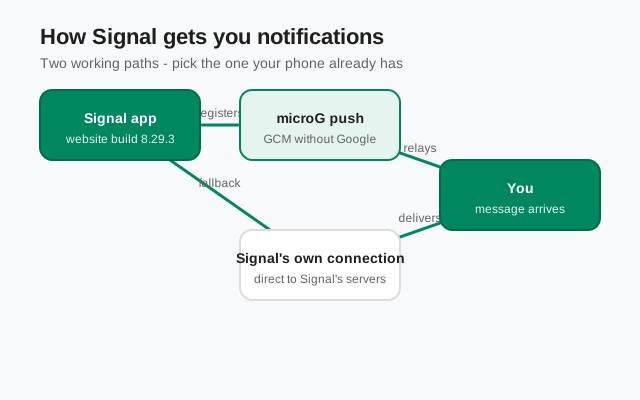
What microG is
microG (specifically its core component, GmsCore) reimplements the client-side libraries that apps use to talk to Google services. Apps like Signal are written against Google's APIs. When Signal wants a push notification, it calls the Firebase Cloud Messaging (FCM) API. On a normal phone, Google Play Services handles that call. On a de-Googled phone, there's nothing to answer unless microG is installed to answer it.
microG is not Google Play Services. It's a clean-room open-source implementation, it doesn't require a Google account, and it sends far less data to Google, though be honest with yourself: push notifications via FCM still transit Google's servers. microG removes Google from your device, not from the push path. If that distinction matters to you, the alternative is Signal's own direct connection, covered below.
The easiest way to get microG is a ROM that ships it: LineageOS for microG and /e/OS bundle it out of the box. Installing microG on top of a stock ROM is possible but fiddly. It needs signature spoofing permission, which stock ROMs don't grant. Be realistic about which camp you're in before you start.
It's worth understanding what microG does not do, because expectations run ahead of reality here. It doesn't give you the Play Store, it doesn't make banking apps pass integrity checks, and it doesn't make every Google-dependent app work. Some apps detect the emulation and refuse. What it does, reliably, is the narrow job this guide cares about: answering the push-notification and location API calls that apps like Signal make, so those apps behave the way they do on a normal phone. For Signal specifically, that's nearly the whole battle, because Signal's only real dependency on Play Services is push.
How Signal delivers notifications
Signal has two notification paths and picks automatically:
- FCM push (preferred). If the phone has working Google Play Services, or microG emulating them, Signal registers for Firebase Cloud Messaging. Incoming messages wake the phone through Google's push channel: fast, battery-efficient, no persistent connection needed.
- Signal's own WebSocket (fallback). If no push framework is available, Signal keeps its own persistent connection to Signal's servers open. This works fine but costs battery. The radio stays active, and it's the first thing aggressive battery savers kill, which is why notifications go flaky on de-Googled phones without microG.
So microG's job is simple: give Signal path 1 instead of path 2. You get the same prompt notifications as a Play Services phone, without installing Google's proprietary stack. The app itself is unchanged. This is purely about which delivery pipe it uses.
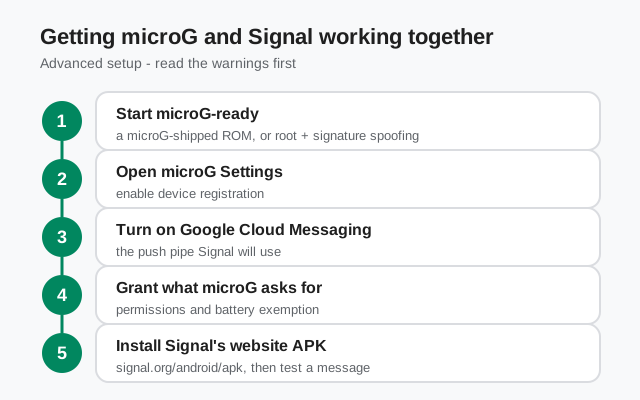
Setting up microG with Signal
Get microG on the phone
Easiest: use LineageOS for microG or /e/OS, which ship it. Otherwise install GmsCore (and optionally GsfProxy, UnifiedNlp for location) from microG's official releases, on a ROM that supports signature spoofing.
Run microG's Self-Check
Open microG Settings and run the Self-Check. Confirm the key items pass: system spoofs signatures (if required), GmsCore installed, and push notifications registered. Fix failures here before touching Signal.
Enable device registration and push
In microG Settings > Push notifications, make sure push is enabled. microG will register the device with Google's push servers: anonymously, no account needed.
Install Signal (if not already)
Install from the Play Store if you have it, or the official APK from signal.org/android/apk. Order matters less than you'd think. Signal detects the push framework at startup.
Restart Signal and verify
Force-stop Signal and reopen it so it picks up microG's push service. Then check that push is actually working (next sections).
If Signal was already installed before microG, the force-stop-and-reopen in step 5 is what makes it switch from its WebSocket fallback to microG push. Without the restart it may keep using the old path.
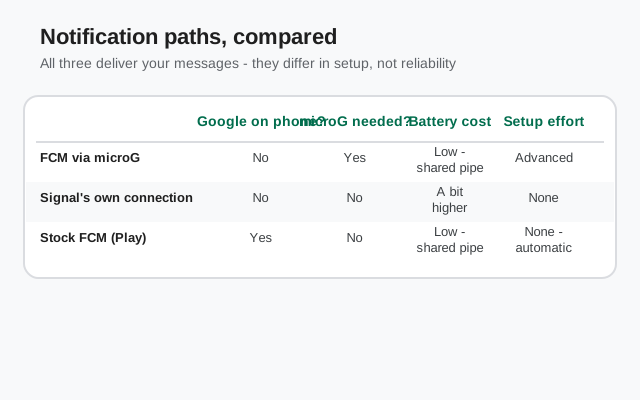
microG push vs Signal's own connection
| microG push (FCM) | Signal direct (WebSocket) | |
|---|---|---|
| Delivery speed | Near-instant, phone woken by Google's channel | Near-instant while the connection is alive |
| Battery | Low: shared push channel, radio sleeps | Higher: persistent connection keeps radio active |
| Reliability vs battery savers | Good: push wakes the app | Fragile: savers kill the connection, messages delay |
| Google in the path | Yes: push transits Google servers | No Google involvement at all |
| Setup effort | Needs microG working | Zero: automatic fallback |
Choose microG push if you want normal battery life and reliable notifications with minimal Google on the device. Choose the direct connection if your threat model says no Google infrastructure anywhere in the path and you accept the battery cost plus the need to babysit battery-saver exemptions. Both are legitimate; they optimize for different things.
Battery trade-offs
Numbers vary by phone, but the shape of the trade-off is consistent: Signal's direct WebSocket connection adds a steady background drain: often described as a few percent extra per day on modern phones, more on old ones with inefficient radios. microG push eliminates most of that because the phone isn't holding a connection open; it just wakes briefly when a push arrives.
microG itself isn't free either. GmsCore runs as a background service. But it's one shared service for every app using push, versus every app holding its own connection. On a phone running several push-hungry apps, microG is the clear battery winner. On a phone running only Signal, the difference is smaller but still favors microG.
The worst of all worlds is the direct connection plus an aggressive battery saver: the saver kills the connection, Signal reconnects, the saver kills it again, burning battery while delivering nothing. If you're on the direct path, the battery exemptions in our brand guides (Xiaomi, Vivo, Samsung) aren't optional.
Check that push is actually working
Don't assume; verify. Three checks, in order:
- microG Self-Check: reopen microG Settings and confirm push notifications show as registered. If this fails, nothing downstream can work.
- microG's push test: microG Settings > Push notifications includes a way to see registered apps. Signal should appear after its restart.
- The real-world test: leave the phone untouched, screen off, for 20 minutes, then have someone send you a message. It should arrive within seconds. Then test a Signal call too. Calls use the same push wakeup.
If messages arrive only when you open the app, Signal is still on its direct connection (or the connection is being killed). Re-check that microG push is registered, force-stop Signal once more, and confirm no battery saver is interfering. The 20-minute idle test is the ground truth. Trust it over any settings screen.
Frequently asked questions
Does Signal need Google Play Services to work?
No. Signal works without them. It falls back to its own persistent connection. microG is optional; it just makes notifications faster and cheaper on battery by providing push.
Is microG safe to install?
microG is open-source and widely used in the de-Googled community (LineageOS for microG, /e/OS). Install it from its official releases, not from random APK sites. The same verification discipline as any sideload.
Will microG give Google my data?
Push notifications transit Google's servers when you use FCM via microG, but there's no Google account and no Play Services telemetry. If even push-via-Google is unacceptable, use Signal's direct connection instead and accept the battery cost.
Do I need to reinstall Signal after setting up microG?
No. Force-stop Signal and reopen it. That's enough for it to detect microG's push service and switch over from the direct connection.
Why do I still get delayed notifications with microG?
Check microG's Self-Check first (push must show registered), then battery-saver exemptions for both microG and Signal. A saver killing either one breaks the chain.
from Signal's official site — file hosted by Signal, not by us. signal.org/android/apk