
How to install Signal without the Google Play Store
Published: October 7, 2026 · Updated: October 8, 2026
Signal Foundationfrom Signal's official site — file hosted by Signal, not by us. signal.org/android/apk
Millions of people need Signal without the Google Play Store: Huawei phones without Google services, de-Googled custom ROMs, phones in regions where Google is blocked, corporate devices with the store disabled, and privacy-minded users who simply don't want a Google account in the loop. Signal anticipated all of them. It publishes an official APK on its own website, and that APK is a first-class citizen, not a hack.
This is the master guide for the no-Play-Store install. The file is always the same: the official APK from signal.org/android/apk, currently website build 8.29.3, package org.thoughtcrime.securesms. Brand-specific paths live in our Samsung, Xiaomi, Vivo, Sony Xperia, and Tecno guides; what follows is the universal flow plus the per-brand permission map.
Why install Signal without the Play Store?
The reasons cluster into four groups. No Google services: Huawei phones sold after the US trade restrictions, custom ROMs like GrapheneOS or LineageOS without GApps, and phones in mainland China simply don't have the Play Store. For these users the APK isn't optional. It's the only door.
Broken store: the Play Store app itself can break: endless "download pending," corrupted cache, account sync failures. Reinstalling the store is sometimes harder than sideloading the one app you need. Policy: work phones with MDM profiles often disable the Play Store while allowing sideloading of approved apps. Choice: some people run de-Googled setups on principle and prefer every app to come straight from its developer.
What the APK route does not give you: a lighter app, a faster app, or a way to run Signal on a phone below the minimum Android version. It's the same Signal, delivered differently. Go in with the right expectations and the process is smooth.
There's also a middle path people overlook: fixing the Play Store instead of abandoning it. If your only problem is a misbehaving store app (stuck downloads, sign-in loops), clearing the Play Store's cache and data, or removing and re-adding your Google account, resolves it more often than not. The APK is the right answer when the store is unavailable (no Google services, policy blocks, regional unavailability), not merely when it's annoying. Ten minutes of store troubleshooting can save you a lifetime of manual update prompts.
The official APK path, step by step
Download from signal.org/android/apk
Open signal.org/android/apk in your phone's browser and tap the download link. Confirm the download. The file name looks like
Signal-Android-website-prod-universal-release-8.29.3.apk.Verify the file
Before installing, check the SHA-256 fingerprint of the APK's signing certificate against the fingerprint printed on Signal's page. Full procedure in the verification section below.
Allow your browser to install unknown apps
Open the downloaded file; Android redirects you to the permission. Enable it for your browser only. Per-brand paths are in the next section.
Install and open
Tap Install on the system installer screen, then Open.
Register your number
Enter your phone number, enter the SMS code (voice-call fallback available), set your Signal PIN, restore a backup if you have one.
If you downloaded the APK on a computer instead, the PC-to-phone transfer guide covers getting it onto the phone intact, including integrity checks.
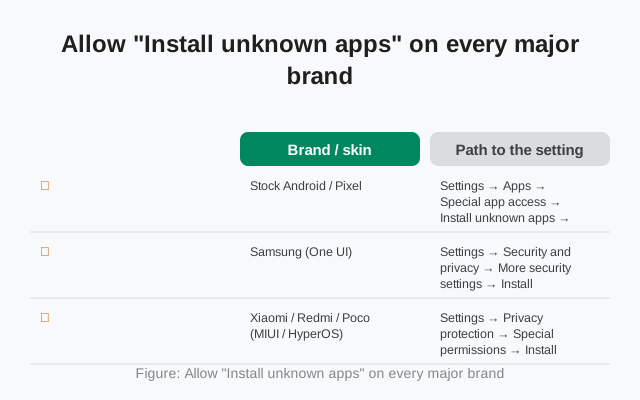
Allow "Install unknown apps" on every major brand
The permission is the same everywhere. Only the menu path changes. Grant it for the app that handles the file (usually your browser), and only that app:
| Brand / skin | Path to the setting |
|---|---|
| Samsung (One UI) | Settings > Security and privacy > Install unknown apps |
| Xiaomi (MIUI) | Settings > Privacy protection > Special app access > Install unknown apps |
| Xiaomi (HyperOS) | Settings > Privacy & security > Special app access > Install unknown apps |
| Vivo (FuntouchOS) | Settings > Security > Install unknown apps (or search "unknown" in Settings) |
| Oppo / Realme (ColorOS) | Settings > Security > Install unknown apps |
| Tecno / Infinix (HiOS/XOS) | Settings > Apps > Special app access > Install unknown apps |
| Sony Xperia | Settings > Apps > Special app access > Install unknown apps |
| Pixel / stock Android | Settings > Apps > Special app access > Install unknown apps |
| Huawei (EMUI/HarmonyOS) | Settings > Security > More settings > Install apps from external sources |
Can't find it? Use the search bar at the top of the Settings app and type "unknown". Every modern skin finds it that way. After installing, you may switch the permission back off; it only governs future installs.
Verify the APK before installing
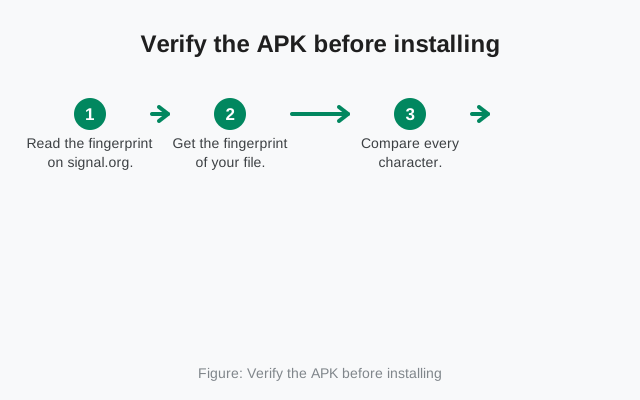
This is the step that makes sideloading safe. Signal publishes the SHA-256 fingerprint of its signing certificate on the download page. Your check:
- Open signal.org/android/apk and note the fingerprint shown there.
- Inspect the signing certificate of the APK you downloaded: on a computer, Android's
apksignertool prints it; on a phone, an APK-signature viewer app does the job. - Compare the two character by character. Every character matches = the file genuinely came from Signal. Any difference = delete it and re-download.
Our full verification guide walks through both the computer and on-phone methods. Never trust a fingerprint printed anywhere but signal.org: not a forum, not a blog, not this page. The fingerprint that matters is the one Signal itself publishes, because Signal controls that page.
What works without Google Play Services
The honest breakdown of the website build on a Google-free phone:
| Feature | Status without Play Services |
|---|---|
| Messaging, groups, calls | Fully working: these never needed Google |
| Notifications | Working, via Signal's own persistent connection instead of Google push; slightly more battery use |
| Self-updates | Working: the website build checks for and installs its own updates |
| Contact discovery | Working |
| Location sharing | Works, but map tiles may look different without Google Maps backing |
| Backup & restore | Fully working |
The main cost is battery: the persistent connection keeps the radio busier than push would. On phones with aggressive battery savers (Xiaomi, Vivo, Tecno, Samsung), exempt Signal explicitly or notifications lag. The brand guides linked in the intro have the exact toggles. If you run microG, you get push-style notifications without full Play Services: the best of both worlds.
Which install path fits your phone?
Phone with Play Store, everything working: honestly, just use the Play Store. The APK buys you nothing here except manual update prompts.
Huawei / no Google services: the APK is your path. Pair it with the battery exemptions for your brand so notifications stay prompt.
De-Googled custom ROM: APK + microG if your ROM supports it (LineageOS for microG, /e/OS ship it). That combination behaves almost exactly like the Play version.
Play Store broken: APK now, fix the store later if you want. The two builds can't be installed over each other, so pick one. Our build comparison lays out the trade-offs.
Work phone with MDM: check your IT policy first. Sideloading against an explicit policy is a career risk no messenger is worth.
Common install failures, fixed
| Symptom | Cause and fix |
|---|---|
| "App not installed" | A Play Store Signal is already installed, so the signing keys conflict. Back up, uninstall the Play version, then install the APK. |
| Install button does nothing | A screen overlay (blue-light filter, chat head) is intercepting taps. Dismiss overlays and retry. |
| "Parse error" / corrupt file | Download didn't complete, or the phone is below the minimum Android version. Re-download; check your OS version. |
| Browser won't download the file | Try a different browser, check storage space, or download on a PC and transfer via USB. |
| Play Protect blocks the install | Expected for sideloads. Verify the fingerprint yourself, then choose "Install anyway." |
| Messages arrive late after install | Battery saver is killing Signal's connection. Exempt it per your brand's guide. |
For download-specific failures, the download fix guide goes deeper; for update stalls after a successful install, see the update guide.
Frequently asked questions
Is it safe to install Signal without the Play Store?
Yes, if the APK comes from signal.org/android/apk and you verify its SHA-256 fingerprint against Signal's page. The website build is official: it's Signal's own distribution channel, not a workaround.
Will I still get updates without the Play Store?
Yes. The website build checks for updates itself and prompts you to install them. Keep Signal exempt from battery savers so the updater can run.
Do notifications work without Google Play Services?
Yes, via Signal's own persistent connection. They arrive promptly as long as battery savers don't kill the connection. microG restores push-style efficiency if your ROM supports it.
Can I switch from the Play version to the APK version later?
Yes, but it requires an uninstall because the signing keys differ. Back up your chats first, uninstall the Play version, install the APK, and restore.
Why does my phone warn me about installing the APK?
Android warns about every sideloaded app. The warning is policy, not a diagnosis. Your own fingerprint verification is the real safety check.
from Signal's official site — file hosted by Signal, not by us. signal.org/android/apk