
Use Signal on two phones with linked devices
Published: October 7, 2026 · Updated: October 8, 2026
Yes, Signal now works on two phones at once. Since the 8.20 release, you can link a second Android phone to your Signal account the same way you link a desktop: the second phone scans a QR code, optionally pulls your chat history over, and then sends and receives as the same account. Your number stays the primary identity, the second phone is a linked device, and both stay in sync going forward. The one mistake that ruins this is registering your number on the second phone instead of linking it. Registration moves the account and kicks the first phone. Link, do not register.
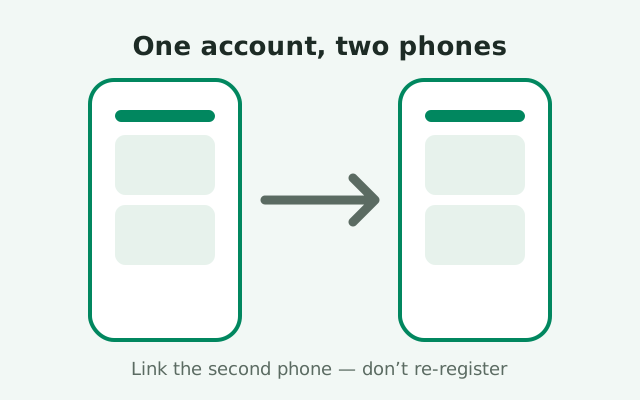
The model: one primary, linked secondaries
Signal's account system has always had one rule: your phone number is registered on exactly one primary phone. Everything else, desktops, tablets, and now second phones, is a linked device that borrows that identity. The primary phone is the account's home base. Linked devices send and receive as you, but they do not own the account. This is the same architecture Signal has used for desktop linking for years, now extended to phones.
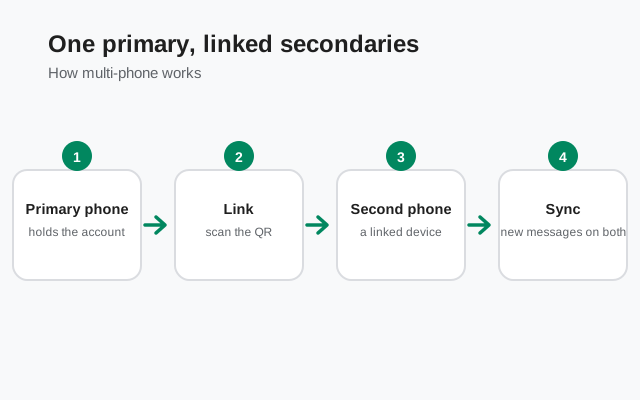
What changed with the 8.20 release is which devices are allowed to be linked. Before, the linked-device club was desktops and iPads. Now a second Android phone can join, and the linking uses an encrypted link-and-sync handshake: the two phones establish a direct encrypted channel, and the primary pushes your data across. Nothing readable passes through Signal's servers in the open; the transfer is encrypted the same way your messages are. That design is why Signal took years to ship this while WhatsApp had it early: Signal refused to build it in a way that would let its servers see your history.
Think of it in practical terms. Your main phone is the account. Your second phone, the work phone, the travel phone, the one with the good camera, becomes a mirror of that account. Both ring on calls. Both show the same conversations. New messages land on both. And if you lose the second phone, you unlink it from the primary and the account itself is untouched. The primary is the one device you protect like your life depends on it, because everything else hangs off it.
How linking a second phone works
The linking flow is a QR-code handshake, and it takes about five minutes. On your primary phone, open Signal, go to Settings, then Linked devices, and tap the add button to display a QR code. On the second phone, install Signal fresh and, on the very first screen, choose to link the device instead of registering a number. The second phone's camera opens; scan the QR code on the primary. The two phones shake hands, and the second phone asks whether you want to transfer your chat history. Say yes, wait for the transfer, and you are done.
Both phones need recent Signal versions: the second-phone linking feature requires 8.20 or later on the secondary device, and the primary should be current too (the latest website build is 8.29.3). If either phone is on an older build, the link option simply will not appear or will fail. Update both first; it is the cheapest possible fix and it resolves most "it doesn't work" reports before they start. Our step-by-step second-phone linking guide walks every screen of this flow with the troubleshooting for each step.
Two small details that matter. First, the phones need to be near each other and online during linking: the QR code is just the introduction, and the actual handshake and history transfer happen over the network. Second, choose the history transfer deliberately. You can skip it and start the second phone with a clean slate. It will still receive all new messages going forward. Most people want the history, but skipping is a legitimate choice if the second phone is a shared or less-trusted device.
What transfers, and what syncs after
At link time, you get a choice: transfer your chat history or start fresh. If you transfer, the primary phone sends your full message history plus media from roughly the last 45 days, all over the encrypted link. Older media does not come along. The text history goes back as far as you have it, but attachments are limited to the recent window to keep the transfer from taking forever. The 45-day media window is Signal's documented tradeoff between "your new device feels complete" and "the transfer finishes before lunch."
After linking, both phones are live endpoints of the same account. New messages are delivered to both. Sent messages appear on both. Read states, typing indicators, and reactions sync. This is true multi-device sync, not a remote-desktop view of the primary: the second phone has its own copy of the keys and its own connection to Signal's servers. Either phone can be offline while the other works; they catch up when they reconnect.
What does not sync: your primary-only account operations. Registration, number changes, and PIN management live on the primary. Backups are per-device: each phone makes its own backup with its own recovery key, which matters if you ever need to restore one of them independently. And some device-local settings (notification sounds, theme choices) stay per-phone, which is actually convenient: your work phone can be silent while your personal phone chimes.
The limits: devices, days, and inactivity
| Rule | What it means |
|---|---|
| Up to 5 linked devices | One primary phone plus five linked devices total (phones, tablets, desktops combined). The app tells you when you hit the cap. |
| Primary must come online every 30 days | Your main phone needs to connect to Signal at least once a month, or you cannot link new devices until it does. |
| Linked device unlinked after 45 idle days | A second phone you never open for a month and a half gets automatically unlinked and must be re-linked. |
| History transfer is link-time only | You get one shot at the history pull during linking; there is no "re-sync old history" button later. |
The 30-day primary rule is the one people trip over. A linked second phone is not a replacement for the primary; the primary remains the account's anchor, and Signal requires it to check in regularly. If you switch to the second phone full-time and leave the primary in a drawer for two months, do not be surprised when device management starts complaining. Keep the primary alive and charged and this rule never bites.
The five-device cap counts everything linked: desktops, tablets, and second phones together. For most people that is plenty: a second phone, a laptop, and a tablet is three. But if you are a multi-machine person, count before you link, and unlink the devices you no longer use in Settings, then Linked devices, on the primary. An unused linked device is not just clutter; it is a device holding your message keys, and hygiene says to remove what you do not use. See our unlinking guide for the cleanup flow.
The 45-day auto-unlink is Signal's hygiene rule for abandoned devices. It exists so a phone you lost in 2024 does not stay a live endpoint of your account forever. If a second phone goes quiet for six weeks, it gets cut off automatically, and you re-link it when you pick it up again. Treat it as a feature, not a bug. If you have a seasonal second phone, expect to re-link it after long breaks.
The mistake that kicks your first phone
Here is the warning this whole page exists to deliver: on the second phone, link the device. Do not register your number. Signal's first-run screen offers both paths, and they do opposite things. Linking attaches the second phone to your existing account. Registering tells Signal's servers "this phone is now the primary device for this number," which deactivates the first phone immediately. Your chats on the first phone go dark, and you have just performed an account transfer when you wanted a mirror.
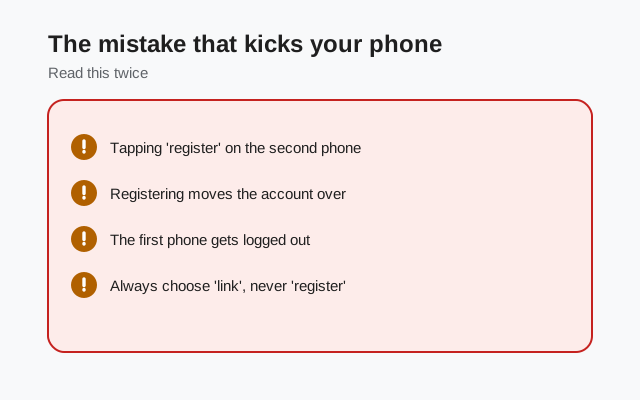
This mistake is easy to make because registering is the familiar path. It is what you did on your first phone, and the button says reassuring things. The link option hides behind a smaller choice on the setup screen (on Android it appears as an option to link rather than continue registration). If you are setting up the second phone and the screen asks for your phone number, stop: you are on the wrong path. Back up, find the link option, and start over.
If you already made this mistake, it is recoverable but annoying. Your account now lives on the second phone, and the first phone is deactivated. Fix it by deciding which phone should be primary, registering the number there (which moves the account back), restoring from backup if needed, and then linking the other phone properly this time. The chats are not necessarily lost. Whichever phone has the freshest backup holds them. But you have turned a five-minute link into a migration. The account transfer guide covers the recovery path in detail.
Managing your linked phones
All device management happens on the primary phone, in Settings, then Linked devices. That screen lists every linked device by the name it was given at link time. From there you can rename a device (do this at link time: "Work Pixel" beats "Android Phone" when you are deciding what to unlink in a hurry), see roughly when each was last active, and remove any device with a tap. Removing a linked phone cuts it off immediately; its local data stays on that phone, but it stops receiving anything new.
Name your devices at link time. This sounds trivial and it saves real panic later. When you are staring at the list deciding which of two entries is the phone you just lost, "Pixel 9 Pro" and "Galaxy A35" are answers, and "Android" and "Android (2)" are a coin flip. The thirty seconds of naming at setup pays for itself the first time anything goes wrong.
If a linked phone starts misbehaving (messages arriving late, sync gaps, phantom notifications), the fix order is: check both phones are on current versions, check connectivity on the lagging phone, then unlink and re-link the problem device. Re-linking is the "turn it off and on again" of the multi-device world, and it resolves most sync weirdness because it rebuilds the device's key state from scratch. For the deeper cases, our two-phone sync troubleshooting and linked device sync guide walk the full diagnostic.
When two phones makes sense
The classic case is the two-phone life: a personal phone and a work phone, and one Signal identity across both. Before second-phone linking, this required either two Signal accounts (and telling contacts which number to use when) or carrying one phone everywhere. Now the work phone can be a linked mirror of the personal account, and you answer from whichever is in your hand. The same applies to travel: a local-SIM phone abroad linked to your main account, so you are reachable on your real number without roaming.
It also fits the tablet-adjacent use: a large-screen secondary device for reading long threads at home while the primary stays in your pocket. And it fits the backup-phone pattern: an older phone kept charged as a spare, linked and ready, so a broken primary costs you an afternoon instead of a week.
It does not fit two separate identities. If you need a work Signal account that is genuinely separate from your personal one, different contacts, different groups, no cross-contamination, linking is the wrong tool. Linking mirrors one account; it does not run two. For two accounts on one phone, read our dual apps and work profile guide. For a tablet specifically, the linked tablet guide covers the large-screen details. Choose the tool that matches the job: mirror for one identity everywhere, separate accounts for separate lives.
from Signal's official site — file hosted by Signal, not by us
Frequently asked questions
Can I use Signal on two phones with the same number?
Yes. Since version 8.20, you can link a second Android phone to your Signal account as a linked device. The second phone scans a QR code from the primary, optionally transfers your chat history, and then sends and receives as the same account. Do not register your number on the second phone, or it will replace the first as the primary.
Do both phones need to be online for messages to sync?
No. Each linked phone has its own connection to Signal's servers and receives messages independently. A phone that was offline catches up when it reconnects. The primary only needs to come online at least once every 30 days to keep device management working.
How many devices can I link to Signal?
Up to five linked devices per account, counting phones, tablets, and desktops together. A linked device that sits unused for 45 days is automatically unlinked.
What transfers when I link a second phone?
At link time you can transfer your full message history plus media from roughly the last 45 days, over an encrypted connection between the two phones. You can also skip the transfer and start fresh; new messages sync to both phones either way.
I registered instead of linking and my first phone got kicked. What now?
Decide which phone should be primary, register your number there to move the account back, restore from backup if needed, then link the other phone properly through the link option on the setup screen instead of registering.
Keep reading
- the install guides hub: every install path in one map
- linking a second phone step by step: every screen of the QR flow
- two-phone sync troubleshooting: when the mirror misbehaves
- two accounts on one phone: when you need separate identities instead
- linking Signal Desktop: the same model on a computer