
Signal on two phones: how sync actually works (and how to fix it)
Published: October 7, 2026 · Updated: October 8, 2026
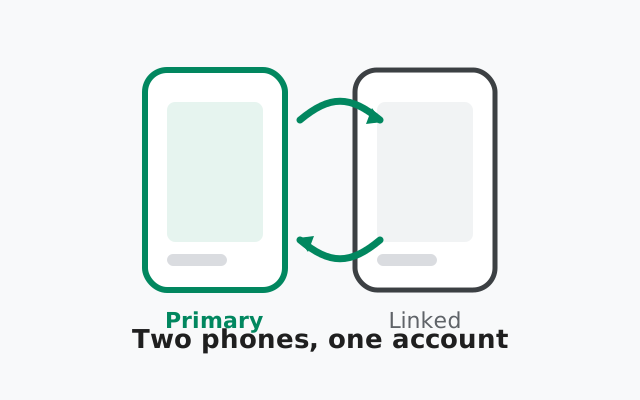
For years, Signal allowed exactly one phone per account. That has changed: recent versions let you link a second phone to your account as a linked device. Your first phone stays the primary, and the second mirrors it. Sync only covers messages sent after linking; old chats appear only if you chose the history transfer at link time. If your two phones are missing each other’s new messages, this guide explains how the system really works and how to fix it.
A short, honest history
For most of Signal’s life, one phone number meant one phone. Full stop. Desktops and tablets could be linked, but a second phone could only get its own separate registration. That changed with the link-and-sync expansion (rolling out from Android 8.20 and iOS 8.22): you can now link an additional phone to your existing account, the same way you’d link a tablet. The second phone shows a QR code, you scan it from your primary phone’s Linked devices settings, and from then on both phones share the account.
This is genuinely new, so both apps need to be recent. An old phone app won’t offer the link option at all.
The two-phone reality check
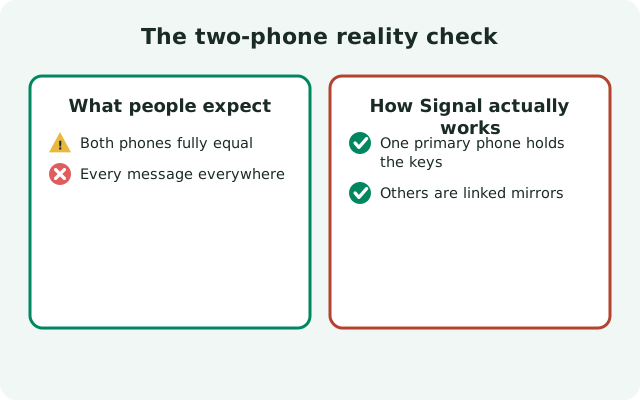
Before troubleshooting, make sure you’re fighting a real bug and not the design:
| What it does | What it does NOT do |
|---|---|
| Same account and number on both phones | Two independent registrations on one number (impossible) |
| New messages appear on both, in both directions | Old history on the second phone without the link-time transfer |
| You can send and reply from either phone | Keep working if the primary is dead forever (30-day rule) |
| Contacts and groups sync over after linking | More than 5 linked devices per account |
| End-to-end encrypted throughout | Merge two existing separate Signal accounts into one |
The key sentence: the second phone is a linked device, not a second primary. Your first phone holds the account; the second one mirrors it. Everything below follows from that.
Linking a second phone correctly
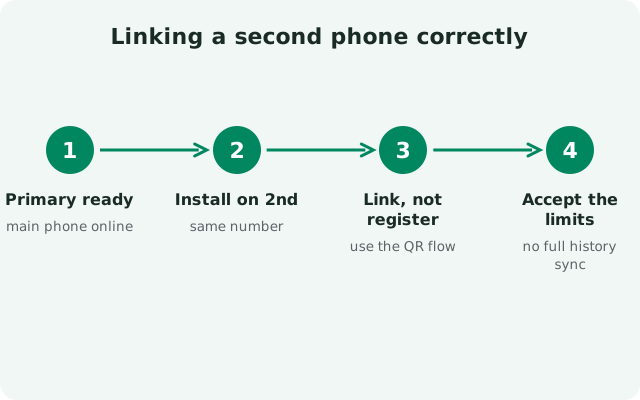
Update both phones
Both need recent versions. The link option only exists in newer builds. Update from signal.org/android/apk (currently 8.29.3) or your usual source.
Show the code on the second phone
Open Signal on the second phone and start setup. Instead of entering a phone number, open the menu and choose Link device. A QR code appears.
Scan from the primary phone
On your first phone: Settings → Linked devices → Link a new device. Scan the second phone’s code.
Decide about history transfer: now, not later
You’ll be offered a full history transfer (complete message history plus media from the last 45 days). Choose it if you want old chats on the second phone. There is no later: skipping it means old chats never arrive, and the only redo is reinstalling and linking again. The transfer is fully end-to-end encrypted.
Give it a few minutes
Contacts and groups populate in the background after linking. New messages arriving on both phones is the sign it worked. Don’t judge it in the first 60 seconds.
Why new messages don’t arrive on both
If both phones are linked and new messages are missing on one of them, the causes are the same as any linked-device sync failure. See the full linked-device fix guide. But the two-phone version has its own greatest hits:
- One phone’s battery manager kills Signal. The classic: messages arrive on the phone you’re holding but not the one in your pocket, because the pocket phone’s background connection is dead. Set Signal’s battery to Unrestricted and allow background data on both phones. Our battery fix guide walks through it.
- The second phone got auto-unlinked. A linked device that sits unused for about 45 days is disconnected automatically. Check the primary’s Linked devices list. If the second phone is gone, link it again.
- The primary has been offline too long. Your first phone must come online at least once every 30 days to keep its links alive. A primary that’s been off for weeks degrades the whole setup.
- One app is outdated. After releases that change the sync system, an old build on either phone breaks the pairing. Update both.
- Someone “registered” instead of “linked”. See the mistake section below. This one kicks a phone offline entirely.
Backups on two phones: per-device reality
One thing the two-phone setup does not give you is a shared backup. Signal’s own docs are blunt about it: linked devices don’t carry the same account information as your phone. Each device keeps its own local copy of what it has seen, and the proper chat backup (the one protected by your 64-character recovery key) is made on the primary phone. So if your primary dies and only the second phone survives, you can keep chatting from the second phone, but you can’t produce the primary’s backup from it. Keep the backup routine on the primary; treat the second phone as a convenience mirror, not a second copy of your archive. The backup guide covers the recovery key setup.
The sync fix walkthrough
Confirm both phones are online and updated
Load a web page on each. Update both Signal apps to the latest build.
Check the link is still alive
On the primary: Settings → Linked devices. The second phone should be listed. If not, it was auto-unlinked. Relink it.
Fix background restrictions on both
Unrestricted battery + background data allowed, on each phone. This fixes the majority of one-sided sync gaps.
Send a test message from each phone
Send from phone A, check phone B. Then reverse. This forces fresh session handshakes and reveals which direction is broken.
Unlink and relink the second phone
As a last resort: unlink it from the primary’s Linked devices list, reinstall Signal on the second phone, and link fresh. Choose the history transfer this time if you skipped it before.
The one mistake to avoid
Do not “register” the same number on the second phone. If you open Signal on the second phone and go through the normal phone-number registration instead of choosing Link device, Signal treats it as a new primary. Your first phone gets kicked offline with a “device no longer registered” banner. That’s not sync; that’s a takeover. The rule is simple: registering a number moves the account; linking a device shares it. If you already made this mistake, re-register on the phone you want as primary and then link the other one properly.
from Signal's official site — file hosted by Signal, not by us
Frequently asked questions
Can I use Signal on two phones with the same number?
Yes. Recent versions let you link a second phone to your account as a linked device. Your first phone stays the primary. You cannot have two independent registrations on one number; registering the same number fresh on a second phone kicks the first one offline.
Why aren’t my two phones showing the same messages?
Most often one phone’s battery manager is killing Signal’s background connection, or the second phone was auto-unlinked after ~45 days idle. Set battery to Unrestricted on both, check the Linked devices list on the primary, and relink if needed.
Will my old chats appear on the second phone?
Only if you chose the history transfer when linking. Full history plus media from the last 45 days. Sync alone never carries pre-link messages. If you skipped it, reinstall on the second phone and link again with transfer.
Does the primary phone need to stay online?
Yes. It must come online at least once every 30 days to keep its linked devices alive. A long-dead primary degrades the whole setup.
What happens if I register my number on the second phone instead of linking?
Signal treats it as a new primary and your first phone goes offline with a ‘device no longer registered’ banner. Re-register on your preferred primary, then link the second phone properly.
How many phones can I link to one Signal account?
Up to 5 linked devices total per account, including phones, tablets, and desktops. Unlink unused ones from Settings → Linked devices on the primary.
Keep reading
- Linked device not syncing: the general fix guide for any linked device
- Transfer chats to a linked device: how the link-time history transfer works
- Fix delayed notifications: battery settings that also fix sync gaps
- Troubleshooting hub: every Signal fix guide in one place