
Installing Signal on a Work or MDM-Managed Phone
Published: October 7, 2026 · Updated: October 8, 2026
You want Signal on your work phone, but the install fails with something like “blocked by your administrator”, or the button just does nothing. That is not a glitch. Your employer's MDM (mobile device management) software lets the IT team switch off installs from outside the Play Store, and on many company phones that switch is firmly off. The honest answer: you can install Signal's APK on a work-managed phone only if your IT policy allows it. This guide explains why installs get blocked, the difference between your work profile and your personal profile, how to ask IT the right way, and when the real answer is “use your personal phone instead.”
Why the install does nothing on a work phone
On your own phone, installing an APK is a two-minute job: download the file, allow installs from your browser, tap it, done. On a managed work phone, any of those steps can be locked down by policy, and the phone will not explain itself very well. Here is what is usually happening behind the scenes:
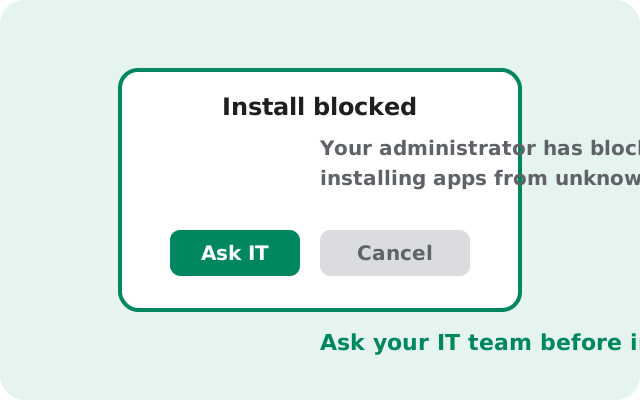
- “Install unknown apps” is disabled by the admin. Android lets you allow installs per app (your browser, your file manager). On a managed phone, the IT admin can turn this permission off for every app, or gray out the toggle so you cannot change it. Tapping the APK then shows “Install blocked” or “blocked by your administrator.”
- The work profile has an app allowlist. Many companies run a separate work profile on the phone (you will see a little briefcase badge on work apps). The admin can set a rule that only approved apps from the managed Play Store may install inside that profile. Anything else is rejected, no matter how safe it is.
- The whole device is fully managed. On a company-owned phone, there may be no personal side at all. The device shows “managed by your organization” from the first setup screen, and the admin controls installs device-wide.
- USB debugging and developer options are off-limits. So the usual back doors, sideloading over ADB, for example, are closed too. Admins who lock installs almost always lock these as well.
None of this is about Signal specifically. Your IT team did not block Signal; they blocked every app that does not come through their approved channel. WhatsApp, Telegram, or any random APK would get exactly the same treatment.
What MDM actually controls on your phone
MDM stands for mobile device management: software (like Google's Android Enterprise, Microsoft Intune, or VMware Workspace ONE) that lets a company enforce rules on phones that touch work data. This table shows what changes the moment MDM enters the picture:
| Decision | Your own phone | MDM-managed work phone |
|---|---|---|
| Who decides what installs | You | Your IT administrator |
| Installs from outside the Play Store | You allow them per app | Often disabled or grayed out by policy |
| Which app store you use | Play Store, or any APK source | May be limited to a managed Play Store with approved apps |
| Work profile | Does not exist | Separate container with its own stricter rules |
| Personal profile (BYOD phone) | Your whole phone | Usually still yours, but check the written policy |
| Can you remove the block yourself? | There is no block | No: only the admin can change policy, and dodging it is a policy violation |
| Can IT see installed apps? | Nobody is watching | Yes: admins can inventory apps on managed devices and profiles |
The last row matters more than people expect. On a managed device, your IT team can see the list of installed apps. Installing something against policy is not just technically blocked in most cases. Where it is not blocked, it is visible. Keep that in mind before trying anything clever.
Work profile vs personal profile: which one are you in?
Android phones in workplaces come in two flavors, and the install rules are different for each. Knowing which one you have saves you a lot of guessing.
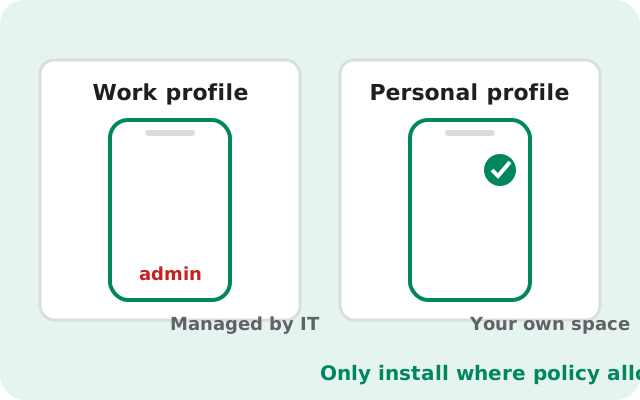
Bring-your-own-device (BYOD) with a work profile. This is your personal phone, and your company added a managed work profile to it. You can spot it: work apps carry a small briefcase badge, and there is a “Work” tab in your app drawer. The key point: the policy usually applies to the work profile, not your personal side. Your personal profile is still yours. You can generally install the Signal APK there the normal way. That said, read your company's written BYOD policy first. Some companies extend install restrictions to the whole device, and some forbid messaging apps that could mix work and personal data.
Company-owned, fully managed device. The company bought the phone, and it says “managed by your organization” from setup. There is no personal side with separate rules. If the admin blocked outside installs, that is the end of the story on that device.
Not sure which you have? Open Settings and look for “Accounts,” “Work profile,” or a banner saying the device is managed. A quick check now beats an hour of failed installs later.
How to ask IT (and what they will probably say)
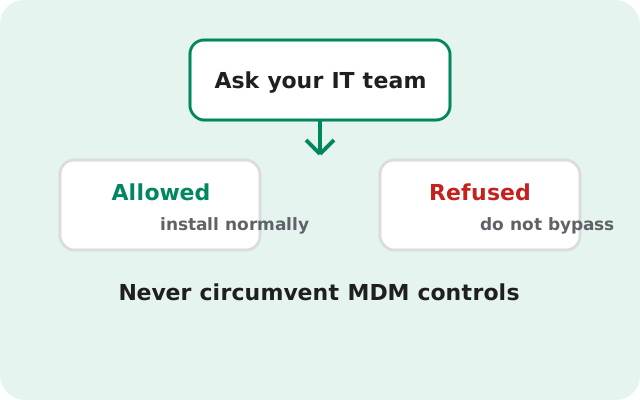
This is the step everyone wants to skip, and it is the only one that actually works. If your phone is managed, your IT team is the only party that can allow the install. Here is how to ask so you get a straight answer:
- Ask in writing, email or your company's IT ticket system, so you have the answer on record. A verbal “sure, go ahead” from a colleague is not a policy exception.
- Be specific. Name the app and say what you want: “I'd like to install Signal Private Messenger on my work phone for [your reason (e.g. coordinating with a client who only uses Signal)]. I would get it as a direct APK from signal.org since the Play Store route is not available to me. Is installing apps outside the managed Play Store allowed on this device?”
- Accept the likely answer. And here is the honest part: many workplaces simply prohibit it. Companies block outside installs for reasons that are legitimate from their side: preventing data leaks, meeting compliance rules in finance or healthcare, keeping devices supportable, and keeping work chats inside systems they can audit. “No” is a complete answer, and arguing with IT about it rarely ends well.
What not to do: do not ask a coworker to install it for you, do not sideload it quietly “just to test,” and do not frame it as a privacy crusade. IT teams hear all of that weekly. A short, professional request gets the fastest honest answer.
If IT says yes: install it the safe way
Got written approval? Good. Now do it properly. An approved install done sloppily is still a security risk. Follow these steps in order:
- Confirm which profile. Ask IT whether Signal should go in the work profile or your personal profile (on a BYOD phone). Install it where they tell you.
- Download only from Signal's own page: signal.org/android/apk/. Never grab the APK from a third-party site just because it is faster. On a work device, a tampered installer is a career-level mistake. Our safety checklist explains why the download source matters.
- Check the fingerprint. Signal publishes the SHA-256 signing-certificate fingerprint on that same download page. Compare it against the file you downloaded before installing. It takes a minute, and it is the whole point of getting the file yourself.
- Allow installs for your browser only. When Android asks, enable “install unknown apps” for the browser you downloaded with, not for every app. After the install finishes, turn it back off. Our unknown-sources walkthrough shows exactly where the toggle lives.
- Install and register. Open the APK, install, then register with your phone number as usual. If a Play Store version of Signal is already on the device, back it up first: the website build is signed with a different key and cannot install over the Play version.
- Keep it updated. The website build checks for updates itself and will prompt you. Do not ignore those prompts on a work device. An outdated messenger is exactly what IT worries about.
One more thing: if IT approved it conditionally, for example, “only for client contact, not for internal work chat”, respect the condition. The approval is what makes this okay. Do not stretch it.
If IT says no: your real options
A “no” is not the end of messaging securely. It is the end of messaging securely on that device. Here are the options that do not put your job at risk:
- Use your personal phone. This is the right answer for most people. Install the Signal APK on your own device, where you make the rules. Keep work conversations where your employer expects them, and personal or client Signal chats on your own phone. Clean separation, zero policy conflict.
- Ask what is approved. Many companies that block outside installs already approve a messenger. It might be the Play Store version of Signal, or a company-wide tool. If the Play Store build of Signal is in the managed store, that solves your problem with no APK involved.
- Signal Desktop on your work computer? Same question, same answer needed: company laptops are usually managed too. Ask IT before installing anything there.
And the things you should not do: do not sideload over ADB to dodge the policy, do not create a second user profile to hide the app, and do not install a “modded” or “unlocked” Signal APK from a random site. The first two are policy violations on a device your employer can audit. Admins can see installed apps. The third is a straight security disaster: fake Signal APKs are a known malware vector, and on a phone full of work data the blast radius is enormous.
Signs it is a hard no: do not push it
Sometimes you do not even need to ask to know the answer. If you see these signs, the policy is settled, and pushing against it will only cause trouble:
- The “install unknown apps” toggle is grayed out, with a note that your admin manages the setting.
- The only app store on the phone is a managed Play Store with a short list of approved apps.
- The phone shows “managed by your organization” during setup or in Settings.
- Work apps carry the briefcase badge, and you were told during onboarding that only approved apps are allowed.
- Your employment contract or IT policy document explicitly forbids installing unapproved software.
In all of these cases, the correct move is the personal phone. It is cheaper than a disciplinary meeting, and Signal works exactly the same there. The full sideload walkthrough gets you set up on your own device in minutes, and the install guides index has every related guide in one place.
from Signal's official site — file hosted by Signal, not by us
Frequently asked questions
Can my IT department see that I installed Signal?
On a managed device or inside a work profile, yes. MDM software can inventory installed apps, so an install against policy is visible to your admin. That is one more reason to get written approval first instead of installing quietly.
Will Signal actually work inside a work profile?
If your IT allows the install, yes. Signal runs normally in a work profile, with notifications and calls working as usual. The profile mainly affects which apps may install and how work data is separated, not how Signal itself behaves.
Can I install the APK on the personal side of a BYOD phone?
Usually, yes. On a bring-your-own-device phone with a work profile, the personal profile is yours and the strict rules normally apply only to the work side. Still, check your company's written BYOD policy. Some extend install restrictions to the whole device.
The 'install unknown apps' toggle is grayed out. What now?
Your admin locked it with MDM policy. There is no on-device way around that, which is the point. Only your IT team can change it. Ask them; do not try workarounds.
Is it legal for my employer to block app installs?
On company-owned devices, employers generally can set whatever software rules they want. It is their property. On your own phone under BYOD, the rules come from the policy you agreed to. This is general information, not legal advice.
Can I just use Signal Desktop on my work laptop instead?
Company laptops are usually managed the same way as company phones, so the same question applies. Ask IT before installing anything on a work computer. The policy almost certainly covers it.
Keep reading
- the install guides index: every Signal install guide in one place
- allowing installs from your browser: where the unknown-sources toggle lives
- the full sideload walkthrough: step-by-step APK install on your own phone
- is the Signal APK safe: why the download source matters
- Signal without the Play Store: living without Google Play entirely