
Signal Attachments Stuck Downloading? How to Fix It
Published: October 7, 2026 · Updated: October 8, 2026
A photo arrives, you tap it, and the spinner never stops. Or the download fails outright, every time, on every file. Signal attachments not downloading is usually one of five things: a stalled transfer that needs a retry, a weak connection, a full phone, auto-download settings blocking the fetch, or a file that has expired and no longer exists anywhere. This guide covers all five, including the honest case where the file is simply unrecoverable.
from Signal's official site — file hosted by Signal, not by us
First: tap to retry (it works more than you'd think)
Before anything else: tap the stuck attachment. Signal's download is resumable in the practical sense: tapping a failed or stalled attachment retries the fetch, and a surprising number of "won't download" cases clear on the second attempt. The first try hit a momentary network blip; the second try sails through.
If the retry works, you are done. It was a transient stall, not a real problem. If it fails again immediately, or stalls in the exact same place every time, keep reading. A repeatable failure has a repeatable cause, and the sections below find it.
Also try the adjacent obvious: pull down to refresh the chat, force-close and reopen Signal, and toggle airplane mode on and off to reset the connection. These take a minute combined and clear the transient junk before you dig deeper.
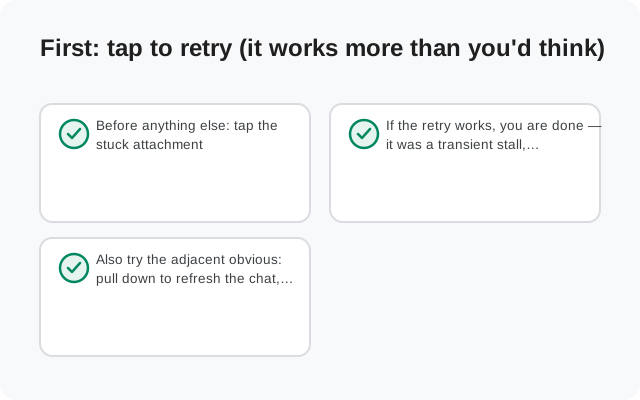
Symptom, cause, and fix: the diagnosis table
| What you see | Likely cause | Fix |
|---|---|---|
| Spinner never finishes | Weak connection or stalled transfer | Tap to retry on strong Wi-Fi |
| Download fails instantly, every file | Full storage or blocked auto-download | Free up space; check download settings |
| One file fails, others work | Corrupt copy of that file | Ask the sender to re-send it |
| Large videos always fail | Connection drops mid-transfer | Wi-Fi only; ask sender to trim or compress |
| Old message's photo won't load | Media expired: no copy exists anymore | Ask the sender for the file again |
| Downloads work on Wi-Fi, not data | Auto-download restricted on mobile data | Allow mobile-data downloads in settings |
| File downloads but won't open | Unsupported format or corrupt file | Open with another app; request re-send |
Connection: the stall-maker
Attachments are the heaviest thing Signal moves: photos, videos, documents, all encrypted and transferred as complete files. A connection that handles text messages fine can still choke on a 50 MB video. The pattern to recognize: small photos download, large videos stall. That is a bandwidth and stability problem, not a Signal problem.
- Get on strong, stable Wi-Fi for the download, and stay on it until the file finishes. Walking between rooms mid-download is how transfers die.
- Turn off the VPN temporarily. Some VPN routes slow or interrupt large transfers; test with it off.
- Don't background the app during a big download. Keep Signal in the foreground until it completes.
- Check the time of day. Congested networks, a packed café Wi-Fi, rush-hour mobile data, stall large files even when messages fly through.
If downloads fail on mobile data but work on Wi-Fi, that is usually the auto-download setting below, not the network. But it can also be a carrier throttling large transfers. Test with the VPN off and, if you can, a different network before concluding.
Storage: the silent download-killer
This one deserves emphasis because it fails silently. When your phone is nearly full, attachment downloads do not always show a clear "storage full" error. They stall, fail instantly, or download a partial file that will not open. If your phone has been warning you about space, believe it.
Free up room, then retry:
- Delete videos and files you have already saved elsewhere. Chat attachments are the biggest hidden storage hog on most phones.
- Check Signal's own storage breakdown to see which chats are heaviest. The storage usage guide explains the categories.
- Uninstall apps you do not use, clear downloaded files, move photos to backup.
The storage-full fix guide is the full cleanup walkthrough. Keep a gigabyte or two free as a habit. Downloads of every kind start misbehaving well before the phone hits zero.
Auto-download settings
Signal lets you control when attachments download automatically. For example, it can download everything on Wi-Fi but wait for your tap on mobile data or while roaming. If your settings say "Wi-Fi only" and you are on mobile data, attachments sit there looking broken when they are actually just waiting for permission.
Open Signal's settings
Tap your profile picture and open Settings.
Find the data and storage section
Look for the section covering data usage and storage. This is where download behavior lives.
Check the auto-download options
Review which connection types allow automatic downloads of photos, videos, and files. If you are on mobile data and downloads are Wi-Fi-only, either connect to Wi-Fi or allow mobile-data downloads.
Tap the attachment manually
Even with auto-download off, tapping an attachment should fetch it on demand. If manual taps also fail, the problem is connection or storage, not this setting.
One more setting-adjacent check: Data Saver or data-restriction modes on your phone can block background downloads app-wide. If attachments only fail when Signal is not in the foreground, look at your phone's data-saver and battery settings for Signal.
Corrupt downloads and the re-send fix
When every attachment works except one specific file, stop troubleshooting your phone. The file's copy is damaged. It happens when the sender's upload was interrupted: the message arrived, but the file data is incomplete or corrupted. It will fail the same way on Wi-Fi, on data, and after restarts, because the damage is in the data, not the pipe.
The fix is to get a fresh copy:
- Ask the sender to re-send the file on a strong connection, keeping Signal open until the send completes. A clean upload replaces the damaged one.
- Ask them to check it first. If the file will not open on their phone either, the original itself is broken and no re-send of that copy will help. They need the original file again.
- For documents, ask for a different format if the format seems to be the issue. A PDF that will not open anywhere is a file problem, not a Signal problem.
And the "downloaded but won't open" variant: if the file downloads fully but no app can open it, try a different viewer app first. If nothing opens it, treat it as corrupt and request a re-send.
Large files need special handling
Signal caps attachment sizes. Very large videos simply will not send or download as-is. If large files are your recurring problem, the practical answers:
- Trim the video before sending. Most phones trim in the gallery in seconds, and the trimmed version sends fine.
- Let Signal compress it. When you attach a video, Signal offers quality options. A smaller file downloads far more reliably.
- Split documents. A 200-page PDF that stalls can go as two halves without drama.
- Download on Wi-Fi, in the foreground. Large files and backgrounded apps are a bad combination on aggressive battery savers.
If you regularly move big files, also confirm the sender is not hitting the same size wall on their end. A "failed to send" on their side looks like a "won't download" on yours.
Expired media: the honest truth
Here is the section other guides skip. Signal does not keep a permanent cloud copy of your attachments. Messages and their media live on the devices involved. Signal's servers relay the encrypted data and do not warehouse it indefinitely for later re-download.
What that means in practice:
- A photo from last week that you never downloaded should still fetch fine. The sender's device still has it.
- A photo from two years ago in a chat with someone who changed phones, reinstalled, or cleared their data may have no surviving copy anywhere. Tapping it does nothing because there is nothing left to download.
- Disappearing messages with media are gone by design once the timer expires. That is the feature working, not a bug.
How to tell expiry apart from a technical failure: the message is old, the sender no longer has the file either, and everything recent downloads fine. When that is the diagnosis, the only fix is social: ask the sender (or whoever originally had it) for the file again. No setting, restart, or reinstall recovers a file that exists nowhere.
The lesson for the future: save important attachments when you receive them. Download the photo to your gallery, save the document to your files. Your chat history is not an archive. Treat anything you would miss as something to save now. And keep backups: the Android backup guide covers protecting your message history properly.
Clearing cache and data: backup first
If attachments fail across the board (every file, every chat, good connection, free storage), the app's local data may be corrupt. Two levels of escalation, in order:
Clear the cache
In your phone's Settings, go to Apps, then Signal, then Storage, and clear the cache. This deletes temporary files only. Your chats and settings survive. Then retry a download.
Clear data / reinstall (last resort)
Only if cache-clearing fails. Back up first: write down your 64-character recovery key and keep it somewhere safe. The old 30-digit passphrase is retired and will not work. Then clear storage or uninstall, reinstall from Signal's official APK page, and restore from backup.
The cache-clearing guide has the full walkthrough with screenshots of what each option deletes. Never clear data or uninstall without a verified backup. Your message history lives on your phone, and without the recovery key it does not come back.
FAQ
Why are my Signal attachments stuck on downloading?
Tap the attachment to retry. Most stalls are transient network blips that clear on the second attempt. If it keeps stalling, switch to strong Wi-Fi, keep Signal in the foreground until it finishes, and check that your phone has free storage.
Why do Signal downloads fail on mobile data but work on Wi-Fi?
Check Signal's auto-download settings in the data and storage section. Downloads may be restricted to Wi-Fi. Either connect to Wi-Fi or allow mobile-data downloads, and remember you can always tap an attachment to fetch it manually.
Why won't an old photo in Signal download anymore?
The file has likely expired. Signal doesn't keep a permanent cloud copy of attachments, so if neither you nor the sender still has the file, there is nothing left to download. Ask the sender for the file again.
One specific file always fails but others work. Why?
That file's copy is corrupt, usually from an interrupted upload on the sender's side. Ask them to re-send it on a strong connection. Nothing on your phone will fix a damaged copy.
The file downloaded but won't open. What now?
Try opening it with a different app first. If no app opens it, the file is corrupt. Ask the sender to re-send it, or request it in a different format.
Should I clear Signal's data to fix downloads?
Clear the cache first. It's safe and keeps your chats. Only clear data or reinstall as a last resort, and back up first with your 64-character recovery key.
Keep reading
- when the sending side is the problem: media sending fixes
- the full storage cleanup walkthrough: storage-full fix
- see what's eating your space: storage usage guide
- protect your chats before drastic fixes: Android backup guide