
Signal Android Backup: The Complete On-Device Guide
Published: October 7, 2026 Updated: October 8, 2026
.backup file with a 30-digit passphrase.Android has always been the platform with the most backup options in Signal, and until recently the most confusing ones. In 2026 there are two live systems on Android: hosted Secure Backups (encrypted archives on Signal's servers, explained in our Secure Backups guide) and on-device backups (encrypted files on your own phone storage, with no size limit). This page is about the on-device side: how it works now, how the old system worked, and which one your backup files belong to.
from Signal's official site — file hosted by Signal, not by us
Android has always been the platform with the most backup options in Signal, and until recently the most confusing ones. In 2026 there are two live systems on Android: hosted Secure Backups (encrypted archives on Signal's servers, explained in our Secure Backups guide) and on-device backups (encrypted files on your own phone storage, with no size limit). This page is about the on-device side: how it works now, how the old system worked, and which one your backup files belong to.
Two systems, one key
Since version 8.30, Android's backups use the same cross-platform format as iOS and desktop. The practical result is simple: hosted backups and on-device backups are now two doors into the same house. Both are end-to-end encrypted, both are unlocked by the same 64-character recovery key, and enabling one does not delete the other. You can run both at once. Many people do, treating the hosted backup as the off-site copy and the on-device backup as the fast local one.
If your backup is older, it may belong to the retired system: a single encrypted .backup file protected by a 30-digit numeric passphrase. That format is legacy. New backups are not made that way anymore, but old files and old passphrases are still worth understanding, because that is what a backup from 2024 or early 2025 looks like. The passphrase guide covers both key formats side by side.
The current system: unified on-device backups
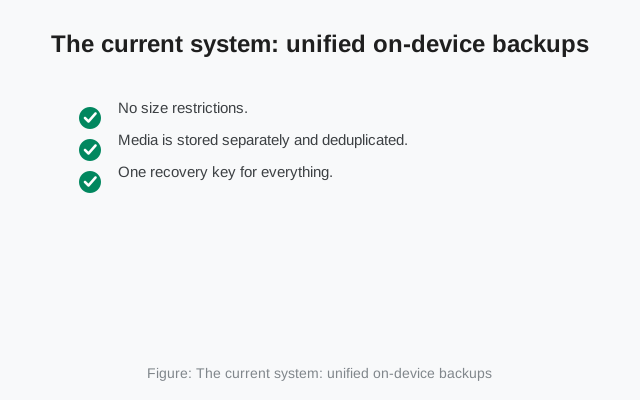
On-device backups live in a folder on your own storage containing multiple files, all fully end-to-end encrypted. Three design choices make them different from the old single-file format:
- No size restrictions. Unlike the hosted free tier, local backups have no cap. Your whole media history can go in.
- Media is stored separately and deduplicated. Attachments live outside the main archive, and a file that appears in ten conversations is stored once, not ten times. Backups are incremental: only changed media is written again.
- One recovery key for everything. The same 64-character key unlocks your on-device backup and your hosted backup. Signal is explicit that a single on-device recovery key decrypts every backup file it ever encrypted, wherever those files are stored.
Because the format is now shared across platforms, an on-device backup made on Android can be restored on a device running the same unified system. Cross-platform restores that used to be impossible are now part of the design. Our cross-platform restore guide maps out what actually works in practice.
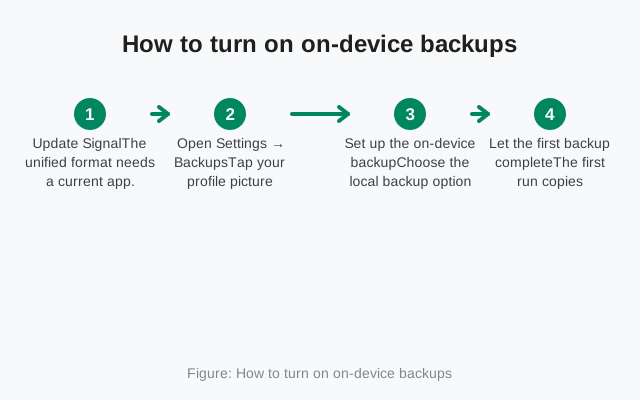
How to turn on on-device backups
Update Signal
The unified format needs a current app. Update from the Play Store or the official APK on Signal's own site before you start.
Open Settings → Backups
Tap your profile picture, open Settings, and choose Backups. You will see both the hosted and on-device options here.
Set up the on-device backup
Choose the local backup option and pick where the backup folder should live. If this is your first time setting up any backup, Signal shows your 64-character recovery key now. Save it and confirm it.
Let the first backup complete
The first run copies everything and takes the longest. Keep the phone on Wi-Fi and charging. Afterwards, backups update incrementally on their own schedule.
Verify it exists
Open your file manager and confirm the backup folder contains files with recent timestamps. A backup you cannot find is a backup that will not be there when you need it.
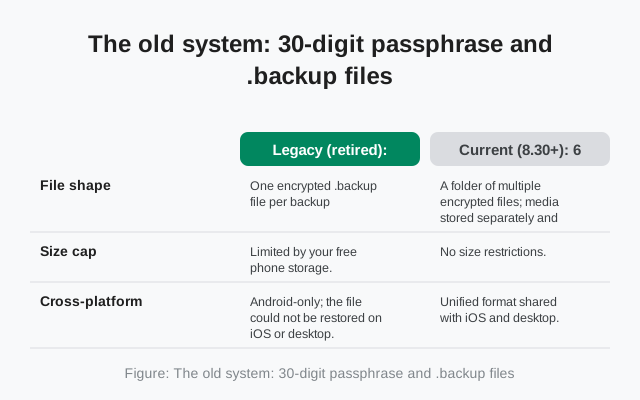
The old system: 30-digit passphrase and .backup files
For years, Android's local backup worked like this: Settings → Chats → Chat backups → Turn on. You chose a folder, Signal displayed a 30-digit numeric passphrase, you wrote it down, and Signal created files named like signal-2024-03-15-09-30-00.backup inside a Signal/Backups/ folder. Backups were created automatically on a schedule while the feature stayed on, and the file could be copied to a computer for safekeeping.
Restoring from one of these files had strict rules that still catch people out: the restore prompt appeared only at the first launch after a fresh install, the backup folder had to be in place before Signal was installed (or Signal would not see it), and the 30-digit passphrase had to be entered exactly. Reinstalling was also the only way to re-trigger the prompt. Skipping it meant starting over. If you still hold one of these old files and its passphrase, keep both; the restore walkthrough covers the legacy path too.
| Unlock key | Legacy (retired): 30-digit numeric passphrase, shown once at setup. | Current (8.30+): 64-character alphanumeric recovery key, shared with hosted backups. |
|---|---|---|
| File shape | One encrypted .backup file per backup, in Signal/Backups/. | A folder of multiple encrypted files; media stored separately and deduplicated. |
| Size cap | Limited by your free phone storage. | No size restrictions. |
| Cross-platform | Android-only; the file could not be restored on iOS or desktop. | Unified format shared with iOS and desktop. |
| Media handling | Everything bundled into the single file each time. | Incremental: only changed media is written again. |
| Restore trigger | Only at first launch after a fresh install. | During setup; same one-shot rule still applies. Do not skip the prompt. |
Moving a local backup to a new phone by hand
The manual method is simple but order-sensitive: copy the entire backup folder from the old phone to the new phone (USB cable to a computer in between is the reliable route; large folders over Bluetooth will test your patience), then install Signal on the new phone, and choose restore during setup with your recovery key. The folder must be in place before the first launch, because Signal only looks for it then. Full paths and the common "file not found" fixes live on the backup file location page.
Back up before switching builds
Android treats the Play Store build and the website APK build as different apps because they carry different signing keys. You cannot install one over the other. The safe sequence is always: make a fresh backup, uninstall the old build, install the new build, restore during setup. If you skip the backup, the uninstall wipes the app's private data and there is nothing left to restore from. The dedicated switching-builds checklist walks through it without the usual mistakes.
Which backup should you run?
- Hosted Secure Backups if you want a copy that survives losing the phone entirely. Free covers all texts plus 45 days of media; the paid tier covers full media history.
- On-device backups if you want your complete history including all old media, with no size cap and no subscription.
- Both if your chats matter enough that one copy is not enough. They coexist peacefully and share one recovery key.
Whichever you choose, the non-negotiable parts are the same: save the recovery key somewhere that survives losing the phone, and confirm a fresh backup exists before any reinstall, reset, or phone switch. A clean reinstall is only clean when the backup is verified first.
FAQ
Do on-device backups have a size limit?
No. The current on-device backup format has no size restrictions. Your full message and media history can be stored locally, limited only by your phone's free storage.
Can I still restore an old .backup file with a 30-digit passphrase?
Those files belong to the retired format. Keep the file and its passphrase together; restore behavior for legacy files depends on the app version, so update Signal and attempt the restore during a fresh install's setup, when the restore prompt appears.
Do on-device backups and Secure Backups use the same key?
Yes. Since the unified format arrived, one 64-character recovery key unlocks both your hosted and on-device backups.
Where are on-device backup files stored?
In the backup folder you choose during setup (historically Signal/Backups/ on internal storage). See the backup file location guide for exact paths and how to move them.
Will a backup survive a factory reset?
Only if the backup folder is copied off the phone first. A factory reset wipes internal storage, including on-device backups. Copy the folder to a computer before resetting. Hosted Secure Backups are unaffected by resets.
Keep reading
- Secure Backups explained: the hosted alternative in detail
- Restore Signal from a backup: step-by-step for every path
- Your backup key, explained: 30-digit passphrase vs 64-character key
- Where backup files live: exact paths and manual moves