
Signal calls not ringing? Find out why and fix it
Published: October 7, 2026 Updated: October 8, 2026
If Signal calls are not ringing on your phone, the cause is on your phone in almost every case:
- Do Not Disturb is on.
- Battery optimization killed Signal's background connection.
- The incoming-call notification channel is blocked.
- The phone never shows Signal's full-screen call screen.
The fix order is simple: run the 60-second checks first (Do Not Disturb, volume, permissions), then fix the notification channels and full-screen intent, then exempt Signal from battery saving. Only after that should you look at the caller's side. This works for the Play Store build and the website APK (version 8.29.3).
The 60-second checks
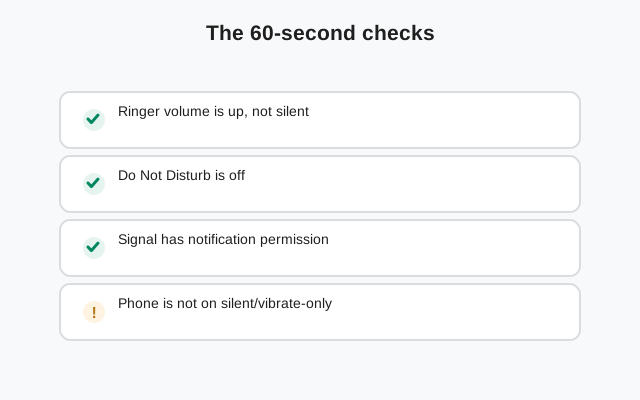
Do these before anything else. They fix the majority of not-ringing cases and take one minute:
Check Do Not Disturb
Pull down the quick-settings panel. If the DND icon (circle with a line through it) is on, turn it off and ask someone to call you again. Also check Settings → Sound → Do Not Disturb → Schedules, many phones have a sleep schedule people forget about.
Turn up the ringer, not just media volume
Press the volume button and tap the three dots or gear icon to see all sliders. Make sure the ring volume slider is up. Phones on vibrate-only or silent will not ring, and media volume does nothing for calls.
Confirm Signal's notifications are allowed
Go to Settings → Apps → Signal → Notifications and make sure the main switch is on. If notifications were denied once, every call arrives silently.
Rule out airplane mode and a dead connection
Make sure airplane mode is off and you actually have a working connection. Open a webpage. If nothing loads, the missed call was never delivered to your phone at all.
Symptom → cause decision table
Match what you see to the most likely cause:
| What you see | Most likely cause | Jump to |
|---|---|---|
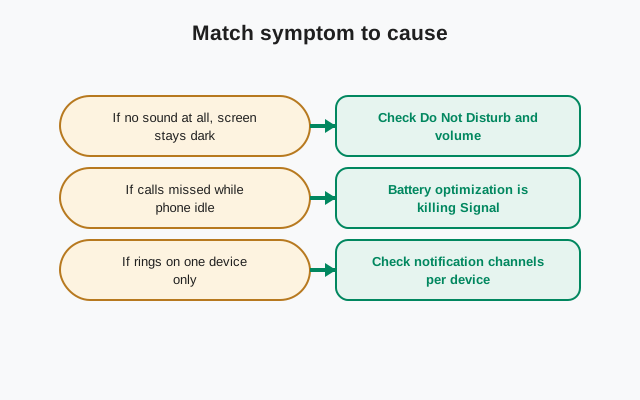
| Calls never ring, but messages arrive fine | Call notification channel blocked, or full-screen intent denied | Channels |
| Calls from one contact ring, others do not | Per-contact DND or that contact is muted | Do Not Disturb |
| Only a missed-call notice, no ring, no popup | Battery optimization killed Signal's background connection | Battery |
| Nothing rings between 11pm and 7am | DND schedule you forgot about | Do Not Disturb |
| Screen lights up but no sound | Ring volume at zero, or call channel set to silent | 60-second checks |
| Calls ring on Wi-Fi but not on mobile data | Data saver throttling background data | Background data |
Do Not Disturb and per-contact bypass
Do Not Disturb is the single most common reason calls don't ring, because people turn it on for a meeting or for sleep and forget it. But there's a subtler version: your phone may ring for some contacts and not others.
Check for forgotten schedules
Open Settings → Sound → Do Not Disturb → Schedules (the names vary: on Samsung it's under Sound and vibration, on Xiaomi under Sound vibration). Delete or disable any schedule you don't want. Pay attention to bedtime mode and work-profile DND, which are separate switches on some phones.
Let one contact bypass DND
If you want Signal calls from one important person to always ring through, even in DND:
Open the conversation in Signal
Tap the contact's name at the top to open conversation settings.
Set notification priority
In Android's notification settings for that conversation (Settings → Apps → Signal → Notifications, find the conversation channel), set it to a high priority or add it to DND exceptions. On many phones this is under Do Not Disturb → People → starred contacts.
Test it
Turn DND on and ask that person to call. The call should ring while everyone else stays silent.
One honest note: the exact steps differ by phone brand and Android version, because DND exceptions live in the phone's settings, not inside Signal. If you can't find it, the steps above are the right neighborhood to look in.
Notification channels and the full-screen call screen
Android splits Signal's notifications into channels: messages get one channel, incoming calls get another. It is very common for the message channel to be on while the call channel is off, which produces exactly the "messages arrive, calls never ring" symptom.
Open Signal's notification channels
Go to Settings → Apps → Signal → Notifications. Scroll through the channel list and find the call-related one (named something like "Calls" or "Incoming calls").
Allow it and set importance to High
Turn the channel on. Tap it and set importance to High or Urgent so it can make sound and appear as a heads-up. A channel set to "Silent" or low importance will never ring.
Allow the full-screen incoming-call screen
Signal answers incoming calls with a full-screen screen (the big "Answer / Decline" view). Android 10 and newer require a special permission for this. Check Settings → Apps → Signal → Notifications or Special app access → Display over other apps and make sure Signal is allowed. Without it, the call arrives but only as a tiny silent notice you easily miss.
Enable "answer on lock screen"
In the same channels screen, look for lock-screen options and allow the call channel to show on the lock screen. Some phones also have a separate "show on lock screen" toggle under Settings → Apps → Signal.
Battery killing Signal in the background
For a call to ring, Signal must keep a live connection to its servers while the app is closed. Aggressive battery managers kill that connection, so the call never reaches your phone until it's too late, and all you see is a missed-call notice. This is the classic "it worked on my old phone" problem: the new phone's battery manager is stricter.
Exempt Signal from battery optimization
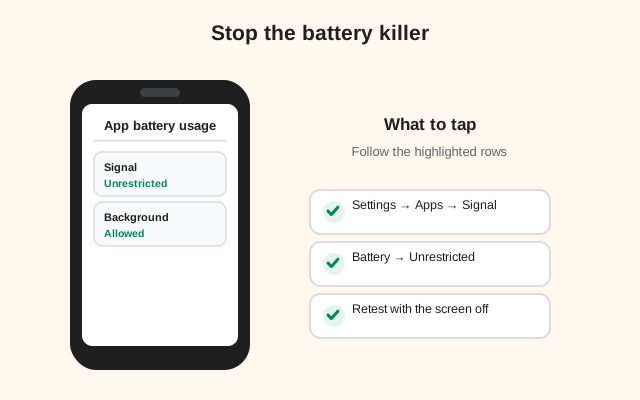
Go to Settings → Apps → Signal → Battery and set it to Unrestricted (wording varies: "Don't optimize", "No restrictions", "Allow background activity").
Allow background data
In Settings → Apps → Signal → Mobile data, make sure Allow background data is on and Unrestricted data usage is enabled. If you use data saver, Signal must be on its unrestricted list, otherwise calls on mobile data silently fail to ring.
Check brand-specific killers
Xiaomi/MIUI, Huawei/EMUI, Oppo/ColorOS, Vivo/Funtouch, and OnePlus/OxygenOS all have a second layer of app-killing beyond the standard Android setting. Look for "app launch" or "background management" settings and set Signal to run in the background. Our delayed-notifications guide walks through these brand by brand.
Quick test after fixing this: close Signal completely (swipe it away), wait two minutes, and ask someone to call. If it rings now, battery management was the cause.
Watch, Bluetooth, and lock-screen quirks
- Wear OS / smartwatch rings, phone doesn't: the call signal reached your account (so your network and Signal's servers are fine) but the phone's notification path is broken. This points squarely at the phone's notification channels or battery settings above, not at Signal itself.
- Phone rings but you can't answer on the watch: check the watch's companion app notification permissions, and make sure the phone's call channel is allowed (a denied channel on the phone can also silence the watch).
- Bluetooth headset connected: if the call "rings" only in your headset or the phone shows the call but makes no sound, check that the phone's ringer isn't routed to the headset, and re-pair the headset. Allow the Nearby devices permission for Signal on Android 12+.
- Call shows on lock screen but can't be answered: this is usually the full-screen intent permission again, plus a lock-screen notification visibility setting. See the channels section.
When it is the caller's side
If your settings are all correct and calls still never ring, the problem may be with the person calling you, not with your phone. The fastest test: ask a different contact to call you. If a second person gets through, your phone is fine and the first caller's phone or network is the problem.
Common caller-side causes: the caller's battery manager killed Signal on their phone so the call never left, they're on a strict network that blocks the call connection (office or school Wi-Fi), or their VPN breaks the connection. The calls-not-working guide walks through their side step by step, and if they are on a strict network, relay mode is usually the fix.
Play build vs website build
Both official builds ring the same way, but they receive the "incoming call" signal differently. The Play Store build uses Google's push service (FCM). The website APK uses FCM when Google Play services are present, and falls back to its own persistent websocket connection when they are not (for example on Huawei phones or de-Googled ROMs).
That fallback works, but the websocket is easier for battery managers to kill, which is why phones without Google services see this problem more often. If you run the website build on a phone without Play services, the battery exemptions in the battery section are not optional, they are required. See our Huawei notifications guide for the no-Google specifics.
Last resorts
Update Signal
Get the latest build from signal.org/android/apk (currently 8.29.3). Call-ringing bugs do get fixed in updates, and the website build updates itself, but a stalled install can sit on a buggy version for months.
Restart the phone
A plain reboot clears stuck notification services and audio states. Boring, and it works more often than it should.
Reinstall, with a backup first
Uninstall and reinstall Signal as the final option. This fixes corrupted installs but wipes local message history. Enable chat backups first (Signal → Settings → Chats → Chat backups) and confirm the backup finished before uninstalling. Our backup guides cover this.
from Signal's official site, file hosted by Signal, not by us
Frequently asked questions
Why do Signal calls show as missed but never ring?
Almost always the background connection is dead when the call arrives: battery optimization killed Signal, the call notification channel is blocked, or Do Not Disturb was on. Work through the 60-second checks, then the notification channels, then battery exemptions.
How do I let one contacts Signal calls bypass Do Not Disturb?
Add that contact to your DND exceptions (Settings → Sound → Do Not Disturb → People on most phones), and in Signals notification settings give that conversation a high-priority channel. Test with DND on.
Signal calls ring on Wi-Fi but not on mobile data. Why?
Data saver is the usual cause: it throttles Signals background connection on mobile data. Add Signal to data savers unrestricted list under Settings → Apps → Signal → Mobile data, and confirm background data is allowed.
My smartwatch rings but my phone stays silent. What is wrong?
Your account received the call, so the network and Signals servers are fine. The phones own notification path is broken. Check the call notification channel and battery exemptions on the phone.
Does the website APK ring as fast as the Play Store version?
On phones with Google Play services, yes, both use the same push path. On phones without Google services, the website build uses its own websocket connection, which battery managers kill more easily. So the battery exemptions matter more there.
Why does my screen stay dark when a Signal call comes in?
Android 10 and newer require a full-screen intent permission for the big answer screen. Without it, the call only appears as a small silent banner. Allow it under Special app access → Display over other apps for Signal.
Related: fixing calls that won't connect at all, understanding "always relay calls", the master notification diagnosis, battery fixes for delayed notifications, and the troubleshooting hub. Also see our Signal APK guide homepage.