
How Signal Linked Devices Work
Published: October 7, 2026 · Updated: October 8, 2026
What "linked" actually means
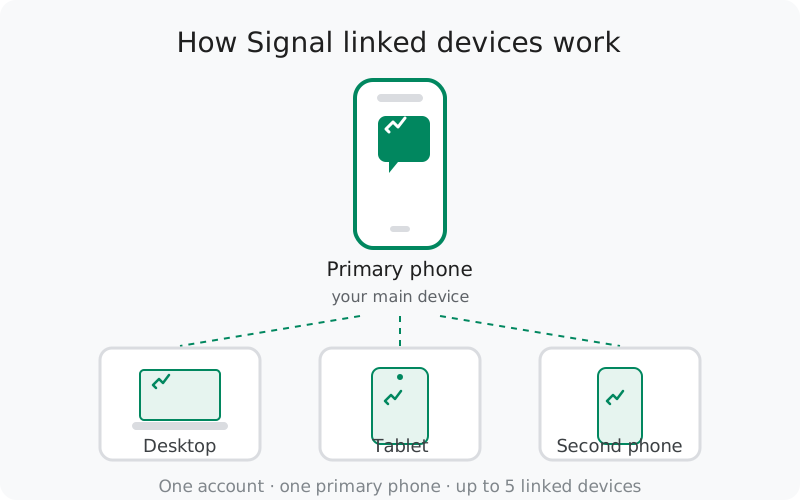
Every Signal account has one primary phone: the device that holds your phone number registration. A linked device is any other device that is authorized to send and receive as that same account: a desktop computer, a laptop, a tablet, or even a second phone. Linking does not create a second account, and it does not need a second phone number. It is the same identity, extended.
This matters because Signal does not do cloud accounts the way email does. There is no server-side copy of your chats to log into from anywhere. Each device holds its own copy of the conversation data, encrypted with its own keys, and Signal's servers relay messages to every device on the account. That is why linking is a deliberate, one-time authorization rather than a username-and-password login. It happens by scanning a QR code from your primary phone. You are telling the account, in person, that this new device is allowed to speak for you.
Once linked, a device behaves like a full Signal client. It receives incoming messages in real time, it can send, and read states sync across devices. Read a chat on your laptop and it is marked read on your phone too. What it is not: a backup of your phone. If you unlink it or lose it, its local copy of the data goes with it.
Your primary phone: the anchor
The primary phone has two jobs that no linked device can do. First, it is the only device that can authorize new links: every QR scan starts and ends there. Second, it holds the registration itself: the phone number, the registration lock PIN, and the profile setup.
After that, day-to-day, the primary phone can mostly stay in your pocket. A linked desktop works perfectly well while the phone is switched off or offline. Messages arrive on the computer independently. The system only asks two things of the primary phone over time:
- Come online at least once every 30 days. If the primary phone stays offline longer than that, Signal treats the account as abandoned. Keep a periodic online check and you will never think about this rule.
- Approve anything new. New links, re-links, and account changes are confirmed on the primary phone. Nobody can attach a device to your account without the phone in your hand saying yes.
Practical takeaway: the phone in your pocket is the key to the whole setup. Lose access to it (lost phone, dead number) and you should relink or re-register before anything else. A linked desktop alone cannot recover a lost account.
Linking a second phone
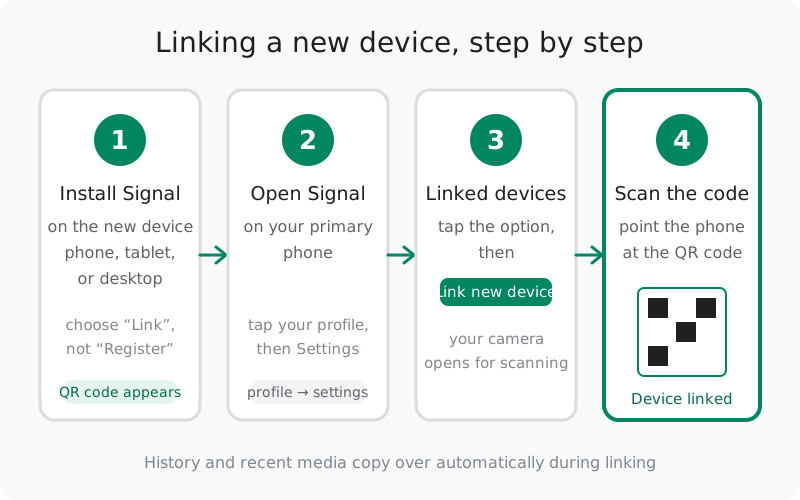
For a long time, Signal's answer to "can I use it on two phones" was no. That changed with Android 8.20, which introduced linking a second phone as a linked device. The flow is the same as linking any device: install Signal on the second phone, choose the link option instead of registering, and scan the QR code with your primary phone.
A few things to know before you do it:
- The first phone stays primary. Linking a second phone does not create two primaries and does not split the account. Device number two follows the same rules as a linked tablet or desktop.
- The history transfer happens at link time, exactly like other devices: full chat history plus media from roughly the last 45 days. There is no "catch up later" option.
- Your number is the same everywhere. Both phones use the same Signal identity and the same profile, so your contacts see one of you.
Linking a tablet
A tablet is treated as a linked device, not a second primary. Install Signal on the tablet, pick the link option during setup, and scan the QR code with your primary phone. The steps are the same as a desktop. The tablet-as-linked-device guide walks through the details for Android tablets.
One honest note: tablets get the phone-style interface scaled up, and some people find the layout roomy rather than optimized. It works, it syncs, and it counts as one of your 5 linked devices. But if you only need a bigger screen for typing, a desktop client usually feels better.
Linking a desktop computer
Desktops are the most common linked device, and the flow is the polished one: install Signal Desktop from Signal's own download page, and a fresh install shows a QR code automatically. On your primary phone go to Settings → Linked devices → Link new device, scan the code, confirm the device name, and answer the one-time history-transfer question. The full walkthrough, with the mistakes people actually make, is in our desktop linking guide.
Worth repeating here because it surprises people: the desktop keeps working when the phone is offline. After linking, the computer is an independent client. You can leave the phone at home and chat from the office all day.
The three limits you should know
Signal's multi-device rules fit on an index card. Memorize these three and you will never be surprised:
| Rule | What it means | What to do |
|---|---|---|
| 5 linked devices max | One account can hold up to 5 linked devices: any mix of desktops, tablets, and a second phone. | Hit the ceiling? Unlink a retired device from the phone's Linked devices screen, then link the new one. |
| Primary online every 30 days | The primary phone must connect to Signal at least once a month. | Just use the phone normally. If you keep a spare phone as primary, switch it on once a month. |
| 45-day silent-device unlink | A linked device that does not check in for about 45 days is unlinked automatically. | Open the app on that device occasionally, or relink it when you need it again. Your chats elsewhere are unaffected. |
The 45-day rule is the one people meet by accident: an old laptop in a drawer gets quietly unlinked, and they think something broke. Nothing broke. Relink it and carry on.
What syncs and what doesn't
Linked devices are great at the present and the future, and deliberately limited at the past. Here is the honest breakdown:
- New messages sync everywhere, instantly. Send from any device, receive on all of them. This is the core promise and it works reliably.
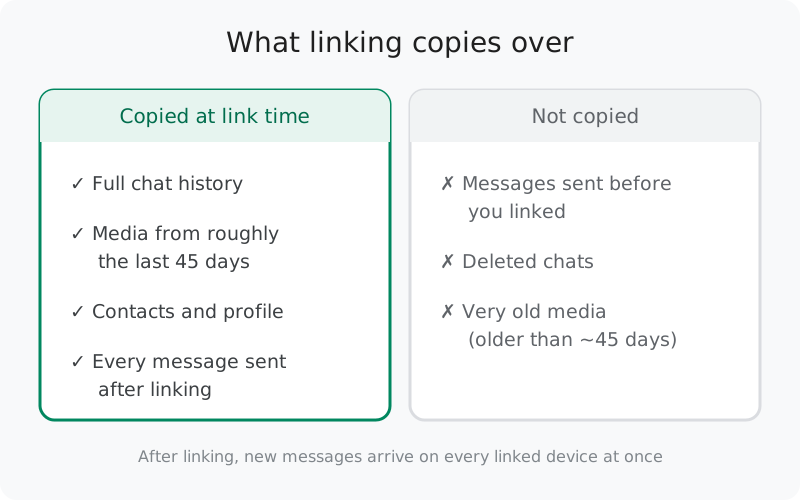
- Link-time transfer covers the past. When you link, you get a one-time copy: full chat history, media from roughly the last 45 days, contacts, and profile. Accept the transfer when offered. There is no later button for it.
- Messages sent before the link do not backfill. If you skip the transfer (or if the device was linked before a message was sent), that history never appears on that device. Each device only knows what happened after its own link time.
- Deleted chats stay deleted. Deleting a conversation on one device does not resurrect it anywhere, and nothing deleted ever transfers.
- Read states and sent-from-other-device copies sync. Messages you send from the desktop appear in the phone's chat list too, and reads propagate.
The mental model that fits: think of each linked device as a view of your account that starts at link time, plus a one-time gift of the recent past. Our phone-to-desktop sync explainer goes deeper on the desktop side of this.
If linking goes wrong
Most linking failures come from a short list of causes, and most fixes take two minutes:
- Scan with the in-app scanner, not the camera app. The QR code only means anything to Signal's own scanner (Settings → Linked devices → Link new device). A generic QR reader just shows you a meaningless string.
- Use a fresh code. Codes expire quickly. If the scan fails, close and reopen the app on the new device to get a new one.
- Check camera permission. If Signal cannot open the camera, the scanner never gets a chance. Denied permissions are the number-one cause of "the scanner won't open".
- Update both sides. An old app on either the phone or the new device is a classic cause of silent failures.
- Linked but nothing arrives? Give the first sync a few minutes. If it persists, unlink and link again. The fresh link with history transfer fixes most stuck states.
For desktops specifically, the dedicated guides cover the two most common cases in detail: the QR code won't scan and the linked device won't sync. Running two computers? The two-desktops guide covers that setup day to day.
Keeping your device list clean
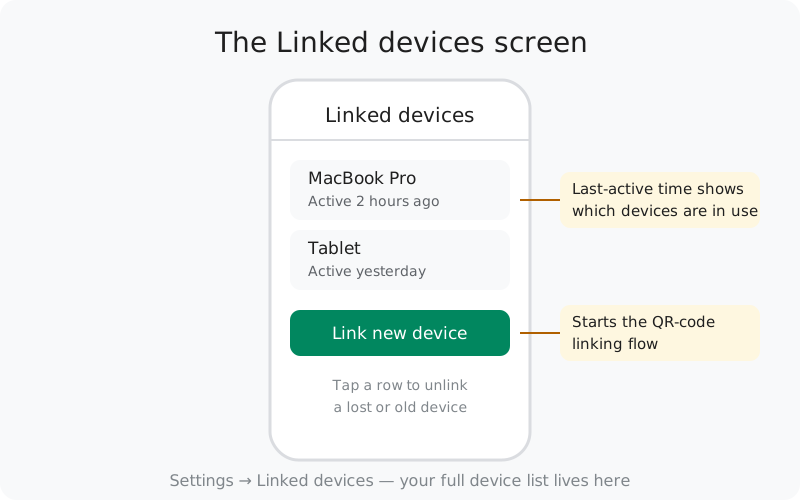
Treat your Linked devices screen like the key drawer of your digital life: check it occasionally. On your primary phone, Settings → Linked devices shows every linked device, when it was linked, and when it was last active. A device you sold, lost, or stopped using should be unlinked from there. One tap, and its access dies immediately.
Two habits worth building:
- Review twice a year. It takes twenty seconds. If every entry is a device you still own, you are done.
- Unlink immediately on loss. Lost or stolen device? Unlink it from your phone before you do anything else. The app on that device cannot re-register itself, but unlinking guarantees it stops receiving anything new.
Signal also notifies you when a new device links, so an entry you do not recognize would already have announced itself. If you ever see a link you did not make, unlink it and then treat it as a compromised-account drill: check for a new registration and re-verify your safety numbers with contacts.
from Signal's official site — file hosted by Signal, not by us
Frequently asked questions
How many devices can I link to one Signal account?
Up to 5 linked devices, in any mix of desktops, tablets, and a second phone. The primary phone is separate from this count. It is the anchor the links hang off.
Do I get my old messages on a newly linked device?
Only two ways: the history transfer offered once at link time (full chat history plus media from roughly the last 45 days), and messages sent or received after the link. Anything sent before you linked, and deleted, never appears on that device.
Does my primary phone have to stay online for the other devices to work?
No, not day to day. Once linked, a desktop or tablet works even if the phone is switched off. The only standing requirement is that the primary phone comes online at least once every 30 days.
What happens to a linked device that sits unused?
If a linked device stays silent for about 45 days it is unlinked automatically. Unlinking just disconnects it. Your account and your chats on the other devices are untouched. Relink it any time with a fresh QR scan.
Can I link a second phone instead of a desktop?
Yes. Since Android 8.20 you can link a second phone the same way you link a tablet or desktop. The first phone stays the primary; the second phone becomes a linked device with the same rules as any other linked device.
Is there a way to check which devices are linked right now?
Yes. On your primary phone, open Settings and then Linked devices. You will see every linked device with its name and when it was last active. Anything you do not recognize can be unlinked from that screen in one tap.
I linked a new device and it is not receiving messages. What now?
Give it a minute first. The first sync can take a little while. If it persists, check that both sides are on recent versions and that neither is in a battery-restricted or background-restricted mode. Relinking (unlink, then link again) fixes most stuck-sync cases.
Keep reading
- Link Signal Desktop to your phone: the full desktop walkthrough with common mistakes
- Using a tablet as a linked device: tablet-specific setup notes
- Two desktops on one account: running multiple computers day to day
- Unlink a device: how to remove a device cleanly
- Phone-to-desktop sync explained: the deeper version of the sync rules above