
Where Signal Keeps Its Backup Files on Android
Published: October 7, 2026 · Updated: October 8, 2026
.backup files, unlocked by the 30-digit passphrase, to the Signal/Backups/ folder of your phone’s internal storage. Hosted Secure Backups live on Signal’s servers and have no file on your phone at all. They unlock with the same 64-character recovery key. Identify your system first, then look in the right place.Signal has changed its backup system more than once, and most older guides still point at folders that no longer matter. The location of your backup depends entirely on which of the three formats created it. For one of them, there is no file on your phone at all.
from Signal's official site — file hosted by Signal, not by us
Signal has changed its backup system more than once, so guides written a few years ago will send you to a folder that no longer matters. This page covers all three formats: current on-device folders, legacy on-device .backup files, and hosted Secure Backups. It shows exactly how to reach each one from your phone or a PC.
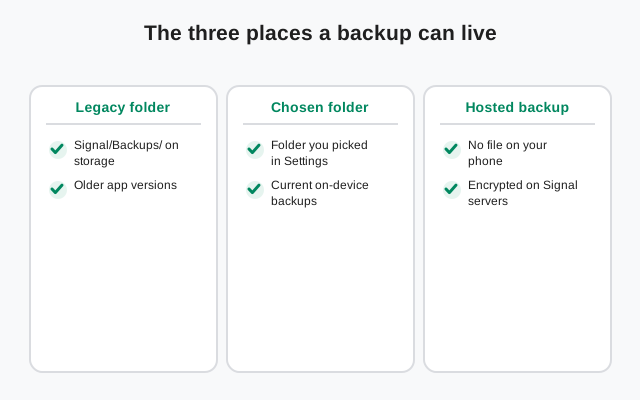
The three places a Signal backup can live
Every Signal backup on Android lives in exactly one of these three places. Read the row that matches your situation, then jump to the section for it.
| Where it is stored | Legacy on-device backups (older versions): internal storage, in the Signal/Backups/ folder. | Current on-device backups: a folder you chose during setup (internal storage, SD card, NAS, or USB drive). | Hosted Secure Backups: on Signal's servers. There is no file on your phone. |
|---|---|---|---|
| What the files look like | One encrypted .backup file per backup, named like signal-2024-03-15-09-30-00.backup. | A folder holding a message archive plus a separate media folder: duplicates stored once, no size limit. | An encrypted archive refreshed daily. You never see it as a file. |
| What unlocks it | The 30-digit numeric passphrase shown when backups were enabled. Only for these legacy files. | The 64-character recovery key: the same single key as hosted Secure Backups. | The 64-character recovery key. |
| How to reach it | File manager or a PC over USB. | File manager or a PC over USB; check Settings → Backups for the folder path. | Settings → Backups shows the last backup time. There is no folder to open. |
One rule before anything else: identify your format first. Legacy on-device backups are always single .backup files. So if you found one, that is your backup. Current on-device backups are folders, so if Signal says a backup ran today and you see no files, you are probably looking in the wrong folder. Our on-device backup guide explains how to tell which system your phone is running.
The Signal/Backups/ folder (older versions)
For years, Signal's Android backup was a single encrypted file. When you enabled it, Signal showed you a 30-digit numeric passphrase, which opens only these legacy files, not current backups, and then wrote files named like signal-2024-03-15-09-30-00.backup (the date and time are part of the name) into a folder called Signal/Backups/ on the phone's internal storage. The path, as your PC will show it, is:
Internal storage / Signal / Backups /
If you still have backups from this era, treat them as archives worth keeping: copy the whole folder to a computer before you do anything else. They remain restorable as long as you still have the 30-digit passphrase that was shown when they were created. Lose that passphrase and the file is unreadable. There is no reset for it, which our backup key guide explains in full.
Do not expect new backups to appear here if your Signal version writes to the folder you chose during setup. Check Settings → Backups for the current folder. A Signal/Backups/ folder that stopped updating years ago is normal, not a malfunction.
Current on-device backups: the folder you chose
Current on-device backups work differently: a folder holding a message archive plus a separate media folder, unlocked by the same 64-character recovery key as hosted Secure Backups. During setup, Signal asks you to pick the folder with your phone's system folder picker. The choice is yours: internal storage, an SD card, a NAS, or a USB drive. From then on it writes there, with no size limit.
Two consequences of that design:
- The folder name is whatever you picked. There is no fixed path to memorize. If you accepted a default, it is usually a Signal-named folder on internal storage; if you picked your own location, that is where the files are.
- Copy the whole folder, never cherry-pick files. Keep the folder intact as a unit. The archive and the media folder belong together.
If you cannot remember which folder you chose, open Signal → Settings → Backups. The screen shows the backup folder path and the time of the last successful backup. That one screen answers "where is it" and "is it working" in five seconds.
Hosted Secure Backups: there is no file on your phone
Secure Backups are the hosted option: your phone builds an encrypted archive, encrypts it on-device with your 64-character recovery key, and uploads it to Signal's servers, refreshed daily. Because the archive lives server-side, no file manager or USB cable will ever find it. That is by design, not a bug.
The only thing you can check on the phone is Settings → Backups, which shows the last backup time and your plan tier. If that screen says a backup ran today, you are covered. There is nothing to copy, move, or hunt for. If you are moving to a new phone and this is your setup, skip the file hunting entirely and use the backup-restore path in our manual move guide, which needs only the recovery key.
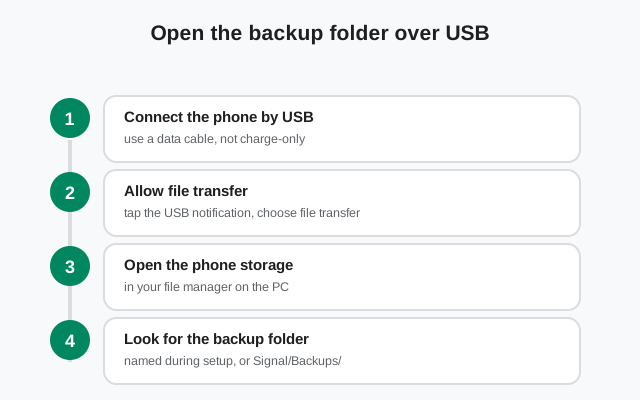
How to open the backup folder from a PC over USB
A PC gives you the clearest view: big screen, easy copying, and you can verify file sizes side by side. This is the method to use before any phone switch.
Use a data cable, not a charge-only cable
Plug the phone into the PC. Some cheap cables only carry power. If the phone does not appear on the PC, try another cable.
Set the USB mode to file transfer
On the phone, tap the USB notification and choose "File transfer" (MTP). Until you do this, the PC sees an empty device.
Open the phone's internal storage
On the PC, open the phone drive and browse to
Signal/Backups/(older versions), or to the folder you chose during setup for current backups.Copy the whole folder to the PC
Copy. Do not cut, do not move. Drag the entire folder to a safe place on the PC, such as a folder named
Signal-backup-2026-10-07.Verify the copy before you unplug
Compare the folder size and file count on the PC with what the phone shows. They must match exactly. Only a verified copy counts as a backup.
Finding the folder with a file manager on the phone
If no PC is handy, your phone's built-in Files app (or Samsung's My Files, or any reputable file manager) can do the job. Open it, choose internal storage, and browse to Signal/Backups/ or your chosen folder.
Three quirks catch people here:
- Storage permission. On recent Android versions, a third-party file manager needs explicit storage permission before it can see your files. If the folder looks empty, check the manager's permissions in the system settings first. The files are usually there.
- Scoped storage hiding. Folders under
Android/data/are off-limits to file managers on modern Android. Signal's backup folders are user-visible folders, not app-private ones, so this should not affect you. But if someone told you to look insideAndroid/data/org.thoughtcrime.securesms/, that advice is outdated. - The folder picker grant. When you chose the backup folder during setup, you granted Signal access to that folder through the system picker. That grant is why Signal can write there; it does not hide the files from your file manager.
Once you can see the files, long-press the folder and use the manager's share or copy function to send it to an SD card, a USB drive via OTG, or another phone. Again: copy the whole folder, and verify the copy.
How to tell you found the right folder
A quick identity check saves you from copying the wrong thing:
- Legacy on-device backups: files end in
.backup, names start withsignal-and contain a date and time. One file per backup run. - Current on-device backups: a folder containing a message archive and a separate media folder: no single
.backupfile. - Hosted Secure Backups: there is no file on the phone at all. Check Settings → Backups for the last-backup time instead.
- Wrong folder: APK files, photos, or app caches. Back up folders contain only Signal's encrypted backup files. Nothing you can open or preview.
.backup file, or anything inside a current backup folder, can make the restore fail to find it. Copy files exactly as they are.Found your files? The next step is getting them onto the new phone in the right order. Our manual move guide walks through the whole sequence, and the backup hub links every related guide.
FAQ
Can I change the backup folder after setup?
Yes. Signal’s backup settings let you pick a new folder, and new backups go there. If you want everything in one place, copy the old folder’s contents into the new one yourself first.
Why is my Signal/Backups folder empty?
Either backups were never enabled, no backup has run yet, or your Signal version writes backups to the folder you chose during setup instead of Signal/Backups. Check Settings → Backups for the current folder.
Can anyone read my backup files?
No. Every format is encrypted: legacy .backup files need the 30-digit passphrase, while current on-device folders and hosted Secure Backups both need the 64-character recovery key. Without the right key, the files are unreadable.
Do hosted Secure Backups use space on my phone?
The archive itself lives on Signal’s servers. Your phone only stores its normal message database. The backup does not add a second copy on the device.
Can I keep backups on an SD card?
For on-device backups, yes: choose an SD-card folder during setup. Legacy Signal/Backups backups lived on internal storage.
Keep reading
- Move a backup to a new phone by hand: the full manual sequence
- On-device backups, explained: files, folders, and keys in detail
- Secure Backups explained: the hosted option
- Your backup key, explained: passphrases and recovery keys