
Moving Signal Desktop to a new computer, step by step
Published: October 7, 2026 · Updated: October 8, 2026
There is no official "export Desktop" button: moving Signal Desktop to a new computer means unlinking the old machine and linking the new one with a QR code, accepting the history transfer during the link. Accepting that transfer moves your full chat history to the new PC, including media from roughly the last 45 days. Your phone stays the primary device throughout. The account itself never "moves" anywhere, so this is really a re-linking job, not a migration. The old PC keeps its own local copy of everything until you unlink it and remove it, which is why decommissioning the old machine properly matters as much as setting up the new one.
Plan on about ten minutes of actual work plus the transfer time. The biggest decision is timing: link the new PC before you wipe or give away the old one, because the history transfer only happens once, during linking.
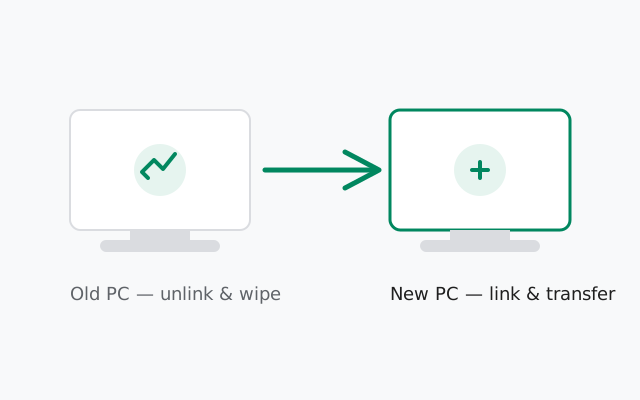
What actually moves, and what doesn't
Because there is no migration file, it helps to be precise about what the re-linking process carries over and what it leaves behind. This is the complete picture:
| Item | Moves to the new PC? | How |
|---|---|---|
| Chat history (text) | Yes, if you accept the transfer at link time | Offered once during the QR linking flow; full history, not just recent messages |
| Media (photos, videos, files) | Yes, roughly the last 45 days of it | Older media may not transfer; it stays on your phone or the old PC |
| Contacts, groups, profile | Yes, automatically | Carries over regardless of the history transfer choice |
| Your account itself | Nothing to move | The account lives on your phone (the primary device); the PCs are just linked devices, up to 5 per account |
| Desktop settings & theme | No | Appearance, notifications, and startup preferences are per-machine. Set them again on the new PC |
| Messages sent after unlinking the old PC | Arrive on the new PC normally | Any linked device receives new messages; there is no gap as long as the new link is active |
The row that surprises people is the last setting one: your dark mode choice and notification preferences do not travel. They are stored locally on each computer. Budget two minutes to reconfigure them. Our Desktop appearance guide shows where everything lives.
The order of operations
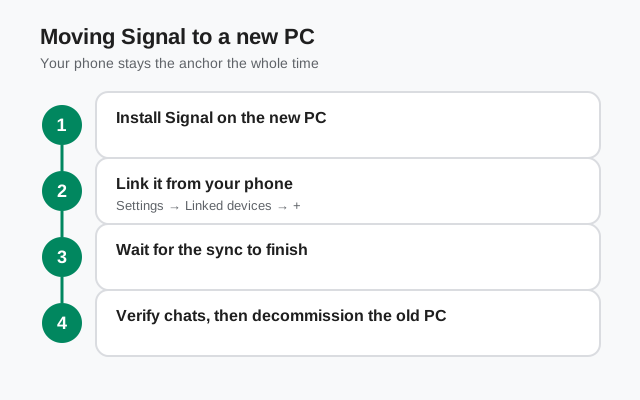
Do it in this order and you cannot lose anything. The golden rule: new PC first, old PC second.
Install Signal Desktop on the new computer
Get it only from signal.org/download. Never from a third-party "portable" bundle. Install it and launch it until you see the QR code. Do not touch the old PC yet.
Keep your phone handy and charged
Linking happens through the phone app: Settings → Linked devices → Link a new device. The phone stays the primary device, so it must be the one doing the linking.
Scan the QR code on the new PC
Point the phone's built-in scanner at the code. When the phone shows the confirmation with the new device's name, approve it.
Accept the history transfer
This is the one-time offer. Say yes and your full chat history, plus roughly 45 days of media, moves to the new PC. If you skip it, the new PC starts empty and you will have to unlink and re-link to get the offer again.
Wait for the transfer to finish
Let it complete before you close anything. Large histories with lots of media take a while; keep both the PC and the phone on and connected.
Verify on the new PC
Open a few old conversations and check that messages and recent photos are there. Send yourself a test message from the phone and confirm it arrives on the new PC.
Only now: unlink and clean the old PC
Unlink it from the phone's Linked devices list, then remove the app and its data from the old machine (see the decommission section below).
If the QR scan gives you trouble, work through our detailed linking walkthrough before anything else. Nine times out of ten it is a camera permission or an expired code.
Linking the new PC (the transfer moment)
The linking flow is identical to a first-time Desktop setup, with one addition: the history question. When the phone reads the new PC's QR code, Signal asks whether to transfer your chat history to the new device. There is no partial option and no "later" button. It is accept now or start empty. Media older than about 45 days generally does not come along, so if the old PC holds years of photos you care about, back those up from the old machine separately before you wipe it.
One more subtlety: the transfer moves history to the new PC; it does not delete anything from the phone. Your phone keeps everything it had. That makes the whole move low-risk: the phone is your safety net the entire time.
from Signal's official site — file hosted by Signal, not by us
What happens to the old PC
Unlinking the old PC stops it receiving new messages immediately, but it does not erase anything stored on it. The old machine keeps its local copy of your chats (every message and photo it ever synced) sitting in its local database until you remove it. Signal Desktop does not phone home to wipe a device you unlink. That is worth understanding clearly: unlinking cuts off future messages; it does not clean up past ones.
You can unlink from either side. The clean way is on your phone: Settings → Linked devices, tap the old computer, and remove it. You can also unlink from within Desktop itself. Either way, check the phone's Linked devices list afterwards. It should no longer show the old machine. That list is your source of truth for every computer and tablet tied to your account.
Decommission the old machine properly
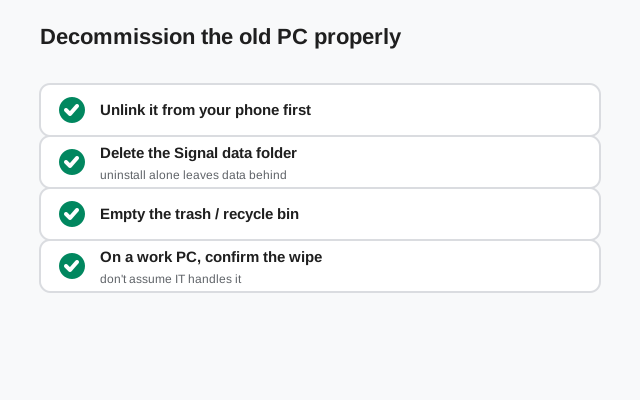
If the old PC is leaving your possession (sold, returned to an employer, recycled, or handed to family), do not stop at unlinking. Run this checklist:
- Unlink it from the phone's Linked devices list. Confirm it disappears from the list.
- Uninstall Signal Desktop on the old machine through the normal OS uninstaller.
- Delete the local data folder left behind by the uninstaller. This is where the message database lives. On Windows it sits in your user profile's app data; removing the folder is what actually destroys the local chat copy.
- If the drive is encrypted (BitLocker/FileVault), that is good, but still delete the data rather than relying on encryption alone.
- If you are selling or giving the PC away, a full OS reset or wipe is the only thing that makes the cleanup trustworthy. Uninstalling one app is not a substitute for wiping a machine that held years of private chats.
This sounds paranoid until you remember what was on there: the full text of your private conversations, synced to a machine you no longer control. Ten minutes of cleanup beats that risk.
Special cases
The old PC is dead or stolen. You do not need it to move. Link the new PC from your phone exactly as above. The dead machine is just another entry in Linked devices. Unlink it from the phone so it stops counting toward your 5-device limit, and if it was stolen, treat its local chat copy as compromised: there is no remote wipe, so plan as if someone could read whatever was synced to it.
You want two PCs at once. That is allowed: up to 5 linked devices per account, in any mix of desktops and tablets. You do not have to unlink the old PC at all; just link the new one and keep both. See using two desktops for how they behave side by side.
The new PC is temporary. Hotel laptop, borrowed machine, a work computer you are about to return? Do not link your real account to it and do not accept a history transfer onto it. Use your phone only, or link it and then fully decommission it the same day using the checklist above.
Your phone changed too. If you got a new phone as well, sort the phone first: transfer the account to the new phone and confirm everything works there, and only then link the new PC. Desktop links to the phone's account; a half-migrated phone makes a mess of the PC side. Our phone-to-desktop sync guide covers how the two stay consistent.
Frequently asked questions
Is there an export button for Signal Desktop?
No. Signal Desktop has no official export or migration file. The supported move is unlink the old PC and link the new one, accepting the history transfer during linking.
Will I lose messages if I unlink the old PC?
No. Your phone keeps everything. The old PC's local copy stays on the old PC until you delete it, and the new PC gets your history through the link-time transfer.
How much history transfers to the new PC?
Full chat history transfers if you accept the offer during linking, with media from roughly the last 45 days. Media older than that generally stays on the phone or the old PC.
Can I keep both computers linked?
Yes. One account supports up to 5 linked devices, so the old and new PCs can coexist. Just remember the old one still holds your chats.
Does unlinking erase chats from the old computer?
No. Unlinking stops new messages; the old machine's stored chats remain until you uninstall and delete its local data folder.
Keep reading
- Link your phone to Desktop: the full QR linking walkthrough in detail
- Unlink a device: removing old computers and tablets safely
- Desktop without your phone: how linked PCs keep working when the phone is off
- Desktop guides hub: every Windows, Mac, and Linux guide in one place