
Dark mode and appearance settings on Signal Desktop
Published: October 7, 2026 · Updated: October 8, 2026
Signal Desktop has a built-in theme setting where you can switch between light and dark mode, or let it follow your operating system's appearance. It lives in Desktop's settings under appearance, it applies instantly with no restart, and it is completely independent from your phone: theming the PC changes nothing on the phone app, and vice versa. What Desktop does not offer is the phone app's deeper customization: no per-chat wallpapers, no bubble styling. This guide shows where the setting lives, how it interacts with Windows, macOS, and Linux dark modes, and which appearance options simply do not exist on Desktop.
One honesty note up front: Signal tweaks its menus from version to version, so exact labels can shift. The locations below describe where to look rather than promising pixel-perfect menu names. If a label moved, it moved one level, not to another app.
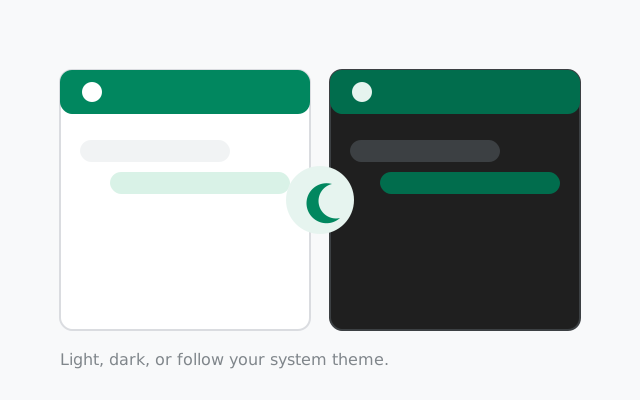
Where the theme setting lives
The appearance controls are inside Signal Desktop's own settings, not in your OS settings:
Open Signal Desktop and go to Settings
Click the menu (your profile area or the app menu, depending on the platform) and open Settings or Preferences.
Look for the Appearance section
Theme controls live under a section named Appearance or Theme. On some versions it sits near the top of settings; on others it is grouped with general options.
Pick your theme
Choose between light, dark, or following the system setting. The change applies immediately. No restart, no re-linking.
If you do not see an appearance section at all, update Desktop first: very old builds predate some of these controls. Desktop updates itself, but a machine that has been offline for months can lag behind. Check for updates in the app menu.
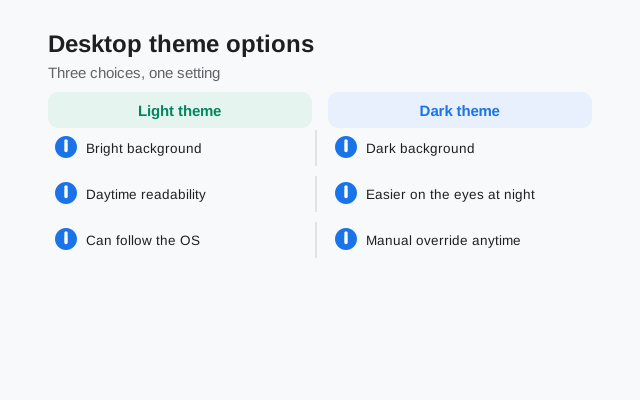
The theme options, explained
| Option | What it does | Best for |
|---|---|---|
| Light | Bright background, dark text: the classic look | Bright offices, daytime use, anyone who finds dark text on white easiest to read |
| Dark | Dark background, light text | Evening and night use, dark rooms, reducing glare during long chat sessions |
| Follow system | Desktop mirrors your OS theme and switches when the OS switches | People whose OS already flips between light and dark on a schedule. Set it once and forget it |
Dark mode is a display preference only. It does not change encryption, privacy, notifications, or how messages are stored. A dark chat is exactly as private as a light one. If someone told you dark mode is "more secure," that is a myth: it is easier on the eyes, nothing more.
How it interacts with your OS dark mode
The "follow system" option is the one that ties Desktop to your operating system, and its behavior depends on the OS doing its part:
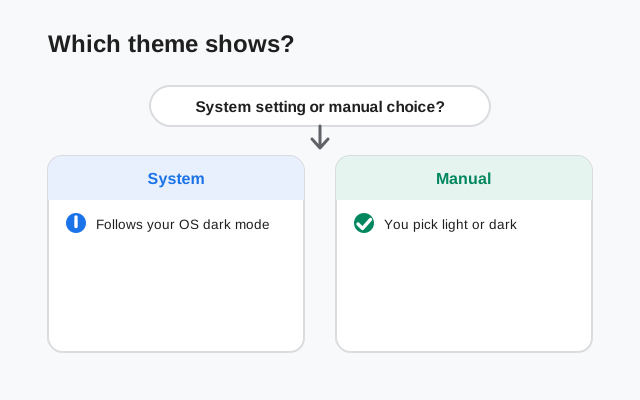
- Windows: with "follow system" selected, Signal Desktop tracks the Windows app theme (Settings → Personalization → Colors). Flip Windows to dark and Signal follows; flip it back and Signal follows again.
- macOS: same idea through System Settings → Appearance. If macOS is set to Auto, Desktop rides along with the automatic light/dark schedule.
- Linux: depends on your desktop environment honoring a system dark preference. On environments that do, "follow system" works; on ones that do not expose it cleanly, pick light or dark explicitly instead of fighting the OS.
If "follow system" seems stuck, the usual cause is the OS side: the system theme is not actually changing, or the desktop environment does not broadcast the change. Set the theme explicitly to light or dark and the problem disappears. Explicit beats automatic when the plumbing is uncertain.
from Signal's official site — file hosted by Signal, not by us
What Desktop can't customize (the phone can)
This is where expectations need managing. Compared with the phone app, Desktop's appearance controls are deliberately thin:
- No per-chat wallpapers. On the phone you can set custom chat backgrounds; Desktop has no equivalent. The theme applies app-wide.
- No bubble or color styling. Message bubble colors and chat color themes from the phone do not carry over to Desktop, and Desktop offers no way to set its own.
- No custom fonts or font sizing beyond the standard options. If you need larger text for accessibility, use your OS-level text scaling. That is the reliable path on all three platforms.
- No sticker or emoji-pack management. Emoji render from the system; Desktop does not manage its own packs.
None of this affects function. Desktop is built as a fast, consistent companion to the phone: the phone is where personalization lives, the PC is where typing fast lives. If a guide promises "Signal Desktop themes" via third-party skin packs or CSS injection, treat it as a security risk, not a feature: unofficial modifications to a messenger are exactly how compromised builds spread.
Does the theme sync between devices?
No. Appearance settings are stored locally on each machine. Setting dark mode on your Windows PC does nothing to your Mac, your Linux box, or your phone. Each gets configured separately. The same is true in reverse: theming the phone app leaves every linked computer untouched.
This per-device storage is actually the sensible design. You might want dark mode on the laptop you use at night and light mode on the office desktop. A forced sync would take that choice away. The five-minutes-per-machine cost is the price of that flexibility, and it only happens once.
If the theme won't change
Theme problems on Desktop are almost always one of three things. First, the app is out of date: as noted above, appearance controls arrived over time, so a build that has been offline for months may simply lack the setting. Update and look again. Second, "follow system" is selected but the OS is not actually broadcasting a theme change; switch to an explicit light or dark choice to confirm the control itself works, then debug the OS side. Third, on Linux, the desktop environment may not expose a system dark preference at all, in which case "follow system" quietly does nothing and an explicit choice is the permanent answer.
One more edge case: if you run two linked computers, remember each machine has its own theme. Setting dark mode on the laptop does not, and should not, change the office desktop. People sometimes "fix" one machine, glance at the other, and conclude the setting is broken. It is working exactly as designed; it just stores the choice locally per device.
And if a theme change seems to revert after every restart, check whether you are running Desktop from a portable or unofficial build. Third-party repackaged builds can behave strangely with settings persistence. Another reason to get the app only from signal.org/download. The official installer stores preferences in the standard per-user location on each OS, and they survive restarts there.
Appearance-adjacent settings worth knowing
- Notifications: how message previews look on your lock screen and in the notification center is controlled in Desktop's notification settings, and on Windows/macOS also at the OS level. If previews feel too revealing, trim them. Our Desktop notifications guide walks through it.
- Startup behavior: whether Signal opens when the computer boots is a separate toggle from appearance, but people configure them in the same sitting.
- Spellcheck and language: typing-related display settings (spellcheck dictionaries, input language) live near the appearance controls on some platforms.
- Keyboard shortcuts: once the look is right, the next speed upgrade is the keyboard. See our Desktop shortcuts guide.
- Message density and the conversation list: Desktop shows the same conversation list and message pane layout to everyone; there is no compact/comfortable density switch like some email clients have. If the layout feels cramped on a small laptop screen, the honest fix is the OS display scaling or a larger monitor, not a hidden setting.
- Readability at night: dark mode plus your OS-level night light (Night Shift on macOS, Night Light on Windows) is the comfortable combination for late sessions. The theme handles contrast, the OS filter handles blue light. They are independent settings and they stack fine.
Frequently asked questions
Does Signal Desktop follow Windows dark mode?
Yes, if you choose the 'follow system' theme option. Desktop then tracks the Windows app theme and switches with it.
Can I set a custom chat wallpaper on Desktop?
No. Per-chat wallpapers are a phone-app feature; Desktop applies one theme app-wide and offers no wallpaper setting.
Is dark mode more private or secure?
No. Dark mode only changes colors on your screen. Encryption, storage, and notifications work identically in both themes.
Will theming my PC change my phone's theme?
No. Appearance settings are stored per device and never sync between the phone and linked computers.
Where did the appearance setting go after an update?
Update Desktop first. Very old builds predate some controls. The setting lives in Desktop's own Settings under Appearance or Theme.
Keep reading
- Desktop notifications: controlling message previews and sounds
- Desktop keyboard shortcuts: the full shortcut reference for power users
- Link your phone to Desktop: the full QR linking walkthrough in detail
- Desktop guides hub: every Windows, Mac, and Linux guide in one place