
Signal on Chromebook: the honest guide to running the Android app
Published: October 7, 2026 · Updated: October 8, 2026
There is no Signal Desktop app for ChromeOS. Say it plainly, so you stop hunting for one. The way to run Signal on a Chromebook is the Android app: install it from the Play Store if your Chromebook supports Android apps, or sideload the official APK from signal.org/android/apk (current website build: 8.29.3, package org.thoughtcrime.securesms). Once installed, it links to your phone as a linked device with the same QR flow tablets use. It works well for messaging, with real limits on calls and notifications that you should know before you rely on it.
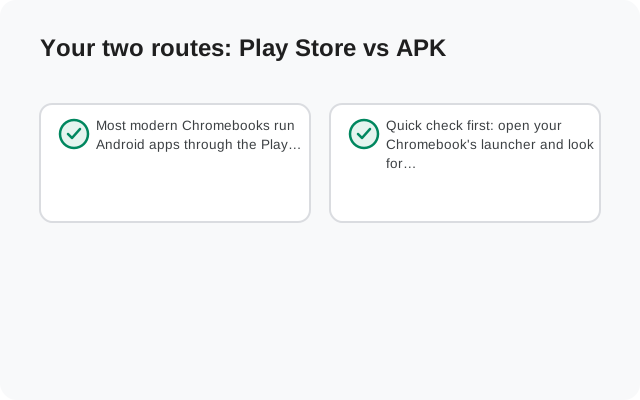
Your two routes: Play Store vs APK
Most modern Chromebooks run Android apps through the Play Store, and that's the easy path. But school-issued and managed Chromebooks often have the Play Store disabled by an administrator, and some older models never got Android support at all. That's where the direct APK comes in. It's the same app Signal publishes on its own site, installable without the Play Store if your Chromebook allows installing apps from files.
Quick check first: open your Chromebook's launcher and look for the Play Store app. If it's there and signed in, use Route 1 and skip Route 2 entirely. It's simpler: updates handle themselves.
Route comparison
| Play Store route | Official APK route | Desktop app on ChromeOS | |
|---|---|---|---|
| Install source | Play Store app on the Chromebook | signal.org/android/apk (website build 8.29.3) | Doesn't exist: no ChromeOS build |
| Requirements | Chromebook with Play Store enabled | Chromebook that allows installing apps from files | N/A |
| Updates | Automatic via Play Store | Automatic: the website build updates itself | N/A |
| Managed / school devices | Often blocked by admin policy | Often blocked too: file installs need permission | N/A |
| Effort | Lowest: search, install, link | Medium: download, allow file install, link | N/A |
You'll notice the third column is honest about itself: there is nothing to compare against, because Signal doesn't ship a ChromeOS Desktop build. Anyone offering you a "Signal for Chromebook" download outside these two routes is offering you something unofficial.
from Signal's official download page — installers are hosted by Signal, not by us
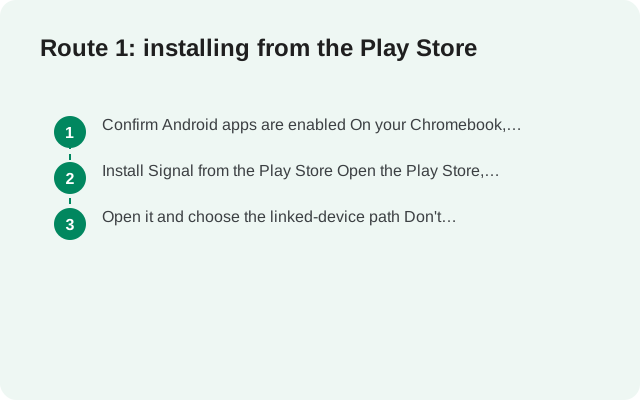
Route 1: installing from the Play Store
Confirm Android apps are enabled
On your Chromebook, open Settings and look for the Google Play Store section. If your device supports it, you'll see an option to turn it on. On managed devices this may be greyed out: your administrator's policy, and only they can change it.
Install Signal from the Play Store
Open the Play Store, search for Signal Private Messenger, and install it. It's the standard Android app running in ChromeOS's Android container. It looks and behaves like Signal on a phone, in a window.
Open the Play Store install and link it
Don't register a new account on the Chromebook: your phone number is already registered on your phone. One number means one primary device. Instead, use the option to link it as a companion device and continue to the linking section below.
Route 2: installing the official APK
This is the same website build Android users install when they skip the Play Store: version 8.29.3, package org.thoughtcrime.securesms, published by Signal Foundation itself. Two facts from Signal's own download page matter here:
- It updates itself. Unlike most sideloaded APKs, the website build checks for and installs its own updates. You don't need the Play Store for upkeep.
- It uses a different signing key than the Play Store build. That means the APK version cannot be installed over a Play Store-installed Signal, or vice versa. Pick one route per device and stick with it; switching means uninstalling first.
Download the APK from Signal's own page
In the Chrome browser on your Chromebook, go to signal.org/android/apk and download the APK. Save it somewhere you'll find it, like the Downloads folder.
Allow installing apps from files
ChromeOS will ask for permission the first time you open an APK file: allow the Files app (or your browser) to install apps. On managed devices this permission may be blocked by policy; there's no legitimate workaround for that.
Open the APK and install
Double-click the downloaded file in the Files app and confirm the install. Signal appears in your launcher like any other app.
Open the APK install and link it
Same as the Play route: link it to your existing account rather than registering fresh. Continue below.
Only ever download the APK from signal.org. Third-party APK sites wrap real apps in adware or worse, and "Signal Chromebook edition" downloads from random sites are a known malware lure. If the URL isn't signal.org, close the tab.
Linking it to your phone
On a Chromebook, Signal's Android app links exactly like a tablet does: as a linked device, with your phone remaining the primary. The flow:
Start the link on the Chromebook
Open Signal on the Chromebook and choose the option to link as a companion/linked device. A QR code appears on the Chromebook's screen.
Scan from your phone
On your phone, open Signal → Settings → Linked devices → Link a new device, and scan the Chromebook's code with the in-app scanner (not your camera app). Approve the device when prompted.
Decide on history transfer
Your phone asks whether to transfer chat history to the Chromebook. Accept and you get your full chat history plus media from roughly the last 45 days; skip and the Chromebook starts with an empty chat list, receiving only new messages from that moment on. There's no transfer-later option. Decide now.
After linking, the Chromebook works independently: your phone can be off or in another room. The standing rules apply: your phone needs to come online at least once every 30 days to keep linked devices alive, idle devices are auto-unlinked after 45 days, and one account supports up to 5 linked devices total. Our tablet linked-device guide covers these rules in depth, since Chromebooks and tablets behave the same way.
What works, what doesn't
Honest accounting, because ChromeOS's Android container isn't a phone:
- Messaging: fully works. Sending, receiving, groups, disappearing messages, attachments: the core experience is identical to the phone app.
- Notifications: mostly works, with caveats. ChromeOS delivers Android-app notifications, but aggressive Chromebook sleep and battery settings can delay them. If messages arrive late, check the Chromebook's notification and power settings for the Signal app.
- Calls: works, but test yours. Voice and video calls run, but they depend on ChromeOS passing the microphone and camera through to the Android container correctly. Pass-through varies by Chromebook model, so make a test call before you depend on it, and check mic/camera permissions for the app.
- Keyboard shortcuts: limited. You're running a touch-first app in a window, so don't expect the full Desktop guides keyboard experience.
- Background reliability: ChromeOS is more aggressive than Android about suspending background apps. If Signal gets killed in the background, incoming messages wait until you reopen it.
Honest limits vs the Desktop app
People coming from Signal Desktop on Windows or Mac should calibrate expectations:
- No native Desktop build exists for ChromeOS: this is the Android app in a window, full stop. If you need the real Desktop client, you need a Windows, Mac, or Linux machine.
- It's a linked device, not a second primary. Everything on this page follows the linked-device rules: 30-day phone-online requirement, 45-day idle auto-unlink, 5-device cap.
- Advanced route (not recommended for most): some users run the Linux Desktop build inside ChromeOS's Linux container. It technically works on some models, but it's fiddly, updates are manual, and calls/hardware access through two containers is unreliable. The Android app is the supported-feeling path.
- Managed devices: school and work Chromebooks with locked-down policies may block both routes. That's the administrator's call, not a technical problem you can route around legitimately.
If your Chromebook situation changes and you move to a real desktop OS, the Windows, Mac, and Linux guides cover the full Desktop install and linking.
from Signal's official site — file hosted by Signal, not by us
Frequently asked questions
Is there a Signal Desktop app for Chromebook?
No. Signal doesn't ship a ChromeOS build. The supported route is the Android app (from the Play Store or Signal's own APK page), linked as a companion device.
Can I use Signal on a school Chromebook?
Only if the administrator allows it. Managed devices often disable the Play Store and block file installs, and there's no legitimate workaround for that policy.
Will the APK version update itself on a Chromebook?
Yes. The website build from signal.org/android/apk checks for and installs its own updates without the Play Store.
Can I install the APK over the Play Store version?
No. The website build uses a different signing key than the Play build, so they can't replace each other. Pick one route per device.
Do calls work on the Chromebook app?
They run, but microphone and camera pass-through varies by Chromebook model. Make a test call before relying on it, and check the app's mic/camera permissions.
Does the Chromebook count against my 5-device limit?
Yes. A Chromebook running the Android app as a linked device counts as one of the up to 5 linked devices on your account.
Keep reading
- using a tablet as a linked device: the same linking rules apply
- the QR linking walkthrough: linking any new device
- unlinking a device remotely: removing Chromebook access from your phone
- the Desktop guides hub: every Desktop guide in one place