
Signal Desktop notifications not working? Check these two places first
Published: October 7, 2026 · Updated: October 8, 2026
Signal Desktop notifications are controlled in two places: your operating system's notification settings and Signal Desktop's own settings. Most silent-notification cases are the OS blocking the app (Windows Focus, macOS Focus modes, or a Linux desktop that never granted permission), not a Signal bug. The fix is almost always a switched-off toggle in one of those two places. This guide walks through Windows, macOS, and Linux in turn, then covers Signal's in-app options, the Do Not Disturb traps, and the per-chat mute that quietly syncs over from your phone.
The two-layer model: read this first
Every notification passes through two gates, and both must be open:
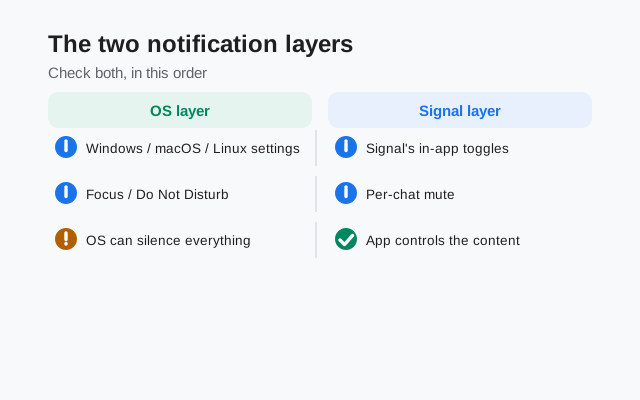
- Layer 1: the operating system. Windows, macOS, and Linux each decide which apps may interrupt you, with banners, sounds, badges, and quiet hours. If the OS says no, Signal can shout all it wants. Nothing appears.
- Layer 2: Signal Desktop itself. Inside the app's Settings there is a Notifications section: master on/off, message previews, sounds. If the app is set to stay quiet, the OS never gets anything to display.
The diagnostic shortcut: if no app notifies you, it is layer 1 (OS-wide). If other apps notify fine but Signal stays silent, check layer 2, then Signal's per-app entry in layer 1. Work the checklist below in that order and you will find the switch.
Where the switches live, per OS
| OS | Open this | Find this |
|---|---|---|
| Windows 10 / 11 | Settings → System → Notifications | The master notifications switch, then Signal in the per-app list |
| macOS | System Settings → Notifications | Signal's entry: allow switch, alert style, sounds |
| Linux (GNOME) | Settings → Notifications | The Signal Desktop entry and its toggles |
| Linux (KDE Plasma) | System Settings → Notifications | Per-application rules for Signal Desktop |
Bookmark the row for your OS. The checklists below assume you can get back to that screen in ten seconds.
Windows: the full checklist
Confirm the master switch is on
Settings → System → Notifications: the top-level "Notifications" toggle must be on. If it is off, nothing notifies: not Signal, not anything.
Confirm Signal is allowed in the per-app list
Scroll to Signal in the app list and make sure its switch is on. Expand its entry: "Show notification banners" should be on (banners are the pop-ups; without them, messages only pile up silently in Notification Center).
Check Focus (formerly Focus assist)
Settings → System → Focus. If Focus is on (or set to turn on automatically), notifications get suppressed. Either turn it off or add Signal to the priority list so its messages break through.
Check the automatic Focus rules
On the same Focus screen, look at "Turn on automatically": rules like during these times, when duplicating my display, and when playing a game silently eat notifications. Presenting your screen in a meeting with display-duplication Focus on is a classic "Signal went quiet at 2pm" mystery.
Check notification sounds
Back in Signal's per-app entry, make sure sounds are allowed if you want audio alerts. Windows lets banners and sounds be toggled separately: "banners on, sound off" is a common accidental state.
macOS: the full checklist
Confirm Signal may notify
System Settings → Notifications → Signal: "Allow notifications" must be on. Set the alert style to Banners (auto-dismissing) or Alerts (stay until dismissed). If it is set to None, messages arrive with no visible trace.
Enable sounds and badges
On the same screen, allow sounds if you want audio, and the badge count if you want the red dot on the Dock icon. Each is its own toggle.
Check Focus modes
System Settings → Focus. macOS has several modes (Do Not Disturb, Work, Sleep, and any custom ones), and each has its own schedule and allowed-apps list. Check which mode is active right now (it shows in the menu bar / Control Center), then check that mode's schedule: Sleep focus turning on at 10pm explains a lot of "no evening notifications" reports.
Check "Allow notifications when mirroring"
Inside a Focus mode's options there are settings for when the display is mirrored or shared. Screen-sharing with the wrong option set silences everything for the whole meeting.
Re-grant after a macOS upgrade
macOS upgrades reset app permissions more often than Apple admits. If notifications worked last week and died after an update, delete nothing. Just walk this checklist again. The toggles are usually the only thing that changed.
Linux: the quirks
Linux notifications work fine when the desktop environment is actually running a notification service. The failure modes are environmental:
- GNOME: Settings → Notifications → find the Signal Desktop entry and confirm it is enabled. Note that some distributions ship with notification sounds off by default. Banners without sound is normal there, not a bug.
- KDE Plasma: System Settings → Notifications → application-specific rules. Check the "Do Not Disturb" toggle in the system tray too. One click silences the whole desktop, and it is easy to hit by accident.
- Flatpak and repackaged builds: sandboxed builds can swallow notifications if the sandbox was not given notification permission. The official repository build is the reference. If a third-party-packaged Signal never notifies, suspect the packaging, not your system. Our Linux install guide covers the official repo.
- Minimal window managers: on tiling WMs and bare setups, there may be no notification daemon running at all. No daemon, no notifications: for any app, not just Signal. Install and start one (dunst and mako are the usual choices) and the problem disappears.
- Wayland vs X11: generally not the issue people fear it is. If notifications work for other apps under your compositor, Signal will too. Look at the app entry, not the display protocol.
from Signal's official download page — installers are hosted by Signal, not by us
Signal's own notification settings
With the OS gate open, check the app's gate: in Signal Desktop, open Settings and find the Notifications section. The options:
- Enable notifications: the master switch inside the app. If this is off, the OS gate does not matter.
- Show message preview. Full preview shows sender and text in the banner; the alternative shows a generic "new message." On a shared screen or an open-plan office, turning previews off is the privacy-conscious choice. You still get the ping, just not the content.
- Notification sounds. Separate from the OS sound toggle: both must allow sound for you to hear anything.
- Count badge / taskbar flashing. The quiet backup channel: even with banners off, the Dock/taskbar icon can show unread counts. Useful as a safety net.
One subtle trap: Signal Desktop must actually be running to notify. Not installed. Running. If you quit the app entirely (not just closed the window), there is nothing alive to receive messages, so there is nothing to notify you about. On login, most people want it to start automatically; check your OS's startup-apps settings.
Do Not Disturb and Focus: the silent killers
Do Not Disturb is the number-one cause of "notifications worked yesterday" cases, because it turns itself on:
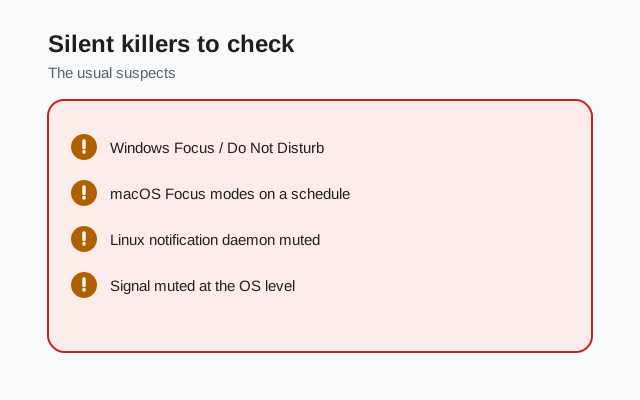
- Schedules. Night hours, work hours, sleep focus: all three OS families let quiet hours run on a timer. Check what is scheduled before assuming anything is broken.
- Calendar-driven focus. macOS can enable a Focus mode automatically during calendar events. A day full of meetings is a day with no banners.
- Display and activity triggers. Windows Focus turning on "when duplicating my display" or "when playing a game full-screen" catches people mid-presentation and mid-game respectively.
- Manual toggles you forgot. The quick-settings DND switch gets tapped accidentally more than anyone admits. Glance at the system tray / menu bar / Control Center first. It takes two seconds and solves a surprising share of cases.
DND overrides everything beneath it: app settings, per-app OS switches, sounds, all of it. When notifications die suddenly with no settings changed, DND is suspect number one.
Per-chat mute syncs from your phone
Here is the case that drives people in circles: every chat notifies except one. That is not a notification failure. It is a mute. And the mute probably came from your phone.
Chat mute state syncs across your devices. Mute a noisy group on your phone, and it stays muted on the desktop too: same account, same mute. To check: open the silent chat on the desktop, look at its conversation settings, and see whether notifications are muted there. Unmute it on either device and both follow.
Related: muting chats covers timed mutes (an hour, a day, always), and custom notifications covers per-chat sounds. If the mute is intentional but you still want some signal from that chat, a custom notification sound is the middle ground.
The silent-notification checklist
Run top to bottom. Stop at the first "no." That is your fix:
| # | Check | Where |
|---|---|---|
| 1 | Is the app actually running, not fully quit? | Dock / taskbar / system tray |
| 2 | Is Do Not Disturb / Focus off right now? | OS quick settings |
| 3 | Is the OS master notification switch on? | OS notification settings |
| 4 | Is Signal allowed in the OS per-app list, with banners on? | OS notification settings |
| 5 | Are Signal's in-app notifications enabled? | Signal Desktop → Settings → Notifications |
| 6 | Is this specific chat muted? | Chat settings (mute syncs from your phone) |
| 7 | Is the phone link still alive? | Phone → Settings → Linked devices (the 30-day rule) |
Check 7 deserves a word: a desktop whose link died (phone offline 30+ days, or the ~45-day auto-unlink) receives no new messages at all, which looks exactly like a notification failure. If the chat list itself is stale (no new messages, not just no pings), you are looking at a linking problem, and the sync troubleshooting guide is the right page, not this one.
from Signal's official site — file hosted by Signal, not by us
Frequently asked questions
I hear message sounds but see no banner. Why?
Banners and sounds are separate switches on every OS. Check Signal's per-app entry in the OS notification settings. Banners are probably off while sounds are on.
Notifications work on my phone but not on my desktop. Why?
The phone and the desktop have independent notification gates. Your phone's settings are fine; the desktop's OS or in-app settings are blocking. Work the two-layer checklist.
One chat never notifies but the rest do. Is that a bug?
No. That chat is muted. Mute state syncs from your phone to the desktop, so unmuting it on either device fixes both.
Why do desktop notifications stop every night?
A scheduled Do Not Disturb or Sleep focus. Check the OS focus schedules. Night quiet hours are the usual cause.
Signal runs on Linux but never notifies. What now?
Check that a notification daemon is running (minimal window managers often have none) and that a sandboxed or repackaged build has notification permission. The official repo build is the reference.
Can I hide message text in desktop notifications?
Yes. In Signal Desktop's notification settings, turn off message previews. You still get the ping, but banners show a generic new-message notice instead of content.
Keep reading
- phone-side notification fixes: when the phone is the silent one
- muting chats properly: timed and permanent mutes
- custom notification sounds: per-chat sounds and exceptions
- the Desktop guides hub: every Desktop guide in one place