
Fix a stuck or failed Signal APK download
Published: October 7, 2026 · Updated: October 8, 2026
Signal FoundationIf your Signal APK download from signal.org/android/apk stalls, fails, or the button seems to do nothing, the file is almost never the problem. In nearly every case the cause is on your side: the network, the browser, free storage, or a security warning you need to approve. Work through the six fixes below in order, easiest first, and one of them will almost certainly get the download moving again.
One rule before you start: don't go hunting for the file on a mirror site because the official page misbehaved. A failed download is an annoyance; a fake APK is a compromise. Every fix here keeps you on Signal's official page, which is the only safe source. We are an independent guide, not Signal.
from Signal’s official site — file hosted by Signal, not by us.
- Quick diagnosis: what exactly is happening?
- Fix 1: check your connection
- Fix 2: free up storage space
- Fix 3: try a different browser
- Fix 4: let the download through security warnings
- Fix 5: clear the browser's download glitches
- Fix 6: when the page itself is blocked
- After the download succeeds
- Frequently asked questions
Quick diagnosis: what exactly is happening?
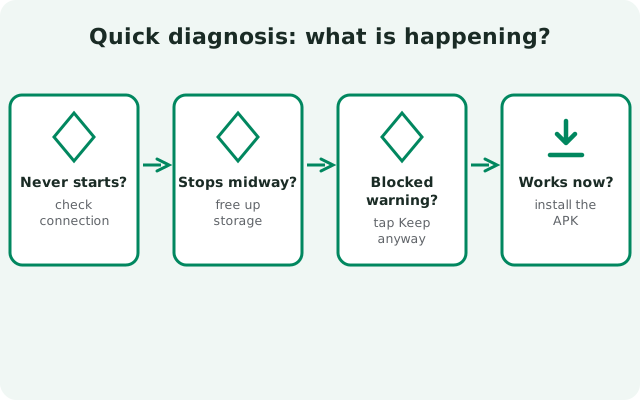
Different symptoms point to different causes. Find yours in this table and jump straight to the matching fix. Or just work top to bottom: the whole sequence takes about ten minutes.
| Symptom | Most likely cause | Go to |
|---|---|---|
| Download starts, then stalls at the same percentage | Flaky network or an interfering VPN/proxy | Fix 1 |
| "Download unsuccessful" or "insufficient space" | Storage full (or nearly full) | Fix 2 |
| Button does nothing when tapped | Browser quirk, pop-up blocker, or download-manager app intercepting | Fix 3 |
| Chrome warns the file "may be harmful" and blocks it | Normal APK warning. It needs your approval. | Fix 4 |
| Download finishes but the file is 0 KB or won't open | Corrupted by a download manager or interrupted transfer | Fix 5 |
| Signal's page won't load at all | Network-level block of signal.org | Fix 6 |
If your symptom isn't listed, start at Fix 1 anyway. Connection issues disguise themselves as all sorts of other errors, and it's the cheapest thing to rule out.
Fix 1: check your connection
Most stalled downloads are network problems wearing a costume. The APK is a single large file, and mobile networks love to interrupt large files, especially when you move between Wi-Fi and mobile data mid-download, walk into an elevator, or pass through a tunnel.
-
Stop the stalled download and switch networks
Cancel the stuck download completely. Don't let it sit there retrying. If you were on Wi-Fi, switch to mobile data; if you were on mobile data, try Wi-Fi. Then start the download fresh from signal.org/android/apk. A clean start on a different network resolves the majority of stalls.
-
Turn off VPNs, proxies, and "data saver" apps
VPNs, ad-blocking VPN profiles, and data-compression proxies all sit between you and Signal's server, and any of them can silently break a large download. Disable them temporarily, download the file, then turn them back on. If the download works with the VPN off, you've found your culprit. Consider downloading over the VPN's different server location, or just do this one download without it.
-
Toggle airplane mode once
If you're on mobile data and the connection feels "stuck" rather than dead, toggle airplane mode on for ten seconds and off again. This forces the phone to re-establish its data connection cleanly, which clears up a surprising number of half-broken network states.
Still stalling at the exact same percentage every time? That's the signature of something in the middle interfering: usually the VPN/proxy from step 2, or a workplace/school network filtering downloads. Try the download on a different network (a friend's hotspot, for instance) before assuming the file is at fault.
Fix 2: free up storage space
Android needs free space not just for the APK file itself but for the install process that follows. The system unpacks and verifies the package, which temporarily needs several times the file's size. If your phone is nearly full, downloads fail with vague errors like "download unsuccessful" that don't mention storage at all.
Check Settings > Storage and look at the free space number honestly. If you're under 1 GB free, that's your problem. Clear it the fast way: delete downloaded files you don't need, clear the cache of heavy apps (streaming and social apps accumulate gigabytes), move photos and videos to cloud backup or a computer, and uninstall apps you haven't opened in months. Our storage troubleshooting guide covers the Signal-specific side of this.
After freeing space, restart the phone before retrying. It sounds like folk wisdom, but a restart clears the temporary download state that a failed attempt leaves behind, and it costs you one minute.
Fix 3: try a different browser
Browsers are the most common non-network cause of download failures, and the fix is embarrassingly simple: use a different one. If Chrome is misbehaving, try Firefox (or vice versa). A fresh browser has no corrupted download state, no misbehaving extensions, and no download-manager integration to fight you.
Two specific browser traps are worth naming. First, download-manager apps: if you installed a "fast downloader" or "download accelerator" app, it may be intercepting the browser's downloads and mangling them. Multi-part downloaders are notorious for producing corrupt APKs. Disable or uninstall the manager and download directly in the browser. Second, pop-up and redirect blockers: some aggressive blocker settings break the tap-to-download flow on Signal's page. If the button does nothing, try with blockers paused.
Our browser-install guide walks through the cleanest way to download and install straight from Chrome or Firefox, including the "install unknown apps" permission the browser will request.
Fix 4: let the download through security warnings
This one surprises people, so let's normalize it: your phone warning you about the APK is expected behavior. Android and Chrome flag all APK downloads from outside the Play Store, including perfectly legitimate ones. A warning that says the file "may be harmful" or "isn't commonly downloaded" is the system doing its job. It's telling you to make a conscious decision, not telling you the file is bad.
The decision framework is simple. If you downloaded from signal.org/android/apk (the address you typed or tapped yourself, reading exactly "signal.org"), approve the download. If the file came from anywhere else (a mirror, a chat attachment, a shortened link), do not approve it; close it and go to the official page instead. The warning can't tell the difference between Signal's genuine APK and a fake one; only the source can.
Play Protect may also scan the file after download and show a warning before install. Same logic applies: genuine file from the official page, verified by fingerprint, is fine to proceed with. Our Play Protect guide explains exactly why the warning appears and how to handle it safely. Our fingerprint guide shows the verification step that turns trust into proof.
Fix 5: clear the browser's download glitches
Sometimes everything looks right (good network, plenty of space, official page) and the download still misbehaves: it "completes" in two seconds with a 0 KB file, or the APK won't open after downloading. That's a corrupted download, and the fix is to clear the decks and start clean.
-
Delete every partial copy
Open your Downloads folder and delete all copies of the Signal APK, including the tiny failed ones. A browser that sees an existing partial file will sometimes try to resume it instead of starting fresh. Resume a corrupt file and you just get a bigger corrupt file.
-
Clear the browser's cache
In the browser's settings, clear cached images and files (you don't need to clear passwords or history). This removes the stale download state that causes phantom "complete" downloads.
-
Re-download in one clean pass
Go back to signal.org/android/apk, download the file without switching apps mid-download, and let it finish uninterrupted. Don't lock the phone into deep sleep during the download if you can avoid it. Some aggressive battery savers pause background transfers.
-
Check the file before installing
A genuine complete file opens to the Android installer when tapped. If it still won't open, the download is still corrupt. Repeat the sequence in a different browser per Fix 3. If that fails too, the problem is almost certainly the network path, and Fix 6's alternatives apply.
Fix 6: when the page itself is blocked
If signal.org won't load at all (not slowly, but not at all), you're likely facing a network-level block. Some countries, workplaces, and school networks block Signal's domains outright. No browser trick fixes this; you need a different route to the same official page.
The straightforward answer is a reputable VPN: connect, reload signal.org/android/apk, and download normally. The Tor network is the heavier-duty alternative where VPNs are blocked too. What you should not do is treat the block as a reason to use a mirror. A blocked official page doesn't make an untrusted mirror any safer; it just makes it more tempting. Our blocked-regions guide covers the VPN and proxy setup in detail, and the same logic applies to China specifically.
One more legitimate fallback: ask someone you trust, on an unblocked network, to download the file from the official page and transfer it to you directly. Then verify the SHA-256 fingerprint from signal.org yourself before installing. Our post-transfer verification guide is written for exactly this situation. Trust the person, but verify the file.
After the download succeeds
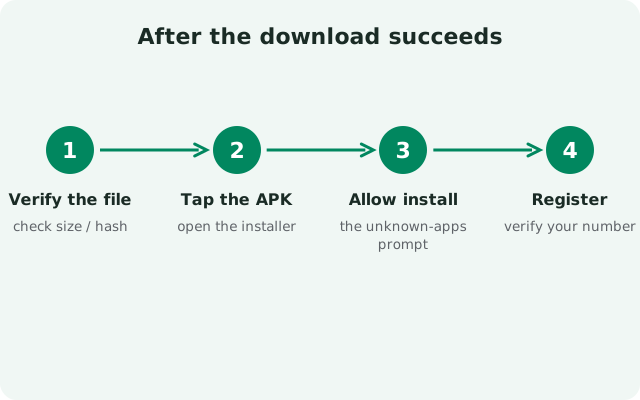
Getting the file is only half the job. Install it cleanly so you don't trade a download problem for an install problem:
-
Verify the fingerprint
Before installing, compare the APK's signing certificate against the SHA-256 fingerprint published on Signal's download page. This is the single most important step in the whole process. It proves the file is Signal's genuine build. Our verification guide shows how.
-
Allow the install when asked
Opening the APK will prompt you to allow "install unknown apps" for your browser. Grant it for the browser only. If Android throws an "app not installed" error instead, our install-error guide covers the causes. The most common is a Play Store copy of Signal already on the phone, since the website build can't install over it.
-
Confirm the version after install
Open Signal's settings and check the version number. It should match the current website build (v8.29.3 at the time of writing). If it doesn't, you installed a stale file; delete it and download fresh.
And keep the downloaded APK file for a few days after a successful install. If anything goes wrong with the setup, having the verified file on hand saves you another download round-trip.
Frequently asked questions
Why does the download keep stopping at the same percentage?
Something in the middle is interfering: usually a VPN, proxy, data-saver, or a network filter. Disable VPNs and proxies, switch networks (Wi-Fi to mobile data or vice versa), and start the download fresh instead of resuming.
Chrome says "can't download securely" or "may be harmful." Is the file bad?
No. Chrome shows this for all APKs downloaded outside the Play Store, including legitimate ones. If you got the file from signal.org/android/apk, it's safe to proceed. If it came from anywhere else, don't.
How big is the Signal APK file?
It's a single universal APK covering all device architectures, so it's larger than an architecture-specific download. Expect a large file (tens of megabytes) and make sure you have well over that in free space for the install process. The exact size changes slightly with each release.
The download button does nothing when I tap it. What's wrong?
Usually a browser issue: an aggressive pop-up blocker, a download-manager app intercepting the tap, or corrupted browser state. Try a different browser first. That alone fixes most cases.
The download finished but the file won't open. Now what?
The file is corrupt, most often because of a download-manager app or an interrupted transfer. Delete all copies, clear the browser cache, disable any download-manager apps, and re-download directly in the browser from Signal's official page.
Related guides
- Download guides hub
- Download Signal APK (official page)
- Install the APK from a browser download
- Play Protect flags the Signal APK
- "App not installed" error