
Can You Move Signal to an SD Card?
Published: October 7, 2026 · Updated: October 8, 2026
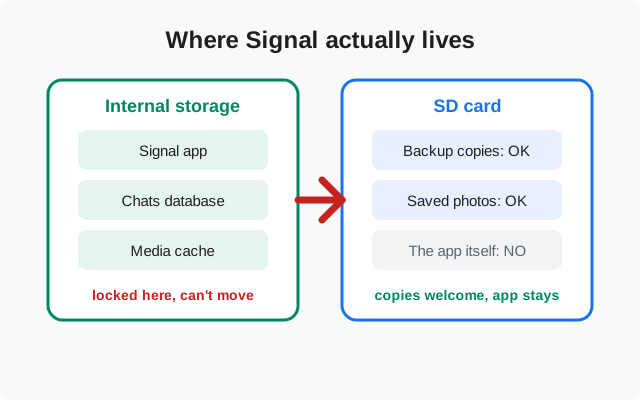
No. You cannot move Signal to an SD card. The app itself and your chats must stay on your phone's internal storage. Modern Android no longer offers a "move to SD card" button, and Signal is not built to run from removable storage. That is the short answer, and it settles the question in the first paragraph. The rest of this guide covers what actually helps: what you can put on the card, how Android's adoptable-storage option works (and why it is a bad idea for Signal), and how to keep Signal's storage footprint small so internal space stops being a problem.
from Signal's official site — file hosted by Signal, not by us
Why the "Move to SD" button disappeared
Years ago, Android let you move parts of some apps to an SD card. It was never clean: only part of the app moved, widgets broke, and pulling the card out broke the app. Google phased the option out, and on modern Android the "Move to SD card" button simply does not exist in app settings. There is no hidden menu for it and no per-app override. If you are looking for it in Signal's app info screen, you will not find it. Nobody's app has it anymore.
Signal has a second, stronger reason. It is an encrypted messenger. Your chat database and the keys that protect it are tied to the device and must be available every time the app runs. An app that can vanish the moment a card is ejected, or that splits its database from its keys across two storage chips, is a corruption risk and a security risk. Signal keeps everything internal by design, and no setting changes that.
This also means the "app to SD" helper apps on the Play Store cannot help you. They claim to force-move apps that Android won't move. With an encrypted database app like Signal, the realistic outcomes are a broken install or a corrupted database: the opposite of what you wanted. Skip them.
What about root or ADB tricks?
On a rooted phone, technically inclined users can symlink or bind-mount app data to an SD card. We mention this only to advise against it for Signal. A messenger's encrypted database assumes fast, always-available storage; every write that waits on a removable card is a chance for a torn write, and a torn write is how a database becomes unreadable. There is no supported configuration where Signal runs from external storage, so if it breaks, neither Signal's support team nor any guide can help you recover it. The backup-copy approach in the next section gives you the safety net without the risk.
First: check whether space is really the problem
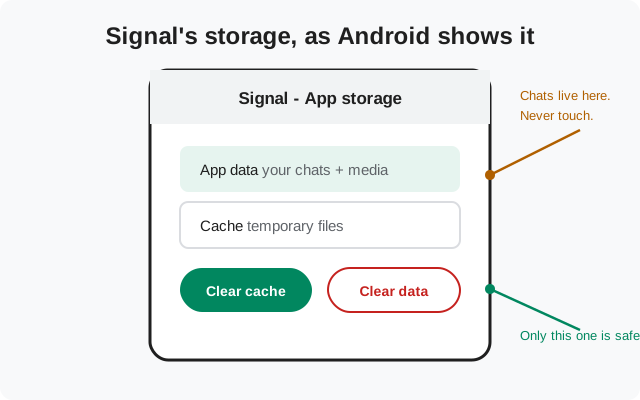
Most "move to SD" searches start with a full-phone warning. Before doing anything else, look at the real numbers: open Settings → Storage and read the internal free space. Ignore the SD card number. It is irrelevant to Signal. Then go to Settings → Apps → Signal → Storage and you will see two figures: App data (your chats and media: do not touch) and Cache (temporary files: safe to clear).
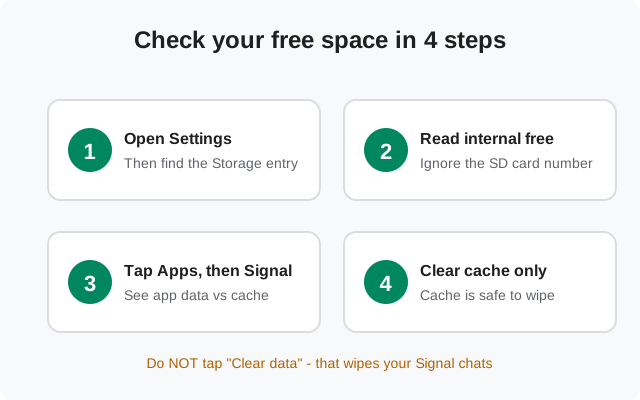
Clearing the cache costs nothing and often frees a surprising amount. What you must never tap is "Clear data" (sometimes labeled "Clear storage"). That wipes Signal's local state, chats, media, the lot, and is the fastest way to turn a storage question into a data-loss problem. The annotated screen below shows which button is which.
Adoptable storage: the exception that usually isn't
Android has a feature called adoptable storage. When you insert an SD card, some phones offer to "format as internal". The card is then encrypted and treated as part of internal storage, and apps, in theory, can use it. It sounds like exactly what you want. Here is why it usually isn't:
- The card is locked to that phone. Once adopted, the card is encrypted with a key only that phone holds. Move it to another phone or a card reader and it is unreadable.
- A dead card means dead app data. SD cards fail more often than internal flash. If the adopted card dies, everything Android placed on it dies with it. That can include Signal's database.
- Slow cards slow everything down. App data on a cheap card means lag and stutter, and a sudden card hiccup mid-write is how databases get corrupted.
- Many phones don't offer it at all. Samsung and several other makers removed adoptable storage from their phones years ago. On those devices the option simply does not exist.
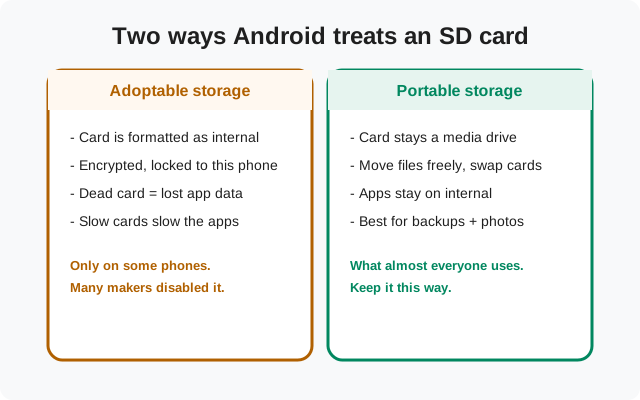
Our honest take: even on the phones that still offer adoptable storage, do not adopt a card to run Signal. The failure mode (card dies, chats die) is exactly the outcome a messenger must never produce. Keep the card as portable storage and use it for what it's good at, which is the next section.
What you can move to the SD card
Signal itself stays put. But three things move to the card just fine:
- Backup copies. Signal can create an encrypted backup of your chats. The backup file is created in internal storage, but nothing stops you from copying it to the SD card with your Files app (select the file, copy, paste it onto the card). Keep the backup passphrase written down somewhere safe, but not on the same card, because without it the backup is useless. Signal's own support site walks through chat backups step by step at support.signal.org.
- Photos and videos you save from chats. Anything you deliberately save out of a conversation is an ordinary file and can live on the card. Move finished albums off internal storage whenever the phone feels full.
- The APK installer file. The Signal APK itself (about 109 MB) can sit on the card as a spare copy. Only the installed app needs internal storage. Download it once from signal.org/android/apk, keep a copy on the card, and you can reinstall offline later. If you want the exact size figure, our breakdown of how big the Signal download is has it.
Managing Signal's storage instead (the real fix)
Since the app can't move, the practical question is how to keep its footprint small. Do these in order:
- Clear the cache monthly. Settings → Apps → Signal → Storage → Clear cache. Safe, quick, repeatable.
- Attack the media. Videos are almost always the biggest chunk of Signal's data. Scroll through heavy chats, delete what you don't need, and save the keepers to the SD card first.
- Use disappearing messages going forward. They don't shrink what's already stored, but they stop the pile from growing. Set a sensible timer on your busiest threads.
- Keep 1–2 GB free on internal storage. Android misbehaves when the phone is nearly full: installs fail, updates stall, and apps crash. The card can't help with this. Internal free space is what matters.
- Uninstall apps you don't use. Obvious, but the biggest wins usually come from other apps, not Signal.
Storage strategies compared
| Strategy | Moves Signal? | Risk | Verdict |
|---|---|---|---|
| Adoptable storage | Partially, in theory | High: dead card kills app data | Avoid |
| Copy backups to the SD card | No: copies only | Low | Do this |
| Clear Signal's cache | No: frees space | None | Do this monthly |
| Move saved photos/videos to card | No: frees space | None | Do this |
| "Move to SD" helper apps | Claims yes | High: corruption, junkware | Never |
Frequently asked questions
Can I move Signal to the SD card on a Samsung phone?
No. Samsung phones don't offer adoptable storage on most models, and Signal can't be moved on any phone. Use the card for backup copies and saved media instead.
Does Signal store my messages on the SD card?
No. Messages and the encrypted database stay on internal storage. Only files you deliberately copy to the card end up there.
Will Signal work if I keep the APK file on the card?
Yes. Storing the installer file on the card is fine. You can install from it any time. Only the installed app needs internal space. Grab it from Signal's download page.
Is adoptable storage safe for Signal?
Not recommended. A failing adopted card can take Signal's database with it, and the card becomes unreadable on any other device. The risk isn't worth it for a messenger.
How much internal space does Signal actually need?
The APK download is about 109 MB, and the installed app plus your chats grow from there depending on how much media you keep. Keeping 1–2 GB of internal space free keeps everything smooth. If you're reinstalling Signal, make that backup copy first.
Related guides
- Start from the install guides hub for the full set.
- How big the Signal APK is: exact download and installed sizes.
- Verify your Signal install: confirm the APK is genuine.
- Download the APK over mobile data: keep a spare copy on the card.
- Signal on Android Go phones: storage survival on low-RAM devices