
Signal Default Disappearing Timer: Set It Once for Every New Chat
Published: October 7, 2026 · Updated: October 8, 2026
If you want your messages to vanish on a schedule, setting the timer in every single chat gets old fast. You open a chat, dig into its settings, pick a duration, close it. Then you do the whole thing again for the next person. Signal has a one-time fix for this: the default disappearing timer. Set it once, and every new conversation you start from then on gets that timer automatically. No extra taps, no forgotten chats, no messages sitting around longer than you intended. This guide shows exactly where the setting lives, what it does and does not cover, how it interacts with backups, and how to override it for a specific chat when you need to.
from Signal's official site — file hosted by Signal, not by us
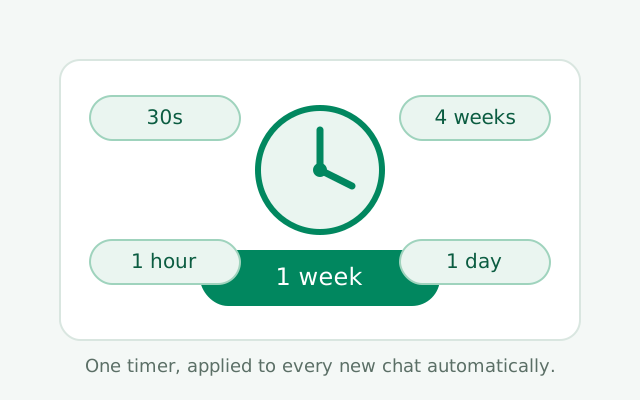
What the default timer is (and isn't)
A template for new chats, not a global switch
The default disappearing timer is a single setting that says: "for every new conversation I start from now on, enable disappearing messages with this duration." That is all it is. It is not a global switch that forces a timer on everything. It is a template for new chats.
Think of it like a default font
Think of it like a default font in a word processor. You set your preferred font once; every new document uses it. But old documents keep whatever font they had, and you can still change the font in any single document. The disappearing timer default works exactly that way: new chats get the default, old chats keep their current state, and any single chat can be changed independently at any time.
Why your existing chats did not change
This matters because of a misunderstanding we see often: people set the default timer and then wonder why their existing chats did not change. That is not a bug. The setting was never designed to touch existing conversations. If you want your current chats on a timer too, that is a separate job: one chat at a time. We cover that below.
It applies to chats others start with you too
There is also no such thing as a default timer that applies to chats other people start with you differently than chats you start. If someone new messages you first, that conversation is still a new conversation in your app, and your default applies the same way. The setting lives in your app, on your phone, and it governs what YOUR app does with new conversations.
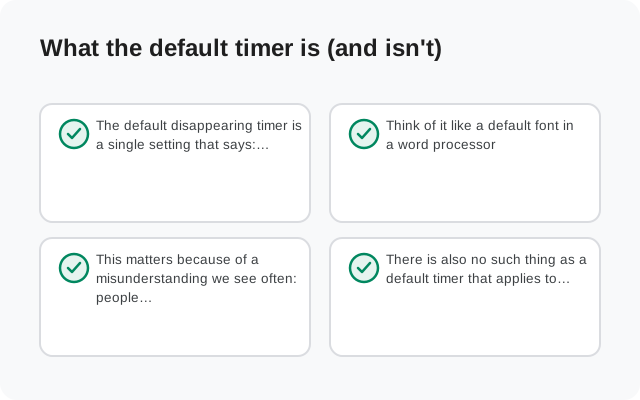
Where the setting lives
The setting is called Default timer for new chats, and it lives under Settings → Privacy, in the Disappearing messages section. Open Signal, tap your profile icon or initials to open Settings, tap Privacy, scroll to the disappearing messages section, and look for the default timer option there.
Tap it and you get the duration picker: the same set of options Signal offers inside individual chats (covered in the next section). Pick the duration you want as your standard, and you are done. The change takes effect immediately, with no restart and no confirmation dialog.
If you ever change your mind, come back to the same place and pick a different duration. Your new choice applies to chats created after the change; it does not rewrite the timers on chats that were created under the old default. Each new chat takes a snapshot of the default at the moment it is created.
One honest note: Signal occasionally renames or shuffles settings between app versions, but this setting has lived in the Privacy section for a long time and is easy to find by scanning that screen. If you cannot spot it, it is worth updating the app first. Old builds sometimes lag behind the newest settings. Our latest version guide covers how to stay current with the APK build.
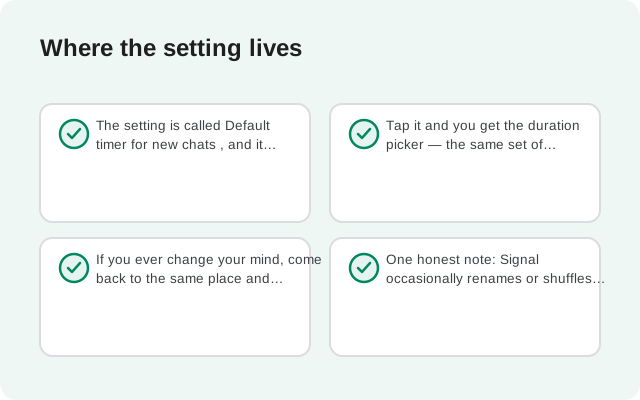
Timer options explained
The duration picker gives you a fixed set of presets plus a custom option. Here is the full list:
- 30 seconds. Extreme and very short. Messages vanish almost as soon as they are read. Realistically useful only for the most sensitive exchanges: a code, a password, something that should never sit on a screen.
- 5 minutes. The "quick conversation" option. Good for rapid back-and-forth where you want everything gone shortly after the chat quiets down.
- 1 hour. Covers a full conversation session. You talk, you finish, everything is gone within the hour after each message is read.
- 8 hours. Roughly a waking-day window. Useful when you want messages to survive the workday but not the night.
- 1 day. The most popular choice, in our experience. You get a full day to scroll back, reference things, and reply thoughtfully. Then the chat cleans itself up.
- 1 week. The "I might need to look back" option. A week's worth of conversation stays available, which covers most "wait, what did we decide?" moments.
- 4 weeks. The longest preset. Almost a month of history. This is for people who want the safety net of disappearing messages but genuinely use their chat history for reference.
- Custom. Set your own duration when none of the presets fits. Pick whatever length you actually want.
For a default that you will live with across many chats, 1 day or 1 week are the sensible middle ground. They keep conversations useful while still guaranteeing everything eventually vanishes. Extremes like 30 seconds make a fine default only if you truly never want history. Most people find that annoying within a day. Our full disappearing messages guide walks through the same options in the context of individual chats.
What the setting applies to
Here is the precise scope, because this is where confusion lives:
- Applies to: every new one-on-one conversation and every new group you create or join AFTER setting the default. The timer starts enabled with your chosen duration.
- Does not apply to: any conversation that already existed when you set the default. Those keep their current disappearing-messages state, on or off, whatever it was.
- Does not apply retroactively: changing the default later does not update chats that were created under an earlier default. Each chat remembers its own timer from the moment it was created.
- Applies per chat, not per person: if you and a friend start a fresh conversation, the default applies again at creation.
A practical example. You set a 1-day default on Monday. Your existing chats, the ones you have had for months, stay exactly as they were. On Tuesday you message a new colleague for the first time: that chat gets a 1-day timer automatically. On Wednesday you decide 1 week suits you better and change the default: the colleague's chat keeps its 1-day timer, and the next new chat you start gets 1 week.
The rule is simple once you see it: the default is a starting value, applied at birth, for new chats only. Everything else is per-chat.
Existing chats are not affected
This deserves its own section because it is the number-one support question about this setting: "I turned on the default timer but my old chats still keep messages forever. Why?"
The answer is by design. Signal deliberately does not let a single global setting reach back and change your existing conversations. The reason is sensible when you think about it: your existing chats have histories you chose to keep. Bulk-enabling deletion on all of them at once, with no per-chat review, would be destructive. Signal forces you to make that choice chat by chat, which is slower but safer.
So if your goal is "I want ALL my chats on a timer, including the old ones," the default setting alone will not get you there. You have to walk through your existing chats and set the timer in each one:
Open each conversation
Start with the chats that matter most: the ones with the most sensitive history or the most message volume.
Open the chat's settings
Tap the contact or group name at the top of the conversation.
Set disappearing messages
Choose Disappearing messages and pick a duration. This overrides whatever the default would have given it.
Repeat
There is no bulk action, so this is genuinely one at a time. For most people the real number is a dozen or so active chats. That is a ten-minute job.
Is it tedious? A little. But you only do it once, and from then on the default timer handles every new chat automatically. Think of it as paying off a small debt once so you never think about it again.
Overriding it for one chat
The default is a starting point, not a lock. Any individual chat can have a completely different timer, including no timer at all, regardless of your default. The per-chat setting always wins for that chat.
To override: open the conversation, tap the name at the top, open Disappearing messages, and choose what you want. You can:
- Pick a different duration. Your default is 1 day but this particular chat needs 1 week? Set it. This chat now runs on 1 week; everything else still follows the default.
- Turn the timer off for this chat. If you want one conversation to keep its history forever (a chat where you save receipts, travel plans, medical info), disable disappearing messages there. The default keeps working for all your other new chats.
- Re-enable it later. Changed your mind about that exception? Turn the timer back on in that chat with any duration. The default itself is untouched.
The override sticks to that chat permanently. If you later change your global default, this chat keeps its custom choice. Remember the snapshot rule. Per-chat settings are the boss of their own chat.
A common pattern: set a short default (like 1 day) for privacy, then exempt your Note to Self or one trusted chat where you actually want history. Our Note to Self guide is worth a look here, because many people route "stuff I want to keep" through their personal chat and let everything else disappear.
When the countdown actually starts
Here is a detail people get wrong: the timer does not start when you send a message. The countdown starts when the message is seen: when the recipient actually opens the chat and views it.
This has a few practical consequences:
- An unread message waits. If you send a message with a 1-day timer and the other person does not open the chat for three days, the message does not vanish after one day. The 1-day countdown begins when they read it. This is good. It means disappearing messages cannot silently delete things before someone has seen them.
- The timer is per message. Each message gets its own countdown, starting from its own read time. In an active conversation, messages are expiring one after another as their individual clocks run out.
- In groups, the clock is per member. With multiple readers, each member's device deletes the message on their own schedule. In practice, group messages fade for each person independently. That is fine: disappearing messages are about cleaning up devices, not about synchronizing deletions.
- Your own sent messages count down the same way. A sent message starts its clock when the recipient reads it. It does not vanish from your phone while it is still unread on theirs.
The takeaway: the timer is designed around reading, not sending. Set your default with confidence that unread messages will not evaporate before they are seen.
Default timer in group chats
The default applies to groups the same way it applies to one-on-one chats: new groups you create or join inherit the timer. But groups add one wrinkle worth knowing.
In a group, the disappearing-messages setting is shared by all members: there is one timer for the group, not one per person. Anyone with permission to change group settings can change it, and the change applies to everyone. So if your default gave the group a 1-day timer and another member changes it to 1 week, the group now runs on 1 week for everyone, including you.
This means your default is really just the opening bid in a group. Whoever creates the group sets the initial timer (from their default), and from then on the group is a shared setting that members can adjust. If you care about the timer in an important group, check it directly rather than assuming your default survived.
Our group admins guide covers who can change group settings and how admin roles work. That matters here because in some groups only admins can touch the timer.
How it interacts with backups
This is the section most guides skip, and it matters: disappearing messages and backups have a specific, documented relationship. Here is the rule as Signal implements it:
Messages with a disappearing timer of 24 hours or less are excluded from Secure Backups. That means 30-second, 5-minute, 1-hour, 8-hour, and 1-day timers never make it into your encrypted backup. When you restore, those messages are simply not there. They were never saved.
Messages with longer timers (1 week, 4 weeks, custom durations above 24 hours) are included in backups, with one obvious caveat: a message whose timer expires before you restore is already gone. Backups capture what exists at backup time; they do not resurrect expired messages.
Why does this matter for your default? Because your default timer choice directly controls how much of your chat history survives a phone change:
- Default of 1 day or shorter: your new chats will effectively never appear in backups. Your backup will be mostly old chats and non-disappearing content. If you lose your phone, you lose those recent conversations. That is by design.
- Default of 1 week or longer: your new chats DO back up (while their timers are still running). You get a real safety net for phone changes, at the cost of messages lingering longer.
This is a genuine trade-off, not a right-or-wrong choice. Maximum privacy says "1 day or less, let it burn." Maximum recoverability says "1 week or more, keep my safety net." Most people land on 1 day and accept that recent chats are ephemeral. They should make that choice knowing it, not discover it during a phone migration. Our Secure Backups guide covers the full backup system, and our phone transfer guide walks through moving everything to a new device.
Default timer vs per-chat timer: the full picture
| Default timer | Per-chat timer | |
|---|---|---|
| Where | Settings → Privacy → Disappearing messages → Default timer for new chats | Conversation → name at top → Disappearing messages |
| Applies to | New chats only | That one chat |
| Existing chats | Untouched | Changed immediately |
| Priority | Lower (starting value) | Higher (always wins for its chat) |
| Changing later | Affects future new chats only | Affects that chat immediately |
| Turn off entirely | Set default to off | Disable in that chat |
The mental model: the default fills in the blank for new chats; the per-chat setting is the final word for its own chat. When in doubt, open the chat and look at what it actually says. That is always the truth for that conversation.
Common mistakes
- Expecting old chats to change. The default only touches new chats. Old chats need manual per-chat changes.
- Choosing 30 seconds as the default. Sounds secure; in practice it is exhausting. You will keep re-reading messages to reference them and they will be gone. Start at 1 day.
- Forgetting the backup trade-off. A short default means short-timer messages never back up. Fine if you know it; painful if you discover it after losing a phone.
- Assuming the default survived in a group. Members with permission can change a group's timer. Check important groups directly.
- Confusing the default with view-once. Disappearing timers delete messages after a duration; view-once media deletes a photo or video after a single view. Different features, different settings.
- Panicking when a new chat has no timer. If your default is set but a brand-new chat shows no timer, check that the setting actually saved. Also check whether the other person changed it. The chat's own setting page always shows the current truth.
Set the default once, walk your existing chats once, and then forget about it. That is the whole point of the setting: ten minutes of setup buys you automatic disappearing messages in every conversation you will ever start.
Frequently asked questions
Where is the default disappearing timer in Signal?
Open Signal's Settings, tap Privacy, and look for Default timer for new chats in the Disappearing messages section. Pick a duration and every new conversation you start will use that timer automatically.
Does the default timer affect my existing chats?
No. The default applies only to new conversations created after you set it. Existing chats keep their current disappearing-messages state; change those one at a time.
Can I override the default timer for one chat?
Yes. Open the conversation, tap the name at the top, and set its Disappearing messages to any duration or off. The per-chat setting always overrides the default for that chat.
When does the disappearing timer countdown start?
The countdown starts when the message is seen (read), not when it is sent. An unread message waits; each message gets its own clock starting from its read time.
Are disappearing messages included in Signal backups?
Messages with a timer of 24 hours or less are excluded from Secure Backups. Longer-timer messages are included while they still exist. So a 1-day default means new chats effectively never back up.
Can other group members change the disappearing timer?
Yes. In groups there is one shared timer and members with permission can change it for everyone. Your default only sets the group's initial timer; check important groups directly.
Keep reading
- disappearing messages overview: the per-chat side of timers, in depth
- view-once media: single-view photos and videos, a separate feature
- Signal Secure Backups: exactly what survives a restore
- disappearing messages not working: fixes for timers that misbehave