
Signal Note to Self: A Private Chat With Yourself
Published: October 7, 2026 · Updated: October 8, 2026
Every Signal user has a conversation partner they never have to add: themselves. Note to Self is a real Signal chat, except the person on the other end is you. Type something, hit send, and it is there later. On your phone and on any linked desktop, all of it end-to-end encrypted like any other Signal message. This guide covers what it is, how to open it, the seven ways people actually use it, and what it cannot do.
from Signal's official site — file hosted by Signal, not by us
What Note to Self actually is
Note to Self looks like a contact in your Signal contact list, but it is really a conversation with one member: you. When you send a message there, Signal encrypts it, stores it on your device, and delivers it to your linked devices: phone, desktop, and anything else you have connected.
Three properties matter here, straight from Signal's own support notes:
- It is a normal encrypted chat. Everything in Note to Self is an end-to-end encrypted Signal message. There is no special "notes mode" with weaker protection.
- It syncs to your linked devices. That is the whole point: send a file from your phone, open Signal Desktop, and the file is waiting there. Send a draft from your computer, finish it on your phone.
- It is not a notes app. There are no folders, no checklists with boxes, no formatting toolbar. It is a chat with a send button. The simplicity is the feature.
One common mix-up: Note to Self is not your phone number's SMS conversation. It only exists inside Signal, and it never sends anything over SMS.
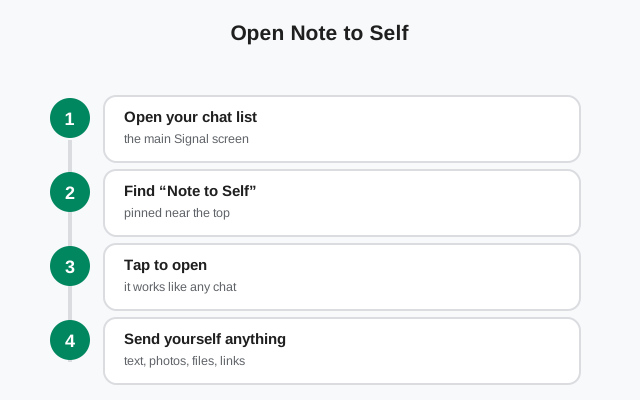
How to open it
If you have never used it, it hides in plain sight:
Tap the compose button
In Signal on Android, tap the compose button (the pencil icon) to open your contact list. On iOS, the same button opens a new message view.
Search for "Note to Self"
It appears as a contact entry with your own name. Tap it, and the chat opens.
Type and send
Write your note, or tap the attachment button to pick a file. Hit send exactly like you would to a friend.
Find it on Desktop
On Signal Desktop, search for "Note to Self" in the search bar. It shows up as a conversation you can open and use the same way.
After the first message, the chat behaves like every other conversation: it sits in your chat list, shows previews, and can be archived or muted.
Seven ways people use it
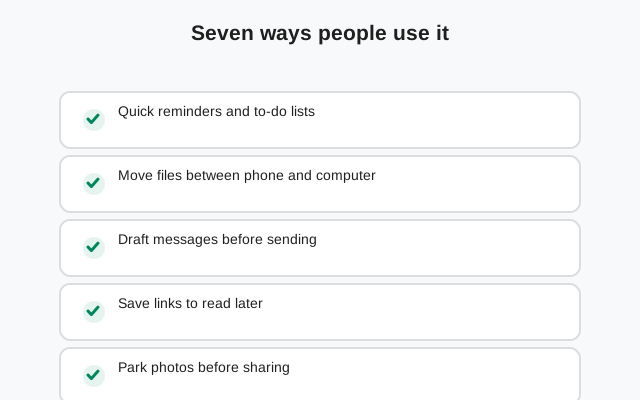
A chat with yourself sounds like a gimmick until you start using it like a tool. These are the real patterns:
- Message drafts. Write a reply you are not ready to send, park it in Note to Self, copy it into the real chat when you have calmed down or thought it through.
- To-do lists. One message per task, checked off by deleting. Ugly, fast, and always with you. For anything bigger, use a real task app. This is for the quick-and-dirty list.
- Links to read later. Share a link into Signal from your browser, choose Note to Self as the recipient, and it waits for you instead of vanishing into a bookmark folder you never open.
- Voice notes to yourself. A two-minute voice memo while walking is faster than typing, and it syncs to your desktop so you can transcribe it at your keyboard.
- Shopping lists and packing lists. Send the list from your computer where typing is easy, open it on your phone in the store. Check items off by editing or deleting the message.
- Photo parking. Send yourself photos you want to keep together: receipts for expenses, a whiteboard after a meeting, the serial number on the back of a router. The search and media view make them findable later.
- A scratch pad for ideas. Half-formed sentences, titles for a post, arguments you want to remember. It is the digital equivalent of the back of an envelope, and it syncs.
One thing to not store there: passwords. Note to Self is encrypted, but it is not a password manager. No vault, no generator, no breach alerts. Use one. The Signal privacy checklist covers the rest of the hygiene.
Moving files between phone and computer
This is the use case that converts skeptics. You do not need a cable, an email to yourself, or a cloud drive login. The workflow:
Link Signal Desktop
Install Signal Desktop on your computer and link it by scanning the QR code with your phone. This only works if your phone is the primary device. Desktop is always linked, never standalone.
Send the file to Note to Self
On your phone, open Note to Self, attach the photo, document, or video, and send. It uploads encrypted and appears on your desktop within moments.
Open it on your computer
In Signal Desktop, open Note to Self and download the attachment. Reverse the process to send files the other way: from desktop to phone.
A few honest notes on this workflow. Attachments have the same size limits as normal Signal messages, so a huge video may need compressing first. Files are stored on each device's local storage. This is not cloud storage, and deleting the chat deletes your only copy unless you saved the file elsewhere. And it is slower than a purpose-built sync tool for large batches; where it wins is the everyday single file you need right now.
If you have not linked a device yet, the desktop linking guide walks through the QR-code pairing step by step.
Pinning it to the top of your chat list
Note to Self is only useful if you can reach it in one tap. After your first message, long-press the chat in your conversation list and pin it. It parks itself at the top, above every other conversation, so your scratch pad is always one tap away no matter how busy your inbox gets.
Pinning is local to your device and does not notify anyone. There is nobody to notify. Unpin it the same way whenever you like.
Disappearing messages in Note to Self
Yes, you can set a disappearing-messages timer in your own chat. Signal's support notes confirm it explicitly, with one quirk: the timer starts immediately, not when you read the message, because you are both the sender and the receiver.
This is genuinely useful for two cases:
- A self-destructing scratch pad. Set a one-day timer and your parked drafts, shopping lists, and half-thoughts clean themselves up. The chat stays tidy without you managing it.
- Sensitive reminders. A reminder to call the bank about a disputed charge does not need to live on your phone forever. A timer deletes it after it has served its purpose.
The usual disappearing-message caveats apply even here: the timer only deletes from your devices, and if you had synced the chat anywhere else (a desktop backup of message data, say), copies outside Signal's control are not covered. See the disappearing messages guide for the full picture.
Note to Self vs a notes app vs chat drafts
Three tools compete for the same job: holding your words until you need them. They are not interchangeable.
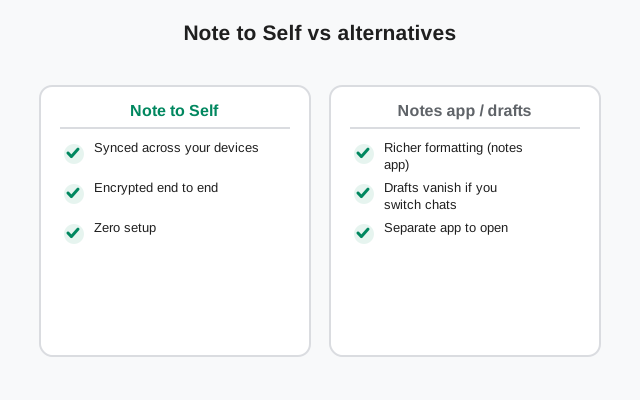
| Job | Note to Self | Notes app | Chat drafts |
|---|---|---|---|
| Reaches all your devices | Yes, via linked devices | Yes, via cloud sync | No: stuck on one phone |
| End-to-end encrypted | Yes | Usually no | Unencrypted until sent |
| Move files phone to computer | Yes, the headline feature | Yes, via cloud | No |
| Folders, formatting, search | No: it is a chat | Yes | No |
| Self-cleaning with a timer | Yes | Rare | No |
| Works without an account anywhere | Inside Signal only | Needs the app's cloud | Inside Signal only |
The pattern: use Note to Self for transit (things moving between devices, drafts in progress, temporary lists) and a notes app for storage (reference material, archives, anything you will still want in a year). Chat drafts are for one thing only: a message you will send in the next few minutes.
What it can't do
- It is not a backup. If you lose your phone without a backup, your Note to Self history goes with it. Linked devices keep their own copies, which saves you sometimes, but do not treat it as cloud storage.
- It does not sync old history to new devices. A freshly linked desktop gets new messages from that point on; it does not pull the last year of your notes. What is already there stays where it is.
- There is no web access. Signal has no browser client, so your notes are reachable only from the apps.
- Editing is per-message. You can edit and delete messages like in any chat, but there is no document mode. Do not try to maintain a wiki in there.
- It counts toward storage. Every file you park in Note to Self sits on your phone's storage like any chat attachment. Heavy parkers should check their storage settings occasionally.
FAQ
Where is Note to Self in Signal?
Tap the compose button to open your contact list and search for "Note to Self". It appears as a contact entry with your own name. After you send the first message it sits in your chat list like any conversation.
Is Note to Self really private?
Yes. Everything in Note to Self is an end-to-end encrypted Signal message, and only your own linked devices can decrypt it. There is no one on the other end. The chat exists only between your devices.
Does Note to Self sync to Signal Desktop?
Yes, as long as the desktop is linked to your phone. Messages and files sent to Note to Self on your phone appear in the same chat on your desktop, and the reverse works too.
Can I set disappearing messages in Note to Self?
Yes. The timer works like in any chat, except it starts immediately because you are both the sender and the reader. Good for a self-cleaning scratch pad.
Can I pin Note to Self to the top?
Yes. Long-press the chat in your conversation list and pin it. It stays at the top of the list for quick access, and pinning is local to your device.
Does Note to Self work without the internet?
Sending and receiving need a connection, but messages already on your device are readable offline, like any chat history.
Keep reading
- disappearing messages, explained: Signal disappearing messages guide
- edit or unsend what you parked there: message editing and deletion
- link your computer for file transfers: Signal Desktop linking guide
- the full privacy setup: Signal privacy checklist
- schedule messages: why Signal can't, and the workarounds