
Signal Screen Security: Hide Chats in the App Switcher
Published: October 7, 2026 · Updated: October 8, 2026
Switch between apps and your phone shows you a deck of cards: little live previews of everything you had open. By default, Signal's card shows your actual chats. Screen security swaps that card for a blank privacy screen and, as a side effect, blocks screenshots inside Signal on your own device. This guide covers exactly what changes, what it can't protect, and the one real cost of turning it on.
from Signal's official site — file hosted by Signal, not by us
What screen security actually does
Two things, both on your device only. Signal's own support page describes them plainly:
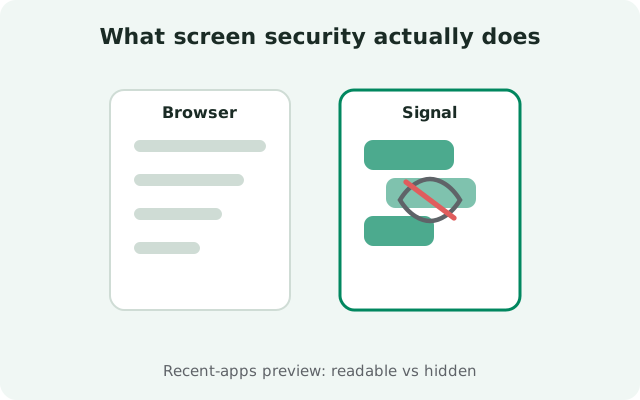
- It hides Signal in the app switcher. Instead of a live preview of your chats, the app-switcher card shows a blank privacy screen with the Signal logo. Anyone flipping through your recent apps (over your shoulder on the train, or holding your phone for a moment) sees nothing of your conversations.
- It blocks screenshots inside Signal on your device. The screenshot button stops working within the app. This is the same mechanism, applied to the screenshot pipeline.
The qualifier matters more than the feature: this protects your phone only. It does not prevent the person you are chatting with from screenshotting the conversation on their device, and Signal will not warn you if they do. Screen security is a shield for your screen, not a lock on the other person's.
How to turn it on
Open your privacy settings
Tap your profile picture in Signal, then open the privacy section. On iOS the path goes through Settings first.
Flip the toggle
Enable Screen Security on Android, or Hide Screen in App Switcher on iOS. The toggle turns blue when it is active.
Verify it worked
Open any chat, switch to another app, and open your phone's app switcher. Signal should appear as a blank privacy screen, not your messages. Try a screenshot inside Signal too. It should be blocked.
To turn it off, flip the same toggle back to grey. There is no restart and no side effect. Your chats are exactly where you left them.
What changes the moment you enable it
The visible differences, in the order you will notice them:
- The app-switcher card goes blank. Where your last-opened chat used to show, there is now the privacy screen. This is the whole point of the setting, and it works immediately.
- Screenshots inside Signal stop working. Pressing your phone's screenshot buttons while Signal is open produces nothing usable: blocked, or a blank image, depending on the phone. Screen recordings of Signal are blocked the same way on most devices.
- Nothing else changes. Your chats, notifications, calls, and linked devices behave exactly as before. Screen security touches the display layer only.
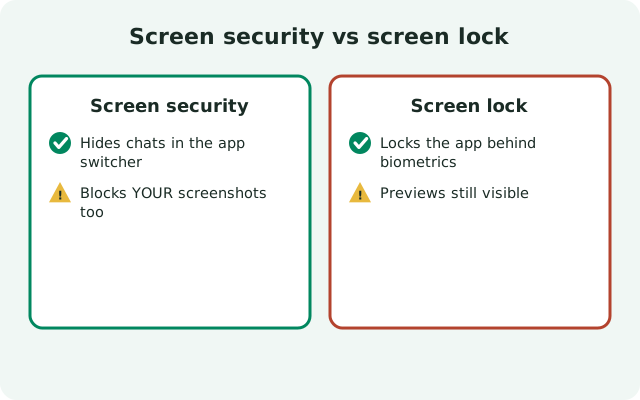
One subtle interaction: screen security and screen lock are independent toggles that solve adjacent problems. Screen lock asks "who may open the app"; screen security asks "what may be seen without opening it." Most privacy-minded people want both on.
What it does not protect against
Honest boundaries, because this setting is easy to over-trust:
- The other person's screenshots. Your contact's phone is their phone. They can screenshot, screen-record, or photograph their screen, and you will never know. If a message must never leave the chat, disappearing messages reduce the window. They do not close it.
- A camera pointed at your screen. No software setting defeats a second device taking a photo of your display. Screen security raises the cost of casual capture, not determined capture.
- Notifications. Message previews in notifications are a separate setting. Screen security does not touch them. See the notification content controls in the screen lock guide for that half of the problem.
- Your linked desktop. This is a mobile setting. Signal Desktop has its own screenshot behavior (it blocks screenshots on Windows by default, for example), but your phone's toggle does not reach your computer.
- Malware with screen access. Against spyware that can read your screen buffer, a screenshot block is a speed bump, not a wall. Device hygiene: updates, app sources, the verified official APK is the real defense there.
The pattern: screen security defeats casual observation: the glance, the borrowed phone, the screenshot you take yourself and forget about. It was never meant to defeat a determined adversary with access to either endpoint.
The tradeoff: life without screenshots
Here is the real cost, and it is not theoretical. With screen security on, you cannot screenshot Signal either. Run through this checklist before enabling it:
- Do you screenshot receipts and confirmations? Payment confirmations, booking references, delivery tracking numbers. If your habit is screenshotting them from chat, you will need a new habit (forward the message to Note to Self, or copy the text).
- Do you save addresses and directions from chats? A restaurant address dropped in a group chat can no longer be screenshotted for offline use. Copy the text into your maps app instead.
- Do you screenshot funny or important moments? Memes, announcements, your kid's first steps on video call. All unscreenshottable. Ask the sender to send the photo as a file instead.
- Do you document conversations for work? Support chats, agreements made over Signal, timestamps for disputes. Without screenshots you need another record. Export or forward the relevant messages while you can.
- Do you troubleshoot with screenshots? Sending a screenshot of a Signal error to a friend who can help stops working. Describe the problem in words, or temporarily disable the setting, screenshot, and re-enable it.
The decision framework is simple: if your chats are mostly logistics (addresses, receipts, bookings, funny screenshots), screen security will annoy you daily and you will turn it off within a week. Keep it off and rely on screen lock plus notification control instead. If your chats are mostly sensitive (work discussions, personal matters, anything you would not want glimpsed), the screenshot habit is worth retraining and the setting earns its place.
There is also a middle path: leave it off normally, and enable it temporarily: before handing your phone to someone, before a border crossing, before a meeting where your phone sits face-up on the table. It toggles in seconds.
Who should turn it on: three profiles
The setting is not for everyone, and the tradeoff section explains why. Here is who it fits:
- The frequent traveler. Border crossings, hotel lobbies, shared taxis. Your phone is out of your pocket in places where strangers are close and curious. Screen security plus screen lock is the standard travel pair, and the temporary-toggle trick covers the rest of the year.
- The shared-phone parent. Kids borrow phones constantly and have zero concept of which app is private. A blank app-switcher card means the family group chat with its vacation plans never flashes across the screen while a child flips through recent apps.
- The sensitive-work chatter. If your Signal holds client discussions, HR matters, or anything under NDA, the screenshot block is a second line of defense behind your own discipline. It will not stop a determined leaker, but it stops the accidental screenshot that ends up in the wrong camera roll.
And who should skip it: anyone whose Signal is mostly logistics. If you screenshot addresses, receipts, and boarding passes daily, you will fight the setting constantly and disable it within a week, at which point it protects nothing. For you, screen lock plus strict notification control is the better combination, with screen security reserved for the occasional sensitive moment.
Screen security beyond your phone
The toggle on your phone covers your phone. Your other devices have their own rules:
- Signal Desktop is separate. Your phone's screen security setting does not reach your computer. Desktop has its own screenshot behavior. For example, Signal Desktop blocks screenshots on Windows 11 by default, a deliberate protection against tools that automatically capture and store your screen.
- Your computer's lock still matters most. No screenshot block replaces locking your user account when you walk away. A desktop left open is an open chat history, screenshot setting or not.
- Tablets follow the phone rules. On Android tablets running the phone app, the same Screen Security toggle applies.
The takeaway: think of screen security as per-device hygiene. Enable it where the device is exposed, the phone you carry everywhere, and handle each other device on its own terms.
Screen security vs screen lock
These two settings sit next to each other and get confused constantly. One sentence each:
| Setting | What it does |
|---|---|
| Screen lock | Nobody opens Signal without your fingerprint, face, or PIN. It guards the door. |
| Screen security | Nobody sees Signal without opening it, via the app switcher or screenshots. It guards the windows. |
A locked door with open windows is half a job; curtained windows with an unlocked door is the other half. Enable both and the casual threat (the borrowed phone, the shoulder glance, the screenshot you did not mean to keep) is covered end to end. For the full setup, the Signal privacy checklist puts every toggle in one pass.
FAQ
What does Signal screen security do?
It replaces Signal's preview in your phone's app switcher with a blank privacy screen, and it blocks screenshots taken inside Signal on your own device. Both effects apply to your device only.
Does screen security stop the other person from taking screenshots?
No. It cannot prevent your contact from screenshotting, screen-recording, or photographing the conversation on their own device, and Signal does not notify you when they do.
Why can't I take screenshots in Signal?
You have screen security enabled. Turn it off in the privacy settings (the toggle goes grey) and screenshots will work again. Remember to re-enable it afterward if you want the protection back.
Is screen security the same as screen lock?
No. Screen lock requires your fingerprint, face, or PIN to open the app; screen security hides the app's content in the app switcher and blocks screenshots. They are independent toggles and most people should enable both.
Does screen security hide message notifications?
No. Notification previews are controlled separately in the notification settings, where you can show the name and message, the name only, or nothing at all.
Keep reading
- the other half of the lock screen: Signal screen lock and incognito keyboard
- who can screenshot your chats: screenshot privacy on Signal
- shrink what there is to capture: Signal disappearing messages
- sharing one phone safely: Signal on a shared device