
One phone, several people: keeping your chats yours
Published: October 7, 2026 · Updated: October 8, 2026
Using Signal on a shared or family phone is possible, but it needs deliberate setup. Turn on Signal's screen lock so the app requires your PIN or biometrics. Hide message content from notifications. Enable screen security so chats do not show in the app switcher. The strongest option is a separate Android user profile, so your apps and data live in their own space.. Disappearing-message timers add daily hygiene by shrinking how much history sits on the device. But here is the honest part up front: no setup makes a shared device fully private. Whoever can unlock the phone can open your Signal, and this guide ends with exactly what a shared device can never protect.
Shared devices are normal life: a family tablet, a phone shared with a spouse, a kid's first phone that a parent also uses, a work phone that goes home. The goal is not paranoia. It is boundaries. Each section below adds one boundary, from the quick wins to the structural fix.
Signal assumes one person per phone: sharing breaks that
Signal's security model assumes one person per device. Everything about the app is built around "this phone belongs to one human": the registration, the encryption keys, the message store. A shared device breaks that assumption, and no setting fully restores it. What settings can do is raise the bar from "anyone who picks up the phone reads everything" to "someone needs your unlock code, your profile, and your cooperation to read anything." For most families, that is exactly the boundary needed.
So read this guide as layers, not as a single fix. Each layer stops a different kind of casual access: the glance, the borrow, the snoop. None of them stops a determined person who knows your unlock code and has time alone with the device. The last section says that out loud, because a privacy guide that implies otherwise would be lying to you.
One more framing note: the advice here assumes Android, since this guide is about the Android app. The concepts (app lock, notification privacy, separate user spaces) exist on other platforms too, but the specifics below are Android-shaped. I keep menu paths general on purpose. Setting labels move between versions, so look for the setting name in Signal's privacy area and your phone's settings rather than a memorized path.
Lock the app itself
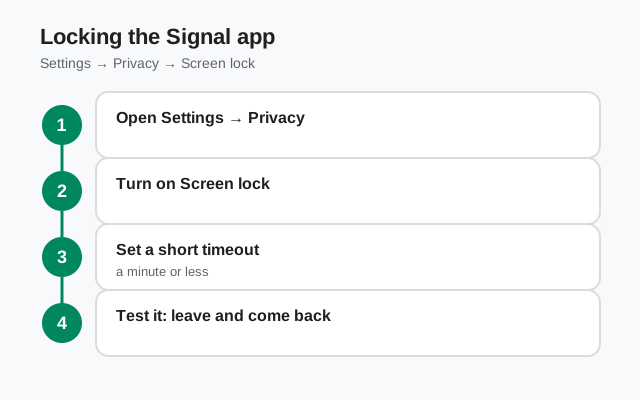
The single most important setting on this page: Signal's screen lock, which requires your phone's unlock method (PIN, fingerprint, or face) before Signal opens. Our screen lock guide walks through the exact toggle, the re-lock timeout, and the two settings that complete the setup. Without it, anyone holding the unlocked phone taps the Signal icon and walks straight into your chats. With it, opening Signal is a second locked door inside the already-locked phone.
Why shared devices are different
Why this matters more on a shared device than anywhere else: on a personal phone, the phone's own lock is usually enough. Nobody else has the code. On a shared device, other people legitimately unlock the phone all the time. The spouse knows the PIN. The kid knows the PIN. The phone gets handed around at dinner. The phone lock stops strangers; the app lock is what stops the people who are supposed to be using the phone from wandering into your chats.
Tighten the lock timeout
Set the lock to engage quickly: ideally the moment you leave the app, or after the shortest timeout offered. A lock that waits five minutes is a lock that does not exist during the five minutes after you hand the phone to someone. And use biometrics if your phone offers them: a fingerprint is faster than a PIN, which means you will actually keep the lock on instead of disabling it out of annoyance. The best lock is the one you never turn off.
What app lock cannot do
The limit to know: the app lock protects against casual access. Someone who knows your phone PIN and watches you unlock Signal with your fingerprint has learned nothing new, but they also have not been stopped. App lock is a boundary against wandering eyes and borrowed phones, not against someone who knows all your codes. (More on that in the limits section.)
Hide what the lock screen says
The second leak on a shared device is not the app at all. It is the notifications. By default, an incoming Signal message can show its full text on the lock screen or in the notification shade. On a shared phone, that means your messages get read by whoever glances at the screen when it lights up. No unlocking required, no Signal opened, no trace left.
Fix it in two places. Inside Signal's settings, look for notification privacy options. You can typically choose to show the sender's name only, or no name and no content at all. In your phone's system settings, for the Signal app specifically, set lock-screen notifications to hide sensitive content. The strictest setup ("no name, no content, just 'new message'") is the right one for a shared device. You lose the convenience of reading messages from the lock screen; you gain the guarantee that a lit-up screen tells a bystander nothing. Our lock-screen notification guide covers the platform quirks if your phone behaves differently.
This one is easy to verify: have someone message you, then look at the phone as a stranger would. If you can read anything about the conversation without unlocking, it is not locked down yet. The test takes thirty seconds and it is the most skipped step on this page.
from Signal's official site — file hosted by Signal, not by us
Block the app-switcher preview
Android's recent-apps switcher (the screen you get when swiping between apps) shows a live thumbnail of each app's last state. Without protection, your open Signal chat sits there as a readable screenshot every time anyone switches apps. On a shared phone, that thumbnail is visible to whoever is currently holding the device.
Signal's screen security option (in the privacy settings) blanks Signal's thumbnail in the app switcher and blocks screenshots taken inside Signal. Turn it on. Our screen security guide covers the toggle and the one real tradeoff. It is a small setting with an outsized effect on shared devices, because app-switching is something everyone does constantly. It is not an edge case: it is the most-viewed screen on the phone after the home screen.
Know what it does not do: it does not stop screenshots inside chats. Anyone viewing your conversation can screenshot it normally. Our screenshot guide is blunt about why no app can prevent that. Screen security closes the switcher loophole; the in-chat capture reality remains, and remains the other person's behavior, not a setting you control.
The structural fix: a separate user profile
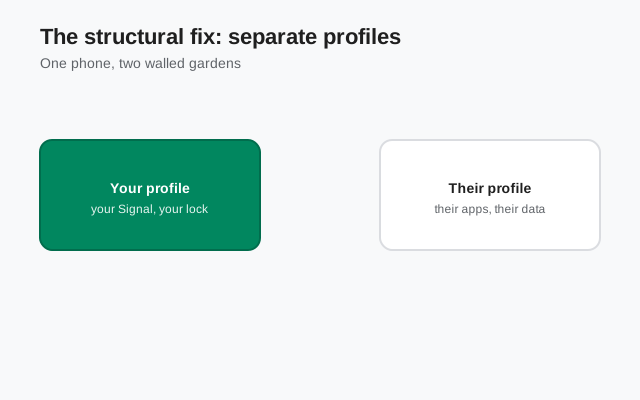
Everything above is a lock on a shared room. This section is a separate room. Android supports multiple user profiles on one device. This is a built-in operating-system feature, not a Signal feature. Each profile gets its own apps, its own app data, its own notifications, its own lock. When you switch to your profile, the other person's profile (and everything in it) is not just hidden but not running in your session.
Why profiles are the structural answer
For a shared device, this is the correct structural answer: put Signal in your profile, locked with your credentials, and let the family share the device through their own profiles. Your chats never appear in their notification shade, their app switcher, or their app list. Your Signal registration, your encryption keys, your message store: all of it lives inside a profile the other users cannot open without your lock.
Practical notes
Practical notes: setting up a second profile takes a few minutes in the phone's system settings (look for "users" or "multiple users" in the system area). Each profile needs its own unlock. Apps installed in one profile are not automatically in the other. You install Signal fresh in yours and register it there. Storage is shared at the hardware level, so this is not protection against forensic analysis. But against the actual threat (a family member opening your chats), it is complete.
What profiles do not fix
If your phone is a type that does not offer user profiles (some heavily customized or low-end devices limit this), the app-lock layers above are your setup. They are good, just not structural. And note the one thing profiles do not solve: someone looking over your shoulder while you use your profile. Shoulder surfing defeats every software boundary ever built.
Disappearing messages as daily hygiene
On a shared device, history is liability. Every message sitting in a chat is a message someone might see: during a borrowed moment, a glanced screen, a profile left unlocked. Disappearing-message timers shrink that liability automatically: set a default timer so new conversations expire, and old content quietly deletes itself from the device on a schedule.
Pick a timer that fits the relationship. For a family-shared phone, a short timer (a day, or even hours for sensitive threads) means the device holds today's conversations, not last year's. The timer is not a security boundary. A recipient can screenshot anything before it vanishes, and our disappearing-messages limits guide says so plainly. But as hygiene it is excellent: less history on the device means less history exposed by every casual-access scenario on this page.
Pair timers with the lockdown checklist's other settings, particularly hiding notification content, which is the timer's natural complement. Timers handle the archive; notification privacy handles the live stream. Together they cover the two ways a shared device leaks: what is stored, and what arrives.
For families and kids: practical advice
A few situations come up constantly with family devices, so here is direct advice for each:
- A kid's first phone that parents also use. Give the kid their own user profile (section above) with Signal registered to the kid's number, and keep parental oversight at the profile level (screen-time controls, app installation approval) rather than by reading the kid's chats. Reading a teenager's messages destroys trust faster than any safety it buys; the profile boundary plus honest conversation is the healthier architecture. This guide is about privacy mechanics, not parenting. The mechanics should serve the relationship, not replace it.
- Spouses sharing one phone. Separate profiles, each with their own Signal registration (each registration needs its own phone number; Signal accounts are per-number). If you genuinely share one number and one account, the app-lock layers are your setup, plus an explicit agreement about boundaries. Technology cannot create trust; it can only reflect the trust you already have.
- A family tablet everyone uses. Do not put personal Signal on a communal tablet at all if you can avoid it. Use a phone for Signal and leave the tablet for shared apps. If you must, a dedicated profile with app lock is the minimum viable setup, and disappearing timers should be short.
- Elderly parents who hand their phone to anyone who asks. Turn on every layer here: app lock with biometrics (no PIN to share or forget), hidden notifications, screen security. Set the lock timeout to immediate. The threat here is not malice but habit: a phone handed to the neighbor to "check something" should not open chats. Biometrics matter because they remove the "what was the code again" failure mode.
What a shared device can never fully protect
The information-gain core of this page: the honest boundary list. Everything above raises the bar; nothing below is fixable with settings.
| The limit | Why no setting fixes it | What to do instead |
|---|---|---|
| Someone who knows your unlock code | Every lock on this page opens for the correct code. That is what codes are for | Do not share the code for your private profile; biometrics instead of a shared PIN |
| Shoulder surfing | Eyes beat software; no app can stop someone watching your screen | Angle the screen away; use privacy screen filters; be aware of who is behind you |
| The other person's behavior | Your contacts can screenshot, forward, and quote anything you send | Choose what you send as if the device were theirs: because half of it is |
| Backups and synced accounts | A device backup can carry Signal data into a cloud account with weaker protection | Know where the device backs up and who can access that account |
| Coercion | Someone demanding you unlock the phone defeats every technical measure | This is a human-safety problem, not a settings problem. Get real-world help if this is your situation |
| Malware on the shared device | More users means more installed apps means more attack surface | Keep the OS updated; be strict about what gets installed on shared profiles |
The through-line: a shared device is a social arrangement with technical boundaries, not a technical arrangement with social boundaries. The settings give you the boundaries; the arrangement itself (who uses the device, what the expectations are) does the rest. Set the locks, use the profiles, keep the timers short, and then have the ten-minute conversation with the people you share the phone with. That conversation protects more than any toggle.
Frequently asked questions
Can I use Signal on a shared family phone?
Yes, with setup: turn on Signal's screen lock, hide message content in notifications, enable screen security, and ideally use a separate Android user profile so your apps and data live in their own locked space. Disappearing-message timers add hygiene.
How do I lock Signal with a PIN or fingerprint?
In Signal's privacy settings there is a screen-lock option that requires your phone's unlock method (PIN, fingerprint, or face) before Signal opens. Set it to lock immediately for a shared device.
What is a separate Android user profile and why does it help?
It is a built-in OS feature giving each person their own apps, data, notifications, and lock on one device. Your Signal lives in your profile only. Other users cannot see it, open it, or receive its notifications.
Can someone else on a shared phone read my Signal messages?
If they can unlock your profile or know your codes, yes: no setting stops that. The setup on this page stops casual access (glances, borrowed moments, app switching), not a person with your unlock credentials.
Should kids have Signal on a shared family device?
Better: give the child their own user profile with their own Signal registration, and keep oversight at the profile level (screen time, app approvals) rather than by reading chats. For a communal tablet, avoid personal Signal on it entirely if possible.
Keep reading
- The full lockdown checklist: every setting that matters, in impact order
- Disappearing messages — limits: the hygiene layer's honest boundaries
- Screenshot risks on Signal: what no setting can prevent
- Privacy guides hub: every Signal privacy guide in one place