
How to Search Your Signal Messages
Published: October 7, 2026 · Updated: October 8, 2026
You remember someone sent you an address. It was months ago. Which chat was it in? Signal's search is built for exactly this moment. It is more capable than most people realize. This guide covers the three search tools (global search, in-conversation search, and the shared-media view), what each one can and cannot find, how to search smarter with the right keywords, and the privacy story: your searches never leave your phone.
from Signal's official site — file hosted by Signal, not by us
Global search: the chat-list search bar
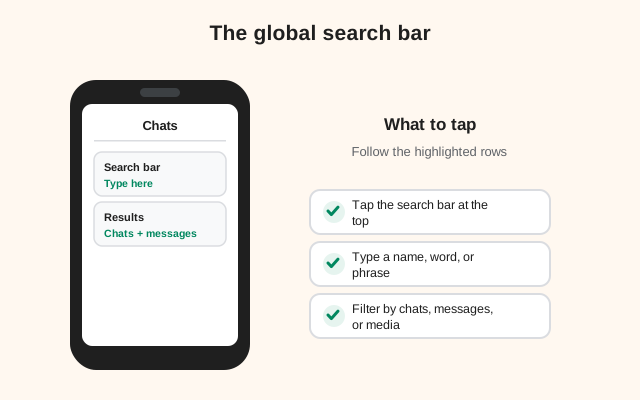
The main search lives at the top of your chat list: the screen you see when you open Signal. Tap the search bar and start typing. As you type, Signal searches across several things at once:
- Contacts and groups by name. Typing "Ali" surfaces your chat with Ali, the family group named "Ali's birthday," and any contact whose name matches. This is the fastest way to jump to a conversation without scrolling.
- Message text. Signal searches the actual words inside your messages, across all your chats. Type "dentist appointment" and you get every message containing those words, grouped by conversation.
- Usernames. If you know someone's username, typing it here finds them even if you have never chatted.
Results are organized so people and groups come first and message matches follow. That matches how most searches go: you usually know who, and you are hunting for what they said. Tap a message result and Signal jumps you straight to that message inside the conversation, with the surrounding context visible.
Practical habit: when a search returns too much, add a second distinctive word. "Invoice" might match forty messages; "invoice March plumber" matches one. Search is literal: it finds what you type, not what you mean. So distinctive words are your best filter.
In-conversation search
Sometimes you know exactly which chat holds the answer. Searching inside one conversation is faster and far less noisy than global search:
Open the chat
Open the conversation you want to search.
Open the chat details
Tap the contact's name or the group name at the top of the screen.
Search the conversation
Look for the search option in the chat details. Type your keyword, and Signal shows only matches from this conversation.
Step through matches
Move between matches to find the exact message, then tap it to jump to that spot in the chat.
This is the tool for "I know it was in the family group, but the family group has ten thousand messages." Global search would drown you in results from every chat; in-conversation search narrows the universe to one room. Use it whenever you can name the chat. It is dramatically faster than scrolling.
The shared-media and files view
Text search finds words. But half of what people hunt for is not words. It is the photo of the receipt, the PDF the landlord sent, the voice note with the address in it. Every Signal conversation has a shared-media view (open the chat details and look for the media section) that collects everything exchanged in that chat:
- Photos and videos. A visual grid of every image and video shared in the conversation, newest first. Scrolling this grid is often faster than remembering what anyone said about the photo.
- Files and documents. PDFs, spreadsheets, and other documents are collected separately from media, so "the contract" is findable even when you cannot remember a single word of the message that carried it.
- Links. Web links shared in the chat are grouped together. Handy when someone sent you "that article" three weeks ago.
- Voice notes. Audio messages appear in the shared content too, which matters because you cannot text-search spoken words.
The honest limitation: media search is browsing, not searching. You cannot type "receipt" and get the photo of the receipt. Signal does not do image recognition on your photos (which, given its privacy model, is a feature, not a bug). You scroll the grid and recognize it with your eyes. For heavy photo-sharers, that grid is still one of the most-used screens in the app.
What search can and cannot find
Being precise about the boundaries saves frustration:
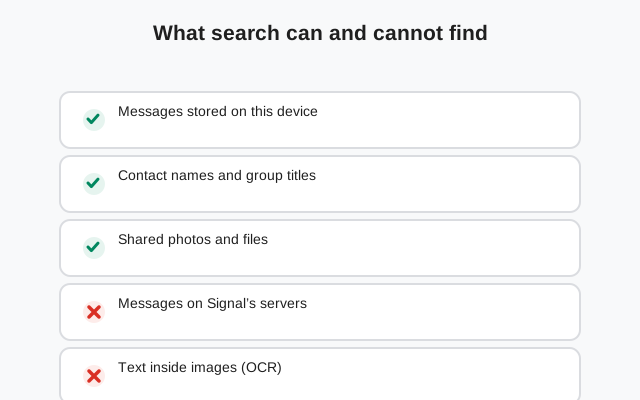
- It finds: message text in your chats, contact and group names, usernames, and shared files by name. All of it from your phone's local data.
- It does not find: the contents of photos (no image recognition), the words spoken in voice notes (no transcription), or text inside images like screenshots of text.
- It does not find: messages from before you joined a group, messages on a device that never received them (your new phone cannot search chats that only ever lived on your old phone), or anything in chats you deleted.
- It does not find: messages that disappeared. Disappearing messages are deleted from the device, and from the search index with them. That is the point of the feature.
One more subtlety: search matches what is literally there. It does not do fuzzy matching or synonyms. "Apartment" will not find "flat," and a typo in the original message means your correctly-spelled search misses it. When a search comes up empty, try the other person's likely wording, not yours.
How to search smarter
Signal's search is simple, so technique matters more than features:
- Search for the rare word. Every message about the plumber says "plumber." Only one says "thermocouple." Search for "thermocouple."
- Use names as anchors. Remember who sent it? Search their name first to jump to the chat, then search inside the conversation.
- Try numbers. Amounts, dates, and phone numbers are highly distinctive. "4500" beats "payment" every time.
- Check the media grid before giving up on text. If the information arrived as a photo of a document, no text search will ever find it. But your eyes will spot it in the grid in seconds.
- Pin important chats. If you constantly search the same three conversations, pin them to the top of your chat list so the jump is one tap.
- Use Note to Self as a filing cabinet. Forward important messages, addresses, and links to your own Note to Self chat. Then there is exactly one conversation to search: yours.
The Note to Self trick deserves emphasis: it turns search from "which of my 200 chats was it in?" into "it is in my notes." People who forward-as-they-go rarely need global search at all.
Search privacy: it never leaves your phone
Here is the part that makes Signal's search different from most apps: the search index lives on your device, and your queries never leave it.
Think about why that has to be true. Your messages are end-to-end encrypted. Signal's servers hold ciphertext they cannot read. A server-side search ("type a word, our computers find it") would require the server to read your messages, which would break the entire security model. So Signal does the only thing consistent with its architecture: your phone builds a local index of your messages, and every search runs against that local index.
What that means in practice:
- Signal the company learns nothing from your searches. Not the keywords, not the results, not how often you search. There is nothing to log because the query never travels.
- No one can subpoena your search history from Signal. Our "can police read Signal" guide covers what Signal can and cannot hand over. Search history is in the "cannot" column, because it was never on their servers.
- Your threat model is your phone. The flip side: anyone holding your unlocked phone can search your messages as easily as you can. That is why screen lock and your phone's own lock screen matter. They are the actual boundary around your search index.
This is one of those quiet Signal advantages that never makes a feature list: search that is genuinely private by construction, not by policy.
Honest limits
- New phone, no history. Search only covers messages actually on the device. If you set up Signal fresh without restoring a backup, there is nothing to search. The old messages live on the old phone, not in a cloud.
- Linked devices differ. Signal Desktop has its own local data. A message that only arrived on your phone may not be searchable on your desktop, and vice versa.
- No search across backups. You cannot search inside a backup file without restoring it. The backup is an encrypted blob until it is restored onto a device.
- Deleted is deleted. Delete a chat and its messages leave the search index. There is no recycle bin, no "recently deleted" to search.
- Group search needs membership. You can only search groups you are (or were) in. Leaving a group removes its messages from your device, and from your search.
None of these are bugs. They are the same privacy architecture from the other side: the data lives with you, so when you let it go, it is actually gone.
The three search tools, compared
| Tool | Where it lives | What it searches | Best for |
|---|---|---|---|
| Global search | Search bar at the top of the chat list | Contacts, groups, usernames, and message text across all chats | "I remember the words but not the chat" |
| In-conversation search | Inside a chat's details screen | Message text in that one conversation only | "I know which chat, help me find the message" |
| Shared-media view | Inside a chat's details screen | Photos, videos, files, links, and voice notes from that chat | "It was a photo / PDF / voice note, not words" |
Learn the three, and "I know someone sent me that" stops being a twenty-minute scroll. For the messages worth finding twice, forward them to Note to Self: future you will be grateful.
FAQ
How do I search all my Signal messages?
Tap the search bar at the top of your chat list and type your keyword. Signal searches message text across all your chats, plus contacts, groups, and usernames.
How do I search inside one Signal conversation?
Open the chat, tap the contact's or group's name at the top to open its details, and use the search option there. It searches only that conversation.
How do I find old photos on Signal?
Open the chat, tap the name at the top, and open the shared-media view: a grid of every photo and video exchanged in that conversation. Files and documents have their own view.
Can I search for words inside photos on Signal?
No. Signal does not do image recognition on your photos, and it does not transcribe voice notes. Search covers message text, names, and file names only.
Is Signal search private?
Yes. The search index lives on your device and your queries never leave it. Signal's servers cannot read your encrypted messages, so search has to be local. The company learns nothing from what you search.
Why can't I find old messages after getting a new phone?
Search only covers messages actually on the device. If you set up Signal fresh without restoring a backup, the old messages, and the search index, stayed on the old phone.
Keep reading
- Note to Self: your personal filing cabinet for searchable notes
- pinning chats: keep your most-searched chats one tap away
- the Signal groups guide: search works in groups just like anywhere else
- view-once media: the one kind of media search can never find again