
Signal Voice Calls: The Encrypted Calling Guide
Published: October 7, 2026 · Updated: October 8, 2026
Signal voice calls replace your phone dialer for anyone else on Signal: encrypted, free beyond your data plan, and international at no extra cost. This guide covers starting calls, the answer and decline experience, a practical quality checklist, the IP-hiding relay setting, and where your call history lives.
from Signal's official site — file hosted by Signal, not by us
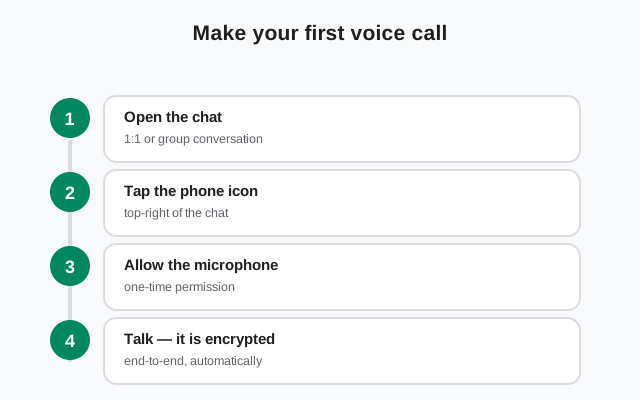
Make your first Signal voice call
A Signal voice call works like a phone call, except it runs over the internet and is end-to-end encrypted. Both sides need Signal installed and registered. There is no calling landlines or non-Signal numbers.
Open the chat
Open your one-to-one chat with the person you want to call. (For a group, you start a group call instead.)
Tap the phone icon
Tap the phone handset icon at the top of the chat. The first time, Signal asks for microphone permission. Allow it.
Wait for the answer
The other person’s phone rings like a normal call. They can answer or decline. If they do not pick up, a missed-call entry lands in the chat.
End the call
Either side hangs up with the red button. The call entry stays in the chat history with its duration.
If you are mid-call and want video, most Signal versions let you flip to video from the call screen without hanging up. See the video call guide for the controls.
Answer and decline: what you will see
An incoming Signal call looks and feels like a normal phone call. On Android you typically get a full-screen incoming-call view with the caller’s name and profile photo, plus answer and decline actions. If your phone is in use, the call arrives as a heads-up notification you can accept or dismiss without leaving what you are doing.
What happens in each case:
- Answer: the call connects. Because Signal calls are peer-to-peer by default, connection is usually fast on a decent network.
- Decline: the caller is told you are unavailable. A missed-call entry appears in your chat with them.
- No answer: same as declining, from the caller’s side. They see that you did not pick up.
If calls arrive but your phone never rings (no sound, no vibration, just a missed call later), that is a notification problem, not a calling problem. Our calls-not-ringing guide walks through the notification and battery-optimization settings that cause it.
Are Signal voice calls really free? Yes, with one asterisk
Signal calls are voice-over-internet: your voice travels as data, not as phone minutes. That has three practical consequences:
- No per-minute charges, ever. Signal does not bill you for calls, and there is no premium tier for calling.
- International calls cost the same as local ones. Calling someone on another continent uses the same data as calling your neighbor. The only thing that matters is that both of you have an internet connection.
- The asterisk: your data plan. On Wi-Fi, a Signal call costs you effectively nothing. On mobile data, the call uses your data allowance. Your carrier’s data charges apply exactly as they would for streaming a video or loading a map. Voice uses far less data than video, so a voice call on mobile data is cheap, but it is not zero.
One more boundary worth stating plainly: Signal calls are not a replacement for emergency calls. Signal cannot dial emergency services, does not transmit your location to dispatchers, and needs an internet connection to work at all. Keep your phone’s normal dialer for emergencies.
Call quality: the five-minute fix list
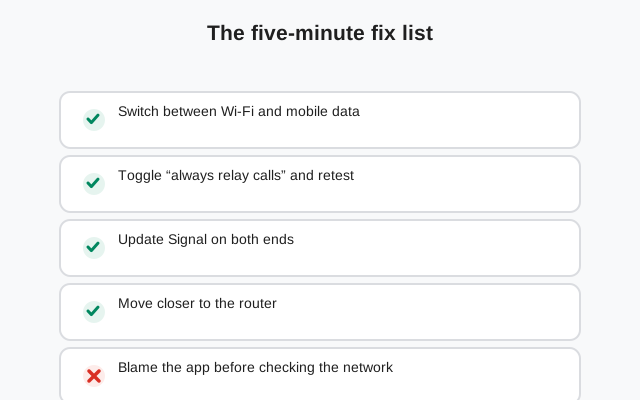
Most bad Signal calls are bad networks, not a bad app. Work through this checklist in order before assuming anything is broken. It is this page’s information-gain element.
| Check | Why it matters | What to do |
|---|---|---|
| Wi-Fi vs mobile data | One side of the call is often on a congested or weak link. | Switch the struggling side from Wi-Fi to mobile data, or the reverse, mid-call and listen for the difference. |
| Other apps eating bandwidth | Video streams, cloud uploads, and app updates steal the connection a call needs. | Pause downloads and streams on both phones during the call. |
| Distance from the router | Wi-Fi signal drops fast through walls. | Move closer to the router, or switch to mobile data if the Wi-Fi is weak. |
| Relay mode on or off | Routing through Signal’s servers hides your IP but can add latency. | If quality is the priority and you trust the contact, try the call without relay; turn relay back on after if you need the privacy. |
| Restart the call | A fresh connection often picks a better route than a struggling one. | Hang up and call back. Thirty seconds, and it fixes a surprising number of calls. |
| Update Signal | Call improvements ship in app updates; mismatched versions cause odd failures. | Both sides update to the latest version before the next call. |
If the problem survives the whole list (constant robotic audio, calls that connect then drop, one-way audio), the full call-quality troubleshooting guide goes deeper.
The relay setting: hide your IP from the person you call
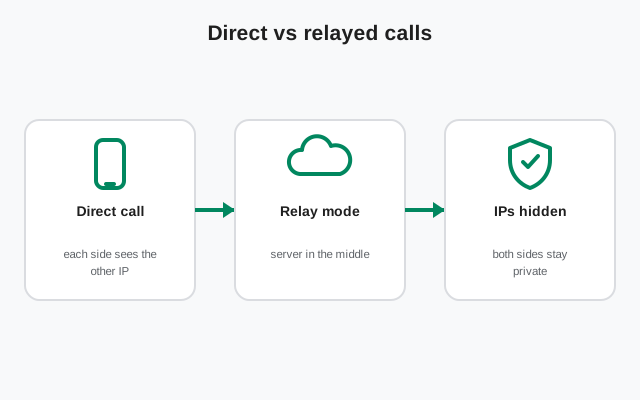
Here is the privacy detail most people miss about voice calls. By default, a Signal call connects your phone directly to the other person’s phone (peer-to-peer) for the lowest latency. The call content is still end-to-end encrypted (nobody can listen in), but the direct connection means the person you are calling can see your IP address, and you can see theirs.
If that bothers you, Signal has a setting for it:
- Open Signal Settings → Privacy and look for the Calls section (on some versions it sits under Advanced).
- Turn on Always relay calls.
With relay on, your call traffic routes through Signal’s servers instead of going phone-to-phone. The person you call sees Signal’s server address, not yours. The honest tradeoff: relayed calls can have slightly worse quality and latency, because your voice takes a longer path. Use relay when the privacy matters more than the last bit of quality. For example, when calling someone you do not know well.
Two fine-print notes: calls from people who are not in your contacts are relayed automatically, regardless of your setting. And our relay-calls explainer covers this setting in more depth.
Voice calls on a weak connection: the survival kit
Signal voice calls are light, much lighter than video, but a bad connection still breaks them. If you regularly call from places with weak signal (a basement office, a rural road, a crowded train), build these habits:
- Start calls on voice, not video. Audio needs a fraction of the bandwidth video does. A call that would collapse as video often works fine as voice.
- Stand still during the important parts. Moving between cell towers mid-call forces handoffs that drop audio for a second or two. If the call matters, stop walking for it.
- Prefer Wi-Fi calling spots you know. Learn which rooms in your home and office hold a stable Wi-Fi signal, and take important calls there.
- Keep the phone charged or plugged in. Some phones throttle the radio aggressively at low battery, which quietly degrades call quality before the phone dies.
- Use relay only when you need it. On a weak connection, the extra latency of relayed calls is more noticeable. If you trust the person you are calling, a direct call will sound better on a bad network. Turn relay back on afterward if IP privacy matters for that contact.
And if the other person sounds like a robot no matter what you try, the problem is almost always on their end. Ask them to switch networks or move closer to their router before you start changing your own settings.
Call history stays on your phone
Your call list, the Calls tab showing who you called, when, and for how long, lives on your device, inside the same encrypted database that holds your chats. That means:
- Deleting a chat deletes that chat’s call entries with it.
- Your history does not sync to some web dashboard and is not visible to anyone without your unlocked phone.
- If you move to a new phone, call history comes over with your chat backup. It is lost if you start fresh without one.
For the security-minded: the call content is end-to-end encrypted, so neither Signal nor anyone on the network path can hear it. The relay setting above is about the one thing encryption does not hide on a direct call: the IP addresses at each end.
Calling from Signal Desktop and linked devices
Voice calls work on Signal Desktop too, once the desktop app is linked to your phone. Desktop is genuinely useful for long calls: a real microphone, speakers that do not distort, and no battery anxiety. The same privacy rules apply. The relay setting on your phone governs how calls route, and the call stays end-to-end encrypted no matter which of your devices you answer on.
FAQ
Does Signal charge for voice calls, including international calls?
No. Signal never charges for calls. An international call costs the same as a local one: whatever your internet connection costs. On mobile data, the call uses your data allowance, so your carrier's normal data charges apply.
Can I call someone who doesn't have Signal?
No. Both sides need Signal installed and registered. Signal cannot place calls to landlines, regular mobile numbers without Signal, or emergency services.
Does Signal record my calls?
No. Signal has no built-in call recording feature. Your call history (who, when, how long) is stored on your own device, and the call audio itself is end-to-end encrypted.
Why can the other person see my IP address on a call?
By default Signal connects calls directly phone-to-phone for the best quality, which exposes each side's IP address to the other. Turn on 'Always relay calls' in Settings > Privacy to route calls through Signal's servers and hide your IP.
Can I make a voice call with several people at once?
Yes, but not from a one-to-one chat. Start a group call from a group chat, or share a call link. Both support voice with up to 75 participants.
Keep reading
- switch a call to video: video call controls and fixes
- bring more people into the call: group video calls
- calls not ringing: the notification fix
- calls won't connect: connection fixes