
APK File Won't Open? Here's the Fix Order
Published: October 7, 2026 · Updated: October 8, 2026
An APK file usually won't open for one of three reasons: the download is broken, the file is incomplete, or the app trying to open it doesn't know how. The fix order that works: delete the file, download it fresh from signal.org/android/apk, check that it is exactly 114,758,484 bytes (about 109 MB), then tap it in your Files app, not in the browser. Work through the fixes below in order and you'll resolve it in a few minutes.
from Signal's official site — file hosted by Signal, not by us
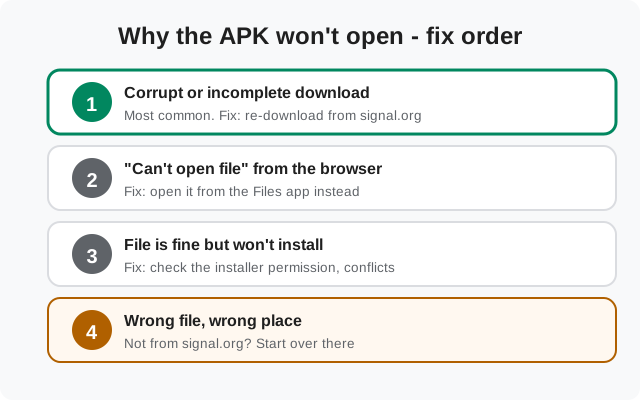
Fix 1: assume the download is broken (it usually is)
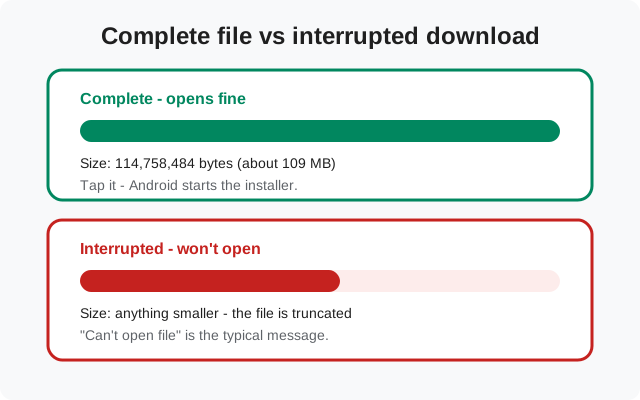
The Signal APK is about 109 MB, one large single file. On shaky mobile data, a browser that paused mid-download, or a flaky Wi-Fi handoff, the file lands truncated. A truncated APK will not open, and no amount of tapping will change that. This is the cause behind most "won't open" reports.
Do this:
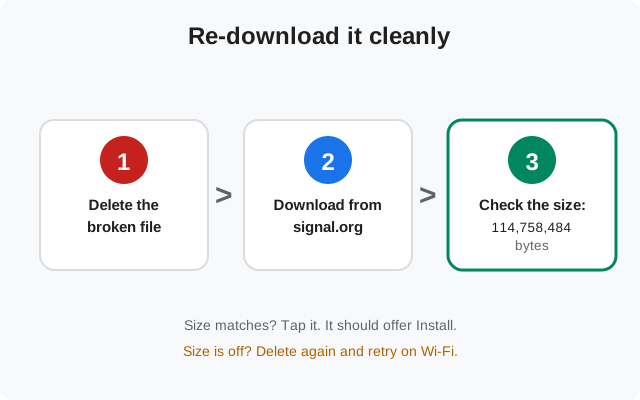
- Delete the broken file. Don't try to resume or repair it. Start clean.
- Download again from signal.org/android/apk, the only source we recommend. APKs from mirror sites are frequently repackaged; a repackaged file can fail signature checks or, worse, carry something extra.
- Use Wi-Fi if you can. On mobile data, keep the browser in the foreground until the download finishes. Backgrounded downloads are the classic way files get cut short. Our guide to downloading the APK over mobile data covers the details.
Fix 2: check the file size before you tap it
Before tapping the new download, confirm it's whole. Open your Files app, find the APK in Downloads, and check its size (long-press → details, or tap the info icon). The current website build (8.29.3) is exactly 114,758,484 bytes.
- Smaller than that? The download was cut short. Delete it and download again on a steadier connection.
- Bigger than that? It didn't come from Signal. Delete it and get the real file from signal.org/android/apk.
- Exactly 114,758,484 bytes? The file is complete. Tap it. Android's package installer should offer to install.
A matching size is a good proxy, not proof. After installing, you can confirm the app is genuine by checking the signing fingerprint published on Signal's download page. Our guide to verifying your Signal install walks through it.
One more detail worth knowing: the exact byte count changes with each Signal release, because every new version is a different file. The 114,758,484 figure is for the current website build, 8.29.3. If you are reading this months from now and Signal has shipped a newer version, compare against the size implied by a fresh download rather than this number. The principle is the same: a complete file has a stable, repeatable size, and a broken one doesn't.
Fix 3: "Can't open file" from the browser
Sometimes the download is perfectly fine and the browser is the problem. Tapping a finished download inside Chrome or another browser can show "Can't open file". That message means the browser's viewer can't handle the file. It does not mean the file is bad.
The fix is simple: open your Files app (Google Files, Samsung My Files, or whatever your phone ships with), go to Downloads, and tap the APK there. Android's own package installer takes over from that point.
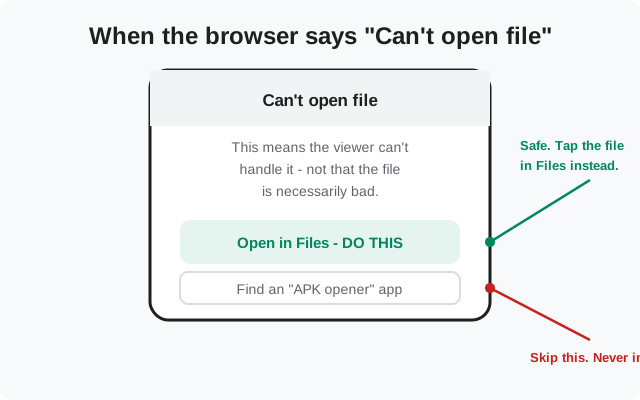
What you should not do here: install an "APK opener", "APK installer", or "APK extractor" app to solve it. Android opens APKs natively. Those apps are unnecessary, and the shady ones exist to serve ads or harvest data. Never install one.
A related trap: some browsers offer to "open with" a suggested app when they can't handle the file themselves. If the suggestion is your Files app or the system package installer, that's fine. If the suggestion is a third-party app you don't recognize, especially one asking for broad storage or install permissions, decline it and go to Files manually. The installer you want is the one Android ships with, not one a stranger published.
Fix 4: the file is fine but install still won't start
Size matches, you're tapping in Files, and still nothing? Three usual suspects:
- The installer permission is off. Go to Settings → Apps → Special app access → Install unknown apps, and allow the app you're installing from (your browser or your Files app). This is a per-app toggle. Allowing Files doesn't allow Chrome. See our guide to allowing installs from unknown sources.
- A conflicting Signal build is installed. The website build and the Play Store build are signed with different keys and Android refuses to install one over the other. If either is present, back up your chats first, remove it, then install. The conflict is explained in our website build vs Play build guide.
- Storage is nearly full. "App not installed" on a valid file often means there isn't room to unpack it. Free up internal space and retry.
Note: this page is about the file not opening. If Signal itself installed fine but won't launch after an update, that's a different problem. See Signal won't open after update.
How to tell which cause is yours
Not sure where you stand? Answer these in order:
- Where did the file come from? If it wasn't signal.org/android/apk, stop here. Delete it and start over at the source. Mirror sites are the single biggest source of files that won't open.
- What does the size say? Below 114,758,484 bytes means the download was cut short. That's your answer. Match means the file is whole and the problem is elsewhere.
- Where are you tapping it? If you're tapping inside the browser's download list, switch to the Files app before concluding anything is broken.
- What happens on tap in Files? Nothing at all points to the installer permission or a conflicting build (Fix 4). An error message points to the table in the next section.
Most people never get past step two. The size check resolves the majority of cases in under a minute.
Error messages decoded
| What you see | Likely cause | Fix |
|---|---|---|
| "Can't open file" | Browser viewer can't handle it, or file is incomplete | Open it in the Files app; re-download if the size is off |
| "There was a problem parsing the package" | Corrupt or truncated download | Delete and re-download from signal.org |
| "App not installed" | Signature conflict, full storage, or installer permission off | Back up, remove the conflicting build, free space, check the permission |
| "Download unsuccessful" | Network dropped mid-download | Retry on Wi-Fi; keep the browser in the foreground |
| Nothing happens on tap | No app associated with the file | Open it via the Files app |
What not to do
- Don't install "APK opener" apps. Android handles APKs itself. Those apps add nothing and some are junkware.
- Don't grab the APK from mirror sites. A mismatched signature means it won't install over a genuine Signal anyway, and a tampered file is a straight-up security risk.
- Don't rename the file. Changing the extension doesn't fix anything and can confuse the installer.
- Don't clear Signal's data to fix an installer problem. It's unrelated to the file not opening, and it wipes your chats.
Once the file opens and installs, the job isn't quite done: run through the first-run setup carefully, especially the backup restore step if you're moving from another phone. A clean install with a verified file and a proper restore is the whole point of doing this right.
Frequently asked questions
Why won't my APK file open on Android?
Almost always a broken or incomplete download. Re-download from signal.org/android/apk, verify the 114,758,484-byte size, and open it from the Files app.
How do I know the APK downloaded completely?
Check the file size in your Files app. The current build is exactly 114,758,484 bytes (about 109 MB). Anything smaller is truncated.
Is it safe to install an APK from the browser?
Yes, as long as the file came from signal.org/android/apk and you've allowed that browser to install apps in Settings. The source matters far more than which app taps the file.
The size matches but it still won't install. Now what?
Check the three suspects in Fix 4: the per-app "install unknown apps" permission, a conflicting Signal build already on the phone, and nearly-full internal storage.
Do I need an APK installer app from the Play Store?
No. Android installs APKs natively. Those apps are unnecessary. Skip them entirely.
Related guides
- Start from the install guides hub for the full set.
- Install from your file manager: the tap-to-install walkthrough.
- Install straight from the browser: when the download finishes there.
- How to sideload the APK: the full end-to-end process.
- Allow installs from unknown sources: the permission Fix 4 mentions.