
Invite Friends to Signal: Every Method That Works
Published: October 7, 2026 · Updated: October 8, 2026
You just set up Signal and now the question is how to invite friends to Signal without being annoying about it. The good news: it takes about thirty seconds. Open Signal, tap your profile picture, tap “Invite your friends,” and share the link it gives you. That link points to signal.org/install, Signal’s own install page. Your friend taps it, installs the app, registers with their phone number, and you two can chat. There is no invite code system, no referral reward, and no pressure. Signal works perfectly well even if you invite nobody at all.
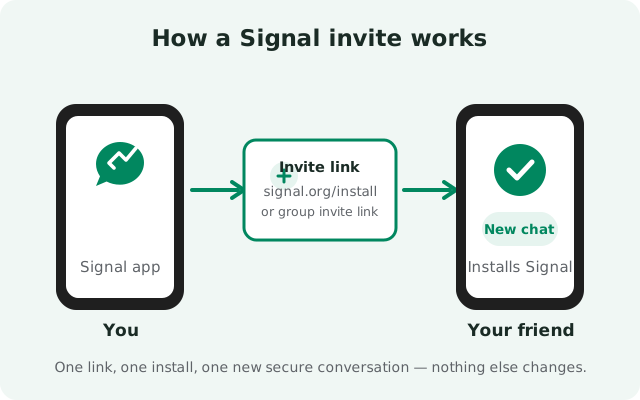
The three invite methods, in one glance
Signal gives you three honest ways to bring people in. All of them end at the same place: your friend installs the app from Signal’s own pages and registers with their phone number.
- The in-app invite button. Signal builds the message for you and hands it to your phone’s share sheet. Pick one contact or ten.
- The invite link, copied by hand. The same link, but you write your own message around it: better for email, forums, or another chat app.
- A group invite link. For moving a whole family chat or team over at once, so they land inside the group the moment they join.
Pick the one that matches the situation and you are done. There is no wrong choice here. They all do the same thing under the hood.
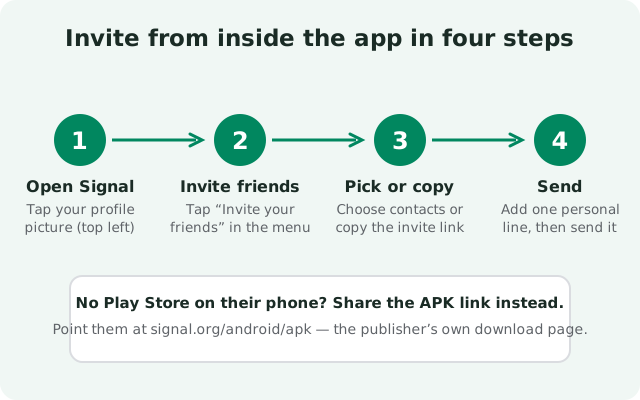
Method 1: the in-app invite button
This is the fastest way, and it is the one most people should use. Signal does the boring parts for you.
- Open Signal on your phone.
- Tap your profile picture in the top-left corner to open the menu.
- Tap “Invite your friends.”
- Your phone’s share sheet opens. Pick a contact to send it as a text message, or choose another app (email, WhatsApp, Telegram, wherever that person actually reads messages).
The message Signal creates includes a link to its install page. Your friend taps it, picks Android, and installs. If their phone has the Play Store, they get the Play version. If it does not (a Huawei phone, a de-Googled custom ROM, a region where the Play Store is blocked), send them the APK route instead: Signal’s own APK download page, covered in our no-Play-Store install guide.
One thing the in-app invite does not do: it does not tell you whether your friend actually installed. Signal sends no read receipt on invites. If they join, you will see them appear in your contacts. That is your confirmation.
Method 2: copy and share the invite link yourself
Sometimes the share sheet is the wrong tool. Maybe you want to invite someone over email, drop the link in a community forum, or post it in a Discord server. For that, copy the link yourself.
The public install link is https://signal.org/install. It is Signal’s own page, it detects the visitor’s platform, and it is safe to share anywhere. There is nothing personal in it, no tracking token with your name on it, nothing that expires.
What makes this method work better than the button is your own words around the link. A bare link in a group chat gets ignored. Two honest sentences get installs. Something like: “I moved my messages to Signal because I got tired of ad profiling. It took me five minutes to set up. Join me here if you like.” That is it. You are explaining your reason, not selling a product, and people can tell the difference.
A word of caution for public posts: if you drop the link in a public forum, expect strangers to message you on Signal afterwards. That is fine. You can block anyone in two taps. But post it with your eyes open.
Method 3: invite people straight into a group
Moving one person is easy. Moving a whole family chat or a small team is where invites usually stall, because everyone waits for everyone else. A group invite link fixes that: one link, and each person who taps it lands inside the group as soon as they finish installing.
- Create the group in Signal first (start a new conversation, then “New group”), or open the existing group.
- Open the group’s settings and look for the members section.
- Turn on the group invite link and share it the same way you would share any link.
Two honest notes. First, anyone with the link can join while it is active, so treat it like a house key: share it in the family WhatsApp group, not on a public forum. If it leaks somewhere it should not be, you can reset the link in the group settings and the old one stops working. Second, turn the link off once everyone is in. An open door you forgot about is how strangers wander into private groups months later.
This method shines for the classic case: “we are moving the family group off WhatsApp.” One message with the link, and stragglers join over the next few days at their own pace. No chasing, no roll call.
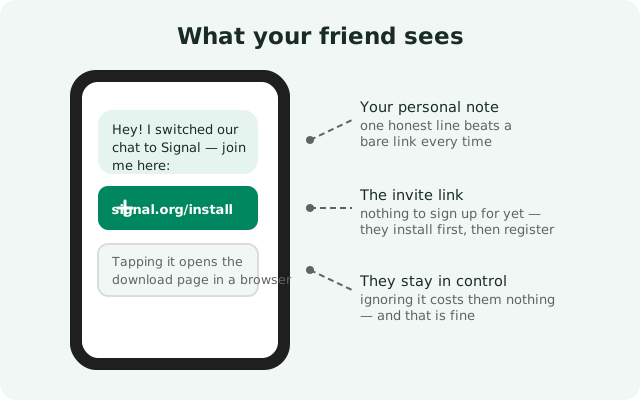
What your friend actually sees
Knowing the other side of the invite removes most of the awkwardness. Here is exactly what happens on your friend’s phone, step by step.
- They get your message. A normal text, email, or chat message with your words and a link. Nothing installs automatically and nothing asks for permissions at this point.
- They tap the link. It opens signal.org/install in their browser. The page shows the Android option (and iOS and desktop, for their other devices).
- They install Signal. From the Play Store if they have it, or as a direct APK from signal.org/android/apk if they do not. Either way the file comes from Signal itself.
- They register with their phone number. Signal sends a verification code by SMS, they enter it, they pick a name and photo. This takes about two minutes.
- You appear in their contacts. If they have your number saved, Signal shows you as a Signal contact automatically. They can message you immediately. No friend request to accept, no approval step on your side.
Nothing in this flow costs money, shows ads, or asks for an email address. If your friend is suspicious of links (a healthy instinct, honestly), tell them to type signal.org into their browser themselves instead of tapping yours. Same destination, zero trust required.
Which method should you use?
They all end in the same place, so pick by situation rather than by features:
| Method | Best for | What your friend gets | Effort |
|---|---|---|---|
| In-app invite button | One friend, one personal ask | A ready-made message with the install link | About 30 seconds |
| Copied invite link | Email, forums, another chat app | The same link inside your own words | About 10 seconds |
| Group invite link | Moving a family or team chat together | A link that drops them into the group after install | About a minute to set up |
| APK page link | Friends with no Play Store (Huawei, de-Googled phones, blocked regions) | signal.org/android/apk instead of the Play Store | About 10 seconds |
Notice the last row. The standard invite link assumes the Play Store exists on your friend’s phone. For the growing number of people on Huawei phones, GrapheneOS, or in regions where Google services are blocked, the Play Store is not there. Sending them the normal link just confuses them. For those friends, share the APK page link directly and point them at our no-Play-Store install guide so the install actually finishes.
Why invites fail (and what to do)
Most failed invites fail for one boring reason. Here are the real ones, in order of how often they happen:
- They never installed. (By far the most common.) Your message arrived during a busy day, they meant to do it later, and later never came. This is not a technical problem and there is no technical fix. One polite follow-up after a few days is fine; after that, let it go.
- They installed but never registered. Some people install the app, see the phone-number step, and stall. If they ask “why does it need my number,” the honest answer is that Signal uses phone numbers as identities instead of usernames. It is how your contacts find you without a separate account system.
- They tapped the link on a desktop. The install page covers all platforms, and occasionally someone ends up staring at the desktop download on their laptop wondering where the phone app is. Tell them to open the link on their phone.
- Their phone blocked the install. On some phones, especially ones without the Play Store, the browser needs permission to install apps before the APK will open. That is the “install unknown apps” toggle, and our guide to enabling it walks through it.
- They are worried it is a scam link. Fair enough. Tell them to type signal.org themselves. Paranoia about random links is a healthy habit; do not take it personally.
What you should not do: send the invite five times, add them to a Signal group they did not ask to join, or guilt-trip them. Every one of those makes the next invite, yours or anyone else’s, less likely to work.
Do you even need to invite anyone?
Here is the honest framing most invite guides skip: inviting is completely optional. Signal is not a social network that is empty until your friends arrive. It works fine with zero invites sent.
What you get on day one, alone: a private messenger for anyone who messages you first, a secure place for your own notes (messaging yourself works; it is a handy scratchpad), and the safety of knowing that whenever someone you know does join, you are already there with everything set up. Plenty of people install Signal, lock down the settings using our post-install security checklist, and simply wait. The network builds itself slowly, and that is fine.
The pressure to “get everyone on Signal” usually comes from treating it like a campaign. It is not. Invite the three people you actually talk to every day, help them through the two-minute setup if they get stuck, and stop there. A messenger with three real conversations beats a messenger with fifty resentful installs.
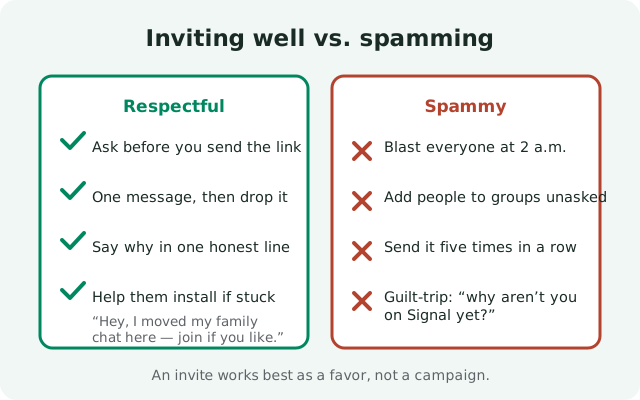
The spam-free invite rules
Signal’s whole brand is respect for the user. Your invites should match. Five rules, and none of them are complicated:
- Ask before you send. “Hey, would you be up for moving our chat to Signal?” takes five seconds and changes the whole tone from spam to invitation.
- One message, then drop it. Send the invite once. One gentle follow-up days later at most. After that, silence. Repeated invites are how friendships get awkward.
- Say why in one line. Your real reason (privacy, fewer ads, one app for everything) is more convincing than any feature list. Your own sentence beats borrowed marketing copy every time.
- Never add people to groups unasked. Dropping someone into a Signal group they did not agree to join is the fastest way to make them resent the app. Invite, don’t conscript.
- Help the stuck ones. If someone wants to join but gets confused at the install step, walk them through it or send them our first-run setup walkthrough. Ten minutes of your help converts better than ten reminder messages.
And the things that are never okay: buying contact lists, blasting invites to strangers, or pretending a message is from Signal itself. Those are spam tactics wearing a privacy app’s name, and they poison the well for everyone.
from Signal's official site — file hosted by Signal, not by us
Frequently asked questions
Do I get anything for inviting friends to Signal?
No. There are no referral rewards, no credits, no premium unlocks. Inviting is purely so you have someone to talk to. Anyone promising Signal referral bonuses is running a scam.
Does my friend need my phone number to accept an invite?
No. The invite link works for anyone who taps it. After they register, Signal matches phone numbers from their own contacts, so you appear automatically if they have your number saved.
Can I invite someone whose phone has no Play Store?
Yes. Send them the APK download page link (signal.org/android/apk) instead of the standard invite link, and point them at a no-Play-Store install guide so the browser-install permission step doesn't stop them.
Do I need to invite anyone to use Signal?
No. Signal works fully with zero invites. You can message yourself, receive messages from anyone who finds you, and set everything up now so you're ready whenever your contacts join.
Keep reading
- the first-run setup walkthrough: every screen after install, explained
- sharing the APK phone-to-phone: for friends with no app store at all
- finding contacts already on Signal: who you can message right now
- the post-install security checklist: lock everything down in ten minutes