
Install Signal on Android 10 the right way
Published: October 7, 2026
Android 10 is the first version on this list that still feels modern: gesture navigation, system dark theme, scoped storage, and per-app install permissions all work the way current Android does. Installing Signal's APK here is nearly identical to installing on Android 13 or 14, with two version-specific notes: scoped storage changes where backup files live, and the permission prompts look slightly different. This guide covers both.
Install steps on Android 10
Download the APK
On the phone's browser, open signal.org/android/apk and download the current website build.
Open the file
Tap the download notification or find it in the Files app.
Allow the install permission
When prompted, allow "Install unknown apps" for your browser (per-brand paths if the prompt doesn't deep-link you there).
Install, open, register
Confirm the installer screen, tap Install, open Signal, and register your number with the SMS code.
One Android 10 detail: when you tap the APK, the system may show a one-time prompt ("Allow Files to install unknown apps?" with Allow / Deny) instead of sending you to Settings. Tapping Allow there grants the same permission; the Settings path still exists for revoking it later. Either route ends at the same installer screen.
That's genuinely all there is to it on Android 10. No version-specific workarounds needed for the install itself. The rest of this guide is about how Signal behaves on 10.
The "Install unknown apps" permission
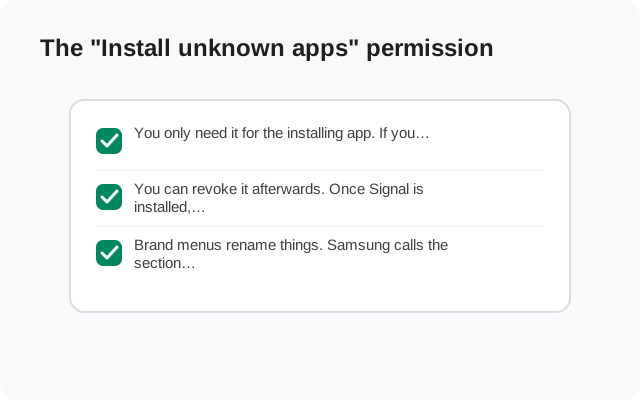
Android 10 keeps the per-app model from 8/9: Settings → Apps → Special app access → Install unknown apps, one toggle per app. Approve only the app holding your APK (browser or file manager), install, then revoke it.
One Android 10 note: the permission prompt that appears when you tap the APK now deep-links straight to the right Settings screen on most skins. You rarely need to navigate there manually. If your skin doesn't deep-link, the manual path above always works.
Scoped storage and your backups
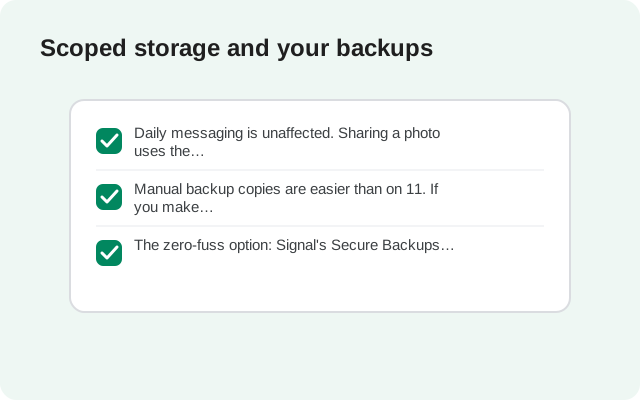
Android 10 introduced scoped storage: apps get their own isolated storage areas instead of free rein over shared folders. For Signal this has one practical consequence: know where your backup file lives before you uninstall.
- Signal's encrypted backups are created from Settings → Chats → Chat backups, same as ever.
- On Android 10, don't assume the backup sits where your file manager expects. After creating the backup, look at the path Signal shows and confirm the file exists there with your file manager before uninstalling.
- If you're migrating builds or reinstalling, copy the backup file somewhere obvious (like Downloads) first. Scoped storage makes "I thought it was there" mistakes more likely.
- Restoring works the same: the fresh install scans for the backup file at first launch. If it doesn't find it, you moved or renamed something. Put it back where the old install had it.
Belt and suspenders: copy the backup file to a computer over USB as well. Connect the phone, browse to the backup's location, and drag the file to your desktop. Signal's backups are encrypted with your recovery key, so the copy is useless to anyone who finds it. If the phone is lost, stolen, or factory-reset before you finish migrating, that desktop copy is the difference between inconvenience and catastrophe.
This is the single most common data-loss trap on Android 10: the backup exists, but the user can't find it after reinstalling because they never confirmed its location. Thirty seconds of checking prevents it.
Related: Signal's received media (photos, videos from chats) lives under scoped storage in the app's own directories. When you uninstall, that media goes with the app. The backup file preserves your messages, but if you want the actual photo files outside Signal, copy them out of the chat (share → save) before uninstalling. People discover this distinction exactly once, usually the hard way.
Location controls (what Signal asks for)
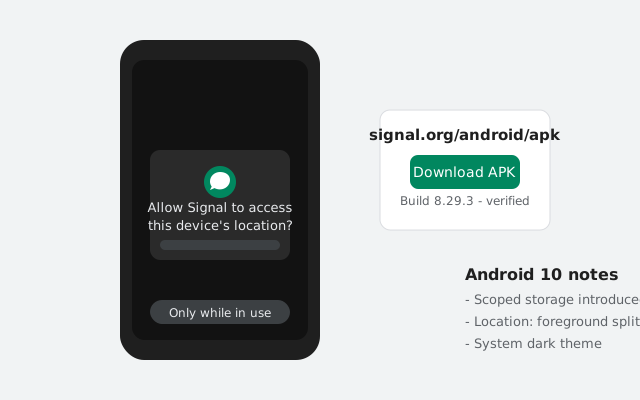
Android 10 added "only while using the app" as a location option. Signal requests location only for one feature: sharing your live or current location in a chat. It never needs background location.
- When prompted, choose "Only while using the app". That's all Signal needs for location sharing.
- If you never share locations, you can deny it outright; everything else in Signal works normally. See our permissions guide for the full list.
- If location sharing fails later, check Settings → Apps → Signal → Permissions → Location rather than reinstalling. It's a permission state issue, not an install issue.
Gesture navigation and the dark theme
Two Android 10 features that touch Signal's UI:
- Gesture navigation: if calls or the camera behave oddly with gestures enabled, it's almost always the gesture bar overlapping in-call controls on certain skins. Switching to 3-button navigation temporarily diagnoses it in seconds.
- System dark theme: Signal follows the system theme setting. If Signal looks light while everything else is dark (or vice versa), check Signal's own Appearance setting. It can override the system choice, and an old override is usually the explanation.
Android 10's bedtime mode (under Digital Wellbeing) is another cosmetic gremlin: if your screen goes monochrome on a schedule and you think Signal is broken, check whether bedtime mode just kicked in. It affects the whole phone, not the app.
One more Android 10 behavior worth knowing: scoped storage also affects where Signal saves files you receive. Photos and files you save from chats go to shared media collections (visible in your gallery/files apps), while the app's internal database stays in its private sandbox. That split is why "I can see the photo in my gallery but the backup restore is separate": gallery copies are yours to keep regardless of reinstalls; chat history lives and dies with the backup file.
One more scoped-storage interaction: after a major OS upgrade (say 10 → 11), Android migrates app storage, and file locations can shift. If you upgrade the OS with Signal installed, open Signal afterward and confirm your chats are intact before doing anything else. Make a fresh backup right after the upgrade, so your safety net matches the new storage layout.
Neither affects installation or message delivery. They're purely cosmetic, included here because they're the two "is this broken?" questions Android 10 users ask most.
Notifications on Android 10
- Bubbles (Android 10's precursor to Android 11's chat bubbles) can float Signal conversations over other apps. Enable per conversation from the notification's settings if you like them, or ignore the feature entirely.
- Notification channels work as on 9: Settings → Apps → Signal → Notifications for per-category sound, vibration, and lock-screen visibility.
- Notification snoozing is available from the notification shade. Handy, but note that snoozed Signal notifications obviously won't alert you until they return.
- Long-press a notification for shortcuts: it jumps straight to that conversation's channel settings or the app's notification settings, depending on your skin. Faster than digging through Settings menus when something needs muting in a hurry.
Battery: Adaptive Battery and message delivery
Android 10 keeps Pie's Adaptive Battery and adds app standby buckets the system manages automatically. The guidance is the same as Android 9, and it matters just as much:
- Settings → Battery → Battery optimization → All apps → Signal → Don't optimize.
- Whitelist Signal in maker overlays (Samsung Sleeping apps, Xiaomi Autostart, Huawei Protected apps, OnePlus's aggressive background cleaner).
- Use Signal regularly on the device. The standby-bucket system throttles apps the system considers unused, and "unused" is measured by actual opens.
Android 10 also lets you see the buckets working: Settings → Battery → Battery usage shows which apps the system considers high-use. If Signal doesn't appear there despite daily use, something (usually a maker overlay) is interfering with the system's measurement. Check the manufacturer's battery settings, not Google's.
Delayed-message complaints on Android 10 trace back to this section more often than to anything else on the page. If messages arrive only when you open the app, start here.
Updates and the signing-key warning
The website build self-updates on Android 10 with in-app prompts, installing over itself. No conflicts, since the signing key matches. Scoped storage doesn't interfere with updates. And the eternal rule stands: the Play build and website build can't install over each other on any Android version. Switching builds always means backup, uninstall, install, restore.
from Signal's official site — file hosted by Signal, not by us.