
How to update Molly without losing anything
Published: October 7, 2026 · Updated: October 8, 2026
To update Molly safely: make a fresh backup first, then update from the same source you installed it from. If you installed Molly from its F-Droid repository, update through the F-Droid client. If you installed the APK directly from molly.im, download the new APK from molly.im and install it over the old one. An update installs over your existing app, so your chats stay put. A reinstall only happens when something goes wrong, and that is why the backup comes first. Molly's updates also trail Signal's releases by a little, so a short wait after a big Signal release is normal.
The 30-second version
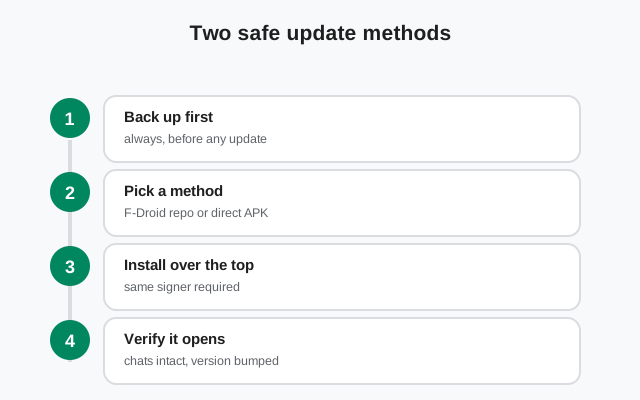
If you already have Molly installed and a new release is out, here is the whole process in one breath. First, create a fresh backup and confirm you can see your 64-character recovery key. Second, update through the same channel you installed from: the F-Droid client if you added molly.im's repository, or a fresh download from molly.im if you sideloaded the APK. Third, open the app and check your chats and your version. That is the entire ritual, and it takes a few minutes.
The most common mistake is skipping the first step. An update should preserve everything, and it almost always does, but "should" is not a backup. The two minutes a backup costs are cheap insurance against a failed update, a corrupted download, or a phone that restarts at the worst possible moment. Every section below is just this ritual unpacked with the reasons attached.
One more framing point before we start: updating Molly is not updating Signal. They are separate apps with separate developers, separate releases, and separate signing keys. You cannot update Molly with a Signal APK, and you cannot update Signal with a Molly APK. Keep the two projects separate in your head and the rest of this page is simple.
Step zero: back up first
Molly uses the same Secure Backups system as Signal. Your chats are encrypted into a backup file, and the only thing that can unlock it is your recovery key. The current key format is 64 characters long; if you set your backup up years ago you may remember a 30-digit key, and that format has been retired, so check which one you have. You cannot recover chats without this key. No one at molly.im or Signal can recover it for you. It is the single most important string of characters in your setup.
Before any update, do these three things. Open Molly, go to Settings, then Chats, then Chat backups, and create a new backup now. Let it finish fully, especially if it is large; a backup that got interrupted halfway is not a backup. Then write down or copy your recovery key somewhere safe, somewhere that is not on the phone you are about to update. A password manager is a good home. A scrap of paper in a drawer works too. What does not work is a screenshot stored in the gallery of the same phone, which is the default most people reach for.
Finally, confirm the backup is fresh. If the app shows a backup from last month and you update today, the insurance only covers last month. Make a new one as part of the update ritual, every time. Our Molly backup and restore guide walks the whole process in detail if you want to do this carefully once and then repeat the quick version forever.
The two safe update methods
There are exactly two safe ways to update Molly, and the right one is whichever one matches how you installed it. The two channels are separate distribution lanes. Switching mid-stream is where updates break, so pick your lane below and stay in it.
Method 1: update through the F-Droid repository (preferred)
If you added Molly's F-Droid repository to your F-Droid client during install, this is your lane. Open the F-Droid client and pull to refresh the repositories, which makes F-Droid notice the new Molly release. Then go to Updates and tap update on Molly. F-Droid downloads the new version, checks that its signature matches the one already installed, and installs it over the old one. Your chats, settings, and linked devices survive the process untouched.
This is the preferred method for two reasons. First, the signature check is automatic: F-Droid will refuse to install an update that does not match the installed app's signer, which protects you from ever installing a wrong or tampered build. Second, it is the least manual option. You see an update notification, you tap it, done. If you installed from the repo and you are currently downloading APKs by hand from a browser, stop doing that and switch to this lane permanently.
Method 2: download the new APK from molly.im and install over
If you installed Molly by sideloading the APK from molly.im, this is your lane. Go to molly.im, download the new release for your build (standard Molly or Molly-FOSS, matching what you have), and open the file. Android will show an update prompt rather than a fresh-install prompt, because the new APK is signed by the same key as the installed app. Confirm, wait for the install to finish, and open the app.
The rule here is absolute: the new APK must come from molly.im, nowhere else. Not a mirror site, not a file host, not a Telegram channel. Molly is a privacy app, and the whole point of the fork is that you know what you are running. An APK from anywhere else could be anything with Molly's name on it. If a mirror is ever your only option, it is not an option; wait until molly.im is reachable. The Molly install guide covers the first install step by step, and the same source rules apply to every update.
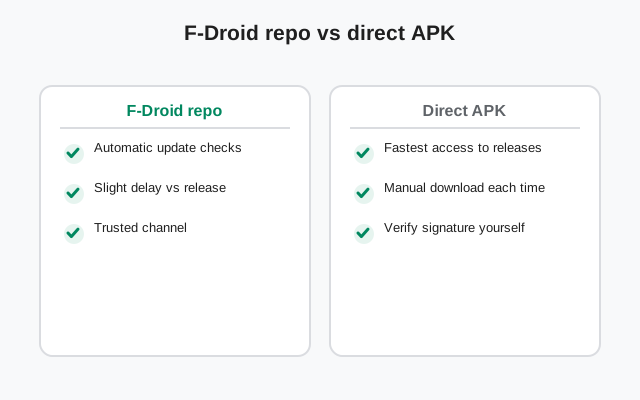
F-Droid repo vs direct APK: compared
| F-Droid repository | Direct APK from molly.im | |
|---|---|---|
| How you find updates | F-Droid notifies you; one tap to install | You check molly.im yourself for new releases |
| Signature check | Automatic; mismatched APKs are refused | Manual; Android warns but you must pay attention |
| Chats survive | Yes, installs over | Yes, installs over (same signer) |
| Best for | Everyone who can add a repo to F-Droid | Phones where F-Droid is not an option |
| Cross-install risk | None; the repo only has Molly builds | Higher; easy to grab the wrong build or variant |
Notice what is missing from this table: updating from any third-party source. That lane does not exist. There is no trusted mirror list, no "also available at" site. The fork's two channels are molly.im and its F-Droid repository, full stop. Anyone selling you a third channel is selling you risk.
What "same signer" means
Android decides whether an APK is an update or a brand-new app by checking who signed it. Every APK is cryptographically signed by its developer's key. When the new APK's signature matches the installed app's, Android treats it as an update and keeps all your data. When it does not match, Android refuses to install over, and you would have to uninstall first, which deletes your chats unless you have a backup.
This is why the channel matters. Updating inside the lane you installed from (repo build through the F-Droid client, direct build through molly.im) is the path that always works. Switching lanes is a migration, not an update: back up, uninstall the old lane, install the new lane fresh, restore. And Signal's APK uses a different key entirely, so a Signal APK will never update Molly in place and a Molly APK will never update Signal. No amount of tapping will force it; the correct move is to restore from backup into the app you actually want.
Practically, this gives you one sentence to remember: update from the same source you installed from, and never mix apps, variants, or sources. If you want to switch lanes (say, from direct APK to the F-Droid repo), do it deliberately: back up, uninstall the old lane, install the new lane fresh, restore from backup. That is a migration, not an update, and migrations deserve the full backup ritual.
Why Molly updates land later than Signal's
Molly is a fork, which means its releases follow Signal's releases. When Signal ships a new Android version, Molly's developers merge the upstream changes into the fork, build, test, and publish. That pipeline takes time, so Molly's releases arrive a little after Signal's. A feature landing in Signal on Monday might reach Molly a few days later.
For feature updates this barely matters. For security fixes it matters a bit more: there is a real window, however short, where official Signal users have a patch and Molly users do not yet. This is the honest cost of using any fork, and it is worth weighing against the fork's benefits. If you are the kind of person who installs security updates the hour they land, know that Molly adds a step to that pipeline.
Do not confuse this lag with staleness. A maintained fork that is a week behind upstream is normal; a build that has not been updated in months is a warning sign. If molly.im's release notes go quiet for a long stretch, that is worth noticing before you commit your daily chats to the app. Watch the fork's own release notes rather than Signal's to know when your build is current.
When an update fails: the fix list
Updates fail for a small number of reasons, and almost all of them trace back to a broken rule from above. Walk this list in order.
- "App not installed" when installing the new APK: you probably grabbed the wrong variant (standard Molly vs Molly-FOSS) or a different source than your install. The signer does not match, so Android refuses. Delete the download and get the right one from molly.im, matching your existing build.
- F-Droid shows no update: pull to refresh repositories first; F-Droid caches the index. If there is still nothing, the release may not be in the repo yet (see the lag section above) or your repo URL is wrong. The correct one is molly.im/fdroid.
- Update downloads but will not install: check free storage first; updates need room to work. If storage is fine, the download may be corrupt, so re-download from the same trusted source.
- App crashes on first launch after update: restart the phone once before panicking. If it still crashes, check molly.im's release notes for known issues with the release, and be ready with your backup: worst case, reinstall fresh and restore.
- Notifications break after update (FOSS build): check that your UnifiedPush distributor app is still installed and exempt from battery optimization. System updates love to re-enable battery restrictions; the fix is usually one toggle. Our UnifiedPush notifications guide has the full checklist.
- Everything fails and chats seem gone: stop, do not uninstall yet. An update never deletes your backup key; find it, then reinstall fresh and restore. This is the exact scenario the backup-first ritual exists for.
If none of this applies, the fallback is always the same: back up what you can, reinstall clean, restore. And if the whole experience is making you question the fork, read Molly troubleshooting next, or the honest case for switching to official Signal if the tradeoffs no longer look worth it.
from the fork's own site (file hosted there, not by us)
Frequently asked questions
How do I update Molly?
Make a fresh backup and note your 64-character recovery key, then update from the same source you installed from: the F-Droid client if you added molly.im's repository, or a fresh APK download from molly.im. The new build installs over the old one and your chats survive.
Can I update Molly with the Signal APK?
No. Molly and Signal are separate apps with separate signing keys. A Signal APK will not install over Molly (Android refuses with a package conflict), and the reverse is equally true. Update each app from its own source.
Why isn't Molly updating to the latest Signal version yet?
Molly is a fork: its developers merge each Signal release into the fork, build, test, and publish. That pipeline takes time, so Molly releases trail Signal's by a little. Watch molly.im's release notes rather than Signal's.
Will updating Molly delete my chats?
An update installs over the existing app and preserves everything. A failed update is a different story, which is why you back up first. If an update fails badly, reinstall fresh and restore from backup.
Can I switch from the direct APK to the F-Droid repo version?
Yes, but treat it as a migration, not an update: back up, uninstall the old build, install the new build, restore from backup. Do not try to install one lane over the other.
Keep reading
- the Molly hub: the full map of fork guides
- installing Molly: the safe install path from molly.im
- Molly backup and restore: the backup ritual this page keeps citing
- which Molly build to pick: standard Molly vs Molly-FOSS
- Molly troubleshooting: when updates are not the only problem
- Molly's release cycle: how the fork follows Signal's updates