
How to install Molly without getting burned
Published: October 7, 2026 · Updated: October 8, 2026
Install Molly only from molly.im, the fork's official site, or from Molly's own official F-Droid repository at molly.im/fdroid. Those are the only two safe sources. Never download "Molly" from a third-party APK mirror: fake forks are a classic malware lure, and a trojaned build with your messages in it is the worst possible outcome. Before you download, pick your build: standard Molly keeps Google's push notifications for reliability, while Molly-FOSS removes all proprietary Google code and uses UnifiedPush instead. Both are separate apps from the same independent project (not official Signal, not affiliated with Signal Foundation). This guide walks through choosing, downloading, verifying, and finishing setup.
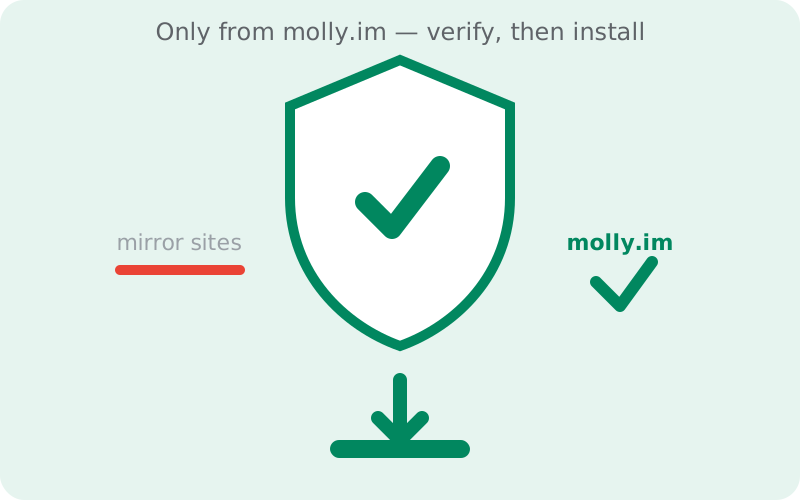
The one rule: molly.im or nothing
Molly is an independent fork of Signal, which means there is exactly one party authorized to distribute it: its own developers, at molly.im. There is no Play Store listing, no official mirror network, and no partner site. Any other website offering a "Molly APK" is, at best, redistributing a file you can't verify and, at worst, serving you malware in a familiar icon.
This matters more for forks than for mainstream apps. Attackers know that fork users are already comfortable sideloading, so "Molly Pro," "Molly Premium," and "Molly Mod APK" pages are purpose-built traps: they rank on the exact searches a new fork user makes. The real Molly has no Pro version, no premium tier, and no mod: there are two builds (standard and FOSS), both free, both from molly.im. If the name on the download page has extra words attached, close the tab.
The same discipline that keeps official Signal users safe applies here: get the file from the publisher, verify the signature, and treat everything else as hostile. Our fake APK guide shows the lure patterns in detail. They work the same way for forks.
The two safe sources, compared
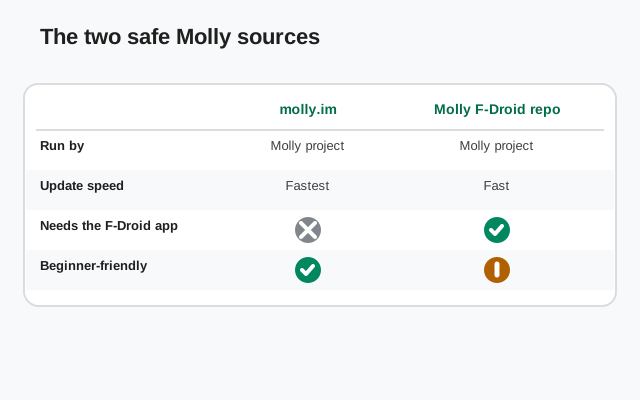
| Direct from molly.im | Molly's F-Droid repository | |
|---|---|---|
| What it is | Download the APK file from the official site and install it yourself | Add molly.im/fdroid as a repo in your F-Droid client; install and update through the app |
| Who signs the app | Molly's developers | Molly's developers (their own repo, not F-Droid's main catalog) |
| Updates | Manual: check molly.im for new releases | Through the F-Droid client, alongside your other apps |
| Best for | One-time installs; people who don't use F-Droid | F-Droid users who want everything managed in one place |
| Verification | Compare the published signing fingerprint yourself | The F-Droid client verifies the repo's signature on updates |
| Needs | A browser and "install unknown apps" permission | The F-Droid client app installed |
Neither source is "more official". Both are run by Molly's developers. Pick the direct download if you want the simplest path, or the F-Droid repo if you already live in the F-Droid client and want updates handled for you. Note the important detail in row two: this is Molly's own repository, not F-Droid's main catalog. Molly is not in F-Droid's official catalog (same story as Signal not being on F-Droid), so you add the repo address yourself. The F-Droid client will then treat it like any other source, with signature verification on every update.
Molly is distributed by its own developers. The only safe sources are the official site and its official F-Droid repository.
Open molly.imF-Droid users: add molly.im/fdroid as a repository instead.
Pick your build first
Download the wrong build and you'll be reinstalling, so decide before you tap anything. Standard Molly keeps Google's FCM push for notifications. It behaves like official Signal for alerts while adding the fork's extras (like the passphrase-locked database). Molly-FOSS strips out all remaining proprietary components and uses UnifiedPush for notifications, so no Google code runs on your device at all.
The decision takes ten seconds: does your phone have Google services and do you want the most reliable notifications with the least fuss? Take standard Molly. Is your phone Google-free (Huawei, GrapheneOS, de-Googled ROM), or do you want zero proprietary code on principle? Take Molly-FOSS. If you're torn, the Molly vs Molly-FOSS comparison settles it with the full tradeoff list. Download only the build you chose. They're separate apps, and switching later means a reinstall.
Installation steps
Allow installs from your browser
Android blocks sideloading by default. When you open the APK file, Android will prompt you to allow "install unknown apps" for the app you're installing from (usually your browser or file manager). Approve it just for that source. Our install-without-Play-Store guide covers this permission in detail if you want the full walkthrough.
Download from molly.im
Open molly.im in your phone's browser, find the download section, and get the build you chose. If you're using the F-Droid route instead, add molly.im/fdroid as a repository in your F-Droid client and install from there, then skip to step 4.
Verify the file
Don't skip this. See the verification section below. It takes two minutes, and it's the difference between "installed Molly" and "installed something calling itself Molly."
Open the APK and install
Tap the downloaded file, confirm the install prompt, and wait for it to finish. Molly installs as its own app with its own icon. It will not overwrite official Signal if you have it, because it's a different app signed with different keys.
Open Molly and register
First-run setup is covered below.
A note on updates: the direct-download build doesn't update itself through a store, so check molly.im periodically for new releases (Molly follows Signal's releases with a short delay). The F-Droid repo route handles updates through the F-Droid client. Either way, install updates only from the same source you installed from. Mixing sources is how signature mismatches happen.
Verify before you trust
Verification is what separates a safe sideload from a gamble. Molly's developers publish the signing fingerprints of their releases on molly.im. After downloading, compare what your device (or a verification tool) reports for the APK's signing certificate against the fingerprint published on the official site. If they match, the file came from Molly's developers untampered. If anything doesn't match (or you can't find a published fingerprint to compare against), delete the file and re-download from molly.im.
The practical method is the same one used for official Signal: Android's apksigner tool can print a certificate's SHA-256 fingerprint from a computer, which you then compare to the published value. Our apksigner verification walkthrough shows the exact command flow step by step. The tool is the same; you just compare against Molly's published fingerprint instead of Signal's. It feels like overkill until the day it catches a tampered file; then it feels like the two minutes were well spent.
First run: registration and setup
Opening Molly for the first time looks familiar if you've used Signal, because the setup flow follows the same shape. Registration uses your phone number, exactly like Signal. Molly is a client for the same network, so your identity is still your number. You'll receive a verification code by SMS (or a call) and enter it to complete registration. Only one app can hold your number's registration at a time, so if you're moving from official Signal, registering in Molly moves your identity over. Plan for that rather than discovering it mid-switch.
Restoring chats: if you're migrating from Signal, use Signal's encrypted backup: create a backup in Signal first (with a passphrase you won't forget), then restore it during Molly's setup. Both apps understand the same backup format. Back up before you register the new app, and confirm the backup file exists before you uninstall anything. Rushing this step is how chat histories get lost.
Notifications: standard Molly will ask for notification permission and use FCM like the official app. Nothing special to do. Molly-FOSS needs a UnifiedPush distributor app installed to deliver notifications without Google; Molly's setup will guide you to choose one. Our UnifiedPush guide explains the distributor concept and the reliability tradeoffs before you commit.
Optional hardening: if the passphrase-locked database is why you're here, set it up early in Molly's settings rather than after months of history accumulate. And as with any messenger, turn on registration lock once you're settled. It protects your number from being re-registered by someone else.
What never to do
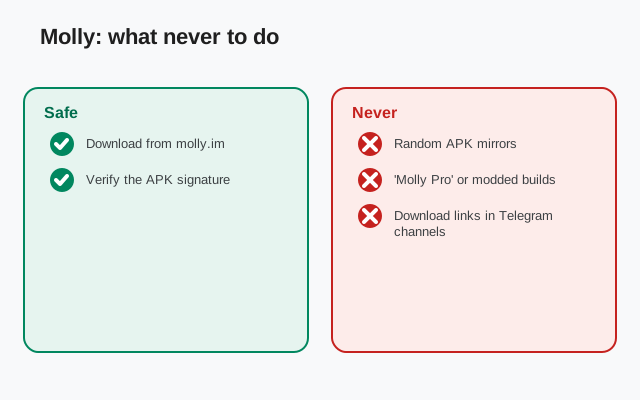
- Never download Molly from an APK mirror site. Mirror sites, random blogs with download buttons, Telegram channels forwarding APKs: all of them break the chain of trust. The file might be genuine and three versions old, or it might be repackaged. You can't tell, so don't try.
- Never install anything called "Molly Pro," "Molly Plus," or "Molly Mod." These don't exist. They're either scams, adware wrappers, or outright malware using the fork's name.
- Never skip verification because "the site looked legit." Phishing sites copy molly.im's design. The fingerprint check is the part that can't be faked by a pretty page.
- Never mix update sources. Installed from molly.im? Update from molly.im. Installed via the F-Droid repo? Update via the repo. Cross-installing triggers signature conflicts and trains you to click through security warnings. Attackers love that habit.
- Never expect Signal's support team to help with Molly. It's an independent fork; the community and molly.im docs are your support channel. That's fine, as long as you know it going in.
from Signal's official site — file hosted by Signal, not by us
If you've read this far and realized you actually wanted the official app, not the fork. That's a perfectly good outcome. The button above gets you Signal's own APK from Signal's own site, and our official download guide covers that path properly.
Frequently asked questions
Is Molly on the Play Store?
No. Molly is distributed only through molly.im and its own official F-Droid repository at molly.im/fdroid. Any Play Store listing using Molly's name is fake. Install from the official sources only.
Can I install Molly over my existing Signal app?
No, and that's by design. Molly is a separate app with its own signing keys, so Android treats it as a different application. It installs alongside Signal fine, but only one of them can hold your phone number's registration at a time.
Is Molly's F-Droid repo the same as F-Droid's main catalog?
No. Molly is not in F-Droid's official catalog. The repo at molly.im/fdroid is run by Molly's developers themselves. You add it manually in the F-Droid client, and because it's their own repo, the builds come straight from them with the client's signature verification on updates.
Do I need to uninstall Signal before installing Molly?
No. They're separate apps and coexist fine. Just remember that registering your number in Molly moves your messaging identity there, so back up your Signal chats first if you want to keep them.
How do I update Molly after installing it?
From the same source you installed from: re-download from molly.im for the direct build, or update through the F-Droid client for the repo build. Molly follows Signal's releases with a short delay, so check periodically rather than expecting day-one updates.
Keep reading
- Molly hub: the full map of fork guides
- What is Molly: the fork explained from scratch
- Molly vs Molly-FOSS: which build to pick
- Molly notifications without Google: the FOSS notification path
- Molly vs Signal: the honest differences
- Spotting fake APKs: the lure patterns to avoid