
Why Does Signal Keep Asking for My PIN?
Published: October 7, 2026 · Updated: October 8, 2026
Signal keeps popping up asking for your PIN and you are wondering whether something is wrong. Nothing is wrong. That reminder is working exactly as designed. Because Signal cannot recover or reset your PIN for you, those periodic check-ins are its only safety net against you forgetting it. This guide explains why the reminders appear, why they sometimes arrive more often, how to snooze one when the timing is bad, and how to turn them off for good if you insist. It also explains why that last option is usually a mistake you will regret.
Why the reminder exists at all
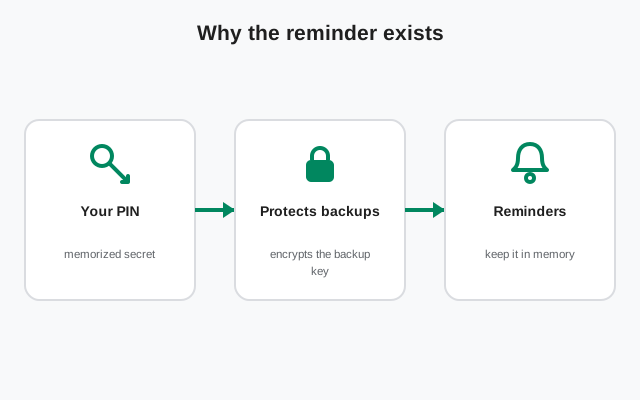
Signal’s support documentation gives the reason in one sentence: because we cannot recover or reset the PIN for you, we periodically ask you to confirm the PIN. Think about what that means. Your memory is the only copy of the PIN in existence. Signal’s servers do not hold it, support staff cannot look it up, and there is no reset email to fall back on. If that copy fades, your only recovery path is the 7-day registration-lock wait, and the profile data encrypted under the old PIN is lost with it.
The reminder is Signal’s answer to a very human problem: most of us set a PIN once during registration and then never type it again for months. The periodic prompt forces the PIN back into your memory before it decays completely. It is not a bug, not a sign your account is compromised, and not something you triggered. Every Signal user with a PIN gets these. The people who find them most annoying are usually the people who need them most. If you resent the prompt, that is a hint the PIN is not as firmly memorized as you think.
Why it sometimes nags more often
The reminders are not on a fixed schedule; they respond to how you answer. Signal’s documentation describes the rhythm plainly: you will see the reminders less frequently if you consistently enter your PIN correctly, and they will become more frequent if multiple attempts are necessary.
In practice that means:
- Nail it every time and the prompts fade into the background. Weeks can pass between them.
- Fumble it a few times and Signal concludes (correctly) that the PIN is slipping, so it checks more often to catch the problem while you can still recover.
- Someone else using your phone guessing at the prompt will also drive the frequency up, which doubles as an early warning that somebody has been poking at your app.
So if the reminder suddenly went from occasional to daily, ask yourself what changed. The most common answer is a few wrong attempts in a row, which is also a sign to go check your password manager rather than keep guessing from memory.
What to do when a reminder pops up
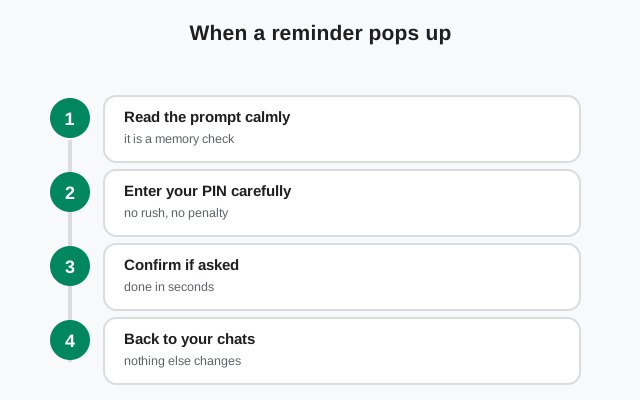
Treat the prompt as a two-second quiz, not an interrogation:
- If you know the PIN, just type it. Correct answers train the reminder to back off.
- If you are not sure, do not guess blindly three times in a row. Pause, open your password manager or wherever you stored the PIN, and copy it over. Signal itself suggests keeping the PIN in your device’s password manager precisely for this moment.
- If the timing is bad (you are driving, in a meeting, mid-something), look for the snooze or dismiss option on the prompt. Dismissing a reminder does not weaken anything; it just reschedules the check for later.
- If you genuinely cannot remember it at all, and you are still logged in, go straight to Settings > Account > Change your PIN and set a fresh one. That ends the uncertainty permanently. The forgotten-PIN guide walks through this scenario in detail.
Turning reminders off (and the trade)
Yes, you can switch them off. On your phone, go to Signal Settings > Account > PIN reminders, enter your PIN, and choose Turn Off (or Turn Off Reminders). Done. The prompts stop.
Here is the trade you are making, stated honestly: the nagging stops, but so does the only mechanism that keeps the PIN in your memory. Six months later, when you get a new phone and Signal asks for the PIN during registration, there will have been nothing refreshing your memory in the meantime. If you turn reminders off, you are accepting full responsibility for remembering, which really means you should store the PIN in a password manager and save the 64-character recovery key somewhere safe, today, not eventually.
Our recommendation is boring but correct: leave them on. The people who turn them off are disproportionately the people who end up in the locked-out queue a year later. A prompt you dismiss in two seconds is cheap insurance against a 7-day lockout.
Typing it wrong too many times
There is a limit to how many wrong PIN guesses the system tolerates. If you burn through your attempts, you may see an “Error connecting to service” message instead of another PIN prompt, which looks alarming but usually just means “stop guessing for a while.”
Before you try again, check one odd but real cause: make sure your phone’s date and time are set correctly for your timezone. Signal’s servers are picky about clock skew, and a wrong system clock can make a correct PIN fail. After several failed attempts you may also see a Need Help? > Contact Support option appear. Support still cannot tell you the PIN, but they can help if something else is broken underneath. The main fix, though, is to stop guessing and retrieve the real PIN from wherever you stored it.
Reminder vs changing vs disabling the PIN
These three get confused constantly, so here is the clean split:
- Confirming at a reminder just proves you still know the PIN. Nothing changes.
- Changing your PIN (Settings > Account > Change your PIN) replaces it with a new one. Do this the moment you suspect the current one is slipping. It is the fastest way to end PIN anxiety.
- Disabling the PIN entirely is possible but has a prerequisite: first turn off Registration Lock (Settings > Account), then go to Settings > Account > Advanced PIN settings > Disable PIN and confirm. Understand what you lose: without a PIN there is no registration lock, so anyone who can intercept your SMS verification code could register your number on Signal with no second barrier. Disabling is a legitimate choice for some threat models, but do it with eyes open, not because a reminder annoyed you on a Tuesday.
The setup that makes reminders painless
The people who never complain about PIN reminders all have the same setup, and it takes about two minutes:
- Save your Signal PIN in your phone’s password manager (with autofill enabled).
- When a reminder appears, autofill or copy-paste the PIN instead of typing from memory.
- Correct entries make the reminders rarer, so the whole thing fades into the background.
- Separately, view and write down your 64-character recovery key as a backup of last resort.
That is it. No settings to toggle, no security given up, no more guessing games. The reminder becomes what it was meant to be: a quiet confirmation that everything is fine, instead of a recurring moment of panic. If you are also wondering how the PIN differs from the lock-screen code on your phone, the screen lock guide covers that separate feature.
from Signal's official site — file hosted by Signal, not by us
Frequently asked questions
Can I turn off Signal PIN reminders?
Yes. Go to Signal Settings > Account > PIN reminders, enter your PIN, and choose Turn Off. Signal discourages it, because the reminders are the only thing keeping the PIN in your memory. If you forget it later with reminders off, you face the 7-day registration-lock wait.
Why am I suddenly seeing the PIN reminder every day?
The frequency increases after wrong attempts. A few fumbled entries tell Signal the PIN is slipping, so it checks more often. Type it correctly a few times (retrieve it from your password manager first) and the prompts will space back out.
What happens if I keep entering the wrong PIN?
After enough wrong guesses you may see an “Error connecting to service” message. Stop guessing, verify your phone's date and time are correct for your timezone, then try again with the real PIN from your password manager.
Is the PIN reminder the same thing as registration lock?
No. The reminder just asks you to confirm you remember your PIN. Registration lock is a separate security setting that forces anyone re-registering your number, including you, to enter the PIN. The reminder exists partly to make sure you can pass that lock when it matters.
I do not remember ever setting a PIN. Why am I seeing this?
Almost everyone sets one during registration, even if it felt like a throwaway step you tapped through. If you genuinely do not know it, treat it as a forgotten PIN: change it now while you are logged in (Settings > Account > Change your PIN).
Does dismissing a reminder make my account less secure?
No. Dismissing or snoozing only reschedules the check. Your PIN, registration lock, and encrypted backups are completely unaffected.
Keep reading
- Forgot your Signal PIN: the honest recovery limits and the 7-day wait
- Locked out of Signal entirely: every recovery path ranked from easy to hopeless
- Signal screen lock vs PIN: the separate lock-screen feature explained
- How Signal's Secure Backups work: what the PIN actually encrypts on Signal's servers
- Troubleshooting hub: every Signal fix guide in one place