
Back Up Before Switching Signal Builds
Published: October 7, 2026 · Updated: October 8, 2026
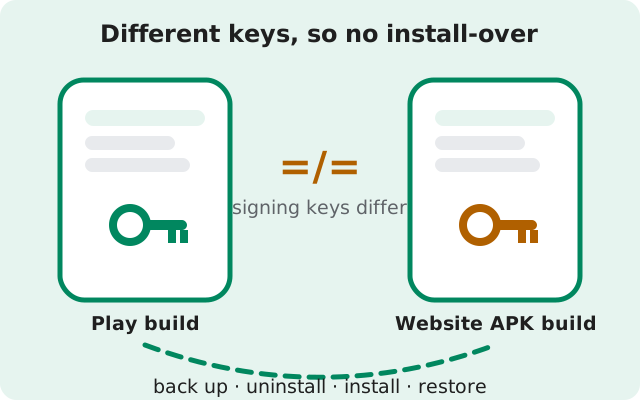
Moving between Signal's Play Store build and the website APK build is a full uninstall-and-reinstall, not an update. The two builds share a package name but carry different signing keys, so Android blocks any attempt to install one over the other. Uninstalling wipes Signal's data from the phone. This page is the checklist that keeps your chats alive through the switch: what to back up, the exact flow in both directions, how the first-launch restore works, and what you lose if you skip any of it.
Why switching forces an uninstall
Two facts combine into one rule. First: both builds use the package name org.thoughtcrime.securesms. To Android they are the same app, which means you cannot have both installed at once. There is no "Signal Play" sitting next to "Signal APK" on one phone.
Second: the website build is signed with a different key than the Play Store build. Android's rule for updates is strict: an update package must be signed by the same key as the installed app, or the install is rejected. Installing the APK over the Play version, or the Play version over the APK, fails with "App not installed." That is not a bug. It is Android's signature protection doing its job.
So switching is always the same five-step path: back up, uninstall, install the other build, register your number, restore. There is no shortcut and no workaround worth risking your chats on. If you want the technical background on the conflict itself, our APK-versus-Play conflict explainer covers it.
The switch checklist
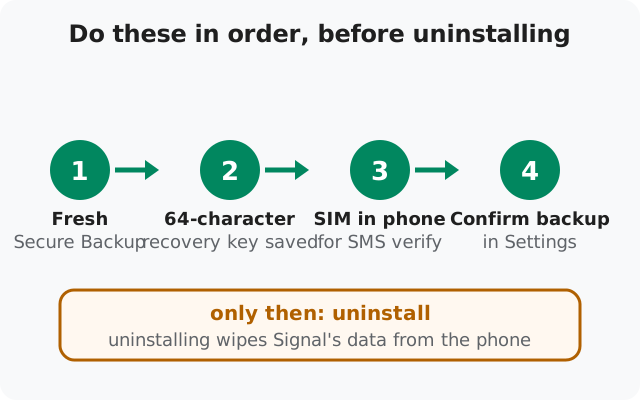
Do these in order. Do not touch the uninstall button until all five are done.
Make a fresh Secure Backup
Open Settings, tap your profile, choose Backups, and set it up if you have not already. Wait for the first upload to finish. The first archive is the big one, so stay on Wi-Fi and keep the phone charging. Later archives refresh daily on their own. Our Secure Backups setup guide walks through the screens.
Write down your 64-character recovery key
This is the key that decrypts the archive: not your Signal PIN, not your Google account, not anything else. Write it on paper or store it in a password manager, and confirm you can read it back. Lose it and the backup becomes a locked box nobody can open. See our recovery key guide for safe storage habits.
Keep your SIM in the phone
Re-registering Signal needs an SMS code sent to the same phone number. A number you cannot receive texts on is a number you cannot move to the new build. If you are switching numbers too, do one change at a time. Never stack them.
Make a second copy if you can
Newer Signal versions also offer local, on-device encrypted backups with no size cap. A second archive on your own storage is cheap insurance against a bad upload. See the local Android backup guide.
Verify before you uninstall
Open Settings → Backups and confirm a completed backup with a recent date. Do not uninstall on hope. A backup you never checked is a backup you are only hoping works.
Play → APK: the exact flow
This is the direction most readers of this site take: leaving the Play Store build for the website APK, usually on a phone without Google services or in a region where Play is unreliable.
Finish the checklist above
Open Settings → Backups one last time and confirm a completed backup. This is the point of no return. Everything after it depends on that archive.
Uninstall Signal (the Play version)
Your chat history leaves the phone with the app. That is exactly why step 1 exists.
Download the APK from Signal's own download page
Get the file only from the publisher. Never from a mirror or a "mod" site.
Install the APK and register the same number
Open the downloaded file, allow the install, then open Signal and register the same phone number with the SMS code.
Restore on first launch
Choose restore when offered, enter your 64-character recovery key exactly, and wait while the archive downloads and decrypts. Your chats fill back in.
from Signal's official site — file hosted by Signal, not by us
APK → Play: the exact flow
Same shape, reversed. People usually go this way to get the Play Store's automatic updates back, or because a work profile requires Play-distributed apps.
Same checklist, no exceptions
Fresh backup, key saved, SIM ready. The direction of the switch changes nothing about what you need.
Uninstall the website build
Long-press the app icon and uninstall, or remove it from Settings → Apps.
Install Signal from the Play Store
Search for Signal Private Messenger and install it normally.
Register the same number and restore
Verify with the SMS code, choose restore on first launch, enter the key.
One reassuring fact: the archive does not care which build made it. A backup created under the APK build restores fine under the Play build and back again. The encryption and the key are identical on both sides.
Restoring on first launch
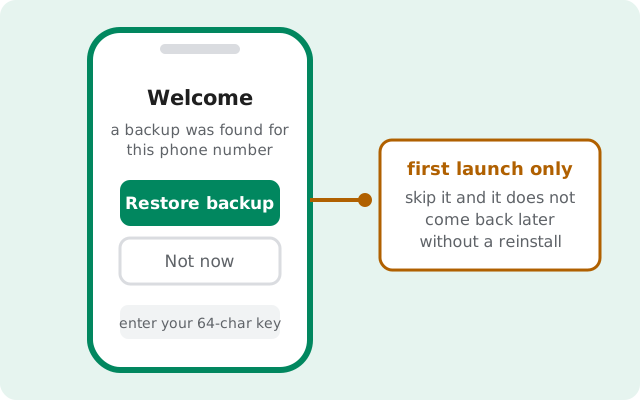
The restore prompt appears exactly once: during the first setup after a fresh install. Register the same phone number the backup was made with, choose restore, and enter the recovery key exactly as you saved it. The archive downloads and decrypts in the background, and you can start using Signal while it works. Chats fill in progressively.
Two rules. The number must match the backup's number; a backup made for one number will not restore onto another. And the prompt is first-launch-only: if you tap through setup without restoring, the offer does not come back later. The only way to see it again is a full uninstall, reinstall, and re-register. So do not rush through setup.
Before you call the switch finished, verify the restore: open your longest conversations and scroll back (chats), open recent photos and files (media), confirm your group membership lists (groups), and re-verify safety numbers in a few key chats. Only then treat the move as done. And do not delete any spare backup copies until the new build has had a day or two of normal use.
The common hiccups: a mistyped key (the key is long and unforgiving; check every character), registering a different number than the one you backed up, or an archive that never finished its first upload. The full sequence with error fixes is in our restore walkthrough.
What breaks if you skip the backup
The honest version, with no sugar coating.
| Skipped step | What goes wrong |
|---|---|
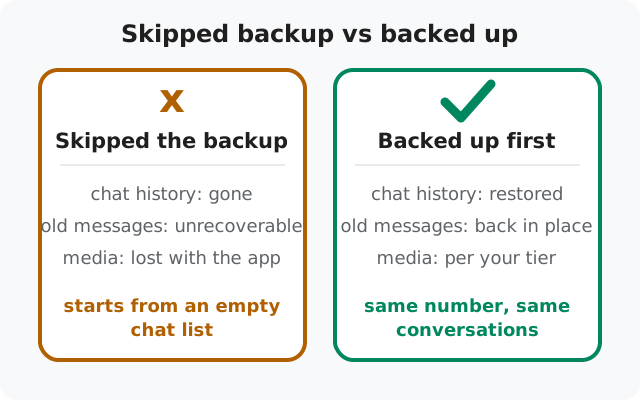
| No Secure Backup | Your chat history is gone. Re-registering starts you with an empty chat list, and nothing brings the old messages back. |
| Lost the 64-character key | The archive exists on Signal's servers but cannot be opened. Nobody can reset it. Not Signal, not anyone. The backup is effectively gone too. |
| No SMS-capable SIM | You cannot re-register the number, which means no restore and no working account on the new build. |
| Skipped the restore prompt | Setup finishes without your history. Reinstall and re-register to see the prompt again. |
What you do not lose by uninstalling: your account itself. Uninstalling removes Signal's data from the phone; it does not delete your Signal account. Re-verify the number and your profile, contacts, and group memberships come back through your Signal PIN. What never comes back without a backup is message content: the words, the photos, the voice notes. That is the whole reason this page exists.
FAQ
Can I keep both builds installed at the same time?
No. Both builds use the package name org.thoughtcrime.securesms, and Android allows only one app per package name on a phone.
Does switching builds delete my Signal account?
No. Uninstalling removes Signal's data from the phone; the account is re-linked when you register the same number. Your profile, contacts, and groups come back through your Signal PIN.
I already uninstalled without making a backup. Is my history recoverable?
No. Without any backup there is nothing to restore from. Reinstalling starts an empty chat list. This is exactly why the checklist exists.
Will my groups survive the switch?
Group memberships come back through your Signal PIN. Message history inside the groups needs the backup.
Can I switch back later?
Yes, as many times as you like. Same checklist, same five steps, every time.
Does the recovery key change between builds?
No. The key belongs to your backup, not to the build. One key works for restores in both directions.
Keep reading
- Why the install conflict happens
- Setting up Secure Backups, step by step
- Your recovery key, explained
- The full restore walkthrough with error fixes
- Installing the website build on any phone