
Signal backup or restore not working? Diagnose it by symptom
Published: October 7, 2026 · Updated: October 8, 2026
If your Signal backup is not working, stop before you delete anything. Most failures come down to a denied storage permission, a full phone, or a battery saver that kills the backup halfway through. The fix takes minutes, not a reinstall. This hub splits every failure into three kinds: backups that never start, backups that die mid-run, and restores that refuse to finish. Find your symptom in the table, apply the matching fix, and use the deeper guides linked below only if you need them.
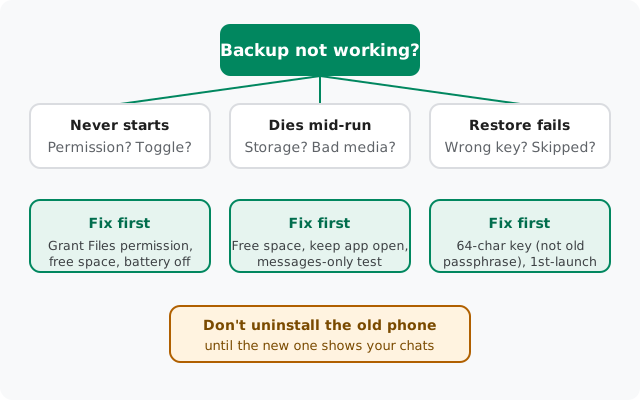
Symptom to fix: the master table
Start here. Match what you see on the left, then do the fix on the right before trying anything drastic:
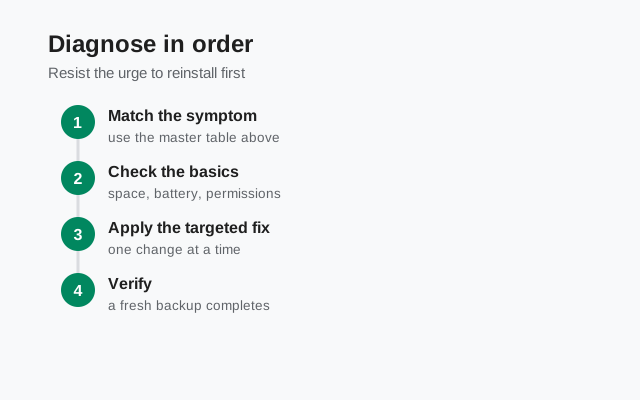
| What you see | Likely cause | Fix first |
|---|---|---|
| Backup toggle won't stay on, or no backup ever runs | Storage permission denied, or backups disabled | Settings → Chats → Chat backups: turn it on, then grant the Files and media permission when asked |
| Progress bar stuck at 0%, nothing happens | Battery optimization killing Signal, or no free space | Exempt Signal from battery optimization; free up storage |
| Backup fails partway with an error | Storage ran out mid-run, or one corrupt media file | Free up space, then run a messages-only backup to test whether media is the culprit |
| Backup "succeeds" but the restore finds nothing | Free-tier media trimming, or wrong number on restore | Check tier limits below; confirm you restored with the same phone number |
| Restore asks for a key you don't have | 64-character recovery key lost, or typing an old 30-digit passphrase into a current-format backup | The 30-digit passphrase opens only legacy .backup files. Current backups (on-device folders and Secure Backups) need the 64-character key |
| No restore prompt on the new phone | You already passed first launch | The prompt appears once, at first launch after entering your number. See the restore section |
| Restored, but old photos and videos are missing | Free tier keeps 45 days of media | Expected on the free tier, not a failure. The paid tier keeps full media history up to 100 GB |
Backups that never start
A backup that never begins is almost always a settings problem, not a broken app. Work through these in order:
- Check the toggle. Open Signal → Settings → Chats → Chat backups. If backups are off, nothing runs on any schedule. Turn them on and run one manually to confirm.
- Grant the storage permission. On Android 11 and newer, Signal needs the "Files and media" permission to write its archive. If you tapped "Don't allow" during setup, the backup silently does nothing. Fix it in Settings → Apps → Signal → Permissions → Files and media → Allow.
- Free up space. A backup needs room to write its archive file. If your phone is nearly full, the backup can't start. As a rule of thumb, keep at least twice your chat history's size free before a manual backup. Photos and videos make archives much bigger than people expect.
- Tame the battery saver. Aggressive battery optimization on many phones kills background work, and Signal's scheduled backup is background work. Go to Settings → Apps → Signal → Battery and set it to Unrestricted (wording varies by brand). For a manual backup, keep the app open and the screen on until it finishes.
- Check work profiles and SD cards. If Signal runs inside a work profile, or your phone uses adoptable storage with a flaky SD card, backups can fail to start. Move Signal's data back to internal storage if you can.
If the toggle is on, permission granted, space free, and battery unrestricted, and it still won't start, restart the phone once. Stuck system services cause more "never starts" cases than anyone admits.
Backups that die mid-run
The progress bar moves, then the backup errors out. Three culprits cover nearly all of these:
- Storage ran out halfway. The archive grows as it packs your media. A backup that starts fine and dies at 60% usually hit a full disk. Free up space, delete downloaded videos, clear other apps' caches, and run it again. Plug the phone in too; some phones throttle storage writes on low battery.
- One corrupt media file. A single broken video or half-downloaded image can abort the whole archive. The diagnostic trick: run a messages-only backup (media excluded). If that succeeds, a media file is the culprit. Then it's detective work: large videos received around the time failures started are the usual suspects. Delete or re-download the broken file and retry with media on.
- The app got killed. Swiping Signal away, a phone call interrupting, or the battery saver striking mid-backup all abort the run. Start the backup manually, leave the phone alone, keep it charging, and don't touch it until the progress bar completes.
Those are the three culprits in short form. For the full ordered procedure, the six fixes in the order that resolves most failures, plus how to tell a retry from a fresh start, work through the failed-backup fix flow next.
Restores that refuse to finish
Restore problems hurt the most because they show up on a new phone, when the old one may already be gone. The rules are strict, so read them before you panic:
- The restore prompt appears exactly once. When you enter your number on a fresh install, Signal offers to restore your backup. First launch only. If you tapped "skip" to get into the app faster, the offer won't come back later. The way to get another chance: clear the app's data (or reinstall), re-register, and this time accept the restore at the prompt. Your cloud backup survives this. It's tied to your account, not the phone.
- Use the right key. Today's backups, current on-device backup folders and Secure Backups alike, unlock with the 64-character recovery key generated on your device. The 30-digit passphrase opens only the legacy single-file .backup archives from older Signal versions; it will never unlock a current-format backup, no matter how many times you type it. Mixing the two keys up is the single most common "wrong key" report.
- Lost key means lost backup. Honest and important: Signal never sees your recovery key, so Signal cannot send it to you, reset it, or recover it. If the key is gone and you have no copy in a password manager or written down, that backup cannot be restored. Set a new backup up properly next time. Save the key in two places the moment it's generated.
- Update before restoring. Install the latest Signal on the new phone first (currently 8.29.3, from signal.org/android/apk). Restoring an archive with an outdated app is a classic version-mismatch failure.
- Same number, same account. Backups are tied to your phone number. If you register a different number on the new phone, your old backup simply isn't there. The number must match.
For the full walkthrough, see the guide to restoring a Signal backup step by step and the explainer on how Secure Backups and the recovery key work.
Don't make it worse: the safety checklist
Most backup disasters are self-inflicted in the ten minutes after the first failure. Run this checklist before you touch anything:
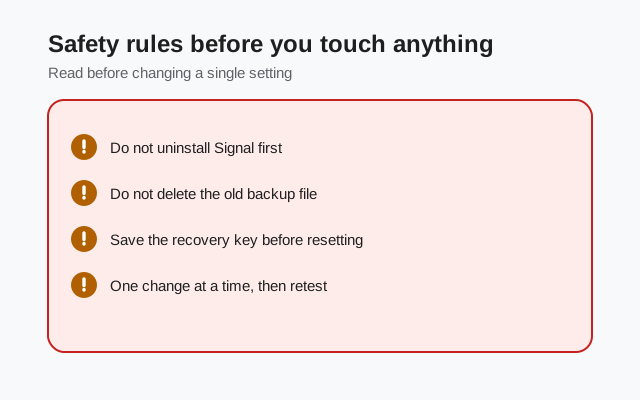
Don't uninstall Signal on the old phone yet
The chats on that phone are the only copy until a backup is confirmed. Uninstalling first is how "backup not working" becomes "chats gone forever."
Don't factory-reset the old phone
Same reason, bigger consequences. The old phone stays untouched until the new phone shows your chats.
Verify the backup exists before wiping anything
In Chat backups, check the last successful backup's date and time. "Last backup: never" means you have nothing to restore. Fix the backup first.
Save the recovery key in two places
Password manager plus a written copy somewhere safe. A key saved in exactly one place is a key half-lost.
Fix the cause, then retry once
Permission, space, battery, corrupt media: fix the actual cause from the table above, then run one clean manual backup instead of five hopeful ones.
from Signal's official site, file hosted by Signal, not by us
Frequently asked questions
Why does my Signal backup keep failing at the same percentage?
Almost always one of two things: storage running out mid-run, or a single corrupt media file aborting the archive. Free up space first, then run a messages-only backup. If that succeeds, a media file is the culprit and you can hunt it down.
I lost my 64-character recovery key. Can Signal send it to me?
No. The key is generated on your device and Signal never sees it, so there is nothing for support to send or reset. Without the key, that backup cannot be restored. Set up a fresh backup and save the new key in two places.
Can I use my old 30-digit passphrase for Secure Backups?
No. The 30-digit passphrase opens only the legacy single-file .backup archives from older Signal versions. It will never unlock a Secure Backup. Secure Backups need the 64-character recovery key. The two keys are not interchangeable.
The restore prompt never appeared. Can I trigger it later?
Only by starting over: clear the app's data or reinstall, re-register your number, and accept the restore at the first-launch prompt. Your cloud backup survives this because it is tied to your account, not the phone.
Does the free backup include all my photos and videos?
No. The free tier carries 45 days of media within a 100 MiB message archive. Older media is trimmed by design. The $1.99/month paid tier keeps your full media history up to 100 GB.
My backup works on Wi-Fi but fails on mobile data. Why?
Large archives and metered connections don't mix. Uploads stall, the app gets backgrounded, and the run aborts. Run manual backups on Wi-Fi with the phone plugged in and the app open.
Related: how Secure Backups and the recovery key work, the Android backup guide, restoring a backup step by step, the 30-digit passphrase and the recovery key, explained, where Signal keeps backup files, moving chats to a new phone, and the troubleshooting hub.