
Signal Desktop vs Phone: What's Different and What Isn't
Published: October 7, 2026 · Updated: October 8, 2026
You installed Signal on your computer and it looks comfortingly familiar: same chats, same contacts, same green send button. So it is tempting to treat Desktop as a second, equal copy of Signal. It is not. Signal Desktop is a companion to your phone: it borrows your account, it only sees messages from after you linked it, and a surprising number of settings simply do not exist on it. This guide lays out the real differences: what Desktop does well, what it cannot do at all, which settings live only on your phone, and the device limits you need to know before you link your third laptop.
from Signal's official site — file hosted by Signal, not by us
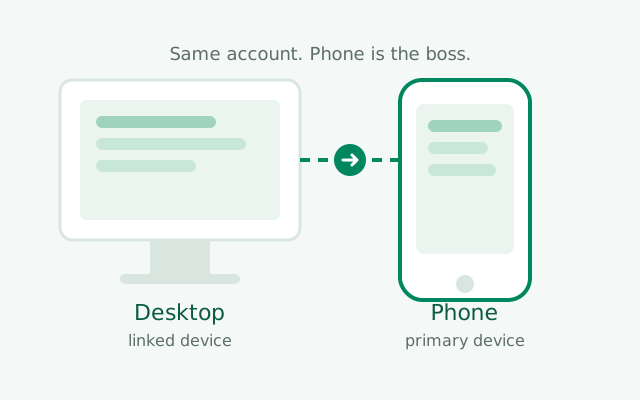
Desktop is a linked device, not a second account
The single most important thing to understand: Signal Desktop cannot exist on its own. It has no registration flow, no phone-number signup, no way to create an account. It only works by linking to a phone that already runs Signal, using the QR code in your phone's Linked Devices screen. No phone, no Desktop. Ever.
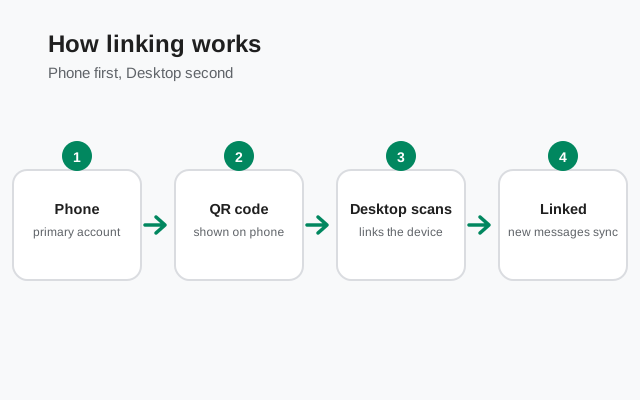
Your phone is the primary device. It holds your registration, your phone number identity, and your account keys. Desktop is a satellite: it receives its own set of encryption keys during linking, and from then on it sends and receives messages as you, in parallel with your phone. Messages arrive on both devices independently. Desktop does not "fetch" them from your phone; Signal's servers deliver to each linked device separately.
This architecture has one consequence people trip over: if you lose access to your phone number or unregister your phone, your Desktop stops being useful. You cannot keep using Desktop as a standalone messenger after abandoning the phone. The phone is the account; Desktop is a window into it.
It also means linking is not syncing in the cloud sense. There is no server holding your chats that new devices download from. Each device holds its own copy of what it has seen. Which brings us to history.
What history Desktop gets (and doesn't)
When you link a new Desktop, it does not start empty, but it does not get everything either. Here is the deal:
- At link time, your phone transfers message history to the Desktop. Your full message history comes across, along with media from the last 45 days. Older media (photos and videos from months ago) does not transfer; the messages transfer, the old attachments do not.
- After linking, Desktop only receives new messages. Everything sent or received from that moment on arrives on both devices. But nothing from before the link that was not transferred at link time will ever appear. Desktop has no way to "catch up" on history it missed.
- Unlinking wipes the Desktop's data. When you unlink a device (or it gets unlinked), its local data goes with it. Your phone keeps everything; the Desktop's copy is gone.
The practical upshot: link Desktop sooner rather than later. Every conversation that happens before you link is history your Desktop will never fully have (messages yes via the link-time transfer, older media no). If you think of Desktop as your archive screen (big display, easy copy-paste, as in our chat export guide), then linking it today instead of next month is the difference between a complete archive and a partial one.
One more history wrinkle: disappearing messages behave the same on Desktop as on your phone. A message whose timer expired is gone from both. The link-time transfer does not resurrect expired messages, and Desktop does not keep copies of things your phone deleted.
Feature parity: phone vs Desktop
Here is the honest comparison. Desktop covers the core messaging experience well, but the edges are phone-only:
| Feature | Phone | Desktop |
|---|---|---|
| Send/receive text messages | Yes | Yes |
| Voice calls | Yes | Yes |
| Video calls (1:1 and group) | Yes | Yes |
| Disappearing messages | Yes | Yes, same timers, same behavior |
| View-once media | Yes (send and view) | Limited: viewing is restricted compared to phone |
| Stories | Yes, full stories experience | Minimal to none: stories are a phone-first feature |
| Stickers and reactions | Yes | Yes, mostly |
| Payments | Yes (where available) | No, phone only |
| Registration / phone number change | Yes | No, phone only |
| Account PIN and registration lock | Yes | No, managed on phone |
| Linked-device management | Yes: link and unlink from phone | No. Desktop cannot manage other devices |
| Secure Backups | Yes | No, backups are a phone feature |
| Screen lock (app-level) | Yes | Depends on OS-level lock instead |
The pattern: communication features are on both; account and identity features are on the phone. Desktop is for talking. The phone is for owning the account.
A note on honesty: the exact edges shift with app updates. Signal gradually brings Desktop closer to parity. The table above describes the stable, long-standing differences. If something in the "phone only" column ever appears on Desktop, great. But do not plan around it until you see it.
Calls on Desktop
Calls are one of Desktop's genuine strengths. Voice calls, video calls, and group calls all work on Signal Desktop, with your computer's microphone, speakers, and camera. For long calls, many people prefer Desktop outright: bigger screen, better camera angle, a real keyboard for chatting alongside.
What to know:
- Call quality depends on your computer's hardware. A laptop with a decent mic sounds fine; a desktop with a ten-dollar webcam mic sounds like a ten-dollar webcam mic. Your phone's audio hardware is often better than a cheap computer setup.
- Incoming calls ring on all devices. When someone calls you, your phone and your linked Desktops all ring. Answer on whichever is convenient. Answering on one stops the others.
- Call settings live on each device. Things like relay options are per-device. If you route calls through Signal's servers for IP privacy on your phone, check the same setting on Desktop. Do not assume it carried over. Our relay calls guide explains what that setting does.
- Screen sharing is a Desktop advantage. Sharing your screen on a call is natural on a computer and awkward on a phone. If your calls involve showing documents or walking someone through something, Desktop is the right device.
Stories and media features
Stories are the clearest example of a phone-first feature. They were built for phone cameras and phone viewing habits: quick photo/video updates that expire after 24 hours. On Desktop, story support is minimal at best. If stories matter to you, your phone is where they live.
View-once media is a similar story (pun intended). You can send view-once photos and videos from your phone; Desktop's handling of incoming view-once media is restricted compared to the phone. This is consistent with the security model. View-once is about controlling the viewing environment, and a desktop with screenshots a keystroke away is a harder environment to control. Our view-once guide covers the feature in full.
Regular media (photos, videos, files, voice notes) works fine on Desktop in both directions. You can send a photo from your computer, receive one, save it, open it. The 45-day media limit only applies to the link-time history transfer, not to new messages: anything sent after linking arrives with its media intact on both devices.
Settings that live only on your phone
This is the section that saves people the most confusion. When you cannot find a setting on Desktop, it is probably in this list:
- Registration and phone number. Signing up, changing your number, re-registering: all phone-only. Desktop has no concept of your phone number beyond displaying it.
- Account PIN and registration lock. Your Signal PIN, the thing that protects your account from SIM-swap re-registration, is set and managed on your phone. Desktop never asks for it and cannot change it.
- Linked-device management. The list of your linked devices, and the ability to link new ones or unlink old ones, lives on your phone under Linked Devices. Desktop cannot see this list and cannot unlink itself or others (you unlink a Desktop from the phone).
- Secure Backups. Creating, verifying, and restoring encrypted backups is a phone feature. Desktop has no backup of its own; if you wipe your computer, you re-link and re-receive the link-time transfer.
- Notification deep settings. Per-chat notification customization, notification privacy (hiding message content on the lock screen), and similar fine controls are richest on the phone. Desktop has its own notification settings, but the phone's are the complete set.
- Privacy defaults for new chats. Settings like the default disappearing timer are set on the phone and apply account-wide, including to chats on Desktop. You set it once on the phone; Desktop follows.
The rule of thumb: if it is about who you are (identity, account, devices, backups), it is on the phone. If it is about talking (messages, calls, chats), it is on both. When in doubt, reach for the phone.
Notifications: how the two devices behave
With two devices, notifications need a system, or your desk becomes a symphony of dings. Here is how Signal handles it:
- Both devices notify by default. A new message pings your phone and your Desktop. This is by design. Each device is independent.
- Reading on one device quiets the other, eventually. When you read a message on your phone, the Desktop notification typically clears. There can be a short delay, and occasionally a notification lingers, but the system generally converges. If your Desktop keeps buzzing for messages you already read on your phone, that is worth troubleshooting. Our linked-device troubleshooting guide covers the usual causes.
- Muting syncs across devices. Mute a chat on your phone and the mute carries over to Desktop through your Signal account. Mute it once and you are done. Our mute guide covers the per-chat controls.
- Do Not Disturb is per device too. Your computer's focus modes and your phone's are separate. A work-hours quiet setup needs configuring on both.
- Desktop notifications need OS permission. On first launch, Desktop asks your operating system for notification permission. If you denied it (or your OS blocks it), Desktop stays silent no matter what Signal's settings say. Check the OS notification settings, not just Signal's.
Device limits: the 5-device rule
Signal allows up to 5 linked devices in addition to your phone. That means one phone plus five Desktops (or iPads running the Desktop-class app): six devices total on one account.
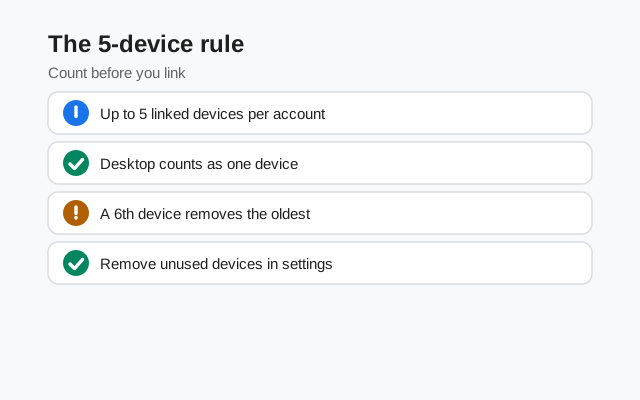
In practice, almost nobody hits this limit. But it matters in two scenarios:
- Device churn. Every time you link a new computer without unlinking the old one, you consume a slot. Replaced two laptops and a work machine over the years? That is three slots gone to devices you no longer own. Check your phone's Linked Devices list occasionally and unlink the dead ones.
- Shared computers. Linking Signal on a shared or public computer is a bad idea for obvious reasons. It also burns one of your five slots until you unlink it. If you must use a shared machine, unlink it the moment you are done.
Unlinking is done from the phone: open Linked Devices, find the device, remove it. The unlinked device's local Signal data is wiped. There is no "unlink all" panic button. It is one device at a time, which is fine because five is a small list to review.
Security differences worth knowing
Desktop is secure in the same fundamental way the phone app is: same end-to-end encryption, same protocol, same server-blindness. But the environment differs, and the environment matters:
- Computers are harder to lock down than phones. Phones have hardware-backed keystores, biometric locks, and app sandboxing as standard. Desktop operating systems vary wildly. A well-maintained laptop is fine; a shared family PC with no password is not. Signal Desktop is only as secure as the computer it runs on.
- Screen security does not exist on Desktop. The phone feature that blocks screenshots in Signal and hides chat previews in the app switcher has no Desktop equivalent. Anyone who can see your screen (physically or via screen sharing) can see your chats.
- Lock your computer. This sounds obvious, but it is the Desktop security story in four words. Phone users lock their phones reflexively; computer users walk away from unlocked laptops constantly. Set a short screen-lock timeout. It matters more for Signal Desktop than for almost any other app you run.
- Each device has its own keys. When you link Desktop, it generates its own identity keys. This is good design: a compromised Desktop does not automatically compromise your phone. That is why safety-number changes can involve any of your devices. Our safety numbers guide explains how verification works across devices.
Common mistakes
- Treating Desktop as a backup. It is not. Unlink it and its data is gone; wipe the computer and you re-link from scratch. Your backup lives on your phone. Keep it current with our Android backup guide.
- Looking for account settings on Desktop. PIN, phone number, linked devices, backups: all phone-only. Stop hunting; pick up the phone.
- Linking on a computer you do not control. Shared machines, internet cafes, a friend's laptop "just for a minute": do not. Every link is full access to your messages from link time onward.
- Forgetting dead devices in the list. Old laptops still count against your 5-device limit until you unlink them. Spring-clean the list once a year.
- Muting a chat twice. Chat muting syncs across your devices through your Signal account, so a chat muted on the phone stays quiet on Desktop too. There is no need to repeat it per device.
- Expecting old media on a new link. The link-time transfer brings messages plus 45 days of media, not your full media history. Link early if the archive matters.
Desktop is at its best when you treat it as what it is: a big-screen, full-keyboard window into the account your phone owns. Message and call from it freely, manage your account from the phone, link it early, lock your computer, and keep the dead devices pruned. Do that, and the two devices stop feeling like two apps and start feeling like one Signal.
What about running the phone APK in an emulator?
Emulators like BlueStacks run Android apps on a Windows PC or Mac, so technically you can run the Signal APK inside one. But it is the worst way to use Signal on a computer, for three plain reasons.
- It is heavy. An emulator is a whole virtual phone running inside your computer. It is slow to start, eats memory, and calls and notifications often lag or break.
- It still needs a phone number. Signal registration needs SMS verification either way, and the emulator's Play Store usually wants a Google account. That defeats the reason most people went looking for the APK in the first place.
- The official tool already exists. Signal Desktop is built for this job: lighter, made for keyboards and big screens, and it links to your phone in about a minute.
Use the emulator route only if Signal Desktop is blocked on your machine and you have no other choice. For everyone else, Desktop is the answer.
Frequently asked questions
Can I use Signal Desktop without a phone?
No. Signal Desktop is a linked device, not a standalone app. It cannot register an account on its own; it must be linked to a phone running Signal via QR code.
Does Signal Desktop show my old messages?
Partially. At link time your phone transfers message history plus media from the last 45 days. Older media does not transfer, and nothing from before the link arrives later.
How many devices can I link to Signal?
Up to 5 linked devices in addition to your phone. Unlink old or dead devices from your phone's Linked Devices screen to free up slots.
Can I change my Signal PIN on Desktop?
No. Account settings (PIN, phone number changes, linked-device management, and backups) live only on your phone. Desktop is for messaging and calls.
Do muted chats stay muted on Desktop?
Yes. Chat muting syncs across your devices through your Signal account. Mute a chat on your phone and it stays muted on Desktop too.
Does Signal Desktop support disappearing messages?
Yes. Disappearing timers work the same on Desktop as on your phone: same durations, same countdown-on-view behavior, same deletion.
Keep reading
- Desktop QR code not working: fixes for when linking fails
- Linked device not syncing? Fix guide: when phone and Desktop disagree
- exporting Signal chats: use Desktop copy-paste for a readable archive
- Android backup guide: your real safety net lives on the phone