
Install Signal on Android 12 the right way
Published: October 7, 2026
Signal Foundationfrom Signal's official site — file hosted by Signal, not by us. signal.org/android/apk
Android 12 changed how Android talks about privacy: a green dot when the mic or camera is in use, a privacy dashboard showing which apps touched what, and a new habit of hibernating apps you ignore. None of that breaks Signal; it just means the install comes with a few new screens and settings worth understanding.
This guide walks through installing Signal's official website build (version 8.29.3, package org.thoughtcrime.securesms) on Android 12: the exact permission path, what the new privacy indicators mean for a calling app, how app hibernation can quietly disable Signal on a spare phone, and how to keep notifications instant. If you have never sideloaded an APK before, our sideloading basics guide is a good warm-up.
The one rule that catches everyone: the website build cannot be installed over a Play Store installation, because the two are signed with different keys. If Signal is already on your phone from the Play Store, Android will refuse the APK with a signature error. That is by design. Either stick with your Play version or migrate properly with a backup. Do not try to force it.
Install steps on Android 12
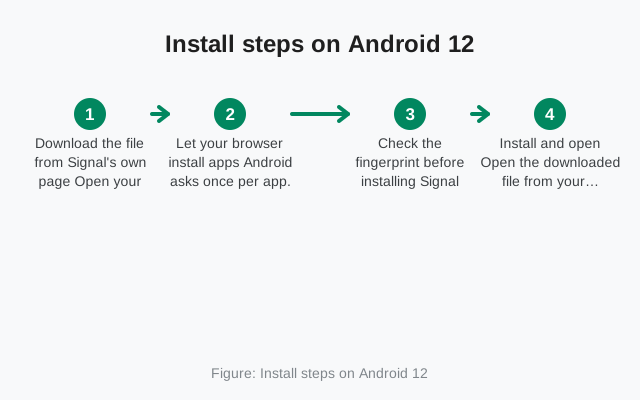
Get the APK from Signal's own page
In your browser, open signal.org/android/apk and download the file. Do not use mirror sites. The whole point of the website build is that it comes from Signal. The filename ends in
.apk; on a slow connection, our mobile-data tips help.Grant the install permission
Tap the downloaded file. Android 12 will ask you to allow your browser to install unknown apps. Tap Settings in the prompt, or go to Settings → Apps → Special app access → Install unknown apps → your browser → allow. Keep this scoped to the browser only; there is no reason to allow it for every app on the phone.
Install, verify, register
Tap Install, then open Signal and register your number. Before you settle in, verify the file: the SHA-256 fingerprint printed on signal.org/android/apk must match the signing certificate of your download. Our verification guide covers the how on phone and computer.
Walk through first-run setup
Enter your number, type the SMS code, and restore a backup if you have one. The screens are covered in order in our first-run setup guide.
The mic/camera dot and privacy dashboard
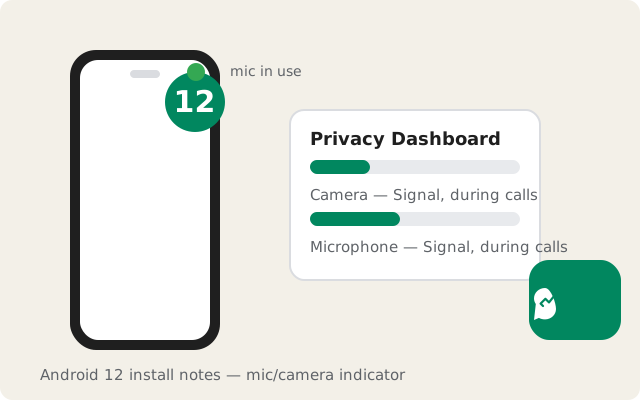
The most visible Android 12 change is the green dot in the status bar whenever the microphone or camera is active. When you are on a Signal call, you will see it. That is Android confirming what you already know. Swipe down the quick-settings panel and you will see a chip naming the app currently using the mic or camera; tap it to see the details.
Sitting behind that dot is the privacy dashboard (Settings → Privacy → Privacy dashboard), which shows a timeline of which apps used the camera, microphone, and location over the past 24 hours. After your first Signal call, you will see Signal listed under microphone and camera usage. That is normal and expected. If you ever see Signal listed at a time you were not calling, that would be worth investigating, but in practice the dashboard just confirms the app behaves.
There is a practical privacy habit worth building here: Android 12 lets you kill mic and camera access system-wide from the quick-settings tiles. If you toggle the microphone off globally and then wonder why nobody can hear you on a Signal call, the app is not broken. Check the quick-settings tile first. It catches more people than you would think.
App hibernation: re-open Signal after long gaps
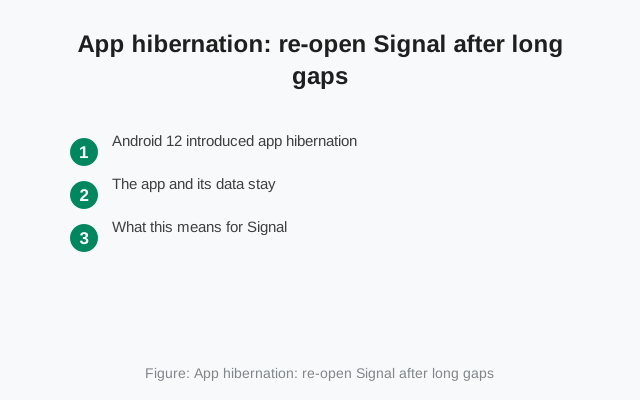
Android 12 introduced app hibernation, and it is the single most common reason Signal "stops working" on a phone that sat unused. If you do not open an app for several months, Android hibernates it: it resets the runtime permissions, clears temporary files and cache, and stops the app from running jobs or sending notifications in the background.
On your daily phone this never happens. On the backup phone in the drawer, the travel phone, or the old device you keep as an emergency contact line, it absolutely can. The symptoms are always the same: Signal looks installed, your account is still there, but no messages arrive until you open the app. When you open it, a stack of permission prompts appears.
The fix takes a minute: open Signal, re-grant the permissions it asks for, and you are back. But the smarter move is prevention. For any phone where Signal is a lifeline even when rarely used, go to Settings → Apps → Signal → and switch off Remove permissions and free up space (the exact wording varies by skin; on Pixel it lives under "Unused apps"). That single toggle opts Signal out of hibernation entirely.
One caveat: opting out of hibernation does not exempt Signal from the battery-optimization rules in the next-but-one section. You still want background activity unrestricted if timely messages matter on that device.
Location permission: Signal doesn't ask
Here is a refreshingly short section: Signal does not ask for your location. Not on Android 12, not anywhere. If an install guide tells you to grant Signal location access, it is wrong, or you are looking at a fake app. Our fake Signal APK guide explains how to spot impostors.
The only time location enters the picture is when you choose to share a live location inside a chat. At that moment Android asks for location permission scoped to that action. Android 12 gives you the approximate location option, which shares a fuzzy area instead of your exact coordinates. For sharing "I'm in this neighborhood" with a friend, approximate is the right call; exact location is only needed if someone is navigating to your door.
So if you see a location prompt during a normal Signal install, stop and read it. Either another app is asking, or something is off. Signal's own permission needs are covered in our full permissions guide: camera, microphone, contacts, notifications, and media access. Location is not on the list.
Notifications on Android 12
On Android 12, apps get notification access by default. There is no runtime notification permission prompt yet (that arrived in 13). So if Signal's notifications are not working on 12, the problem is never "you denied a prompt." It is one of three things:
- Notification channels. Settings → Apps → Signal → Notifications shows per-channel switches for messages, calls, and failures. If messages buzz but calls do not ring, a single channel got silenced. Check them individually rather than the master switch.
- Do Not Disturb rules. Android 12's DND can be scheduled per-day now, and some phones ship with a bedtime DND enabled. Signal cannot punch through DND unless you allow it under the DND exceptions.
- Battery optimization. By far the most common cause. See the next section. Late notifications and battery optimization are the same problem wearing different clothes.
Android 12 also redesigned notification visuals: larger app icons, expandable conversations, snooze on a swipe. None of that changes function. What matters is that the channels are on and the battery setting is right, and then Signal behaves exactly like any other messenger.
Battery: keep Signal unrestricted
Android 12 is stricter than 11 about background work, so this setting matters even more here. If Signal's messages only arrive when you open the app, the cause is almost certainly battery optimization putting Signal to sleep.
The path: Settings → Apps → Signal → Battery, and set it to Unrestricted (wording varies: "Allow background activity" on some skins). This tells Android to leave Signal's background connection alone. Leave it on "Optimized" and the system will cheerfully delay your messages to save a few percent of battery.
Brand-specific extras on Android 12:
- Samsung (One UI 4): also check Settings → Battery → Background usage limits. Make sure Signal is not in the sleeping or deep-sleeping apps list. Samsung's lists override the per-app setting.
- Xiaomi / Redmi / POCO (MIUI 13): enable Autostart for Signal (Settings → Apps → Manage apps → Signal → Autostart) and set battery saver to "No restrictions".
- Oppo / Realme / OnePlus (ColorOS/OxygenOS 12): App management → Signal → allow background activity and auto-launch.
- Pixel: the stock path above is enough; Pixels do not add extra app-killing layers.
After changing the setting, the test is simple: send yourself a message from another device and lock the phone. If it arrives within seconds with the screen off, you are done. Our battery and notification troubleshooting guide goes deeper if problems persist.
Updates and the signing-key warning
The website build keeps itself updated. It checks Signal's servers on its own and prompts you to install new versions, no Play Store involved. The current build is 8.29.3, and when 8.29.4 or 8.30 lands, the in-app updater will offer it.
During an update you may see Android ask you to confirm installing from an unknown source. That is expected for a sideloaded app. Confirm it. What should not happen is a signature error: "App not installed" or "conflicting signature" means something tried to install a differently-signed build over yours. That happens when people mix the website build with a Play build, or grab an APK from a mirror. The fix is never to force it: uninstall, re-download from signal.org/android/apk, and restore from backup.
To confirm which build you are running at any time, see how to check your Signal version, and our auto-update guide explains the updater's behavior in detail, including what to do when an update stalls.
Heads up. A signature-conflict error is Android protecting you from a tampered or mismatched file. Never "solve" it with a mirror-site APK. Re-download from Signal's own page.
Is Android 12 still supported?
Yes. Android 12 is fully supported by the current Signal website build, and will be for a long time. Signal keeps a long tail of Android support; a 2021-era OS is nowhere near any cutoff, and everything in this guide (registration, calls, stories, usernames) works on 12.
The honest caveat for Android 12 phones in 2026 is the same as for 11: the constraint is usually the hardware, not the OS. A phone with 2–3 GB of RAM will run Signal fine but may close it in the background under memory pressure, which is exactly why the battery-exemption setting matters. And if the phone stopped receiving security patches years ago, treat the OS itself as the weak link. Signal's encryption still holds, but keep the device updated wherever updates are still offered.
Frequently asked questions
Does the Signal APK work on Android 12?
Yes. Android 12 is fully supported by the website build (currently 8.29.3). Download it from signal.org/android/apk, allow your browser the install-unknown-apps permission, and install.
What is app hibernation and why did it break my Signal?
Android 12 hibernates apps unused for months: it resets permissions and stops background work. Open Signal and re-grant permissions to fix it, or switch off "Remove permissions and free up space" for Signal to prevent it.
Why is there a green dot during Signal calls?
That is Android 12's privacy indicator showing the microphone (or camera) is in use. It is expected during calls. The privacy dashboard (Settings → Privacy) logs the same usage.
Does Signal need location permission on Android 12?
No. Signal never asks for location. Only grant it (approximate is enough) at the moment you deliberately share a live location in a chat.