
Installing the Signal APK on an Infinix phone
Published: October 7, 2026 · Updated: October 8, 2026
Yes, Signal runs perfectly on Infinix phones. Despite what you may have read in a forum thread, there is nothing about XOS or HiOS that stops Signal from working. Infinix phones run Android, and Signal is an Android app. Grab the official APK from signal.org/android/apk (current website build 8.29.3), allow the install, and you are done in minutes. This guide covers the XOS/HiOS permission paths and the battery setting that keeps notifications working on Infinix's aggressive power management.
from Signal's official site — file hosted by Signal, not by us. signal.org/android/apk
Why use the APK on an Infinix?
Most Infinix phones ship with the Play Store, so you might wonder why you would sideload at all. Fair question. Here are the legitimate reasons:
- No working Play Store. Some regional variants and second-hand phones arrive without Google services working properly.
- You want the website build. The APK from signal.org updates itself without Google. That helps if you are de-Googling or your Play account is a mess.
- Staged rollouts. Play Store rollouts reach different regions on different days; the website build is the same for everyone, immediately.
- Testing and reinstalls. A fresh APK is the fastest way to reinstall cleanly when troubleshooting.
If the Play Store works fine for you and you have no reason to avoid it, installing Signal from the Play Store is perfectly good. This guide is for everyone who needs, or prefers, the direct APK.
A practical note on storage before you download: many Infinix phones in the Hot and Smart series ship with 64GB or 128GB of storage, and budget phones fill up fast with preinstalled apps. The Signal APK itself is well under 200MB, but Android needs breathing room to download and install. Keep at least 1GB free. Check at Settings → Storage. If space is tight, clear cached data or move photos to an SD card first; a download that silently stalls halfway is the most common "install failed" cause on full phones, and it has nothing to do with Signal.
Myth check: "Signal doesn't support Infinix"
Let us kill this one directly: there is no such thing as Signal "not supporting" a phone brand. Signal supports Android (and iOS). Infinix phones run Android. That is the whole story.
Where does the myth come from? Usually one of three confusions: someone's sideload failed for an unrelated reason (corrupt download, storage full) and they blamed the brand; a preinstalled "security" app flagged the APK and they read that as incompatibility; or they tried to install an iPhone-only or fake "Signal Pro" file. None of those are about Infinix. The official APK installs on Infinix exactly the way it installs on a Samsung or a Pixel. The only differences are menu names, covered below.
Step-by-step install
-
Download the official APK
Open signal.org/android/apk in your browser and download the file. Current website build: 8.29.3, package
org.thoughtcrime.securesms. -
Allow unknown-app installs
Open the file; XOS/HiOS will ask for permission. The exact path is in the next section.
-
Verify the fingerprint
Compare Signal's published SHA-256 fingerprint against your file before installing. Details below.
-
Install and open
Tap Install, then Open. On "App not installed" errors, see the fix guide. It is usually a conflicting build, not your phone.
-
Register your number
Enter your number, wait for the SMS code, and set up your profile and PIN (details below).
Allow unknown-app installs on XOS
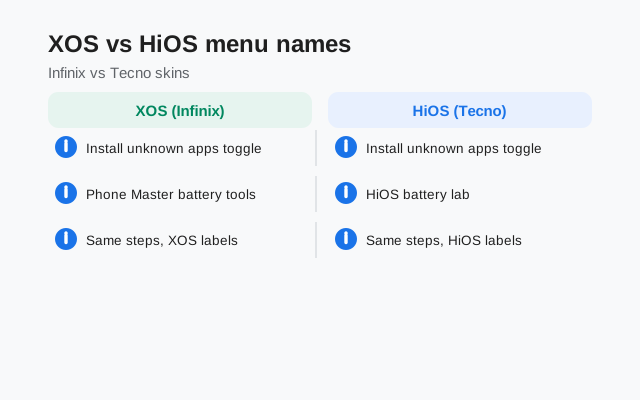
Infinix ships two software lines, XOS (most current phones) and HiOS (older models), and they label the setting slightly differently:
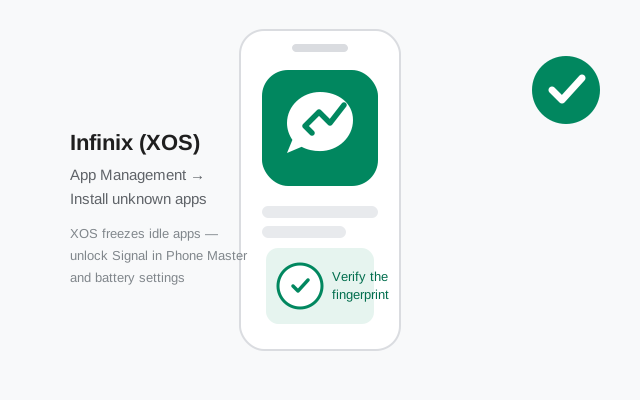
- XOS: Settings → App Management → Special app access → Install unknown apps → choose your browser → Allow.
- HiOS: Settings → Security → Install unknown apps → choose your browser → Allow.
If you open the APK file directly, the system usually jumps you straight to the right screen. You just flip the toggle for your browser and go back. Grant it only to your browser or file manager, and feel free to revoke it after installing.
One XOS-specific download tip: XOS ships with a system download manager and some models route downloads through it aggressively. If your APK download stalls or the file will not open, try downloading again in a different browser (Chrome or Firefox) with any "data saver" or turbo mode turned off. Proxy-compressed downloads occasionally corrupt APK files. Also disable any ad-blocker VPN during the download if the page will not load; you can turn it back on afterward. A clean, complete download is verified by its file size looking sane (tens of MB, not a few KB) and, properly, by the fingerprint check in the next section.
XOS vs HiOS: menu names compared
| Setting | XOS path | HiOS path |
|---|---|---|
| Install unknown apps | Settings → App Management → Special app access → Install unknown apps | Settings → Security → Install unknown apps |
| Battery / background | Settings → Battery → Battery saver / app exceptions | Settings → Battery → Power saving management |
| Notifications | Settings → Notification Center → Signal | Settings → Notifications → Signal |
| Autostart | Phone Master / Settings → App Management → Autostart | Settings → App Management → Autostart |
One more XOS behavior to know about: Power Marathon / Ultra Power Saving mode. When enabled, it freezes nearly every background app including Signal. Messages will not arrive until you open the app. This is by design for extreme battery saving, so do not troubleshoot notifications while it is on. Also check for scheduled power saving (Settings → Battery), which can kick in overnight and produce the classic "no messages until morning" symptom. Both are fine features; they just need to be off, or configured with Signal exempted, for a messenger to work.
Verify the APK fingerprint
Signal publishes the SHA-256 fingerprint of its signing certificate on the download page. After downloading the APK:
- Open signal.org/android/apk and find the fingerprint printed on the page.
- Check the signing certificate of your downloaded file. Our verification guide covers phone and computer methods.
- Compare character by character. Any mismatch, even one character, means the file did not come from Signal: delete it and re-download from the official page.
This check is what makes sideloading safe. Our sideloading safety guide explains why the fingerprint, not the download source's reputation, is the thing that actually protects you.
XOS battery settings: the notification fix
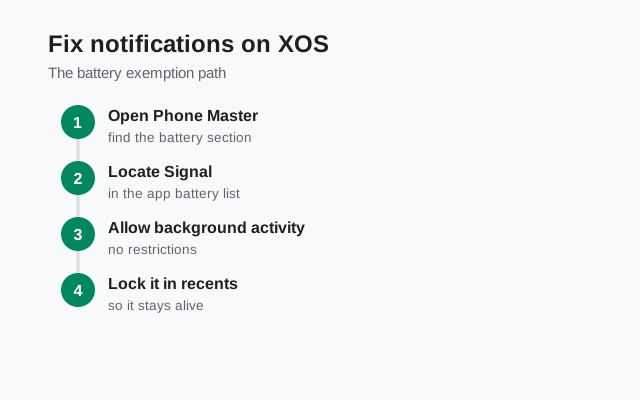
This is the section Infinix owners actually need. XOS is aggressive about freezing background apps to extend battery life, and Signal's background connection is a favorite target. The fix is a short checklist:
- Exempt Signal from battery saving. Go to Settings → Battery and look for battery-saver exceptions, "Power Marathon" settings, or per-app battery options. Add Signal to the allowed list.
- Allow autostart. In Phone Master (or Settings → App Management → Autostart), enable autostart for Signal so the system does not keep it frozen after a reboot.
- Lock Signal in recents. Open the recent-apps view, find Signal, and lock it (tap the lock icon on its card). Locked apps are not swiped away and killed.
- Check notifications. Go to Settings → Notification Center → Signal and confirm notifications are allowed with sound.
Then test: have someone message you with the screen off for five minutes. If messages arrive on time, you are done. If they are still delayed, our notification troubleshooting guide walks through the remaining causes.
A dual-SIM note, since most Infinix phones have two SIM slots: Signal registers one number per install. Decide which SIM should receive the verification SMS before you start, and make sure that SIM is active with mobile signal. The code cannot arrive on a SIM that is disabled or out of credit. If your data SIM and your "main number" SIM are different, that is fine; registration only needs the SMS to reach the number you type in. Set the default SIM for SMS under Settings → SIM & network if the code seems to go missing, and see SMS code troubleshooting for the rest.
Register and first-run setup
Registration works the same on Infinix as everywhere else:
- Enter your phone number with the country code.
- Wait for the SMS code. If it does not arrive within a couple of minutes, use the voice-call option. See SMS code troubleshooting.
- Create your profile, set a PIN, and review privacy settings.
- Restore from a Secure Backup if you are moving from another phone.
After setup, walk through our post-install security checklist and our first-run guide. Ten minutes now saves real headaches later.
Next steps: get the file from the official Signal APK download page, and keep it current with our APK update guide. The website build updates itself, no store needed.